
Want to create your own restaurant order form so customers can place food orders online for takeout or delivery?
Using a digital order form on your website will help you display your entire restaurant menu cleanly. This creates an experience where your customers can view important details, select variations, and place food orders quickly on a single screen.
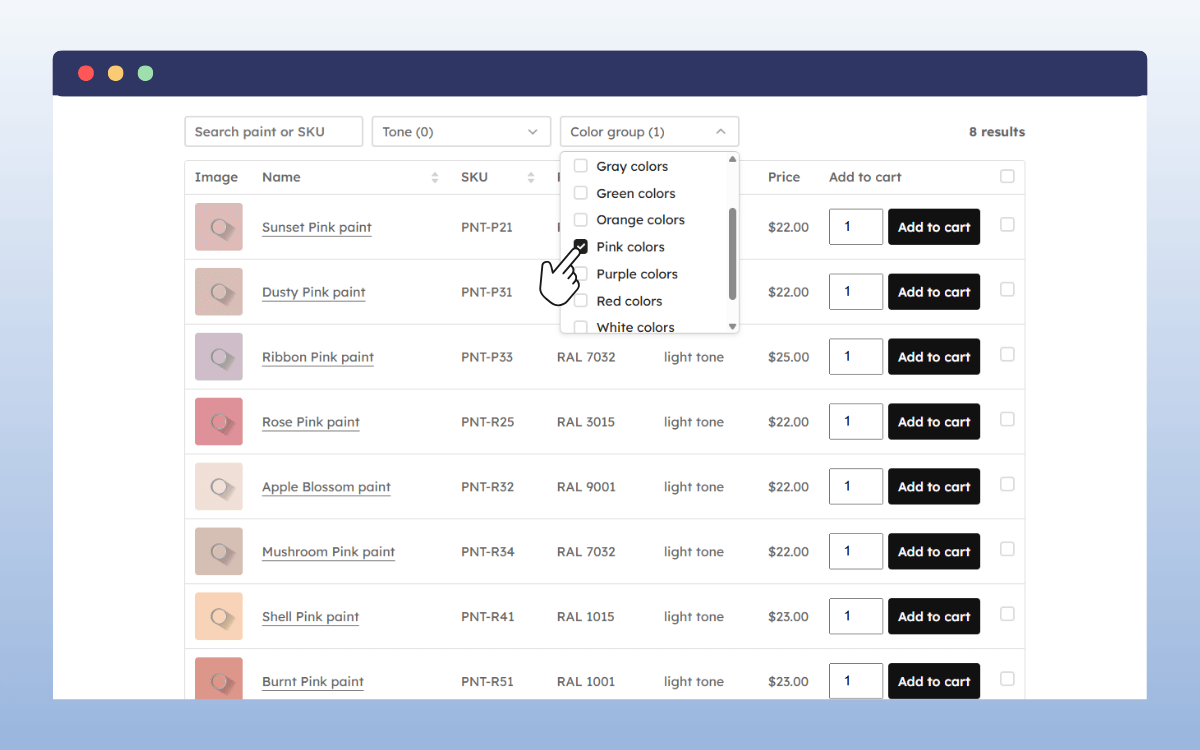
In this guide, we’ll walk you through creating this type of experience for your customers on your WordPress website using WooCommerce Product Tables. The best part? It doesn’t take too much work.
Here’s what we’ll cover:
- What a restaurant order form is.
- The benefits of an order form for your restaurant business.
- The best WooCommerce plugin for your order form for the job.
- How to set up a restaurant order form using WooCommerce Product Tables.
First, let’s go over what a restaurant order form actually is and why it’s important.
What is a restaurant order form?
A restaurant order form is a structured form that captures all the details a customer needs to browse and buy food items online. They don’t have to click through multiple product pages for each food item to find what they want to order. Everything they need to make a decision appears in one organized layout.
Two main formats
Visually, this order form comes in two major formats:
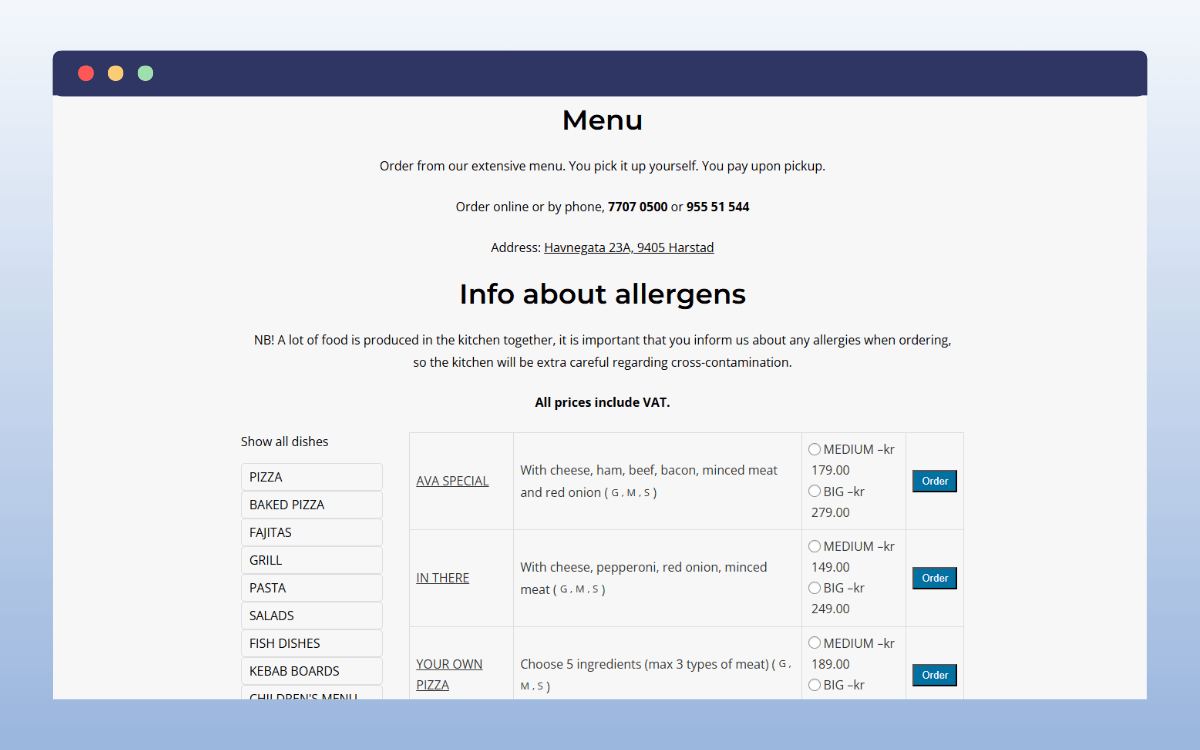
- A table format. This layout uses columns like food image, name, description, price, variations (options or add-ons), quantity, and an ‘add to cart’ button. It’s the most common setup for e-commerce-style menus because everything appears on a single screen. A good example is AVA Bar og Spiseri, but without photos and very basic. It uses simple table layouts and menu categories like pizza, fajitas, pasta, fish, and grilled dishes to streamline browsing.
- List view. This is very common, especially for mobile and visually-driven menus. It focuses on the card or tile layout, with a high emphasis on visuals. You can easily create one using an online order form template. Fireaway Pizza is a good example of a local restaurant using a grid or list view format to showcase its food items.
We’ll show you how to create an even better table version of an actual restaurant order form that people will pick food items from. But first, let’s look at the benefits of creating it for your delivery order business.
What are the benefits of using a restaurant order form for your food order business?
Creating a restaurant order form helps keep your ordering process simple, organized, and predictable. As a food business owner, if you switch to this specific format of listing or selling products online, here are some of the main benefits:
- Faster ordering. Your customer can quickly find what they want to order in one place without clicking in and out of multiple product pages.
- Easy bulk and group orders. If someone needs to order 10 different items or 5 of the same item for their family members, colleagues, etc., they can do it all at once by selecting multiple items or entering quantities. This is particularly useful for things like catering order forms.
- Better organization of your menu. You can create a table for each food menu category or one big table that contains all your food items. Then let customers use filters and search to find what they want on one page.
- Easy management of options. Order forms let you easily manage complex options and variations right in the table using a pop-up window. This lets the customers see all their choices immediately.
- Increased sales and average order value. Displaying more items, options, and variations in a single, smaller space can encourage customers to add more to their cart.
- Higher customer satisfaction. When ordering is fast, easy, and accurate, customers are happy.
Generally, a restaurant order form helps customers save time and find what they want to order with minimal friction. It also gives your restaurant a more professional and user-friendly feel.
How to create a food order form for your restaurant?
When creating a food order form, the most reliable setup is WordPress, WooCommerce, and a product table plugin.
We recommend WordPress because it provides a reliable, flexible foundation that you can fully control as your restaurant grows.
You can use it to create an underlying WordPress site for your restaurant site. Once your site is in place, add WooCommerce (the e-commerce plugin), which allows you to manage menu items and categories, as well as process payments and manage customer details.
What WooCommerce doesn’t offer by default is a proper order form layout. The kind where customers can browse, choose items, and place orders without friction. To build this seamless experience without manual work from you, you’ll need a plugin. That’s where the WooCommerce Product Tables plugin comes in.
What is the best WooCommerce plugin for restaurant order forms?
Adding a product table plugin is the easiest way to turn a basic WooCommerce menu into a real restaurant order form.
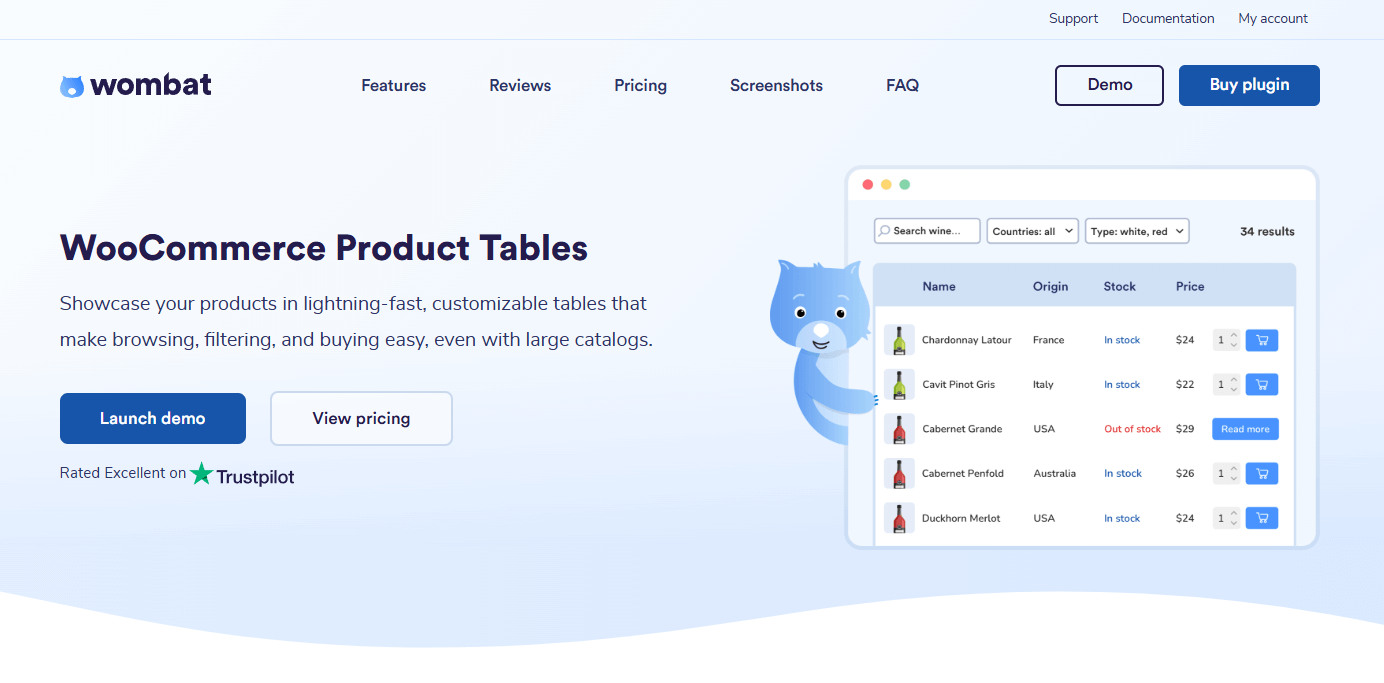
WooCommerce Product Tables is built for this purpose. It allows you to display your entire food menu in a clean, structured table that’s easy for customers to scan and sort. This creates a simple, one-page ordering experience where customers can browse dishes, choose options, and add items to their cart without navigating too much around the site.
With WooCommerce Product Tables, you can:
- Show your menu items in a compact layout that highlights images, prices, short descriptions, and variations.
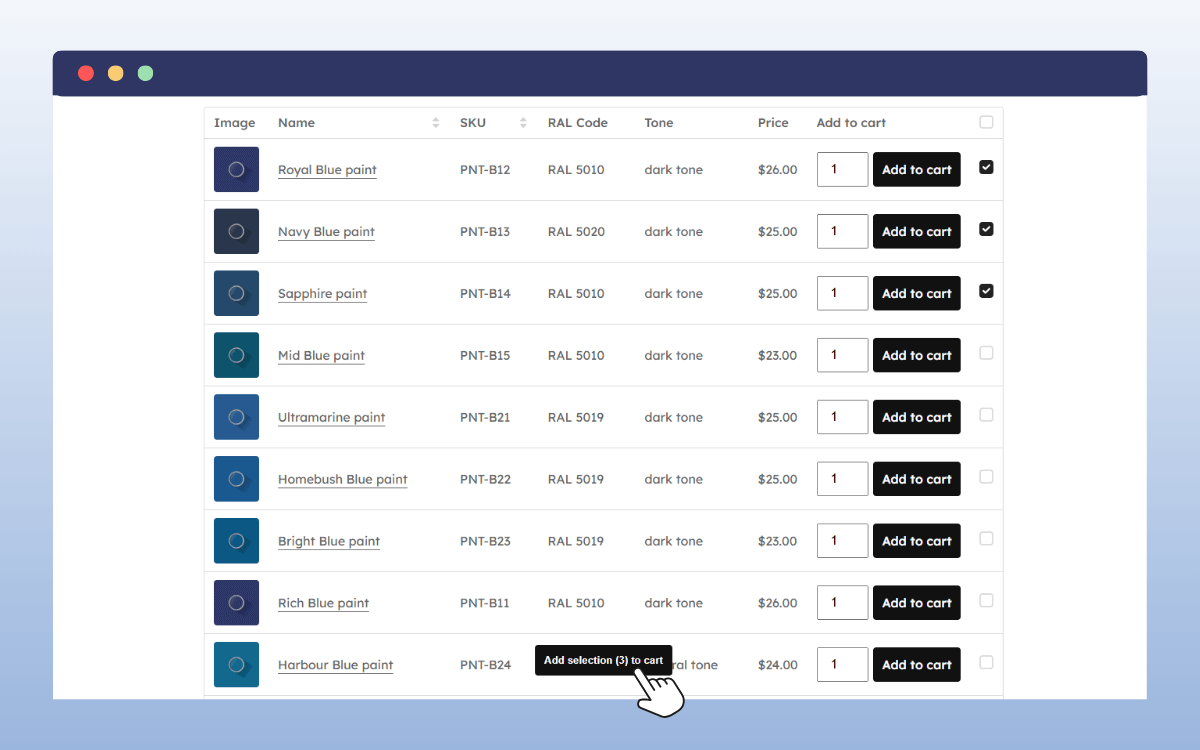
- Allow customers to add multiple items to their cart at once. This is ideal for group or family orders.
- Let customers select various options, toppings, add-ons, or extras directly from the table.
- Keep everything fast and consistent with instant search and filters, even if you have a large menu.
- Style your tables to match your store’s branding with built-in design settings.
What makes this plugin stand out
Here are the main reasons why WooCommerce Product Tables works well for a restaurant order form:
- Full customization with the form builder. You can control exactly how much information to show in your menu. This way, you control how quickly someone can decide what to buy.
- One-page ordering. Your customers can place full orders without going back and forth between product pages.
- Flexible layout options. It works whether your menu is small and simple or large and category-heavy.
- Fast performance. Built with lightweight code that can handle large food menus without slowing down your store, even during busy ordering hours.
Whether you’re a new or established restaurant looking to improve your digital ordering experience, using a WooCommerce Product Tables makes it easy to display your full menu, streamline orders, and keep everything integrated with WooCommerce.
Next, let’s set up our restaurant order form.
How to set up a restaurant order form using WooCommerce Product Tables
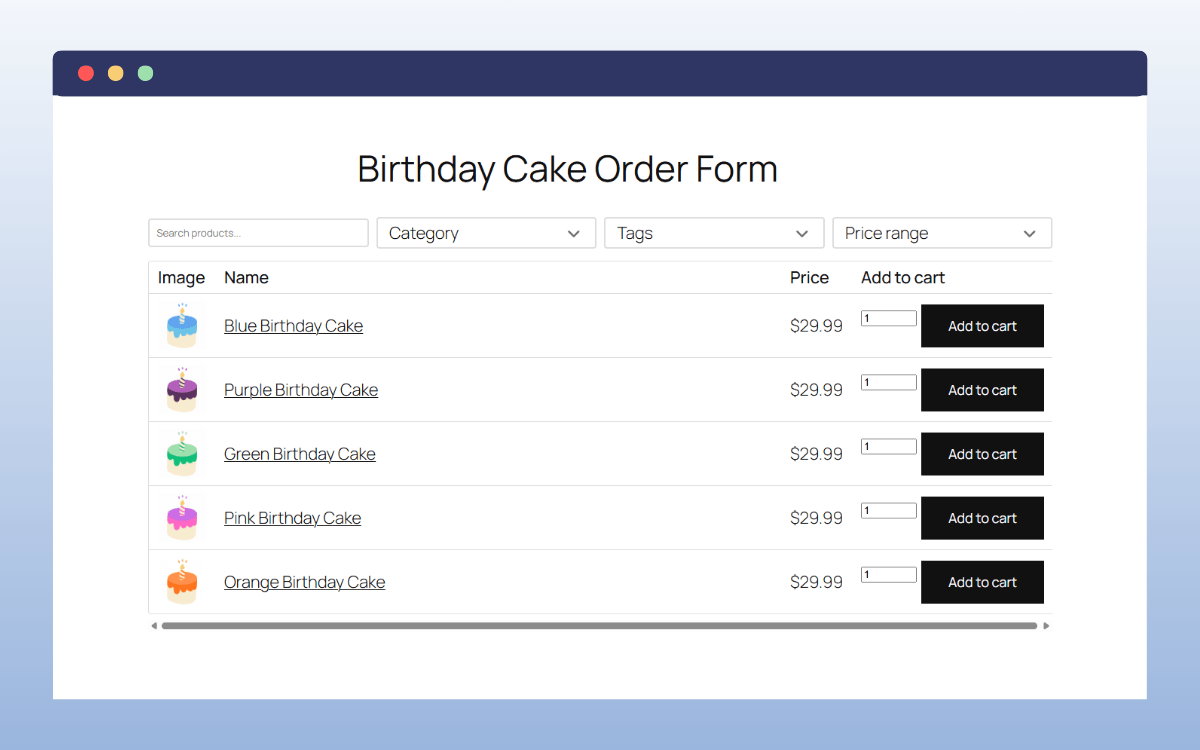
For this tutorial, we’ll create a simple cake order form for a bakery. This should paint the whole picture for your specific type of restaurant.
At this stage, we’ll assume:
- WooCommerce Product Tables is installed and activated.
- You have your products added to your site.
- You’ve added your cake items into various categories like birthday, cupcakes & muffins, classic cakes, etc., using WooCommerce.
Quick tip: If you haven’t installed the plugin, read this guide on how to install WooCommerce Product Tables.
Step 1: Create a product table
The whole process of creating a form is intuitive and is broken down into simple, guided steps.
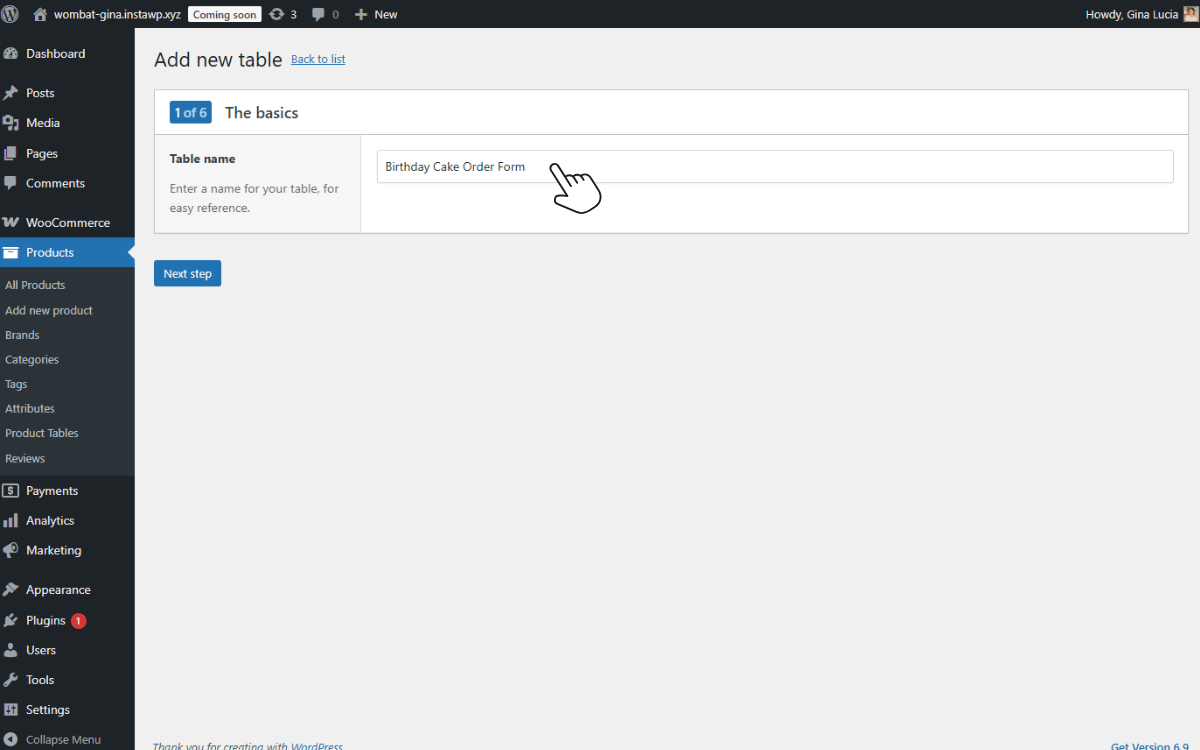
- So, from your WordPress dashboard, go to Products → Products Table and click Add New or Create a Table.
- Give your table a clear name. For example, Birthday Cake Order Form. This name is for your reference only.
- Once you’ve named your table, click Next Step to continue.
Step 2: Choose which menu products to display
There are generally two important options you have at this point to decide how your products will appear in the table. You can choose to:
- Show all products. This option lets you add all cake items in your store.
- Show only selected products. This lets you choose specific cake categories, tags, attributes, and stock statuses.
For instance, in our example, we’re creating a simple order form specifically for customers who want to buy birthday cakes. We would select Show only selected products and choose only items from the ‘Birthday’ category.
If you’re creating a cupcakes & muffins order form, then you select only items from that category.
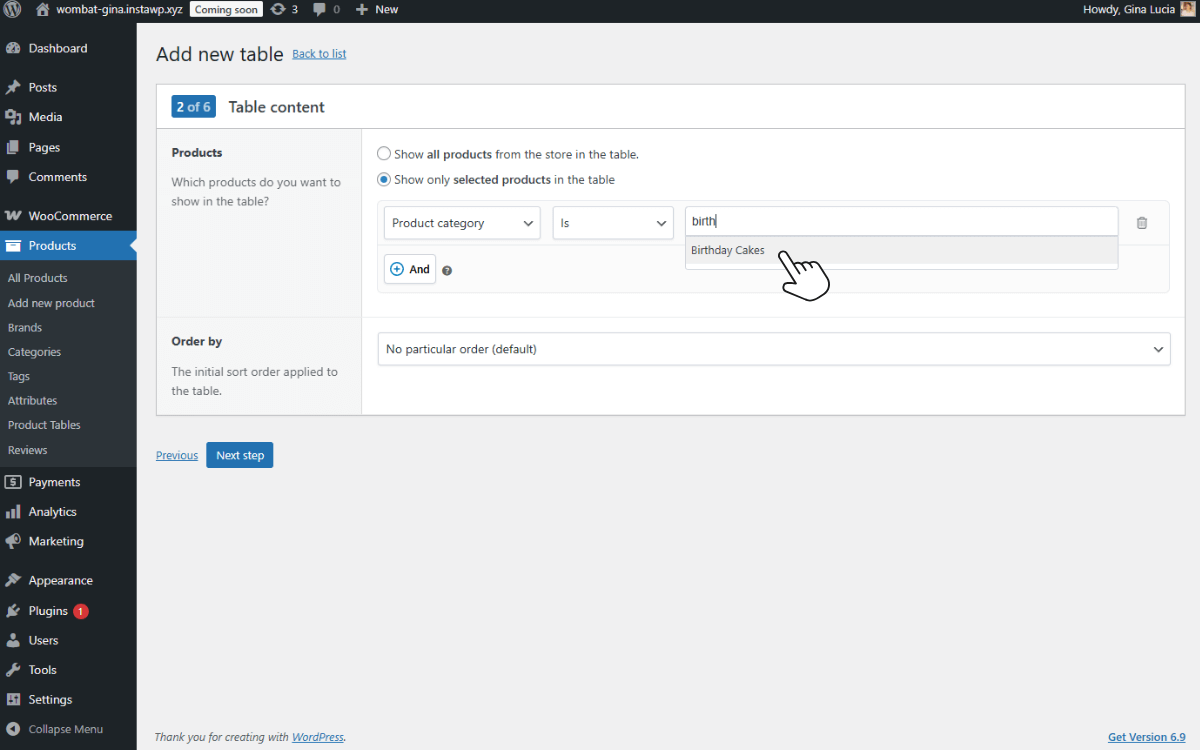
Why is this important? Because it prevents your customers from seeing unrelated items. They only see the relevant menu items they want to buy.
During step 2, you can also:
- Set the sort order applied to your table. For example, you can choose to sort your table by Name, ID, or Date.
- If you want to, you can combine multiple conditions using the AND button.
When you’re done, click the Next Step.
Step 3: Add new columns to your table
This is the step of your food order form where you decide what information you want your customer to see and in what order.
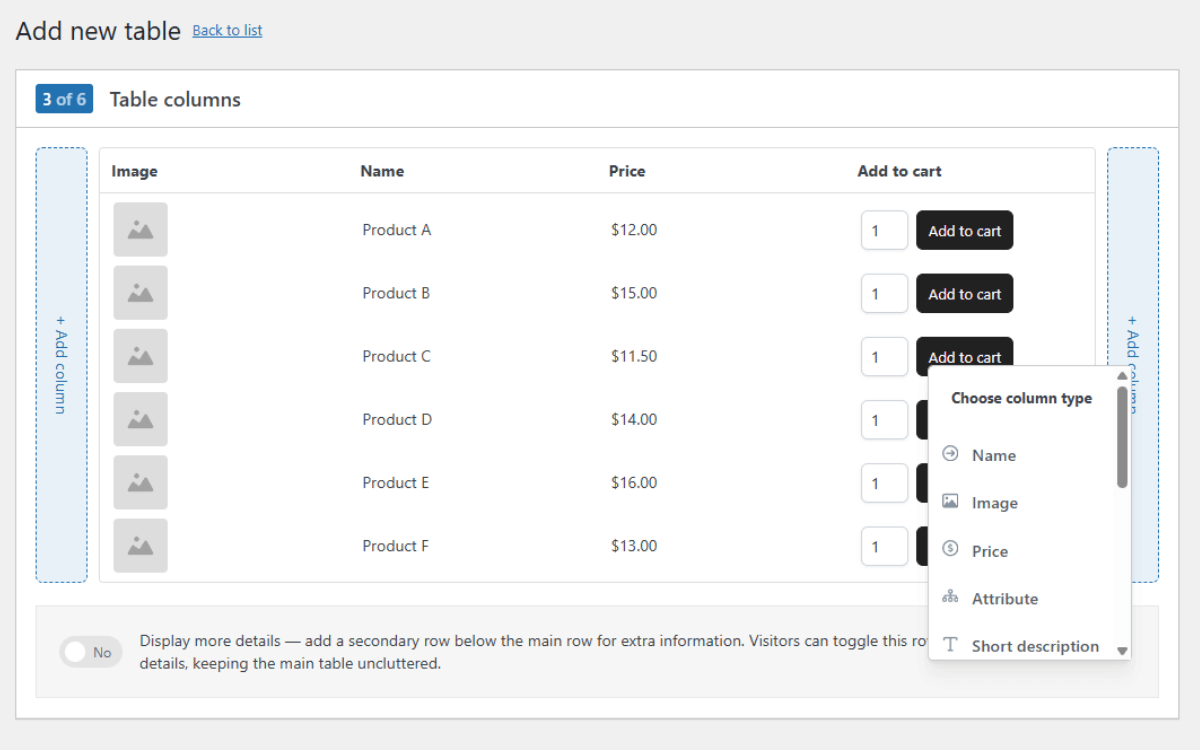
- By default, you’ll see Image, Name, Price, and Add to Cart, but you can add or remove columns on either side of the table.
- Click the +Add Columns button to add the columns needed for quick ordering. This depends on what your restaurant offers. For example, a cake order form, some essential columns could be:
- Image (to show the cake)
- Name
- Short description (A brief one-line summary)
- Options/variations (e.g., size, flavor, or layers)
- Price
- Quantity
- Add to Cart button.
- You can also drag and drop to reorder the columns if you want to. This removes unnecessary columns to keep the form clean and fast.
- If there’s additional information you want the customer to know about an item, you can also add a Details row below each menu item. This lets customers view extra info like ingredients or a full description without cluttering the main table view. It will appear as a dropdown.
- Click Next Step once your columns are perfectly set up for ordering.
Step 4: Customize your table header with search and filter options
Categories, prices, attributes, and tags are all filter options you can add to your cake products. Adding the search and filter functionality can help customers quickly find specific items they want to buy.
To do this:
- Start by picking a row layout. Choose how your search and filter boxes should be arranged at the top of the table.
- Next, click the Add Item link to insert controls that help filter your cakes. These include:
- Keyword search. Adds a search box so customers can type a specific keyword, like the product name.
- Category filter. If you added all items in your store to a table, you can let customers narrow down the view instantly with categories like ‘Birthday’ or ‘Cupcakes.’
- Tags filter. Crucial for dietary needs. This allows diet-conscious customers to filter the whole table with tags like nut-free, vegan, or gluten-free.
- Prices filter. Useful if you offer items across a wide range of prices.
- If your restaurant menu is small or limited, you can skip this step entirely to keep the order form minimal and direct.
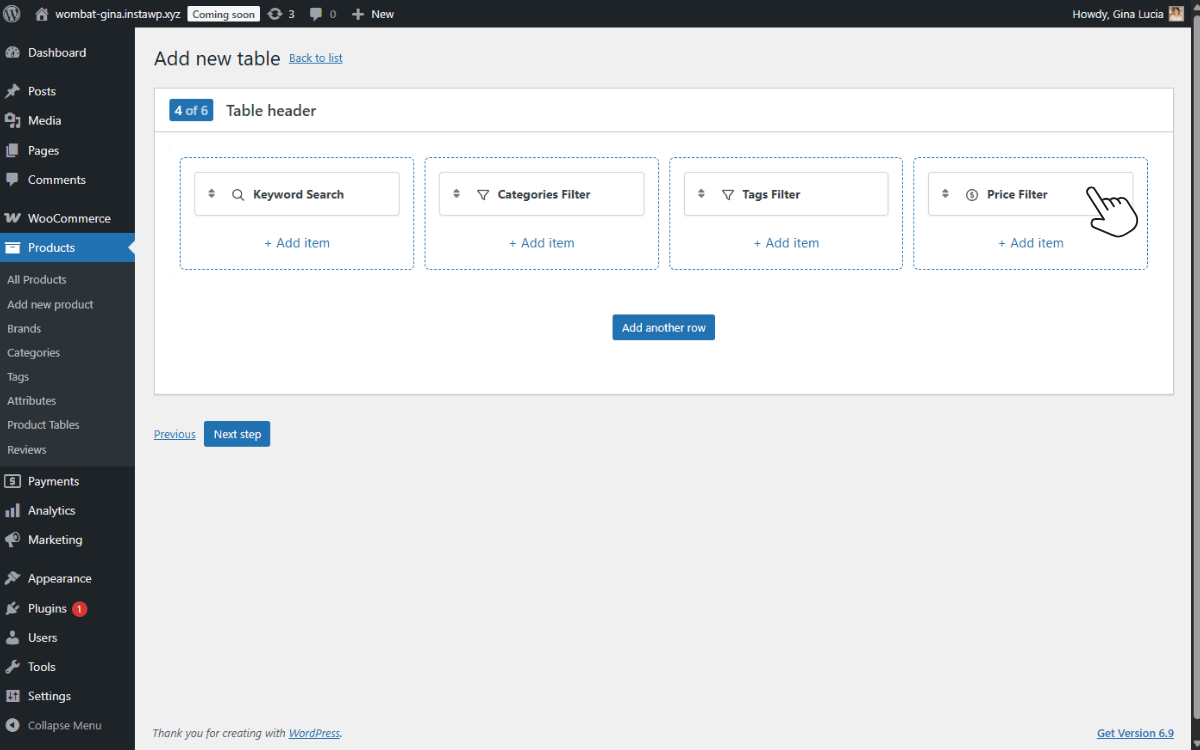
When you’re done setting up your filter controls, click the Next Step to proceed.
Step 5: Optimize your order form for performance
Our plugin offers three performance settings to help make your tables load quickly and easily navigable. And this comes in handy, especially if you have a large inventory of products to sell online.
The performance settings include:
- Paginate results. Always enable this option. This will automatically break your online order form into multiple pages, so there isn’t as much for one page to load.
- Products per page. Set a manageable number of products here. Anywhere between 25-50 items per page is a good number. This balances viewing convenience with fast loading times.
- Lazy load. Enabling lazy load delays loading the table content until after the rest of the web page has finished. This keeps your overall site load time fast and ensures a good customer experience.
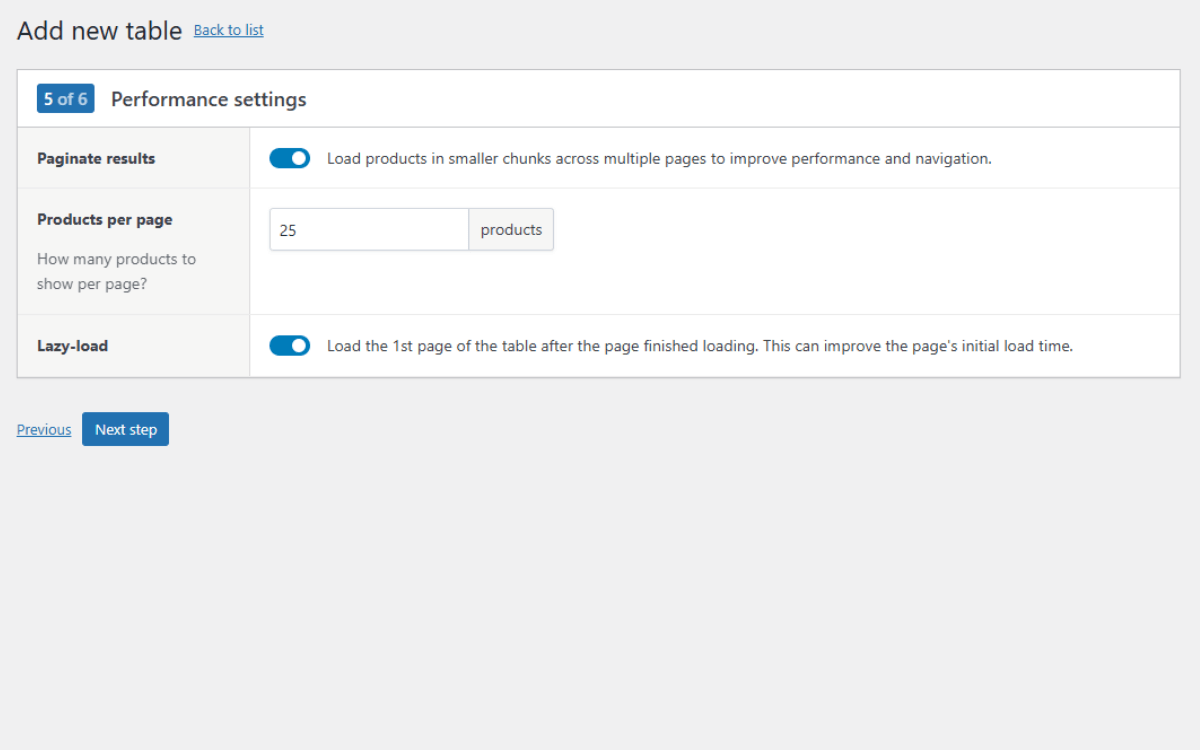
By implementing these settings, your online order form will always remain fast and responsive. This is regardless of how many items you add to your menu over time.
Click Next Step to move to the final settings.
Step 6: Customize design and display settings to make things work perfectly
At this point, we have a working restaurant order form you can fine-tune its appearance and behavior further using the following settings.
- Choose how variations appear. Let’s say you created a pizza order form. You can choose to display variations like small, medium, or large as a simple dropdown list or as separate rows.
- Use pop-ups for complex customization. For extra options, such as toppings, crust type, sauces, and spice levels, integrate with other plugins like Advanced Product Fields. This plugin opens a pop-up to select options and add to the cart.
- Enable a sticky header, so filters stay visible while scrolling through a long list of items.
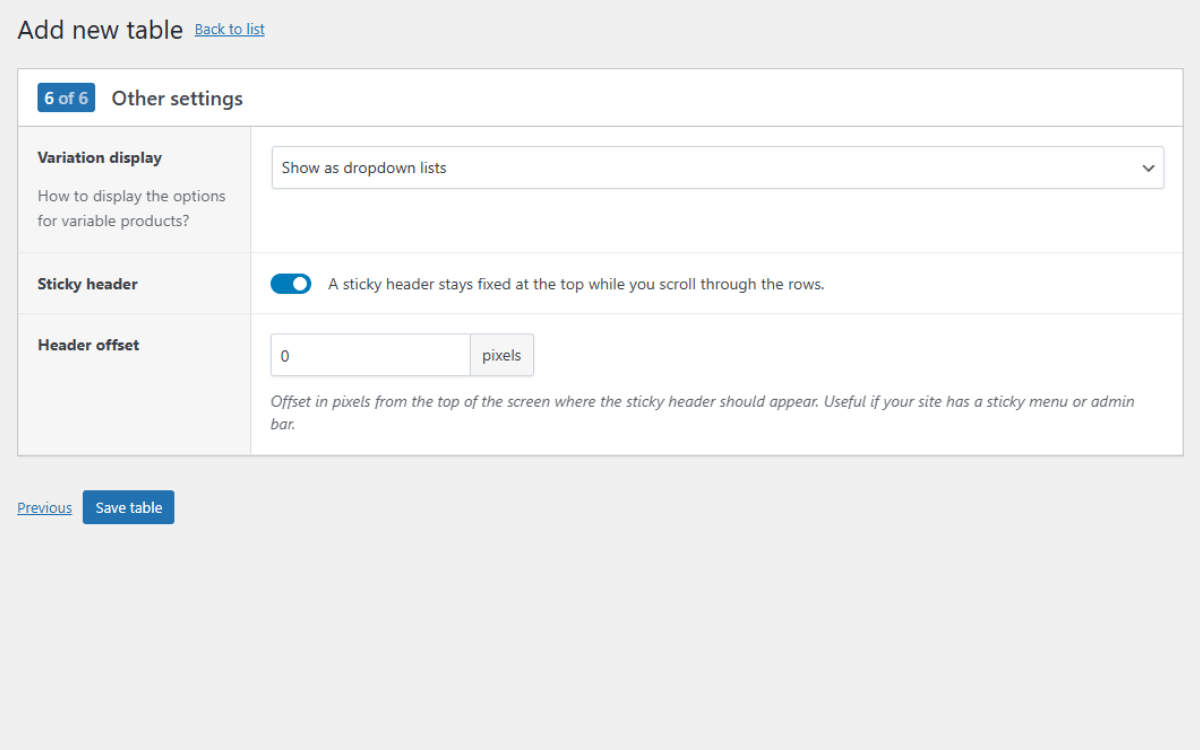
Customize your order form design (and add it to your restaurant website)
Next, we’ll customize our table’s look and feel to match your e-commerce store.
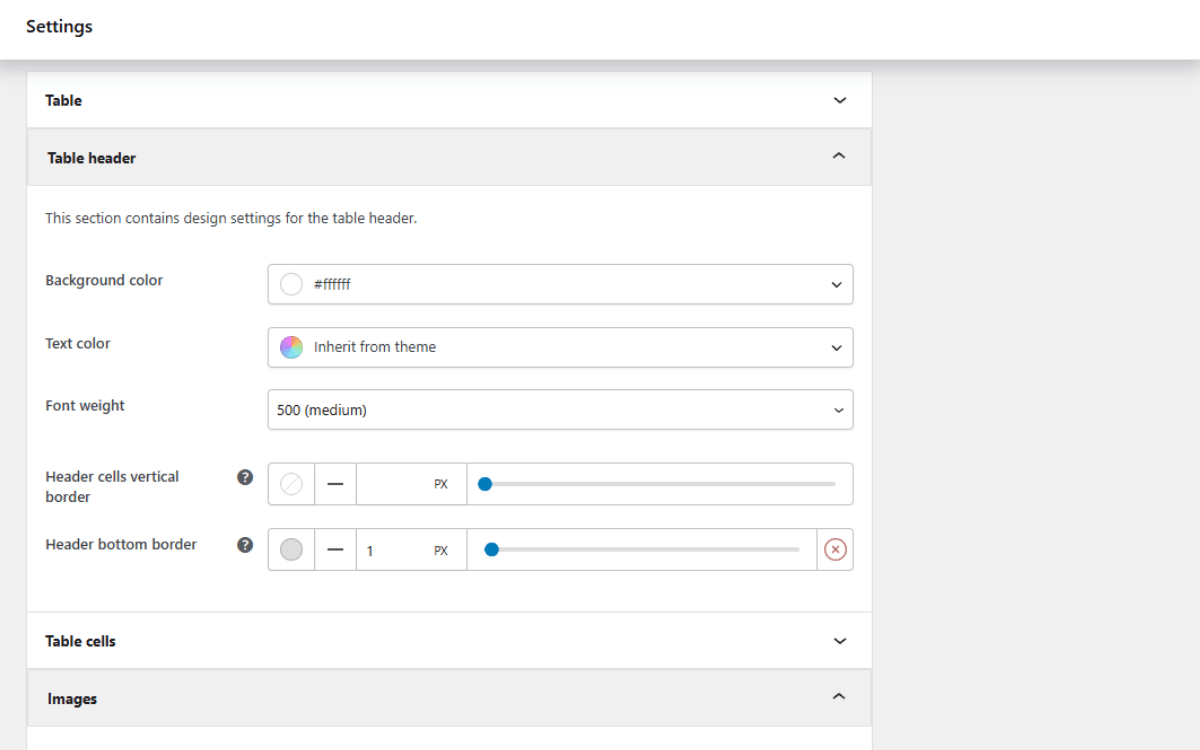
- Go to WooCommerce → Settings → Product Tables → Design to adjust colors, borders, fonts, and other styling to match your site.
- Click Save changes once you’re happy with the new look.
Once your design is set, we’ll need to add it to your site.
- From your WordPress dashboard, go to Products → Product Tables.
- Here you’ll find a shortcode you can copy and paste into any page or post to display your order form.
When you preview your product page now, you’ll see your order form live, complete with product images, prices, filters, and instant Add to cart buttons.
Do you have multiple menu categories to manage? Instead of cramming everything into one massive table, WooCommerce Product Tables lets you create separate order forms for different menu sections, catering items, or even pre-order menus. Just generate a shortcode for each form and place it exactly where you want it on your site.
FAQs about WooCommerce restaurant order forms
Still have questions about setting up or using restaurant order forms on your website? Here are a few of the most common ones to help you get started.
Can I take payment in a restaurant order form?
Yes. A WooCommerce restaurant order form connects directly to your checkout, so customers can pay using any payment gateway you’ve enabled. You can use credit cards, Stripe, mobile money, PayPal, or any local option supported in your country.
Can food and beverage order forms handle online payments securely?
Absolutely. WooCommerce uses the same security standards as most major e-commerce platforms. As long as your site has an SSL certificate and you’re using trusted payment gateways, payments made through a restaurant order form are encrypted and secure.
What information should be included in a restaurant order form?
Your form should show everything a customer needs to make a quick decision. This includes menu item, image, product name, short description, dietary info, ingredients, price, variations (like size or flavor), quantity, and an Add to Cart button. If you offer customization (toppings, spice level, sides), include those options directly on the form or via a pop-up. The goal is to keep everything visible in one place with no extra clicking.
Pro tip: Adding a custom notes field in WooCommerce to give customers a simple way to leave a special note or instruction for the kitchen.
Can these order forms work for both dine-in and takeaway customers?
Yes, a single WooCommerce order form can support multiple order types. Many restaurant owners use one form for dine-in pre-orders, another for takeaway, or simply add an “Order Type” field so customers can choose. This flexibility makes it easier for small businesses to manage different customer orders without using separate systems.
Does a restaurant need to use templates to build an order form?
Not necessarily. You can build a restaurant order form from scratch using WooCommerce Product Tables, customizing every column, filter, and option to fit your menu. However, using a pre-built order template can save time, especially for small restaurants, by giving you a ready-to-go layout that’s already optimized for fast customer ordering. You can then tweak it to match your menu, branding, and workflow.
Get to grips with restaurant order forms today
So there we have it. By following this guide, you’ll know how to create a restaurant order form and why it’s an essential tool for your business.
Essentially, a restaurant order form keeps your menu organized, reduces errors, and helps customers place orders quickly and confidently. It also makes the entire ordering process enjoyable, giving diners a clear and easy way to select exactly what they want.
With WooCommerce Product Tables, you can build fully customizable order forms in minutes, complete with filters, variation support, and instant Add to Cart functionality. This gives your diners a smooth, professional ordering menu layout.
