
If you want to create a product page where one option changes based on selections of another (like showing different sizes only when a specific color is selected), you have probably hit a wall with WooCommerce.
Standard WooCommerce variations cannot do this. They show every option at once, which makes your product page cluttered and confusing.
The good news is that you can fix this easily with a plugin like Advanced Product Fields for WooCommerce. This plugin adds smart, conditional logic to your product pages, allowing you to show or hide options based on what your customer selects. As a bonus, it’s more lightweight than creating a lot of variations inside WooCommerce!
This guide will show you exactly how to set it up, step by step. If you are new to the idea of conditional logic, our article on conditional logic for WooCommerce products is a great place to start.
The problem with WooCommerce variations
WooCommerce product variations are designed to manage simple product choices, like selecting a size (S, M, L, XL) or a specific color for a shirt.
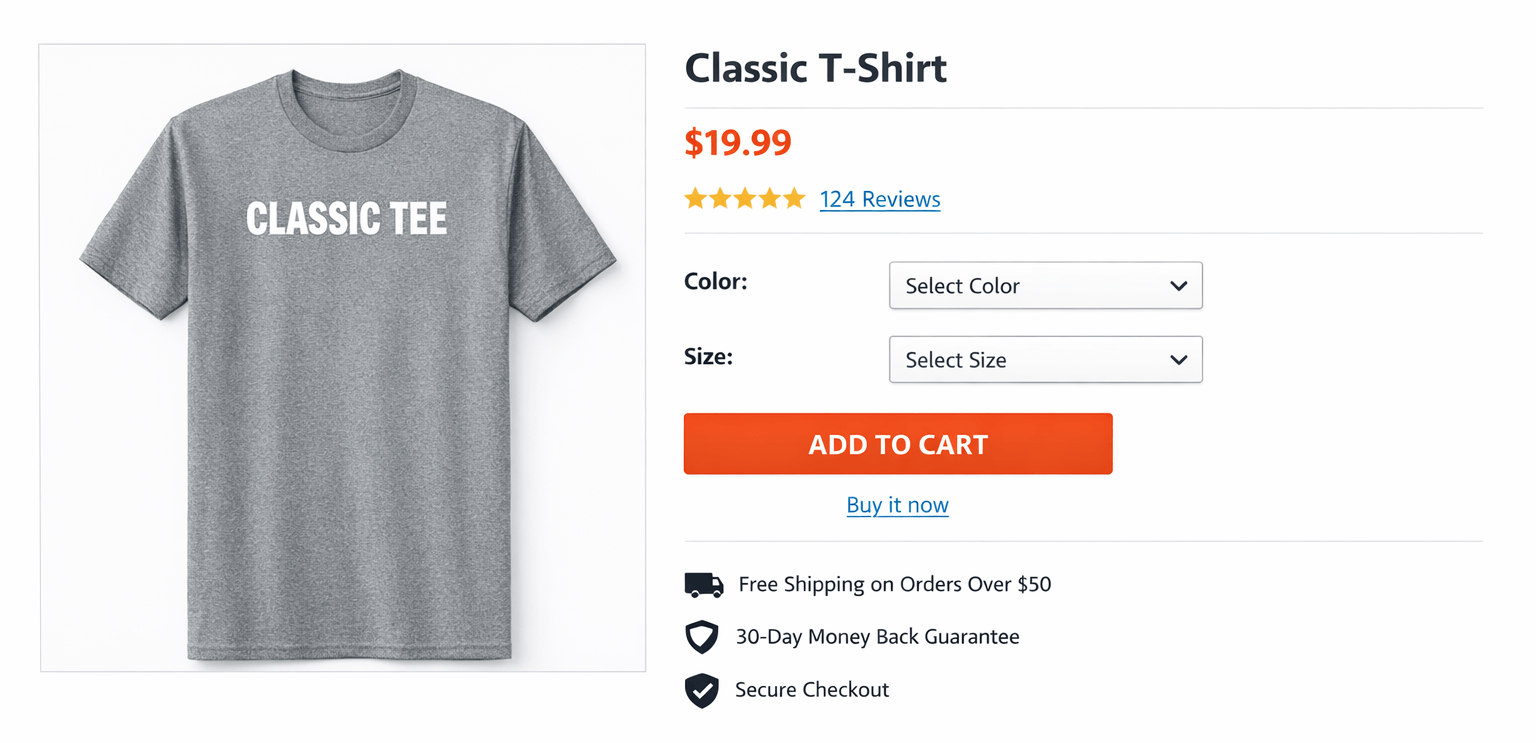
These options are called variations and they have their own configuration inside WooCommerce. This means you can add a product image, price, and stock. For example, A red XL hoodie costs $45 and has 12 in stock; a blue M hoodie costs $40 and has 8 in stock.
However, WooCommerce isn’t built to be truly dynamic. You can’t hide a ‘Color’ option and show it only when a ‘Size’ is selected. You also can’t make your colour choices change based on the size a customer picks.
The only native control you have is to mark specific combinations as ‘available’ or ‘not available’ in your admin settings.
The result: there’s no conditional logic, and no way to guide the customer through a smart selection flow like you see in many product configurators.
In short, WooCommerce variations are best if you have simple products that don’t require too many selections from the customer.
The fix: conditional logic with Advanced Product Fields
Since the standard WooCommerce variation system lacks the flexibility for truly dynamic options, the best way to add conditional logic is by using a dedicated product options plugin.
This is where Advanced Product Fields for WooCommerce (also known as APF!) comes in. It’s designed to help you build a smarter, more interactive shopping experience by layering conditional logic directly onto your products.
Instead of forcing your options into the native variation system, APF allows you to build a guided experience that only shows customers the options relevant to their current choice. You can do all of this without touching a line of code and you don’t need to replace your existing setup, either. You can add additional options to a variable product in WooCommerce alongside your existing variations.
Comparison of using WooCommerce variations vs conditional logic with APF
| Feature | Native WooCommerce variations | APF |
|---|---|---|
| Conditional logic support | Non-existent. All variations must be selected at once. | Full conditional support: show or hide options based on other selections. |
| Setup complexity | Requires custom code or additional plugins to pull of conditional logic. | Visual interface, no code needed. |
| Multiple, complex conditions | Not supported | AND/OR logic with multiple conditions |
| Visual style | Dropdowns only | Plenty of input field types: text fields, checkboxes, color swatches, file uploads, date pickers, … |
| Price adjustments | Fixed prices per variation (“$12 for a green medium t-shirt”) | Dynamic pricing based on multiple selections (“add $3 when user selects X”) |
| Performance impact | Slows down your site when you have many variations | Optimized for complex conditional logic, no performance impact. |
| Maintenance required | High – manual updates for each product | Low – allows editing once and apply the changes to many products |
Ready to see it in action? Let’s walk through how to set up conditional logic on your own products!
How to create conditional variations with Advanced Product Fields for WooCommerce (APF)
The tutorial below walks through creating two dropdown fields — Color and Size — and applying a conditional rule so that the Size field only appears when Colour has been selected. This is just an example, and the same approach can be used to build any conditional configuration you need!
Step 1: install and activate Advanced Product Fields
- To get started, purchase Advanced Product Fields for WooCommerce from the Studio Wombat store here: studiowombat.com/advanced-product-fields-for-woocommerce
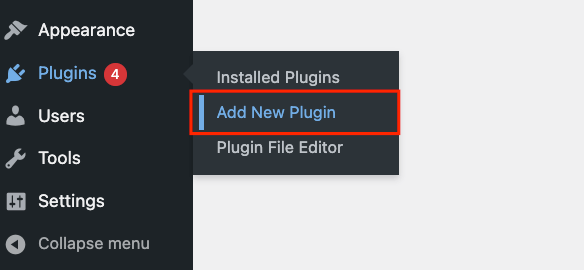
- Then, go to Plugins → Add New → Upload Plugin.
- Choose the zip file you downloaded, upload it, and then click Activate.
Now that you have Advanced Product Fields installed, you can move onto the next step.
Step 2: edit your product and find the APF section
- Navigate to Products in your WordPress admin dashboard and edit the product you want to configure.
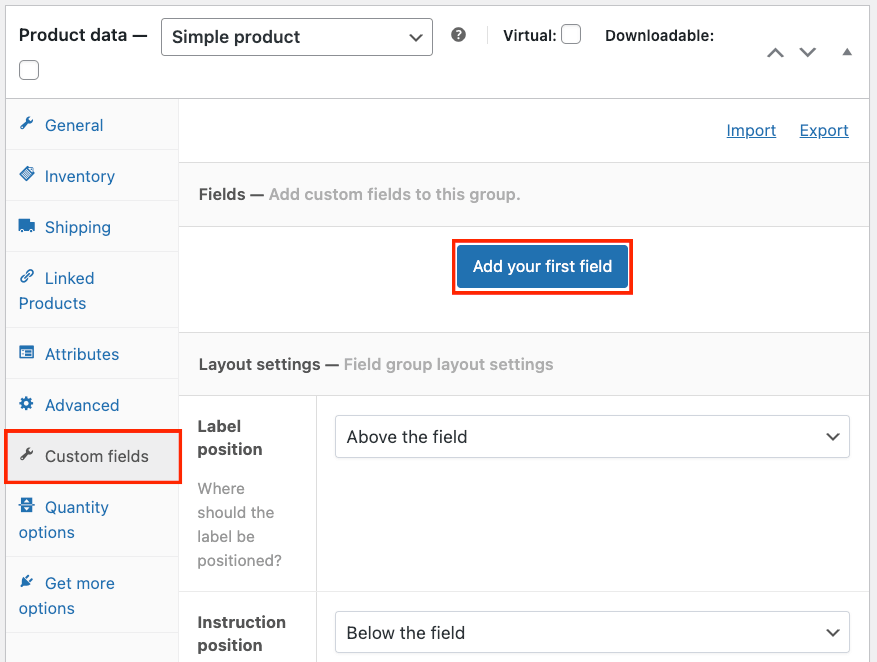
- Scroll down to the product data tab. Inside, open the Custom Fields panel.
- Click Add your first field to create your first option!
Step 3: add your first dropdown field (e.g., “color”)
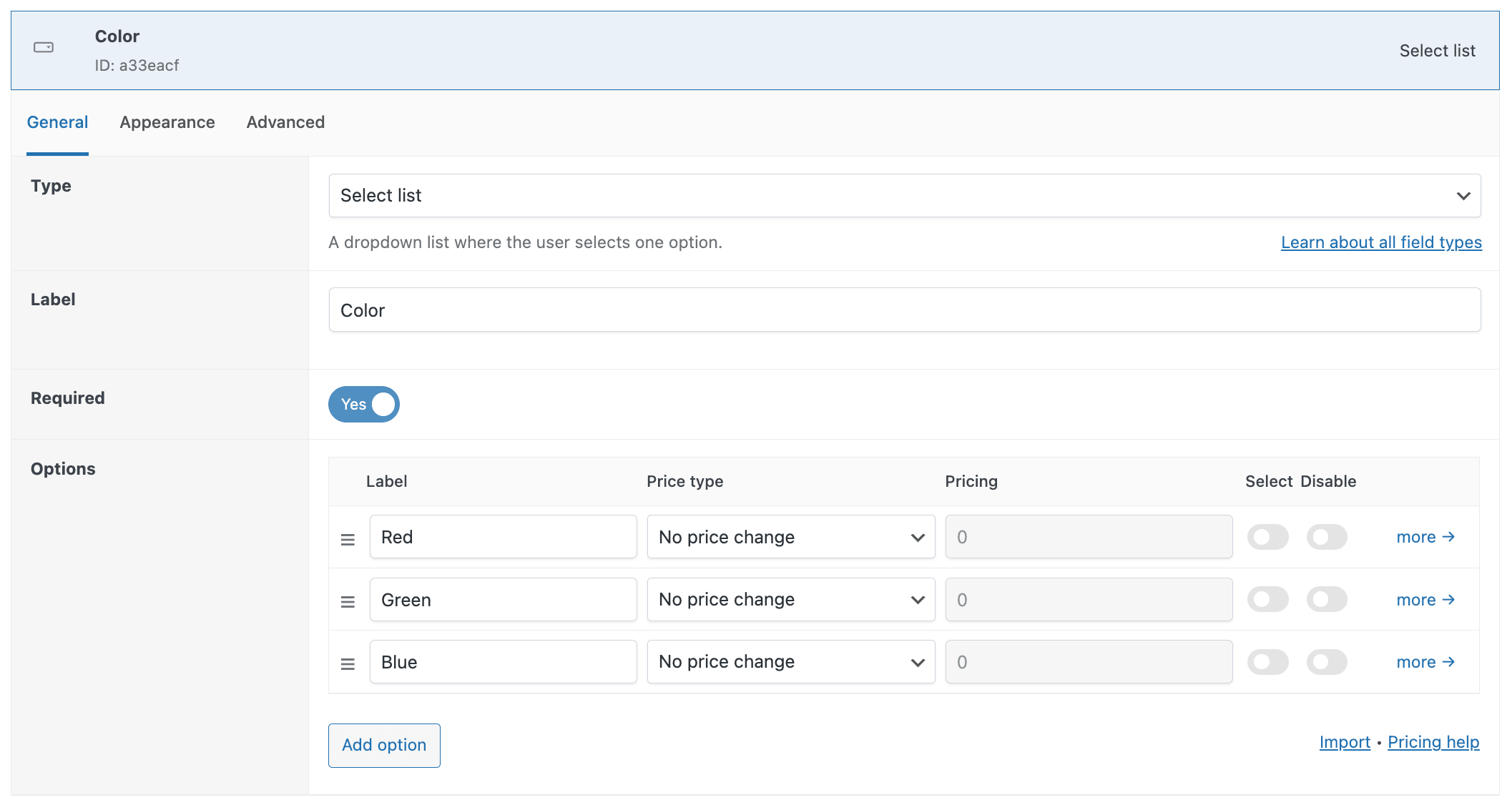
- When you’ve clicked the “Add your first field” button, all options for that field appear.
- Set the Field Type to Select List (which is the same as a dropdown)
- Set the field label to “Color.”
- Enable the Required toggle so customers have to select a value before proceeding.
- In the field’s options area, add your values: Red, Blue, Green (or whatever applies to your product).
- Optionally, give each option an extra price if some colors are more expensive than others.
Step 5: add a second dropdown field (e.g., “Size”)
Add a second dropdown field the same way as explained in step 4. Name it “Size” and add your size options (Small, Medium, Large).
At this point, both fields will show unconditionally on the product page. That changes in the next step.
Step 6: apply conditional logic
This is the key step where the magic happens!
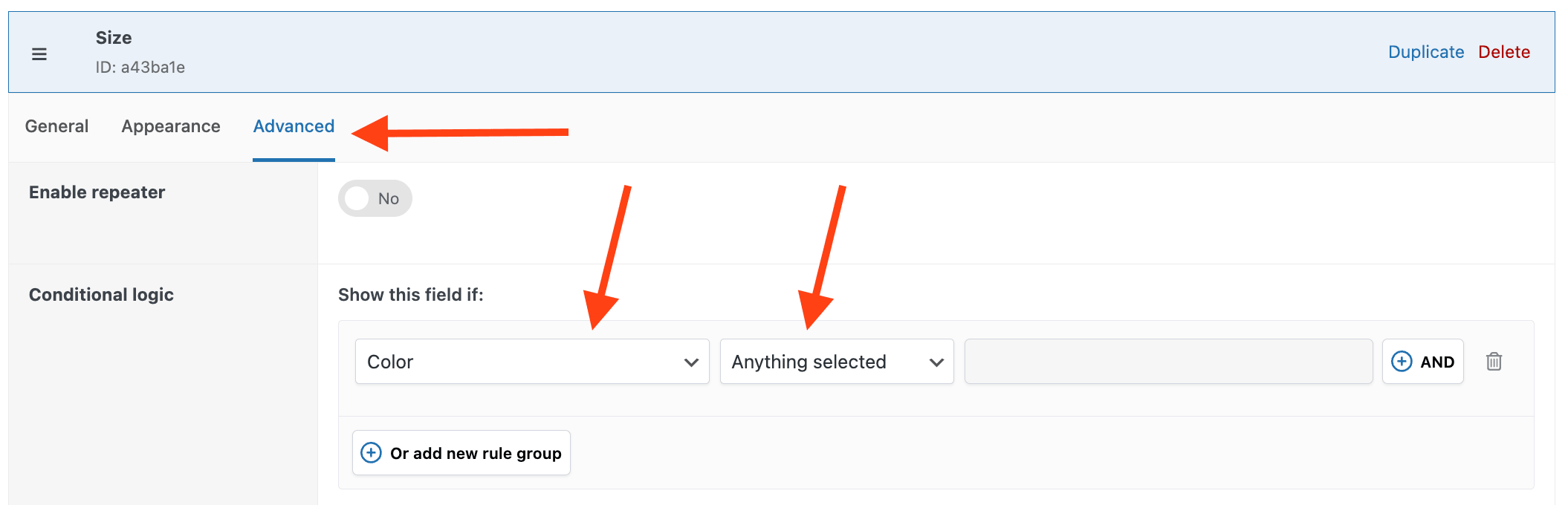
- Open the Size field created in step 5 and open the Advanced tab.
- In the Conditional Logic section, click the “Add New rule Group” button.
- You’ll see a rule builder. In the “Show this field if” setting, select the Color field and set the action to “Anything Selected”. This means the Size field will only be shown if any color is selected. If the customer has not yet selected a color, the Size field won’t appear.
That’s it! You’ve now configured simple conditional logic!
There is a lot more you can do, including complex conditional logic with many fields combined with AND/OR rules. We won’t dive into that here, but you can see APF’s official conditional logic documentation if you want to dig deeper.
Step 7: preview the result on your product page
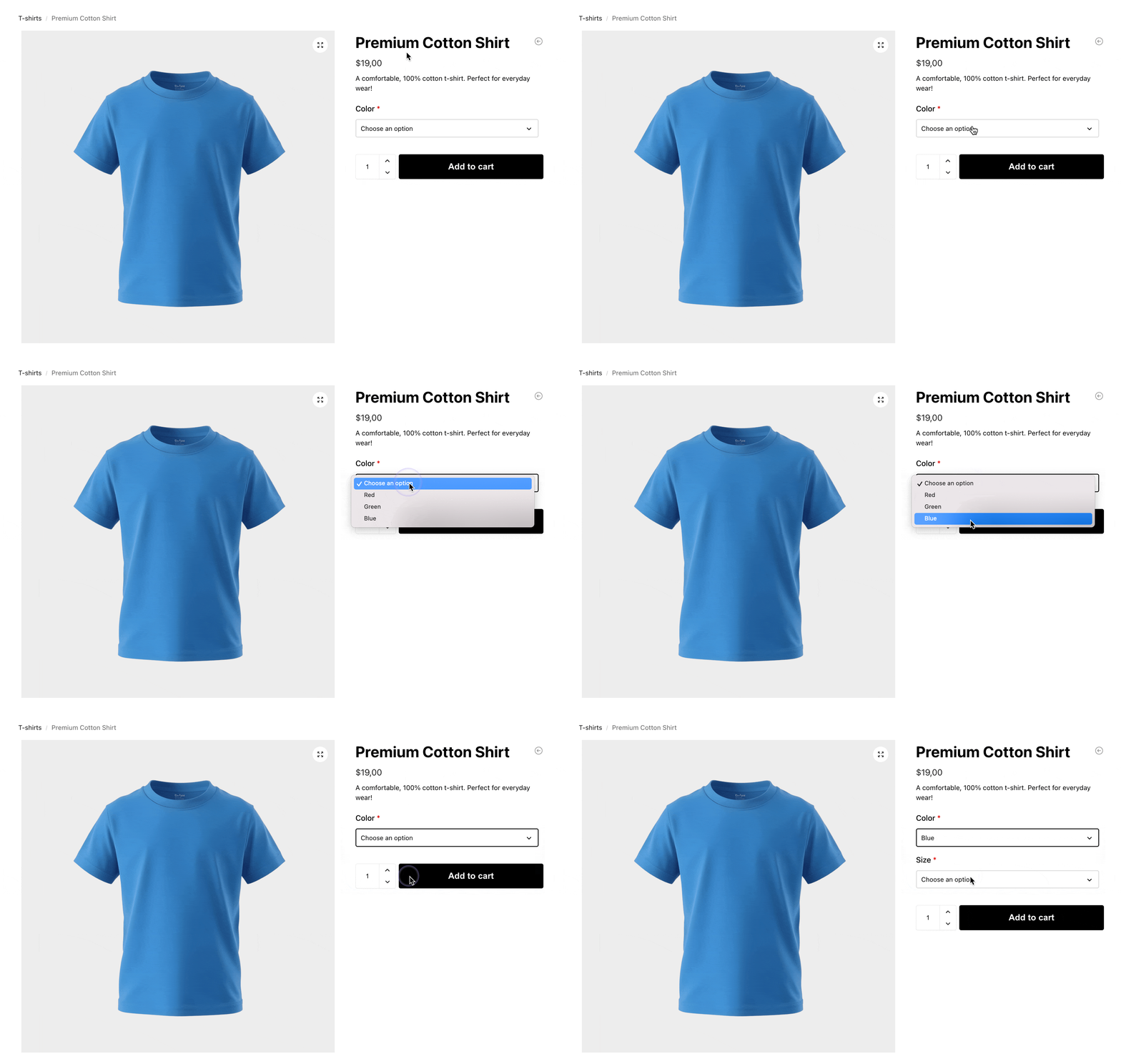
Don’t forget to save your work and check your product page for the final result:
What you can build with this
The Color → Size example above is only the simplest version! Here’s what the same conditional logic pattern looks like across different product types:
- Engraving: Show a text input field only if “Add engraving: Yes” is selected. Customers who don’t want engraving never see the field.
- Bundles: Reveal individual components conditionally based on a base product selection — a customer who picks “Starter Kit” sees different add-ons than one who picks “Pro Kit.”
- Print-on-demand: Show print area dimension options only if a specific print location (e.g., “Chest”) is chosen from the placement dropdown.
- Gift options: Show a gift message text area and gift wrapping choices only if “This is a gift” is checked — standard orders stay uncluttered.
You get the idea!
The possibilities are endless and each of these is a point-and-click setup in APF, using exactly the same IF/THEN rule builder shown in this tutorial.
Frequently Asked Questions
Can I use APF alongside my existing WooCommerce variations?
Yes! APF fields layer on top of any product, including existing variable products. Your existing variation setup for price and stock differentiation stays intact — APF adds the conditional field logic on top. Our guide on how to add additional options to a variable product in WooCommerce walks through exactly how this works.
Will APF slow down my product pages?
No! In fact, the way APF stores its information in the database is more performant than classic WooCommerce variations. When you have many variations, using APF will almost always outperform the classic WooCommerce way!
What happens to my conditional fields in the cart and order?
When a customer adds the product to their cart, APF stores the chosen field values in the cart and order. Those values appear in the WooCommerce order admin screens, the confirmation emails, and in any integrations that read WooCommerce order data. The conditional logic only controls visibility on the product page — once a value is selected and the order is placed, it’s stored like any other order data.
Start using conditional variations for your WooCommerce products
Native WooCommerce variations are the right tool for managing price and stock across attribute combinations. They’re the wrong tool for building a guided, conditional selection experience. Trying to force them into that role costs you in database rows, page speed, and lost conversions.
Advanced Product Fields for WooCommerce gives you true conditional variations without any of that overhead: conditional show/hide rules, a clean frontend experience, and only a small footprint that won’t show up in your Core Web Vitals. Any store owner can have it running in an afternoon — no developer required.
Try Advanced Product Fields for WooCommerce today!
