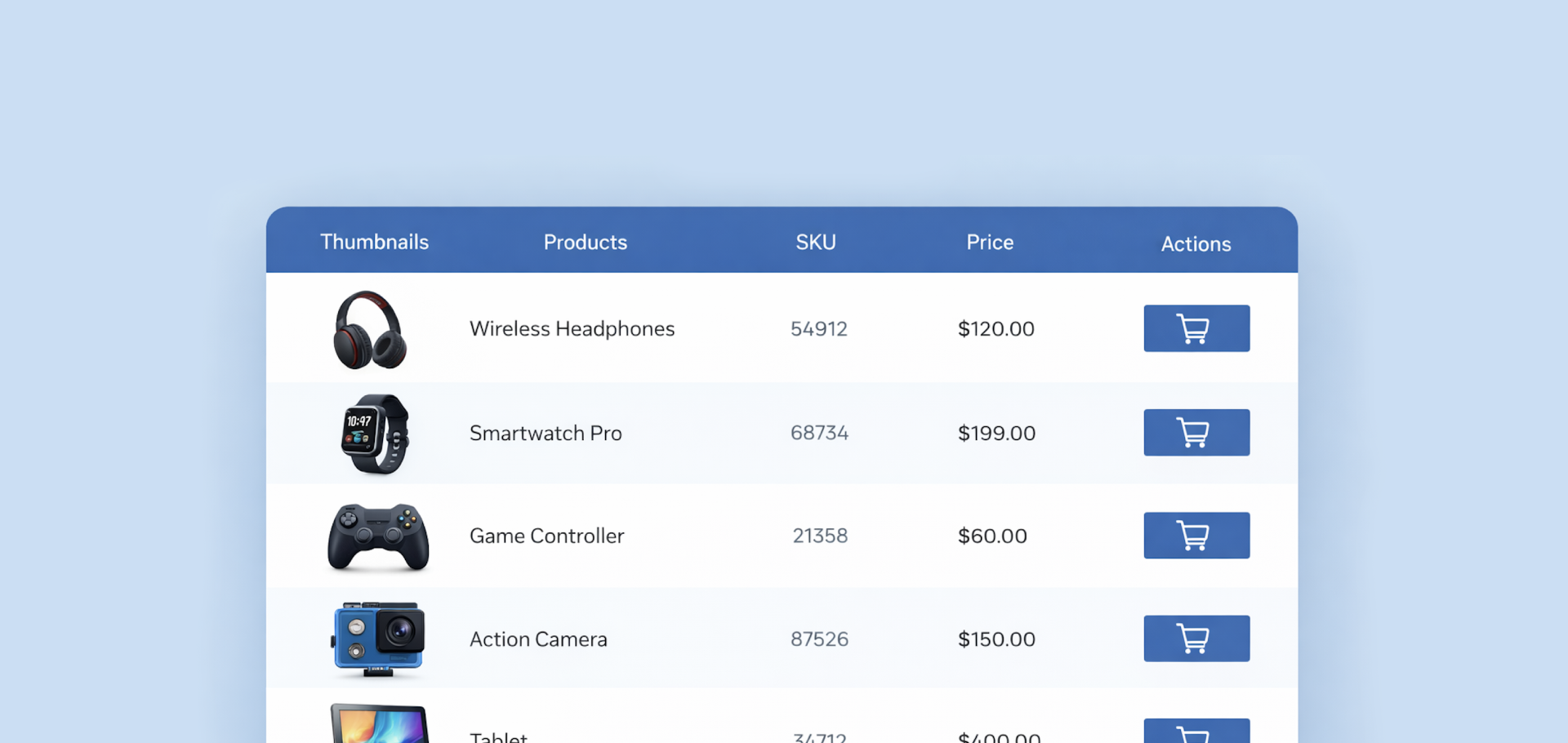
If you’re looking to add a WooCommerce product list page to your online store, this guide is here to help.
A product list page lets you display multiple products and key details on a single page more effectively than the default WooCommerce grid view. This makes it easier for customers to browse and buy items in your store quickly.
If your current setup feels cramped or limiting, this guide will walk you through creating a clean WooCommerce product list that better suits your catalog.
We’ll also cover:
- What a WooCommerce product list page is.
- The benefits of creating a product list for your WooCommerce store.
- The best WooCommerce plugin for your product list, for the job.
- How to set up a WooCommerce product list using WooCommerce Product Table.
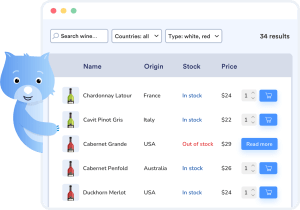
Create a product list page for your WooCommerce store in minutes.
Find out moreWhat is a WooCommerce product list page?
A WooCommerce product list page is a table-style layout that lets you display products in rows with all their key details.
Its main purpose is to show important product information right away so shoppers can compare items, check prices and stock instantly, and add products to their cart without wasting time.
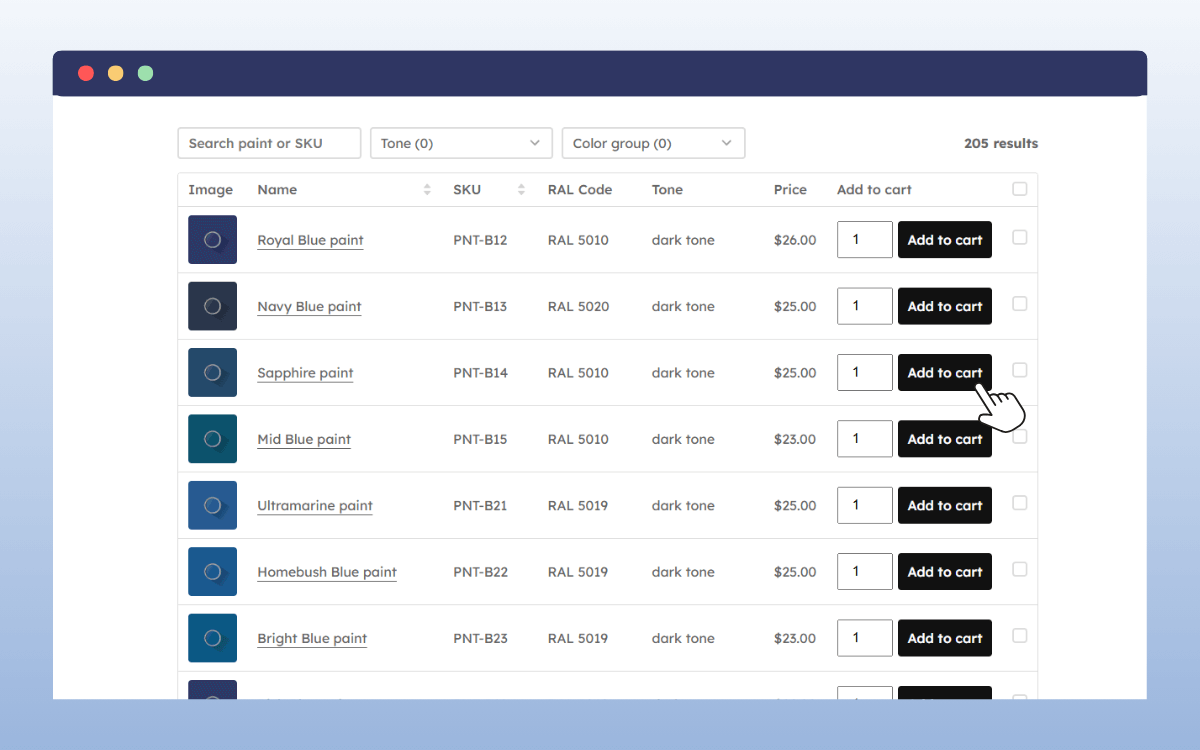
The key characteristics of a WooCommerce product list include:
- Table layout. Each product appears in its own row, with details organized into clear columns.
- Customizable columns. You choose what to show, including product images, name, SKU, description, price, stock status, attributes, and more.
- Easy navigation. Customers can sort, filter, and search products without leaving the page.
- Quick actions. Options like Add to Cart and quantity selectors make buying instant.
This table layout works best when key product details matter more than visuals or when customers need to scan and order multiple items quickly.
What are the benefits of creating a WooCommerce product list page?
Creating a WooCommerce product list can transform the way you showcase products and how customers shop.
Here are the main benefits:
- Faster ordering. Customers can view everything in one place and add items to their cart without clicking in and out of individual product pages. This makes the entire shopping process, from browsing to checkout, much quicker.
- Smooth shopping experience. The clean, intuitive, and compact layout helps customers find and buy what they want fast, without extra clicks. This improves the overall user experience.
- Easy product comparison. Shoppers can view multiple products at once, compare prices, product variations, and details side by side, and make quick decisions.
- Higher conversions. Showing more products per page encourages customers to notice upgrades, variations, or add-ons. This can help you increase your average order value and sales.
- Perfect for bulk orders. This table format is ideal for customers who buy in volume. They can enter quantities and add multiple items to the cart in a single step.
- Customize product tables your way. Choose exactly what specific product details appear and how they’re arranged, so the page fits your customers’ needs. You can include anything from custom fields and attributes to SKUs, images, and taxonomies.
- Great for large or technical products. For items like spare parts, office supplies, or software licenses, a table view makes more sense. It highlights key specs instead of visuals, making comparisons fast and straightforward.
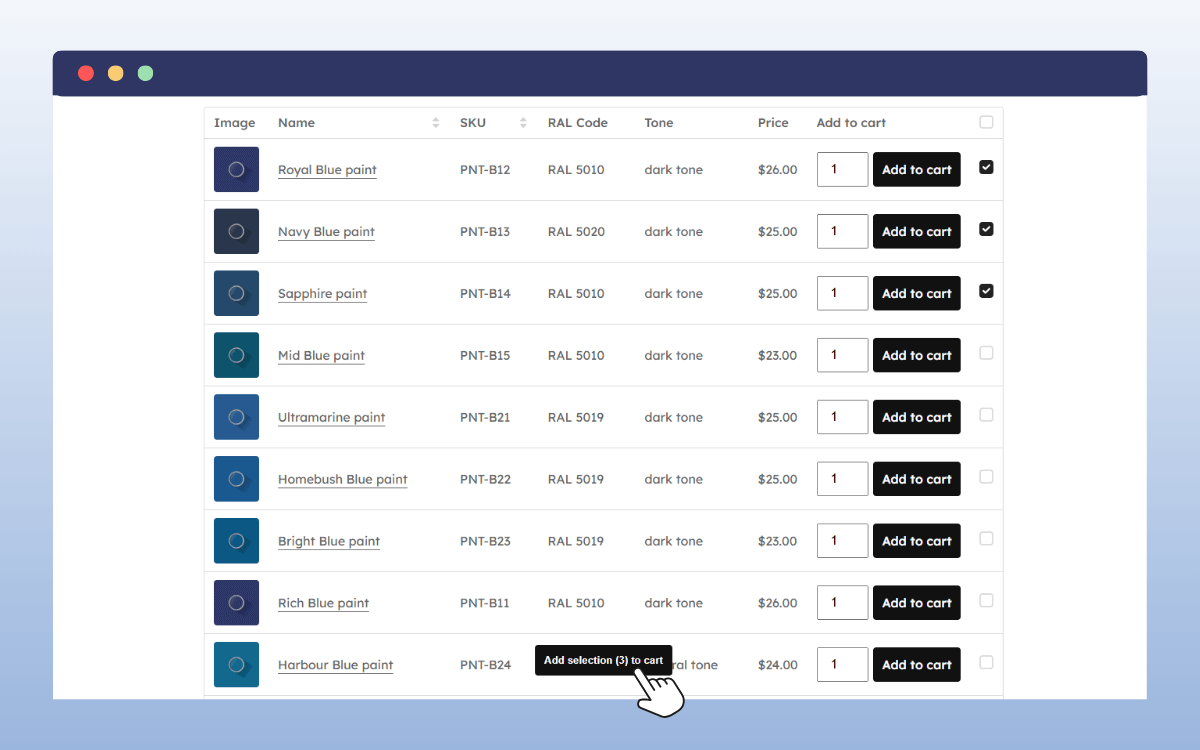
In short, a product list view makes shopping faster and more efficient. It helps customers focus on the details they need to make quick, informed decisions, rather than scrolling through visuals.
Can you create a WooCommerce product list page in WooCommerce, or do I need a plugin?
WooCommerce has native tools to help list your products. You can use the built-in [products] shortcode or Gutenberg blocks to display products anywhere on your WordPress site. Aside from this, depending on your theme, you can allow customers to change the product view of your category pages to a list view.
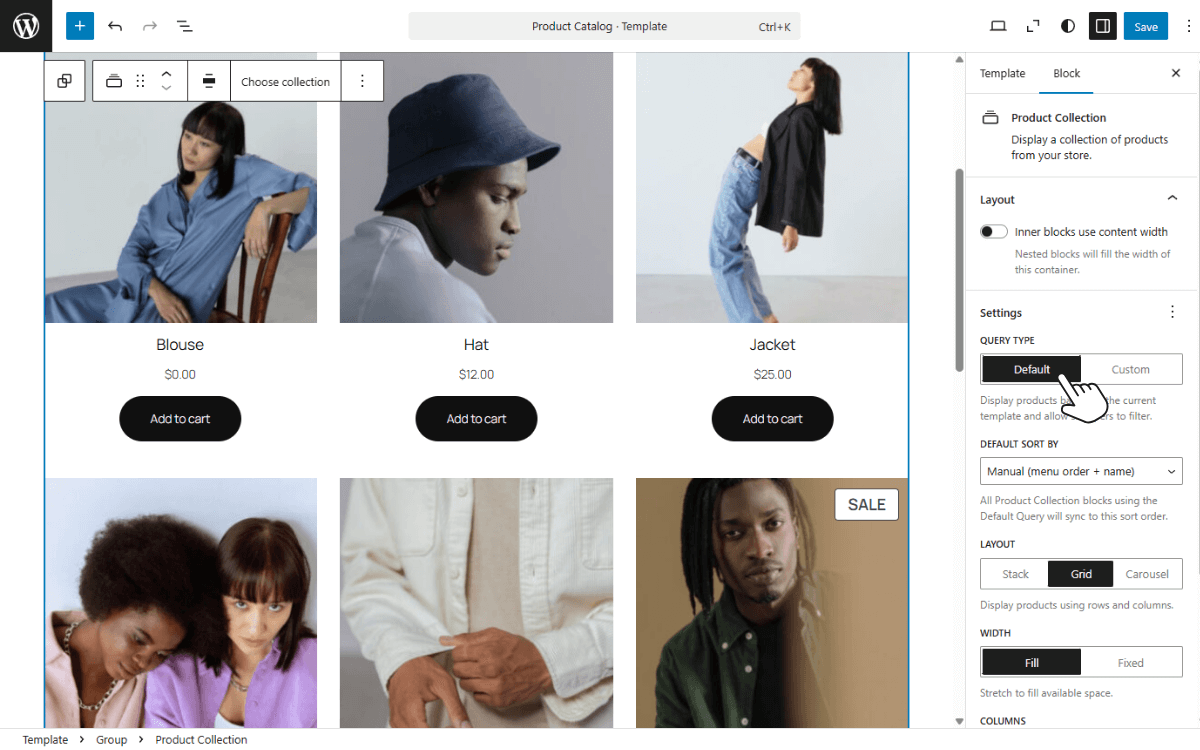
But these native options only give a standard grid or a very simple list. They can’t help you create a proper table list layout with customizable columns or add bulk Add to Cart options.
Besides, if you run a wholesale store, handle a large catalog, or sell technical products where specs matter more than images, the grid layout can be limiting.
Here’s why:
- The grid layout heavily focuses on large thumbnails and cards.
- Bulk buyers can’t quickly add multiple items to the cart without clicking in and out of several product pages.
- The grid layout wastes space, and key info like SKUs, stock, or specs isn’t visible at a glance.
- Searching and filtering large catalogs is slow or feels impossible.
- It slows down decisions because shoppers can’t see all product details or variations at once.
- There’s no quick way to create an order form-like experience.
You could try custom code, shortcodes, or theme tweaks, but none deliver a true product list page without a lot of work.
For a fully functional table-style layout with rows, custom columns, filters, and bulk actions, you’ll need a dedicated WooCommerce product table plugin.
What is the best WooCommerce product list plugin?
The best WooCommerce product list plugin should give customers an interactive table to quickly view, filter, and add multiple products from a single page.
With WooCommerce Product Tables, you can create this type of experience effortlessly. This plugin allows you to build and organize thousands of products in a fast, easy-to-navigate table layout that makes browsing and buying quick and simple.
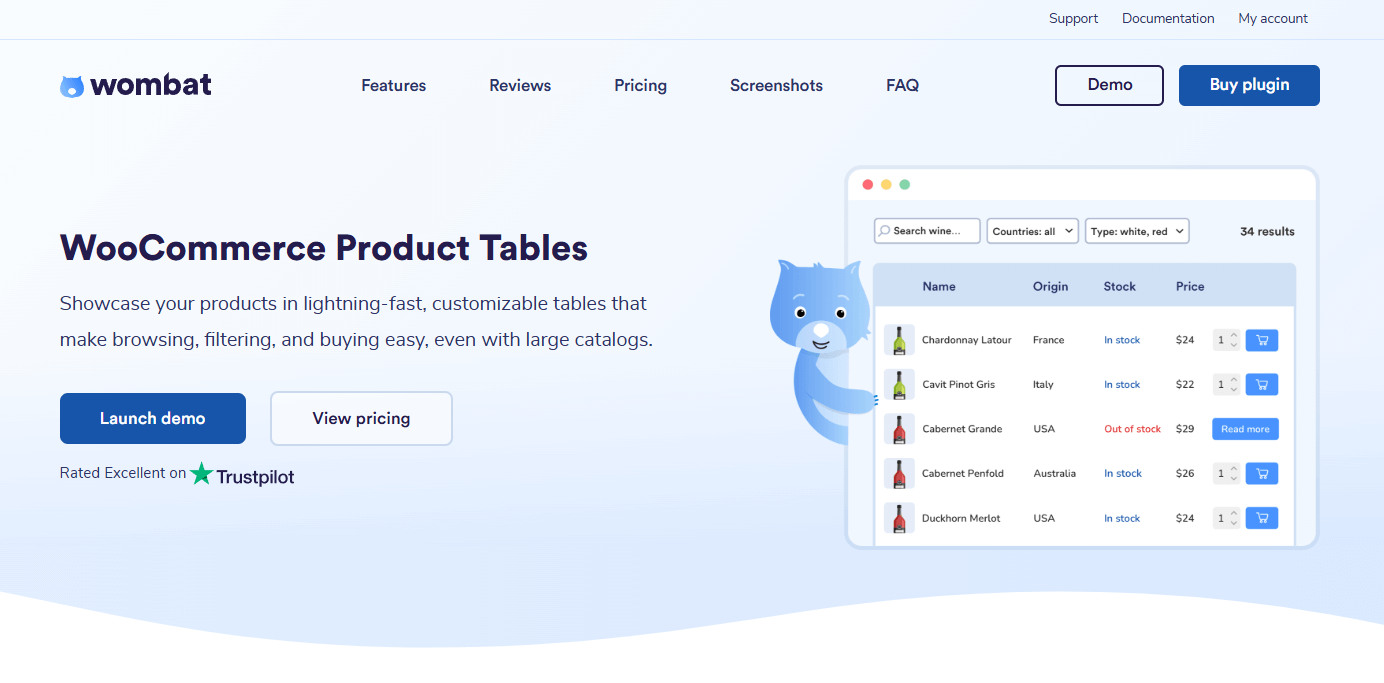
The WooCommerce Product Tables allows you to:
- Build a custom list of products for your WooCommerce store.
- Create custom columns that show various product details, including images, names, product attributes, stock info, and more.
- Let shoppers search, sort, and use filter dropdowns to find products they want quickly.
- Allow customers to add one or more products to the cart right from the list.
- Style your product table layout with built-in design settings to match your store.
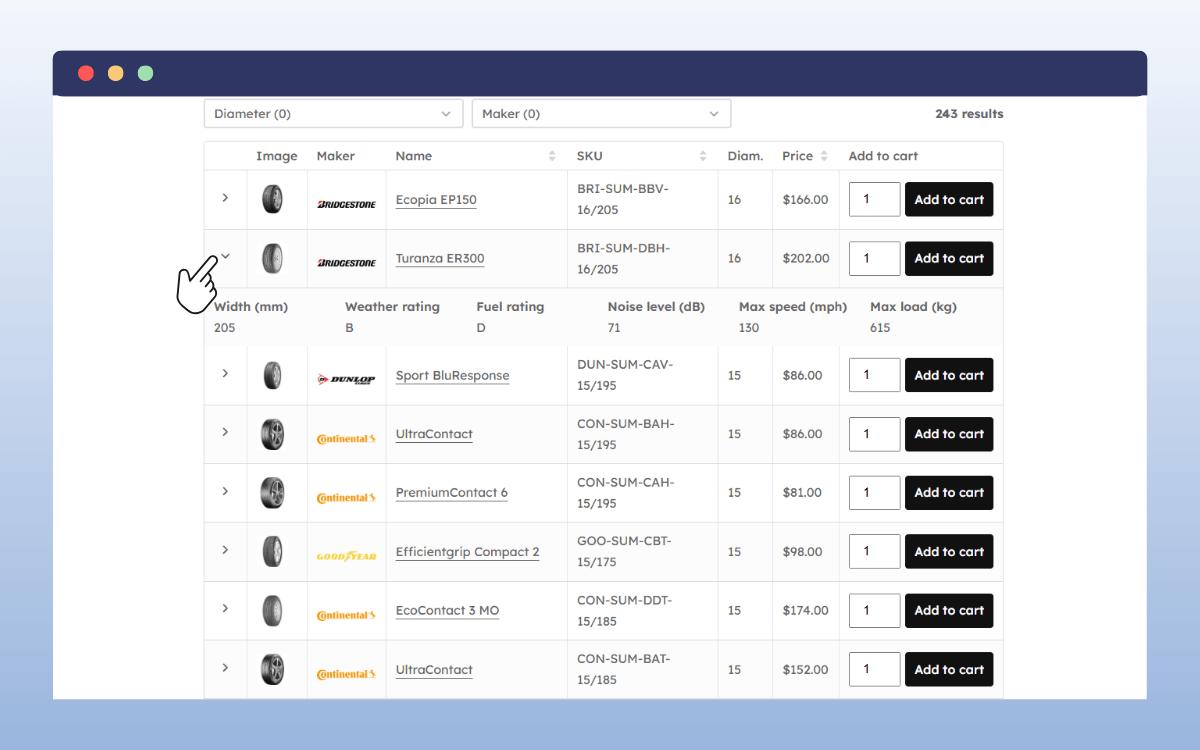
What makes WooCommerce Product Table stand out?
WooCommerce Product Tables is built for speed and flexibility to make your product list more effective.
It offers:
- Fast performance. The plugin is lightweight and built for speed. It uses lazy loading. So, even with thousands of products, your tables load fast and stay responsive.
- Wide range of use cases. It’s great for restaurants, wholesale stores, large catalogs, technical products, restaurants, or B2B shops.
- Supports various product types. You can create product lists for simple, variable, single, or grouped products. This keeps everything on one page and makes shopping easier.
- Easy to follow setup. After activation, this plugin walks you through simple guided steps to add a custom table and modify it.
- Full control with the table builder. You can display the data your customers need most as columns and arrange them in a way that makes sense for your store.
Generally, with WooCommerce Product Tables, you can turn your shop page into a clean, organized product list that helps customers shop faster and order more products.
How to set up your WooCommerce product list page using WooCommerce Product Tables
In this section, we’ll guide you through how to set up a WooCommerce product list in your store step by step, now that you know what it can do for you.
We’ll build a simple list of products that shows multiple items in a clean table and lets customers sort, filter, and add items to their cart without opening individual product pages.
Everything starts once you’ve installed the WooCommerce Product Tables plugin and activated your license key.
Create a product list page for your WooCommerce store in minutes.
Find out moreStep 1: Create your product table
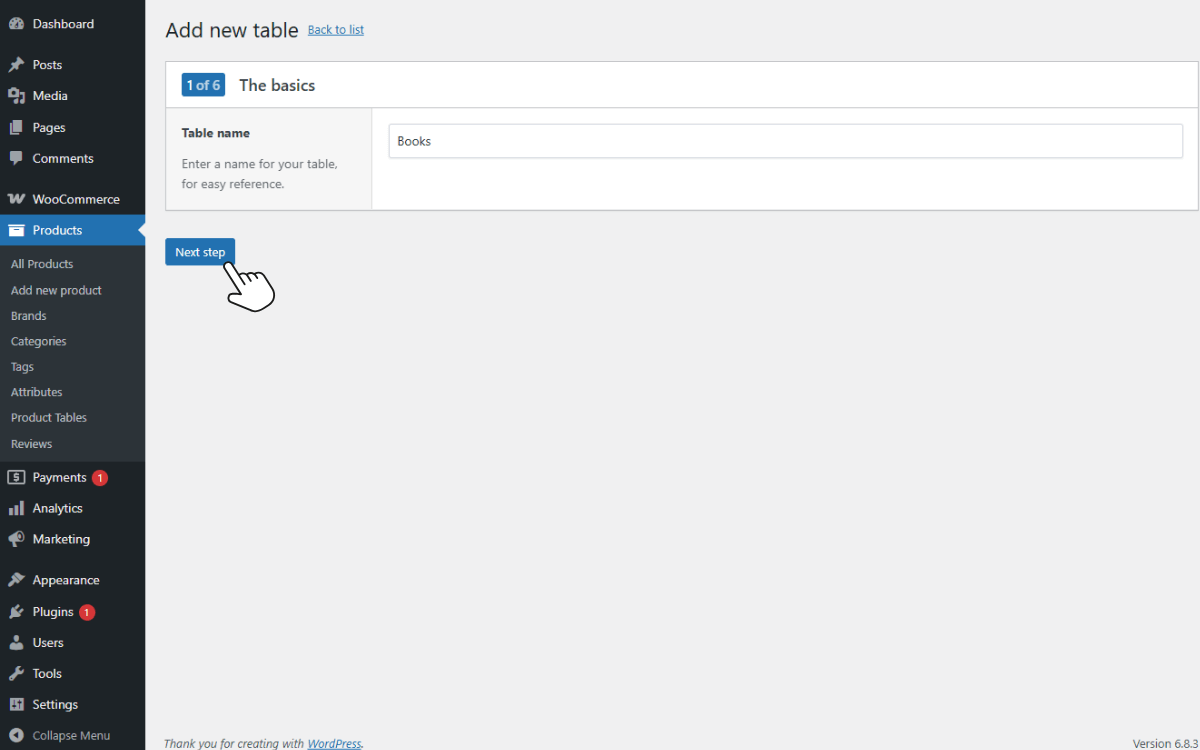
- Creating a new table is as simple as navigating to Products → Product Tables on your WordPress dashboard. Then, click Add New or Create a Table.
- Enter a name for your table, for easy reference. Keep it clear, for example, Books.
- Click Next Step to continue.
Step 2: Select which products to display
This step is all about adding products you want to show in your table.
- You’ll have two options:
- Show all products: include every product in your store.
- Show only selected products: You can choose specific product categories, tags, product types, or stock statuses to control exactly which items appear in your list.
Example: In our tutorial, we’re creating a list of books. Some product categories could be Fiction or Non-Fiction, while tags might be Bestsellers or New Arrivals.
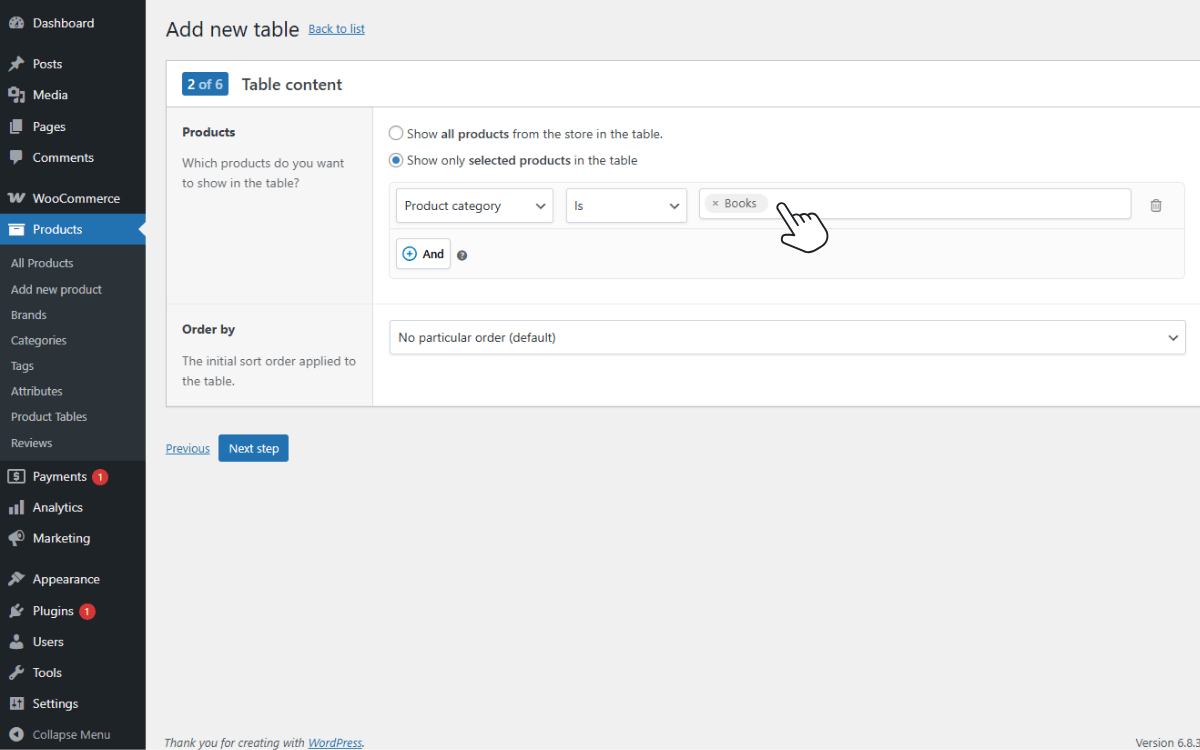
- If you want to, you can combine multiple conditions using the AND button for precise control.
- You can also set the sort order, for example, sort by Name or Price.
- When you’re finished, click Next Step to proceed.
Step 3: Add your table columns
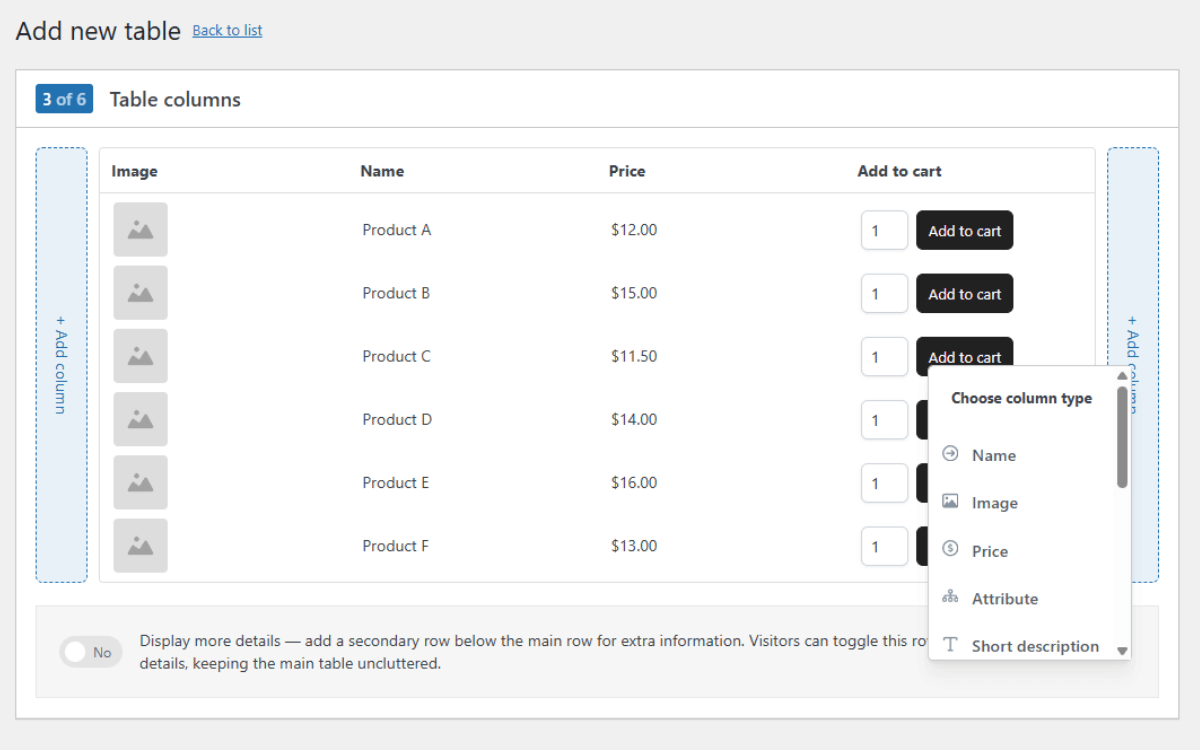
This is where our table now begins to take shape. By default, you’ll see Image, Name, Price, and Add to cart, but you can add or remove columns.
- Click + Add column to include more data, such as:
- SKU
- Stock status
- Categories or attributes
- Custom fields or extra details
- You can drag and drop columns to reorder them in the way that makes the most sense for your store.
- Remove any columns you don’t need to keep the table clean and easy to read.
- You can also enable the Display more details settings to show extra information (like product descriptions) under each product. This keeps the main table view uncluttered.
Step 4: Add search and filter options to your table header
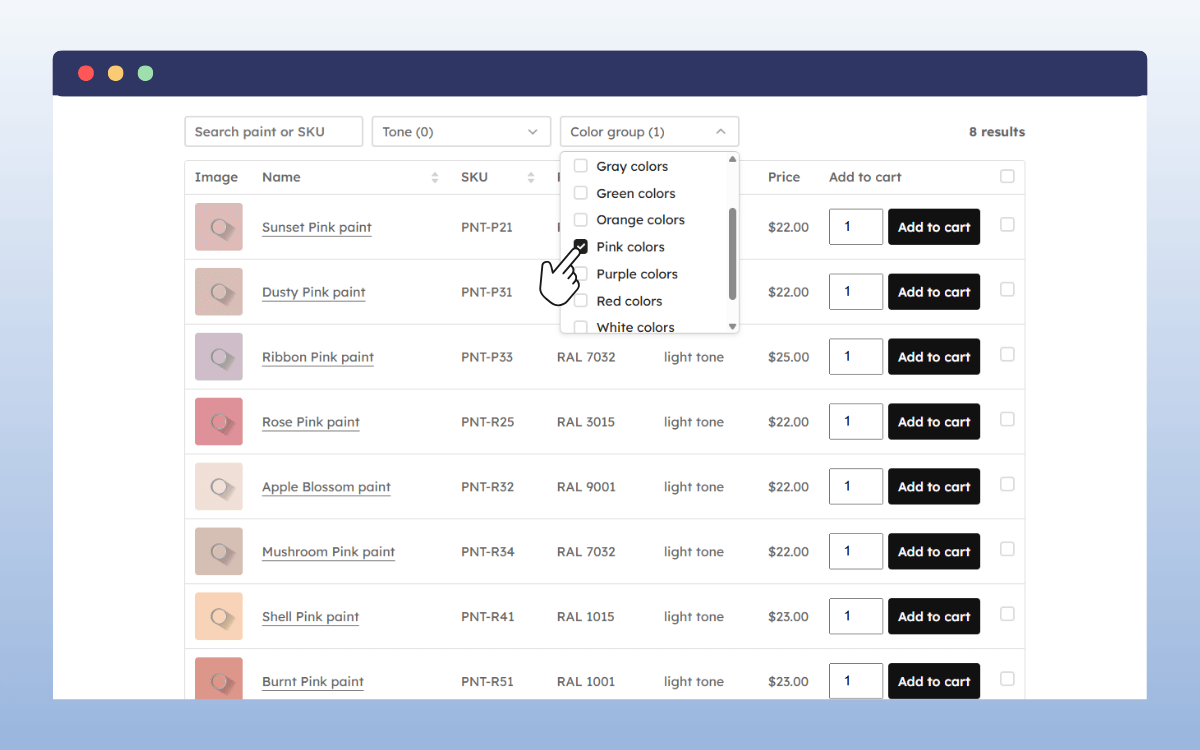
Adding search boxes and filters to your product table makes it easy for customers to find products.
Specifically:
- Search boxes let customers search by keyword, product name, or SKU.
- Filters let customers narrow products by category, tag, brand, attribute, price, or stock status.
To add these options:
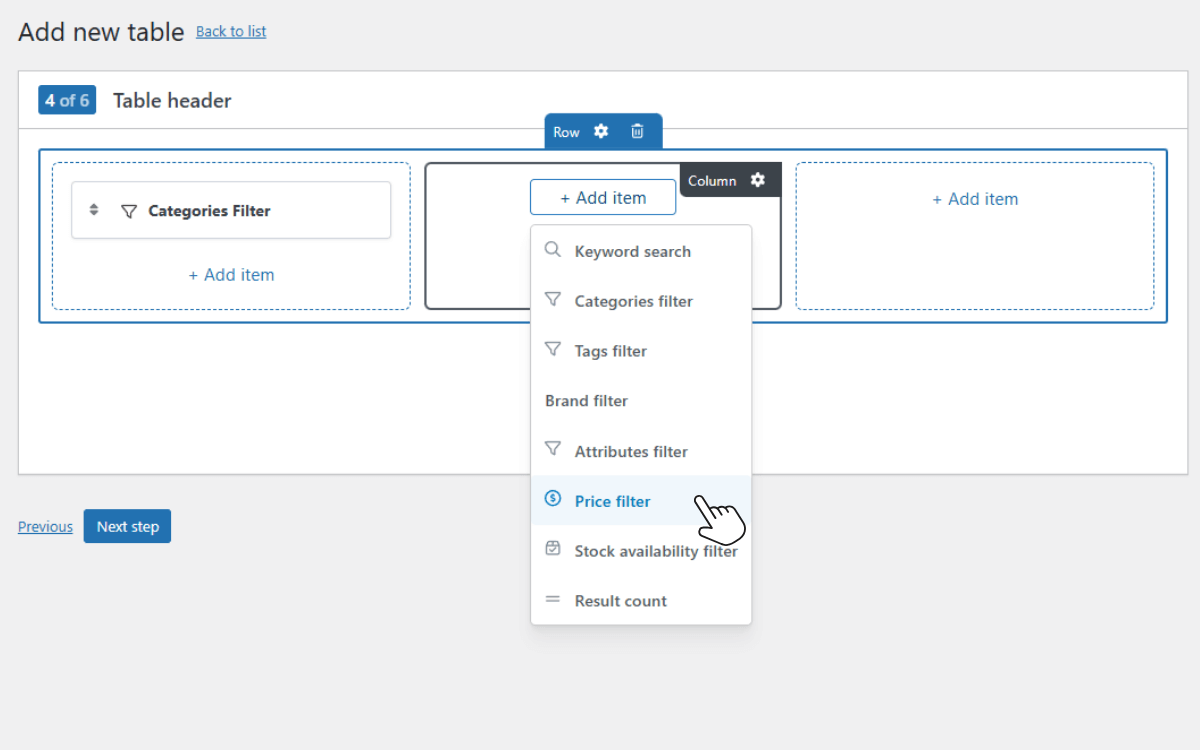
- Pick a row layout for your filters. This determines how the search and filter elements are arranged at the top of your table.
- Next, add filter items by clicking Add item, such as:
- Keyword search (search by product name or SKU)
- Category, tag, brands, or attribute filters
- Price range or stock status filters
- Results count
- Combine filters if needed to give customers multiple ways to narrow down products.
- Add the search and filter elements you want, then click Next Step.
Note: You can skip this step if you don’t want any filters. The table will still work perfectly.
Step 5: Optimize your table for performance
Will your product list display hundreds of items? WooCommerce Product Tables has performance settings to keep large tables fast and responsive.
You can:
- Enable pagination: Split a long product list into multiple pages so the table loads quickly and browsing is easier.
- Set products per page: 25–50 items per page keeps the table readable and improves load times.
- Turn on lazy loading: Table rows load only as customers scroll, so your page’s initial load stays fast.
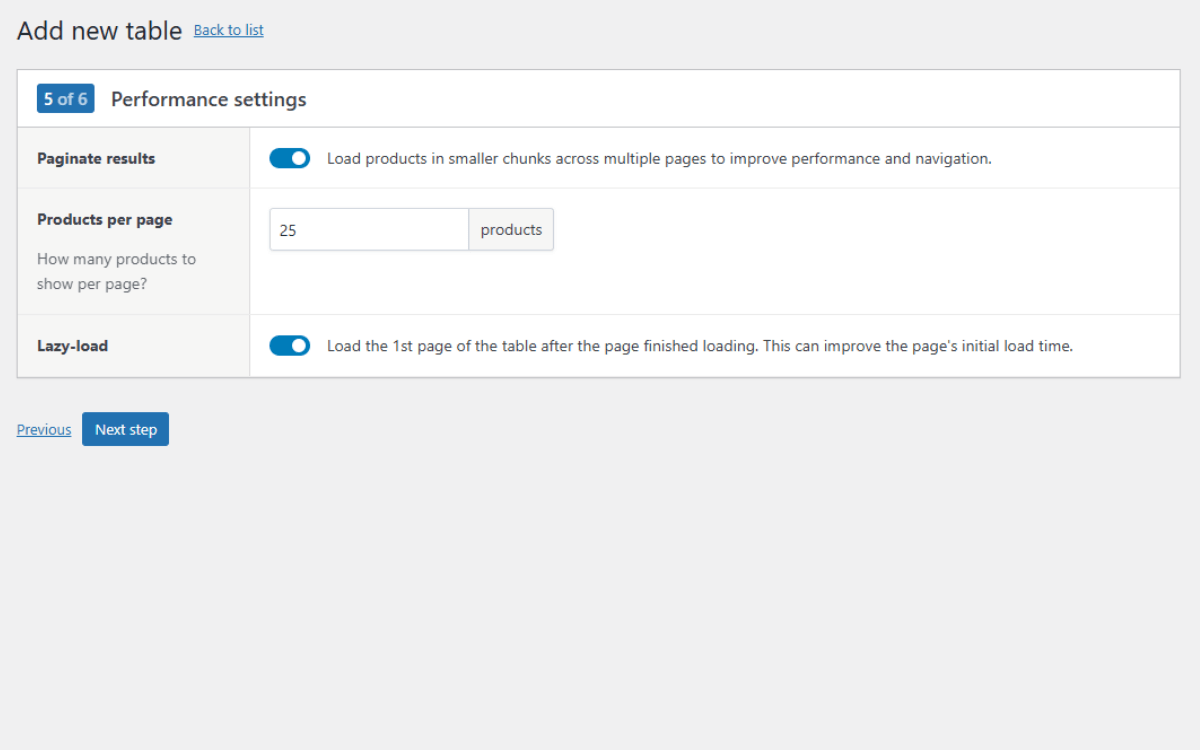
Once you’re happy with your performance settings, click Next Step.
Step 6: Adjust design and display settings
At this point, your product list is ready, but you can still fine-tune how it looks and behaves. The following plugin settings can help shape your table to match your e-commerce store.
You can:
- Choose how variations appear, either as dropdowns or as separate rows.
- Turn on a sticky header so your column titles and filters stay visible as customers scroll.
- Connect the plugin with other tools (optional), such as Advanced Product Fields, to add extra options or functionality.
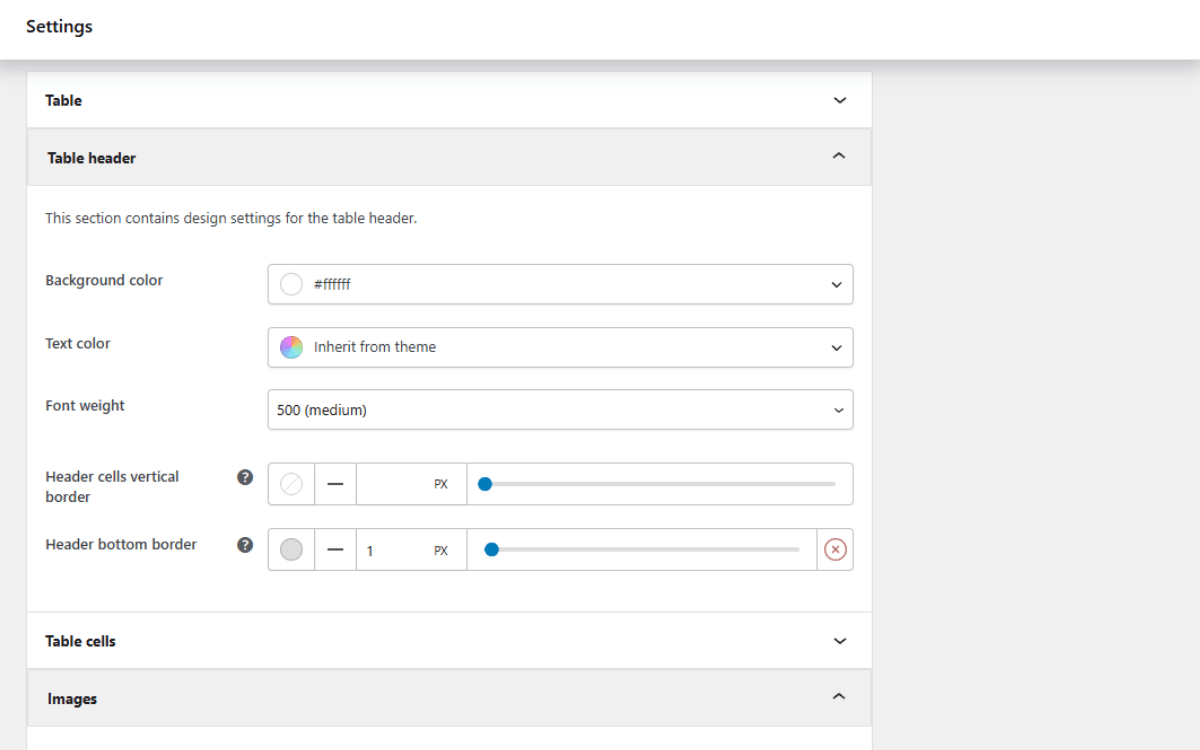
Customize your table design.
Most themes and page builders like Elementor don’t come with built-in styling for tables. That’s why the plugin includes its own design controls, so you can match the table layout to your store’s branding.
- Go to WooCommerce → Settings → Product Tables → Design and adjust colors, borders, fonts, spacing, cells, checkboxes, and other style options.
- Click Save changes when you’re done.
- Once your design is set, we’ll need to add it to your site. So, go to Products → Product Tables on your WordPress dashboard and copy the shortcode shown for your table.
- Paste the shortcode into any page or post where you want your WooCommerce product list to appear.
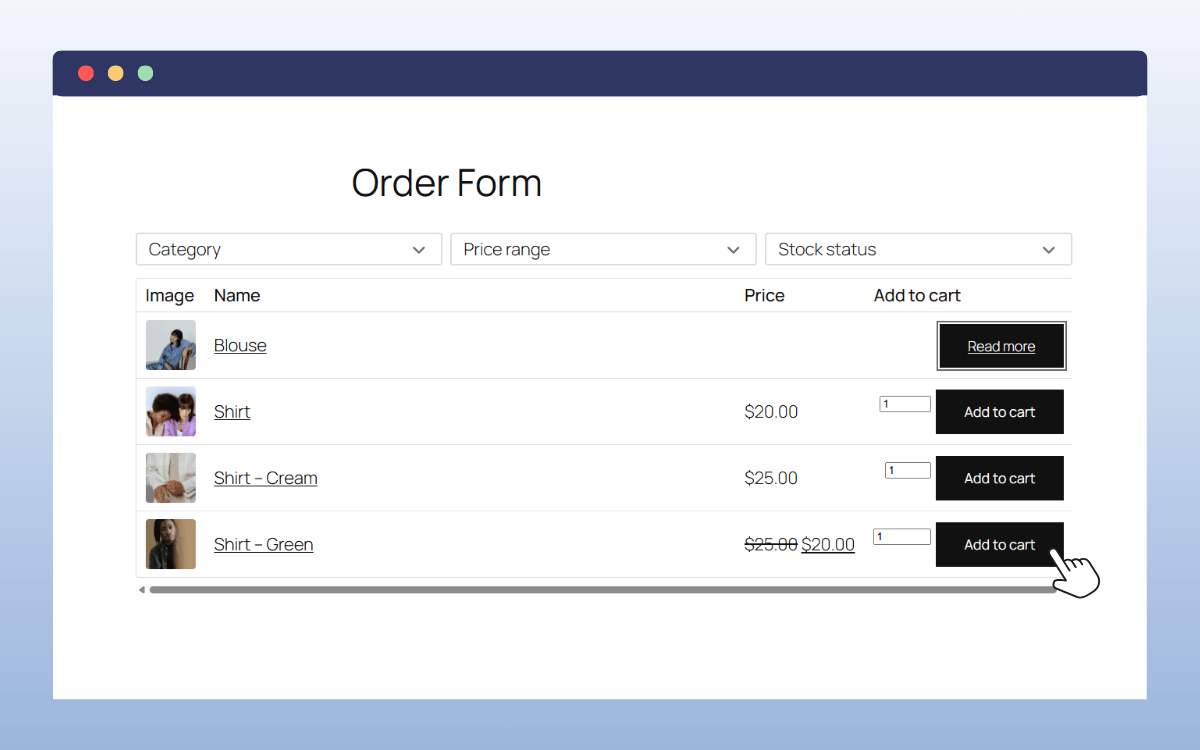
When you preview your page, you’ll see your product list live, complete with images, prices, filters, add-to-cart buttons, and other data you added.
FAQs about WooCommerce product lists
If you’re trying to set up a product list in your WooCommerce store, here are a few questions that always come up (with answers).
How can I display a custom product list in WooCommerce?
Before we start looking at how to display a custom product list page with WooCommerce plugins, it’s always a good idea to consider whether you can do it without a plugin.
The answer is, kind of. Yes, there is a WooCommerce product list shortcode built into WooCommerce – [products]. There are also a few Gutenberg blocks that let you drop products anywhere on your WordPress site.
However, the problem is that shortcodes and blocks only output the standard grid layout. They don’t give you a real product list: one product per row, clean columns, or the ability for customers to compare items at a glance. Not unless you decide to rebuild the entire archive page by hand.
That’s why you need a dedicated WooCommerce product list plugin to create a true list of products, one in each row.
How can I customize the product list layout in WooCommerce?
It’s a lot easier to customize your product list if you use a dedicated plugin like WooCommerce Product Tables by StudioWombat. You’ll get all the design tools and layout controls you need to modify your list into a table design that fits your store’s look and feel.
Using the default WooCommerce setup is much more limited. Again, you can adjust how many products appear per row, but you can’t switch to a real table layout or choose which product data, like SKU, stock, or attributes, appear in each column.
How can I show variable products in the list view in WooCommerce?
With a dedicated product list plugin, you can display variable products directly in your table. Options like size, color, or other variations can appear as dropdowns or separate rows right in the list. This lets customers select the variation they want and add it to their cart without leaving the page.
What type of e-commerce store needs a WooCommerce product list?
A WooCommerce product list comes in handy, especially for Wholesale or B2B stores where bulk ordering is common, technical products like electronics, spare parts, software, or tools, where specifications matter more than images, and extensive catalogs. Stores with hundreds or thousands of products benefit from a compact, sortable layout.
In short, any store where customers need to scan, compare, and order multiple items efficiently will benefit from a product list layout.
Get to grips with WooCommerce product lists today
So there we have it, this guide has walked you through what WooCommerce product lists are, the benefits of using them, and how to add them to your online store.
By creating a structured product list, you can make shopping faster, improve product comparison, support bulk orders, and display the exact details your customers need to decide to buy.
If you want the easiest way to create a fully functional, customizable product list in WooCommerce, the WooCommerce Product Tables plugin can help. With its fast performance, flexible table builder, guided setup, and built-in design options, you can showcase your products in a clean, organized, and easy-to-navigate product list.
Create a product list page for your WooCommerce store in minutes.
Find out more