With WooCommerce, you can easily create subscription services, thanks to its quite comprehensive extension, including subscription boxes. However, having the basics isn’t enough to keep customers coming back and renewing consistently.
If you want to avoid frustrated users dealing with random charges and broken billing cycles, you need to offer a service that is tailored to their needs, and that starts with building a reliable plugin stack.
In this guide, we won’t give you an endless plugin comparison without explaining which combinations actually work together, or skip straight to setup steps without explaining what makes your subscription box scale and collapse.
Instead, you’ll get a practical walkthrough from plugin installation to a live subscription product using the official WooCommerce Subscriptions extension. We’ll explain the core elements of every subscription box and show you exactly how to configure billing and renewals.
Finally, we’ll show you how a plugin like Advanced Product Fields can transform a basic subscription into a personalized experience your customers won’t want to cancel.
Let’s begin!
How WooCommerce subscription boxes work
A subscription delivers recurring products on a billing schedule. Your customer pays monthly (or weekly, quarterly, annually) and receives their box automatically without re-ordering.
This is fundamentally different from a membership.
- Memberships grant exclusive access to content, discounts, or perks. The core idea is that users become part of something special, often related to a specific person or creator.
- Subscriptions, on the other hand, are enjoyed by everyone and always ship something.
So, if you’re running a monthly box service, you need a subscription plugin, not a membership plugin.
This guide uses WooCommerce Subscriptions ($279/year) because it’s developed by WooCommerce. That means guaranteed compatibility with WooCommerce core, payment gateways, and third-party extensions without version conflicts or abandoned integrations.
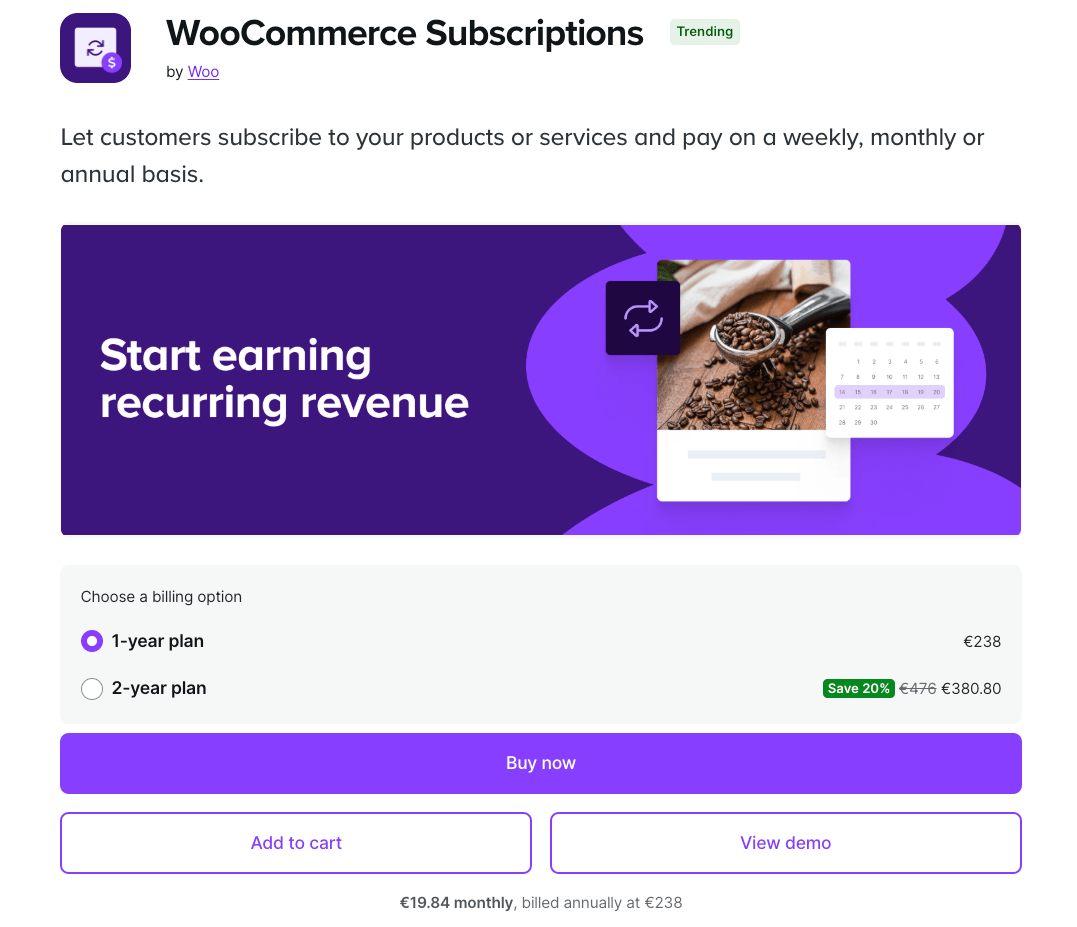
Of course, other options also exist:
- YITH WooCommerce Subscription ($199.99/year)
- Subscriptions for WooCommerce by WP Swings (free version available, Pro at $129/year)
The biggest difference between WooCommerce Subscriptions and these is that both offer free versions for testing.
While this can be great for small businesses and people on a tight budget, it’s important to understand that free alternatives typically lack automatic payment processing, renewal synchronization, and priority support. They work for validating your concept or handling very low volume. Any serious subscription business needs the reliable billing infrastructure that paid options provide.
The 3 subscription box models
Your subscription boxes are as unique as your business, so they can be whatever you need them to be. Still, there are three main categories that they usually fall into:
- Curation boxes deliver surprise selections based on preferences (beauty samples, book clubs).
- Replenishment boxes restock essentials before you run out (coffee, pet supplies, razors).
- Access boxes include member-only or limited-edition products (seasonal collections, exclusive releases).
Stacking plugins together for a richer experience
As we mentioned, WooCommerce Subscriptions handles billing, payment processing, and the subscription lifecycle. It manages when charges occur and how renewals work.
But what if you wanted to offer an even more personalized experience to your customers?
Advanced Product Fields (from $69/year) adds a layer of customization that lets site visitors set preferences, make selections, and configure options that automatically persist across every renewal order. For example, they might want to add a custom card or a different wrapping paper for their boxes – APF lets you add those options and more.
A note on scope: This guide covers preference-based subscription boxes where customers configure a single product with options. For product selection boxes where customers choose specific SKUs from your catalog (requiring inventory tracking per item), different architectural approaches apply.
Set up a subscription box with WooCommerce Subscriptions
WooCommerce Subscriptions supports physical, virtual, and downloadable products, though we’ll focus on physical subscription boxes. Let’s start with the basics.
Creating a subscription product
First, you need the plugin:
- Purchase the extension, download the .zip file, then navigate to Plugins → Add New in your WordPress dashboard.
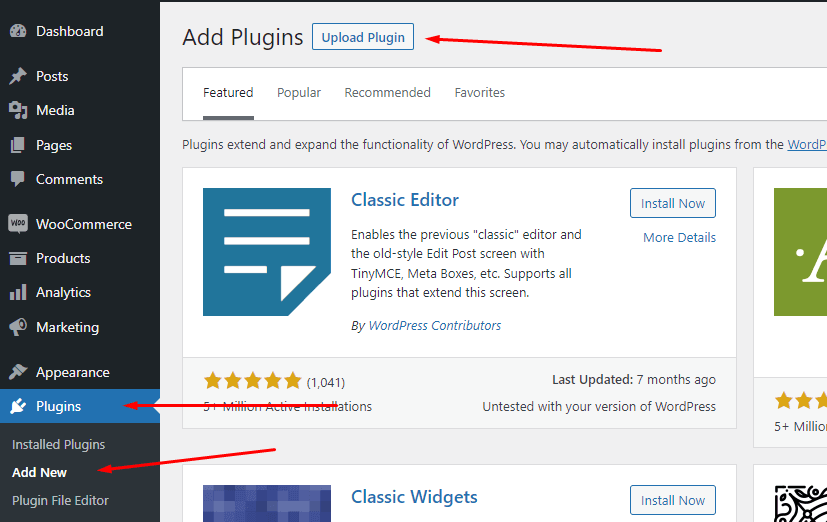
- Upload the file, activate the plugin, and connect your site to your WooCommerce.com account when prompted.
Now, let’s create your first subscription product:
- Go to Products → Add New.
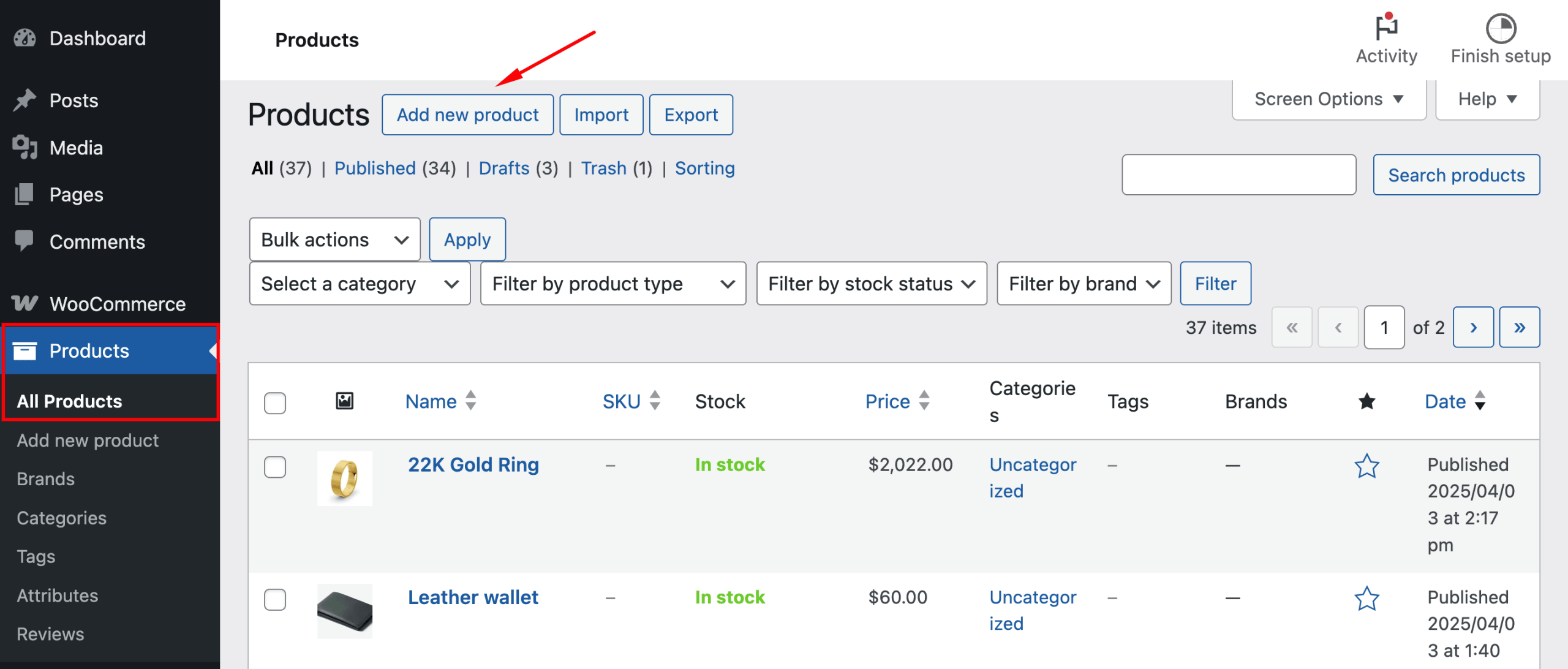
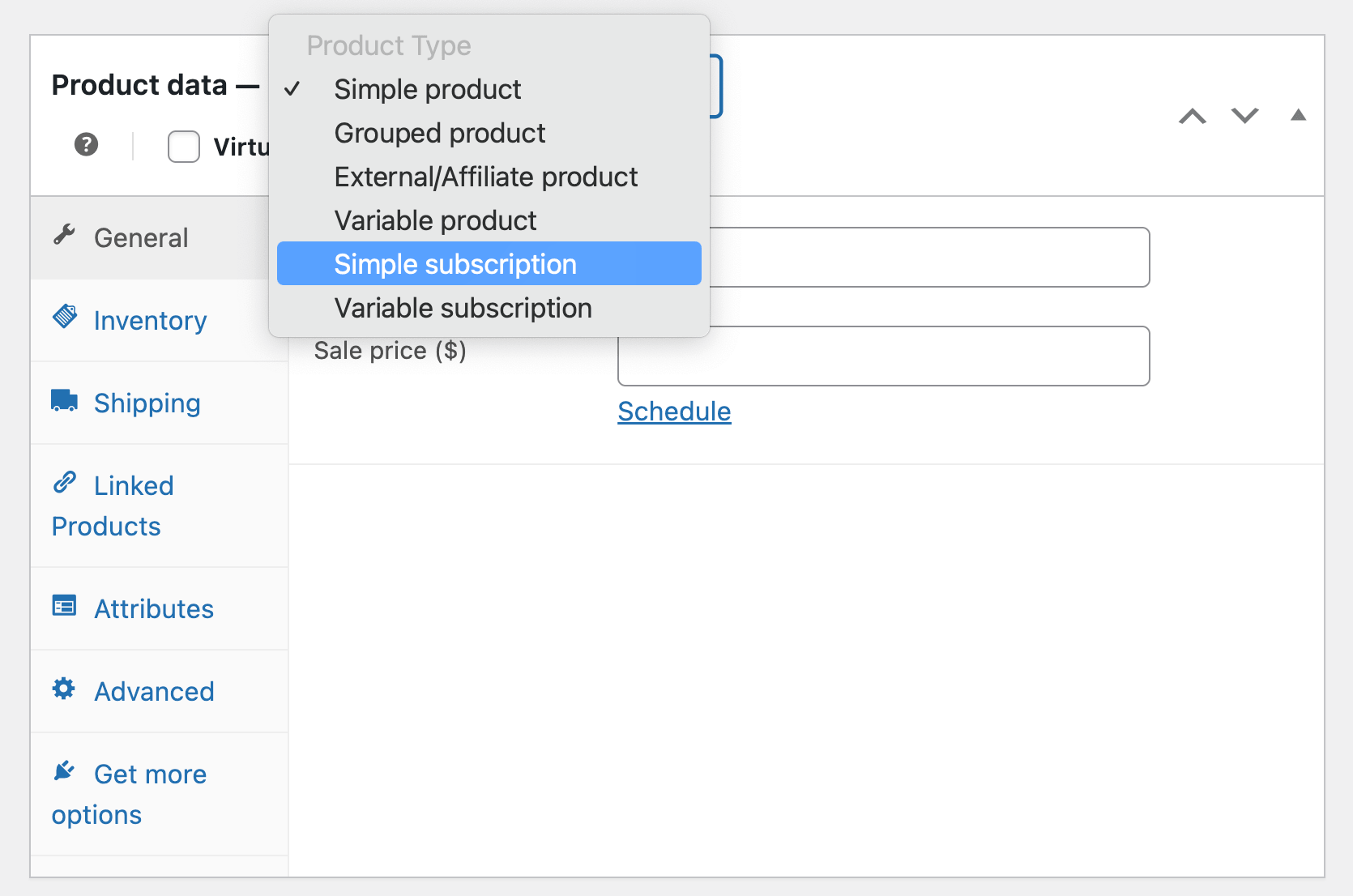
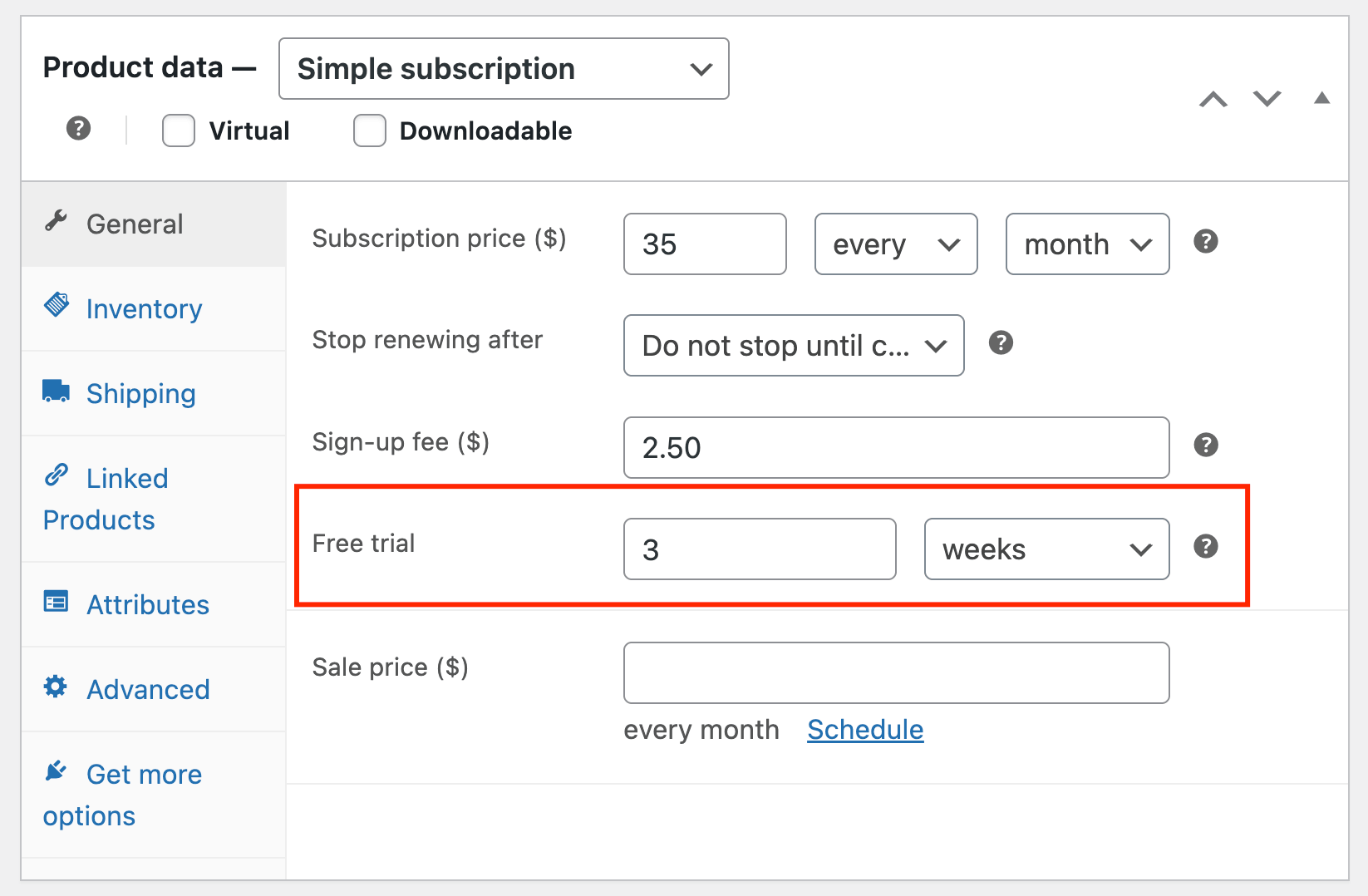
- In the Product data panel, select Simple subscription from the dropdown (not Simple product). Leave the Virtual and Downloadable checkboxes unchecked for physical boxes.
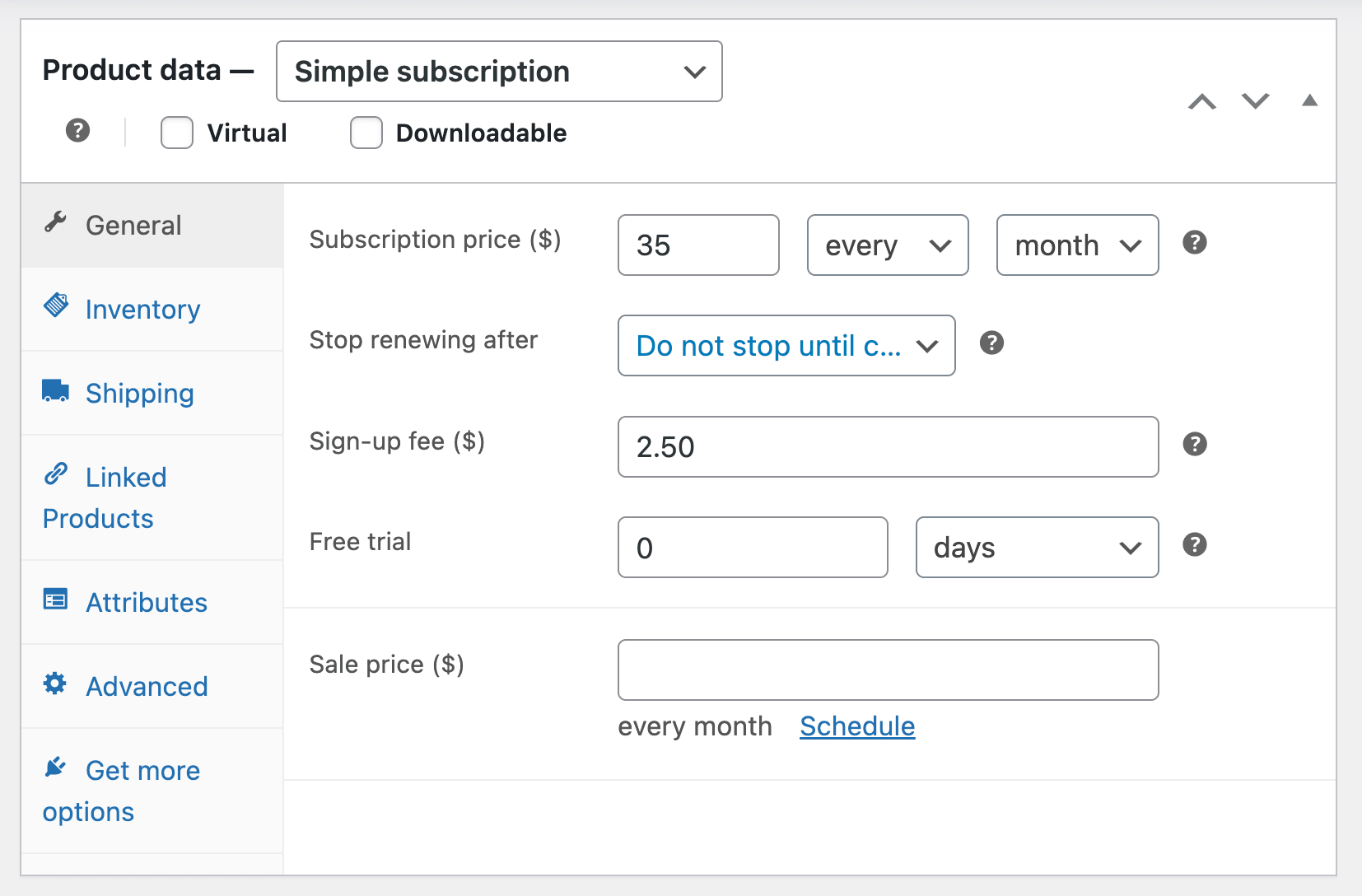
- Configure your billing settings in the General tab. Set your Subscription price (the recurring amount customers pay). Choose your billing schedule from the dropdown next to the price field: “every 1 month” for monthly boxes, “every 3 months” for quarterly, or customize to your preferred interval.
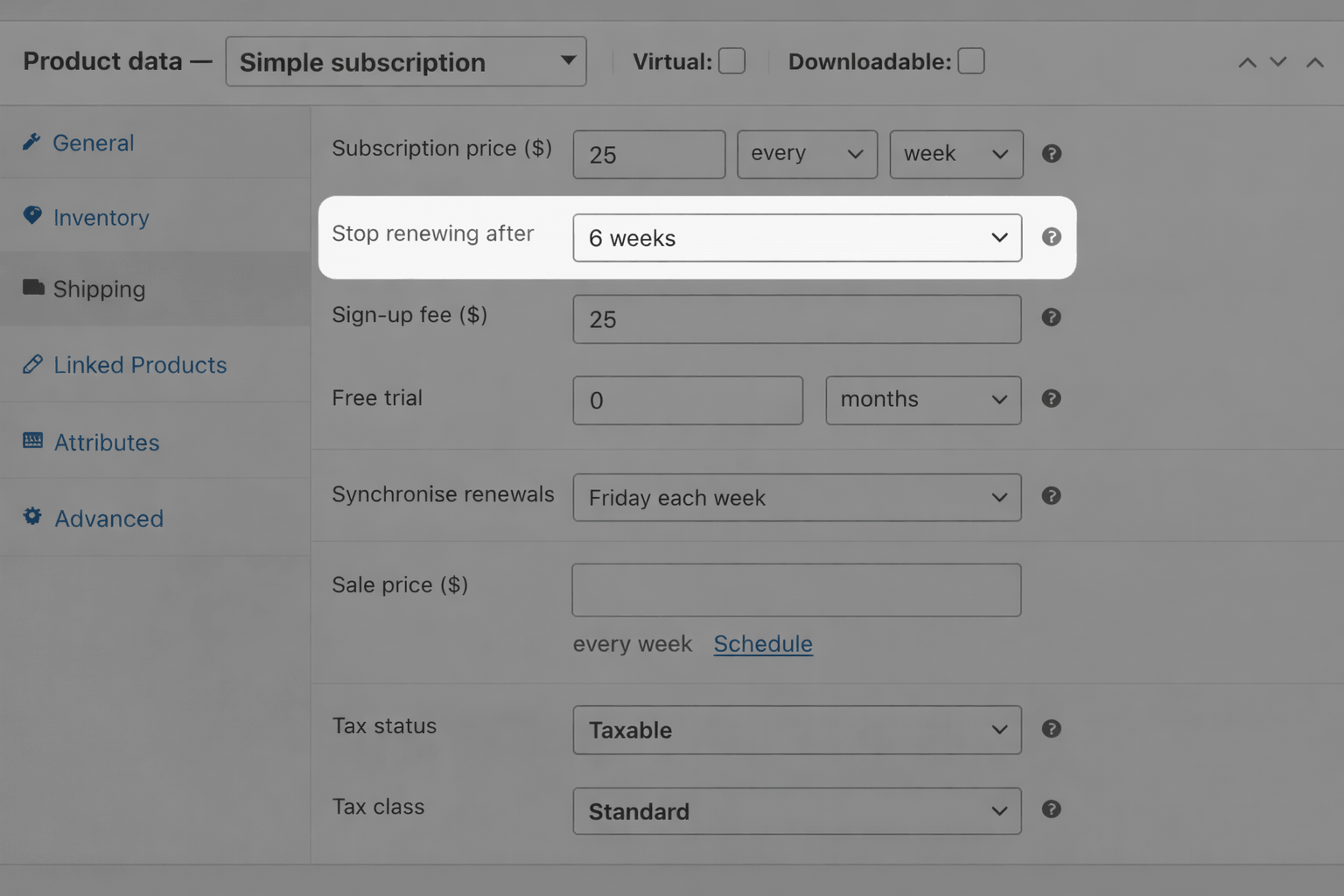
Optional settings give you additional control:
- Subscription length – Leave blank for subscriptions that continue indefinitely, or set a specific duration like “6 weeks” to end automatically.
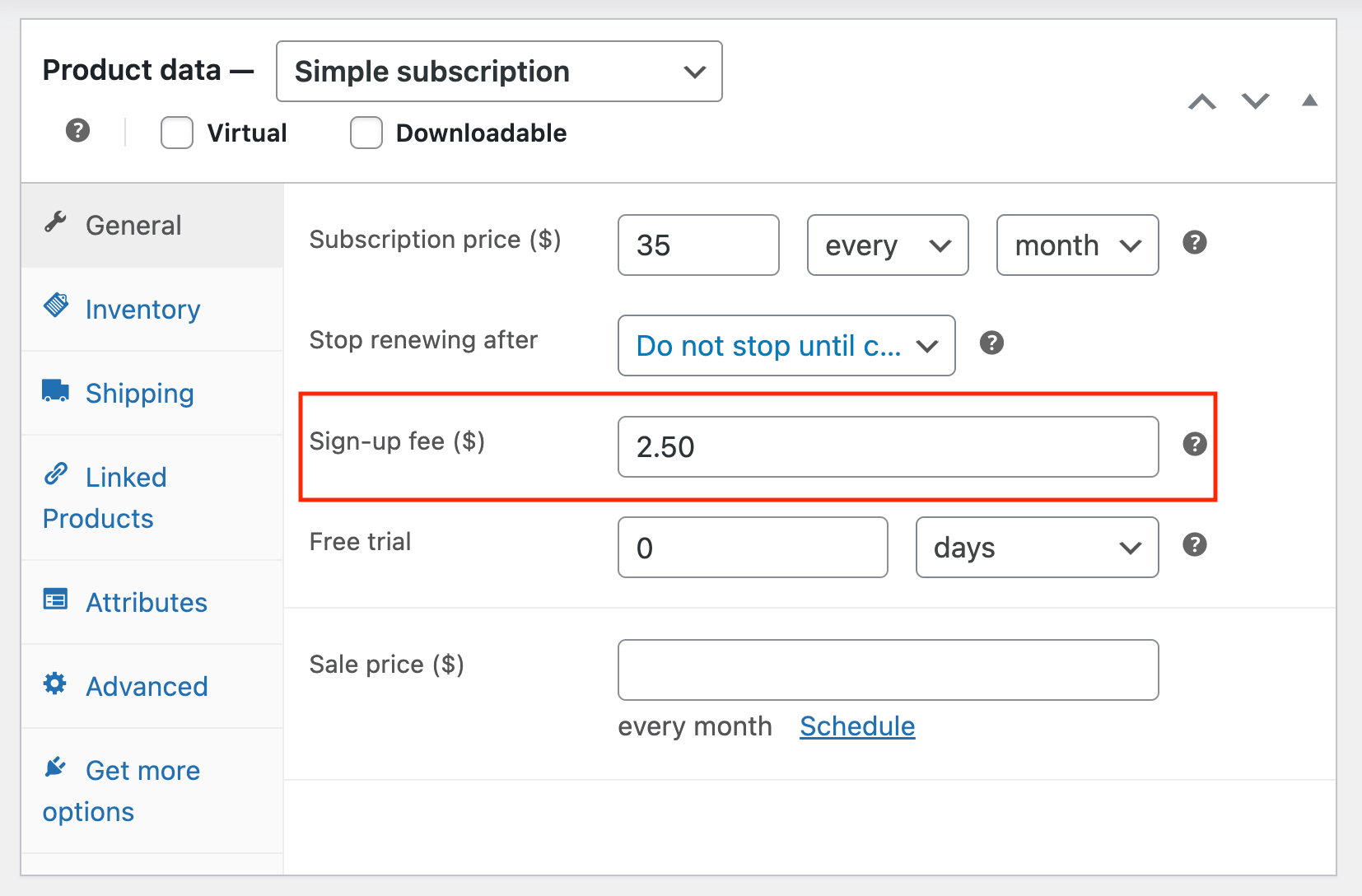
- Sign-up fee – Add a one-time charge at checkout. This amount is charged immediately, even if you offer a free trial.
- Free trial – The trial period is $0, but any sign-up fee is still charged at checkout.
Add your product descriptions, gallery images, inventory settings, shipping rules, and tax configurations just like any WooCommerce product. Publish when ready.
Your subscription product is now live and ready to accept recurring orders.
Variable products for multi-tier boxes
Variable subscriptions are included in the base WooCommerce Subscriptions plugin, not sold separately, and they are the more common choice for subscription boxes.
This is because simple subscriptions have one price and one configuration. Variable subscriptions, on the other hand, offer multiple variations (e.g. small, medium, large) where each tier has independent pricing, billing schedules, fees, and trial periods.
Here’s how to create one:
- Go to Products → Add New and select Variable subscription from the Product data dropdown.
- Switch to the Attributes tab and add an attribute (like “Size” with values small, medium, large, or “Coffee strength” for a coffee subscription product).
- Enable “Used for variations” and “Visible on product page”.
- Click Save attributes, then navigate to the Variations tab and generate variations.
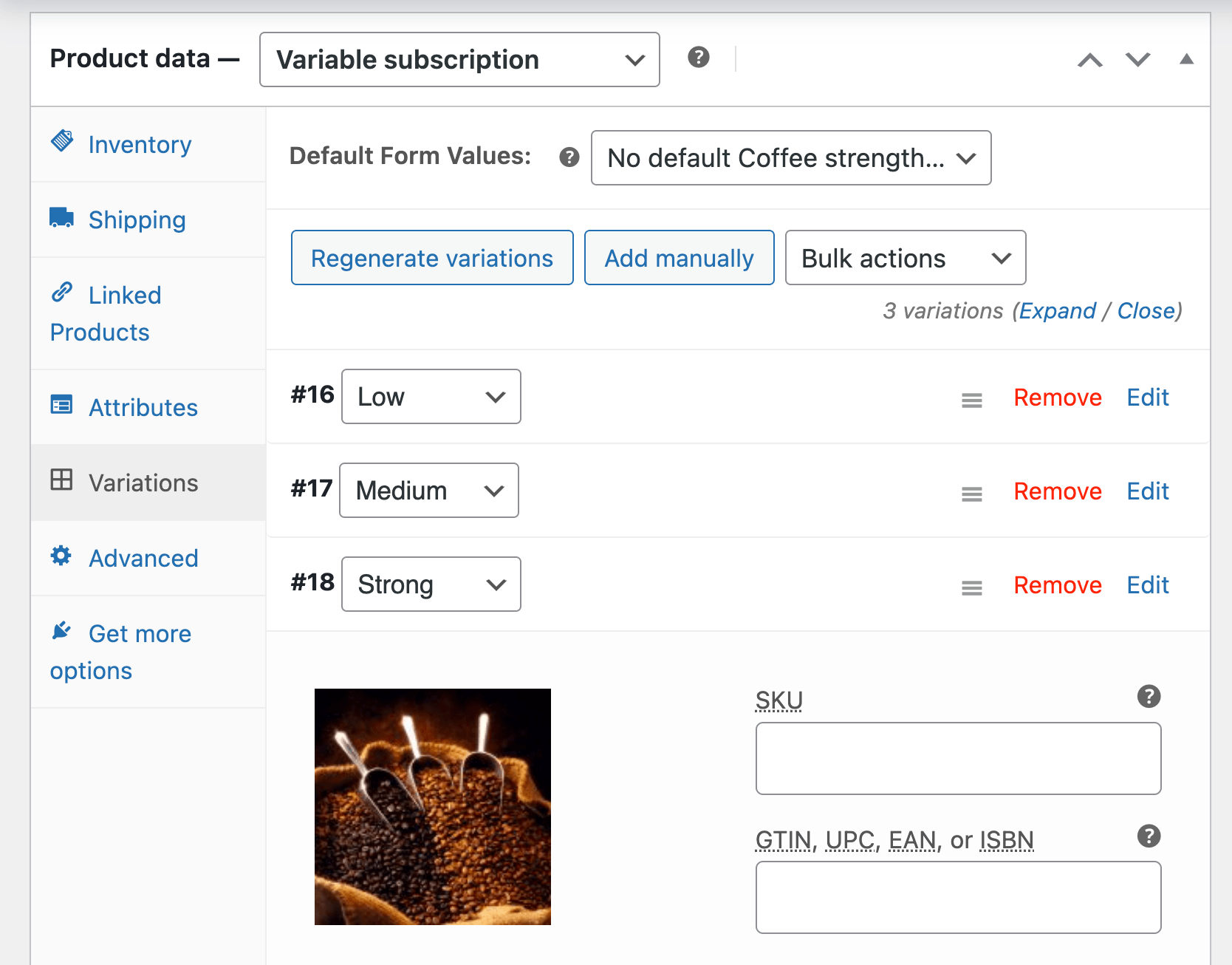
Edit each variation individually to set its unique subscription price, billing schedule, sign-up fees, and trial periods.
Real-world examples:
- Small box $25/month, Large box $45/month
- Monthly tier $35 every 1 month, Quarterly tier $90 every 3 months
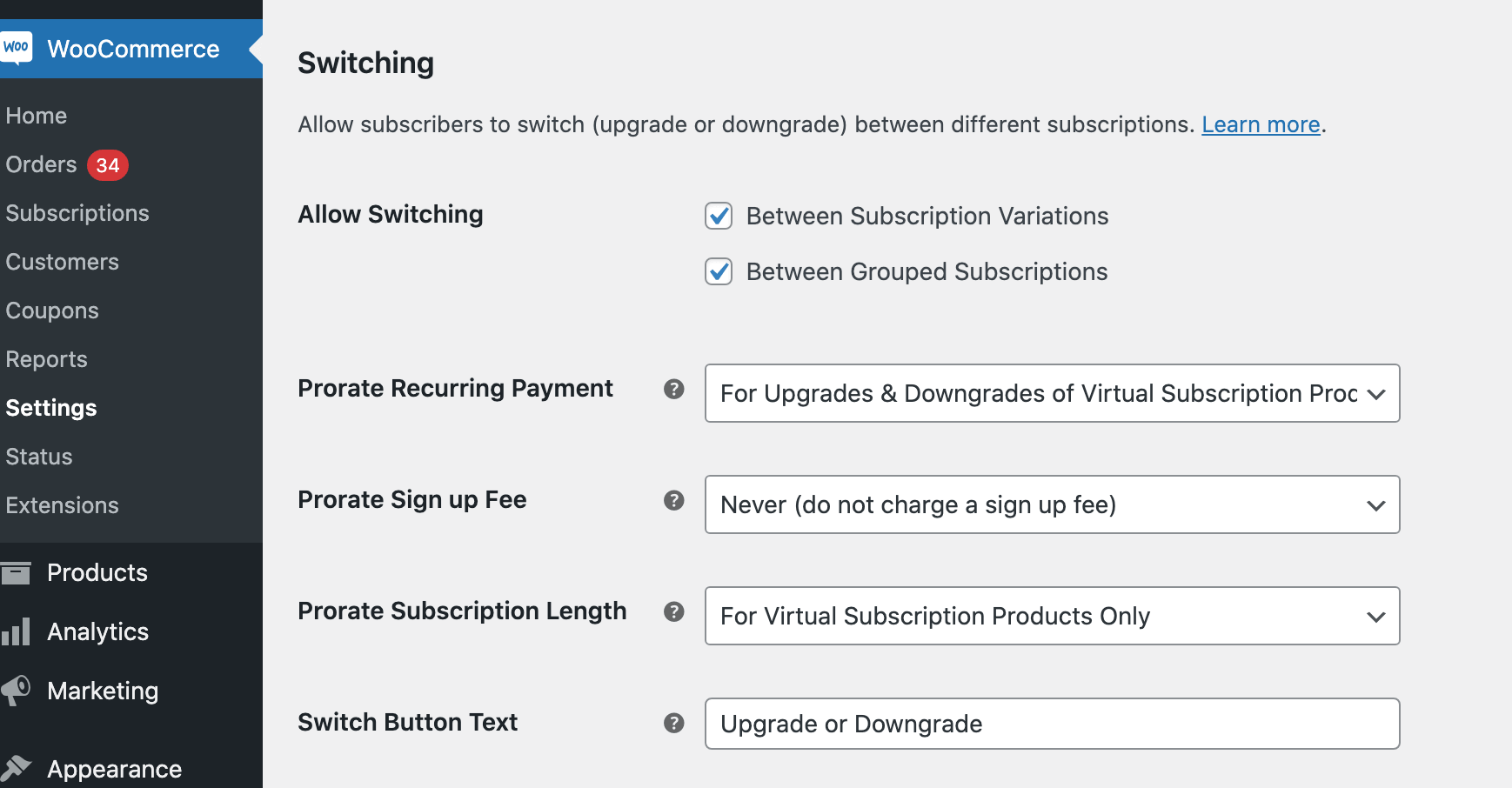
Variable subscriptions also enablesubscription switching, allowing customers to upgrade or downgrade between tiers.
Manually adding and editing subscriptions
Sometimes you need backend control for customer service scenarios: phone orders, account migrations, corporate bulk purchases, or correcting billing issues.
Navigate to WooCommerce → Subscriptions to see all active subscriptions with their status, next payment date, and customer details.
- Edit existing subscriptions by clicking any subscription to access the Edit screen. From there, you can modify shipping and billing addresses, update payment methods, adjust renewal dates, change status (active, on-hold, cancelled, suspended), edit line items, update subscription totals, or modify trial expiration dates.
- Create subscriptions manually by going to WooCommerce → Subscriptions → Add Subscription. Select an existing customer or create a new one, add products to the subscription, configure the billing schedule, set start and next payment dates, then choose the initial status. This proves useful for phone orders, account migrations, corporate bulk purchases, or gift subscriptions.
A word of caution: Some payment gateways allow changing payment dates directly. Others require you to cancel the existing subscription and recreate it with the correct dates.
Managing payment gateways and recurring billing
WooCommerce Subscriptions integrates with 25+ payment gateways, including Stripe, PayPal, Authorize.net, and PayPal Enterprise Payments (Formally Braintree). Check thegateway compatibility guide to verify your gateway supports recurring payments.
Automatic billing works like this: Customers authorize payment once at checkout. Future charges are processed automatically using the stored payment method without any customer action required.
When payments fail, the built-in retry system attempts collection multiple times before suspending the subscription. Configure retry attempts, timing intervals, and suspension thresholds at WooCommerce → Settings → Subscriptions.
Did you know? Renewal synchronization aligns all subscriptions to specific dates (like the 1st of each month or every Monday) for simplified accounting and inventory planning. Enable this at WooCommerce → Settings → Subscriptions → Synchronize Renewals. The first payment is automatically prorated.
For gateways without automatic renewal support, enable manual renewals.

Adding customization to subscription boxes with Advanced Product Fields
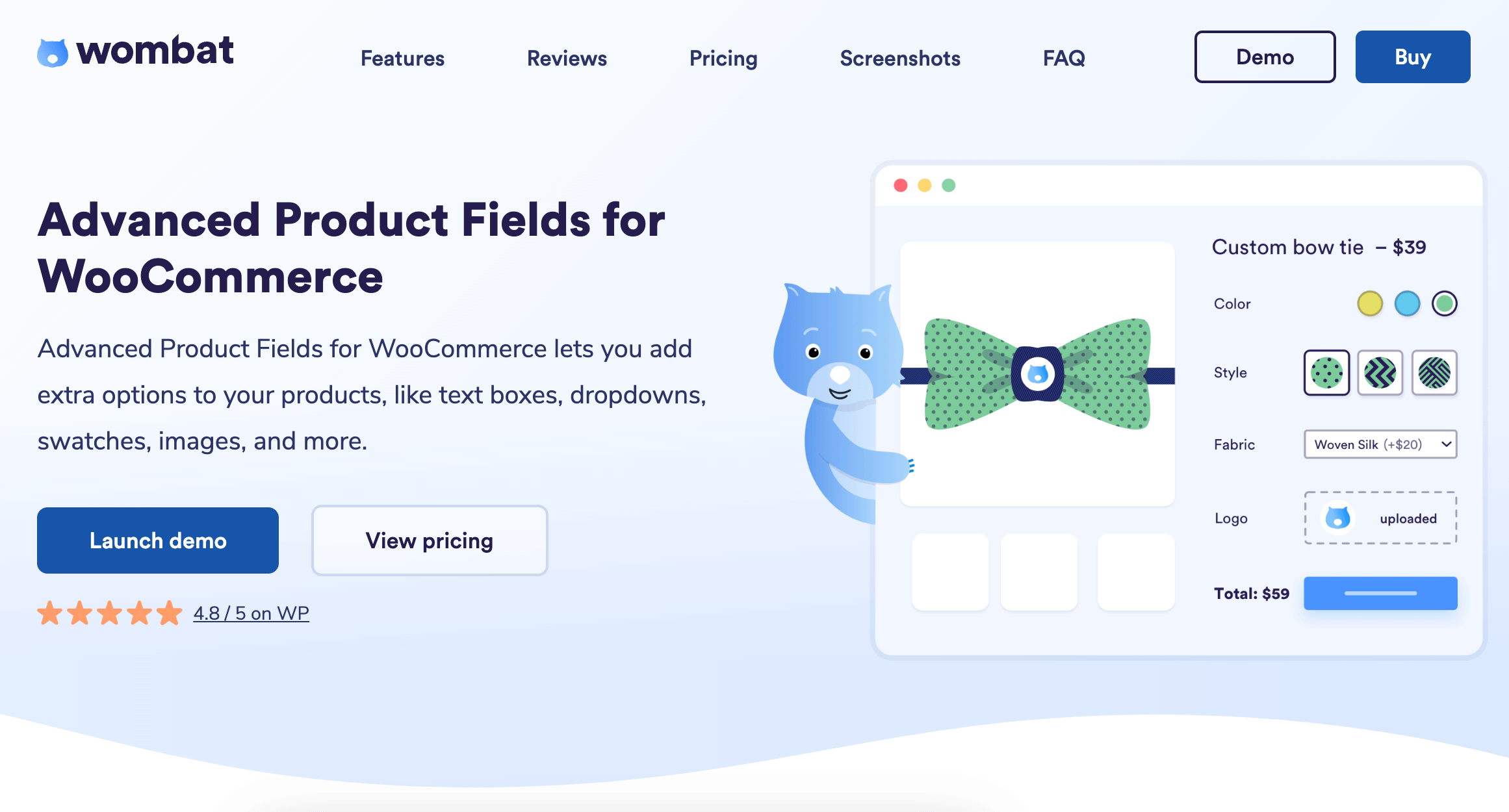
Basic subscription products handle recurring billing, but they don’t let customers configure preferences or personalize their boxes. Every subscriber gets the same product, month after month, with no ability to adjust selections based on changing tastes or needs.
Advanced Product Fields solves this problem by adding custom input fields to subscription products. These preferences, selections, and configurations automatically persist across every renewal order. Customers set their preferences once, and those choices carry forward without manual intervention.
- Conditional logic shows fields based on previous selections. Add vegan, vegetarian, and meat options, and depending on the choice, customers will only see the products relevant to them.
- Formula-based pricing scales add-on costs with box size. Extra samples cost more in larger tiers.
- 18 field types cover different input needs from simple text to complex product selection grids.
For detailed setup instructions and real-world examples, check ourcomprehensive guide to building customizable subscription boxes with Advanced Product Fields.
Now, here’s how these features might look in practice for your subscription boxes:
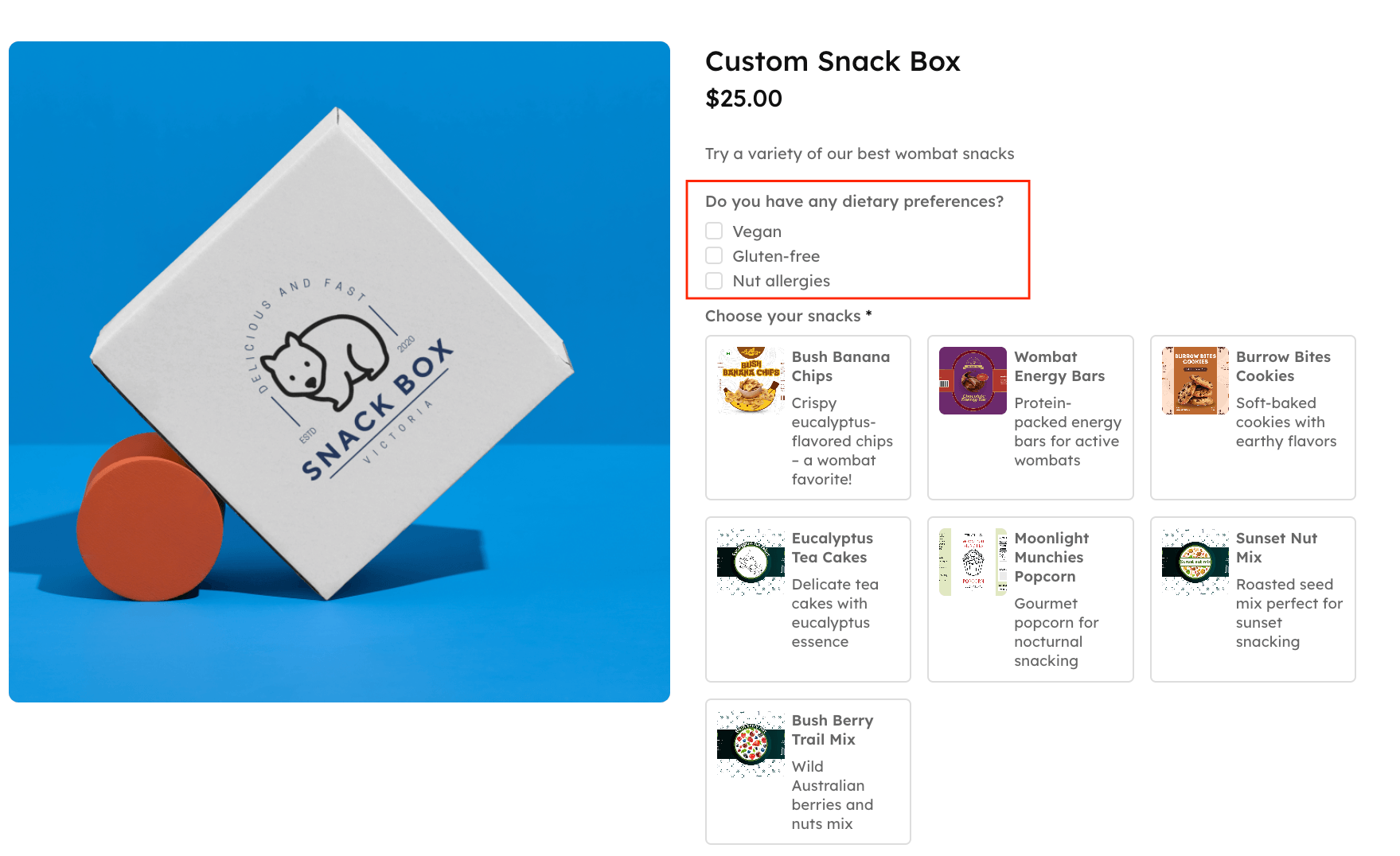
- Dietary restriction checkboxes that filter product selections (vegan, gluten-free, nut allergies).
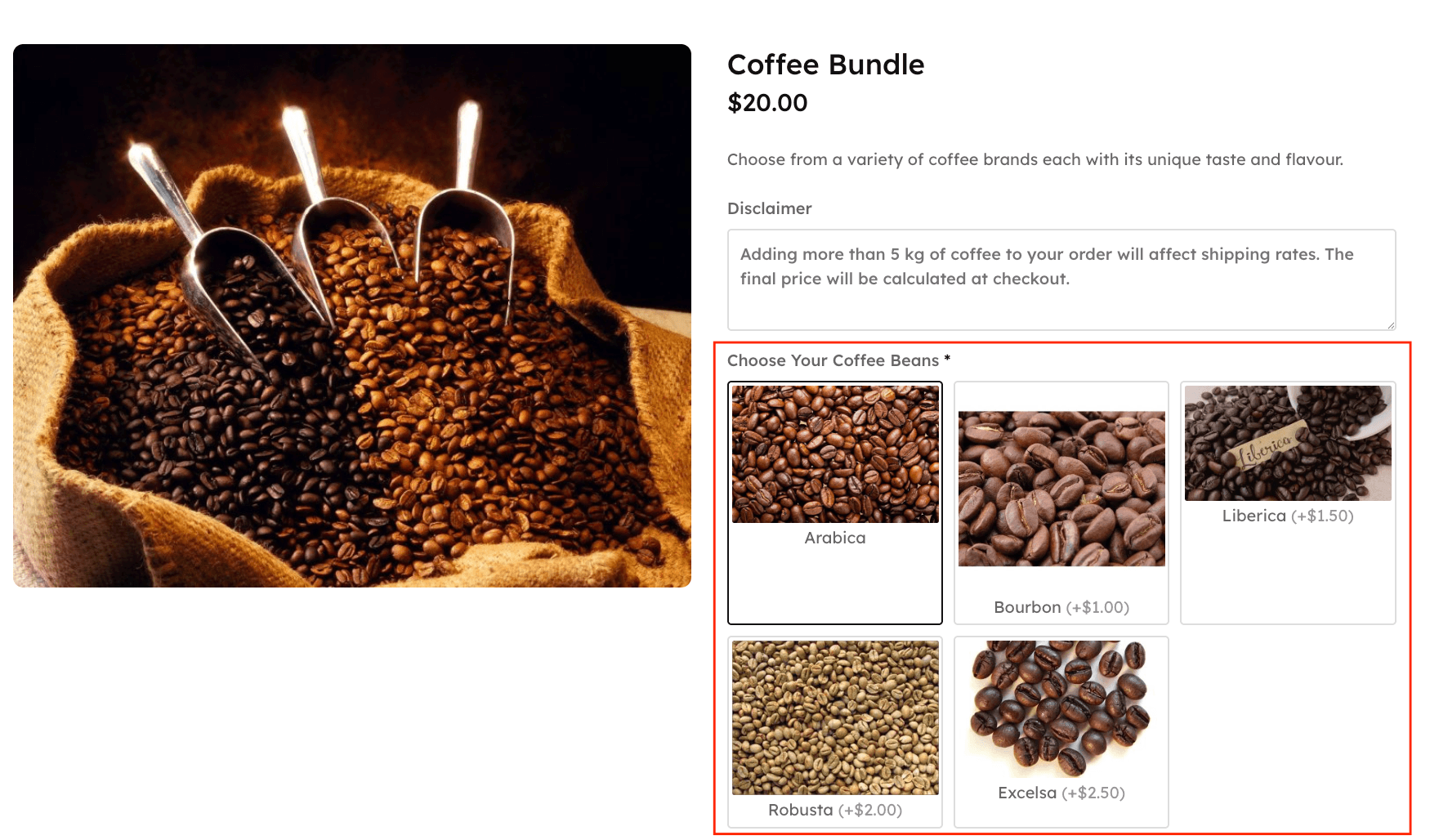
- Flavor selection via image swatches showing each coffee blend or spice variety.
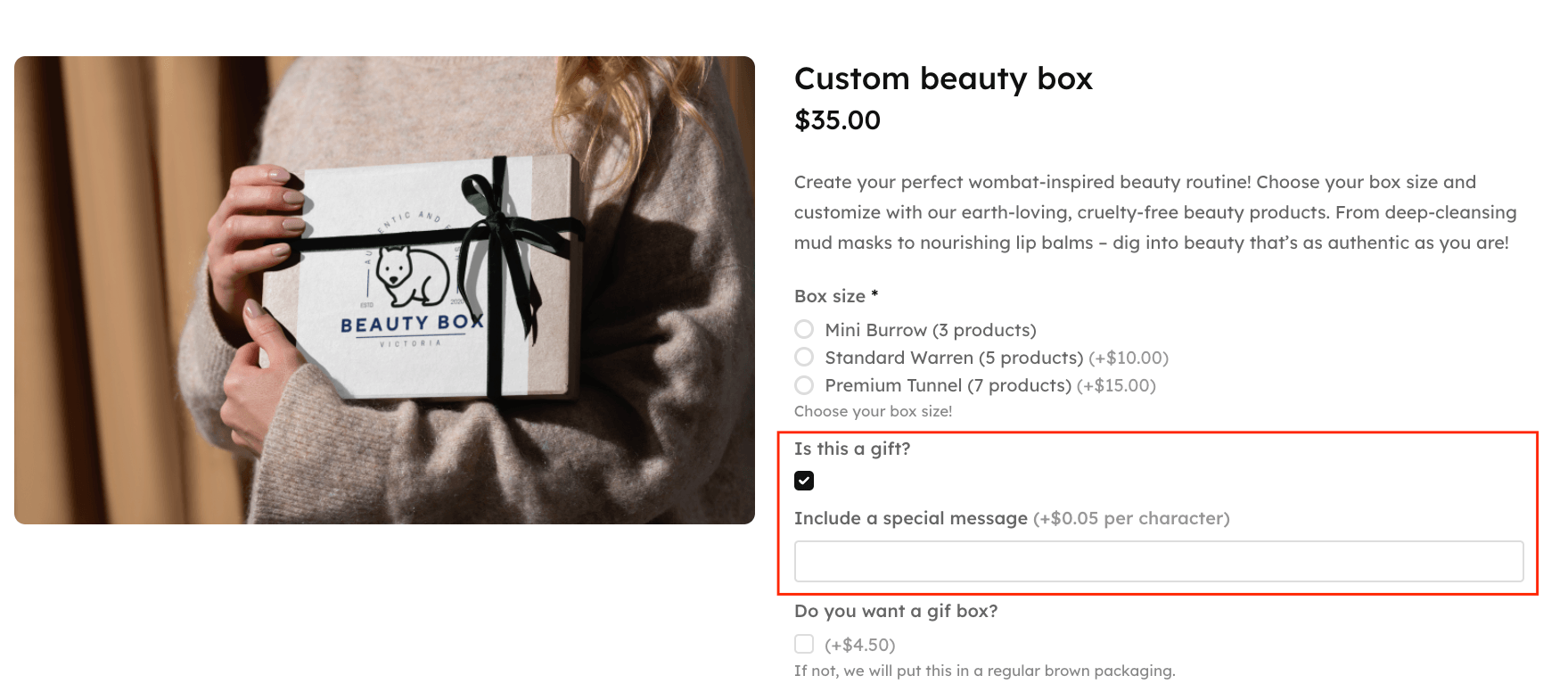
- Text fields for personalization, like monogramming or custom messages.
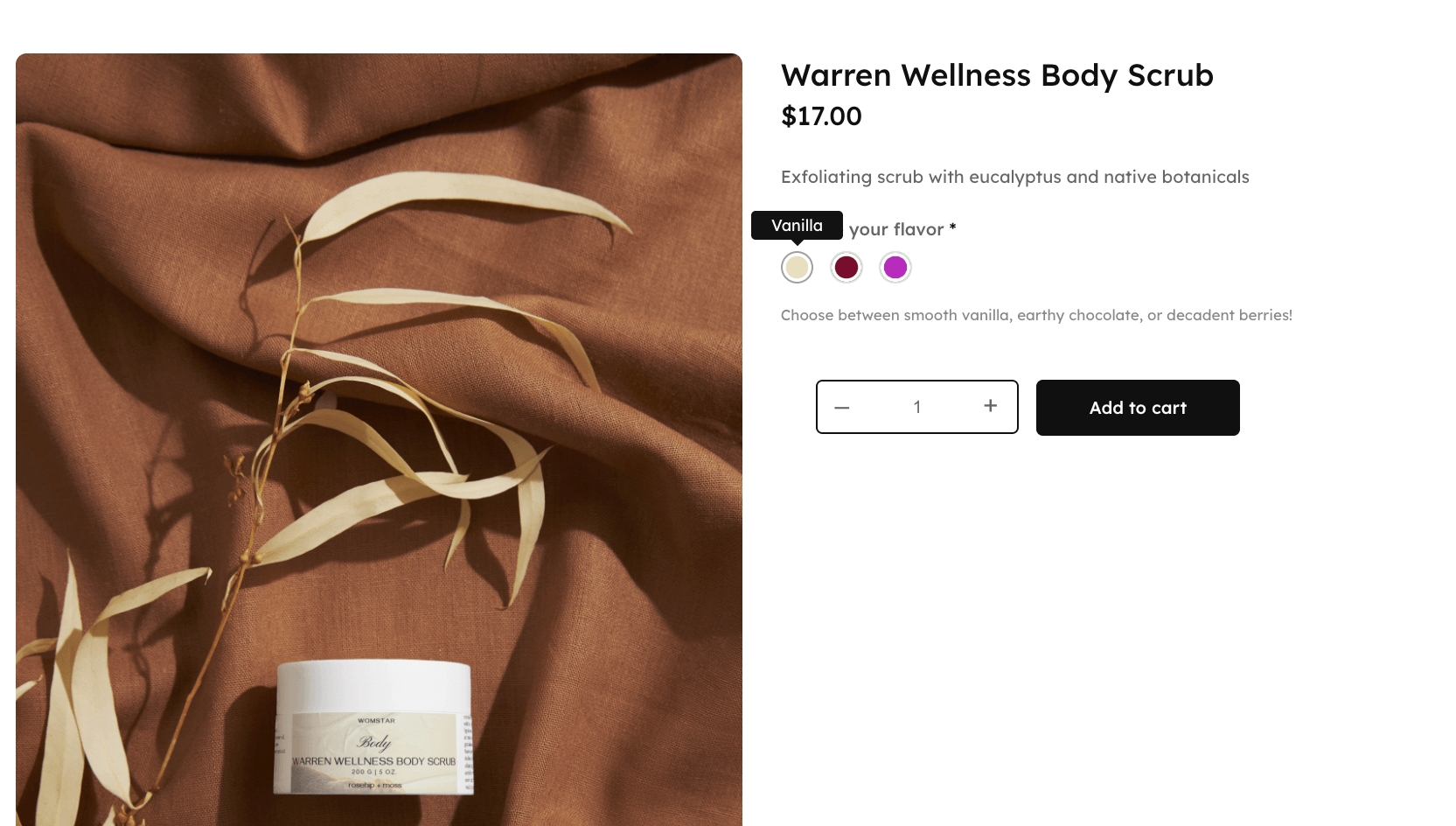
- Color pickers for beauty products or art supplies.
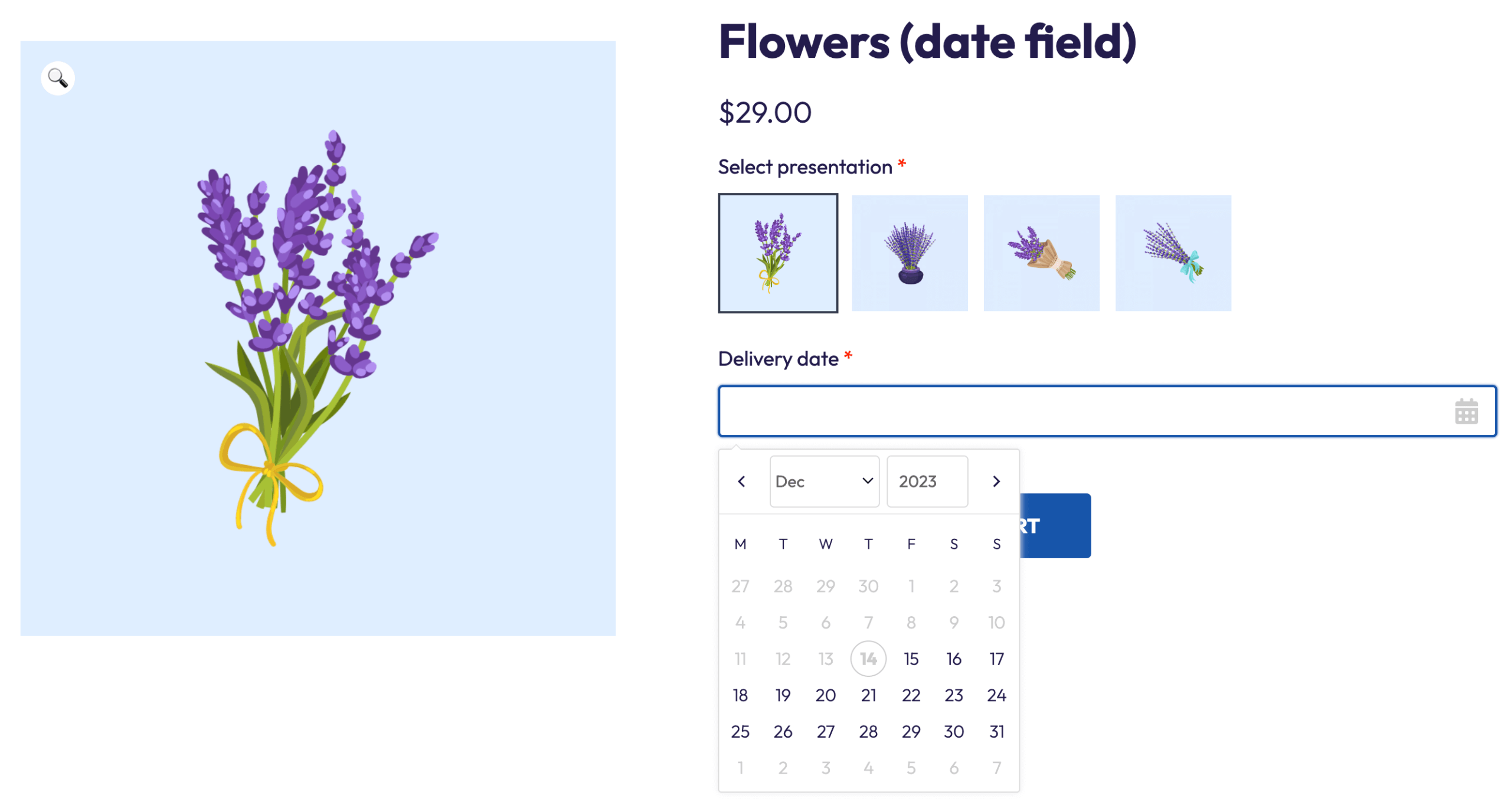
- Date fields for scheduling delivery windows.
Best practices for subscription box success
The most important thing you need to do is test a complete renewal cycle before launch. Here’s how to do that:
- Create a test subscription with shortened billing intervals (daily instead of monthly).
- Process the initial payment in sandbox mode.
- Wait for the automatic renewal to trigger.
- Verify Advanced Product Fields values persist correctly.
- Confirm retry logic handles failed payments.
Don’t launch until you’ve watched the entire cycle execute successfully.
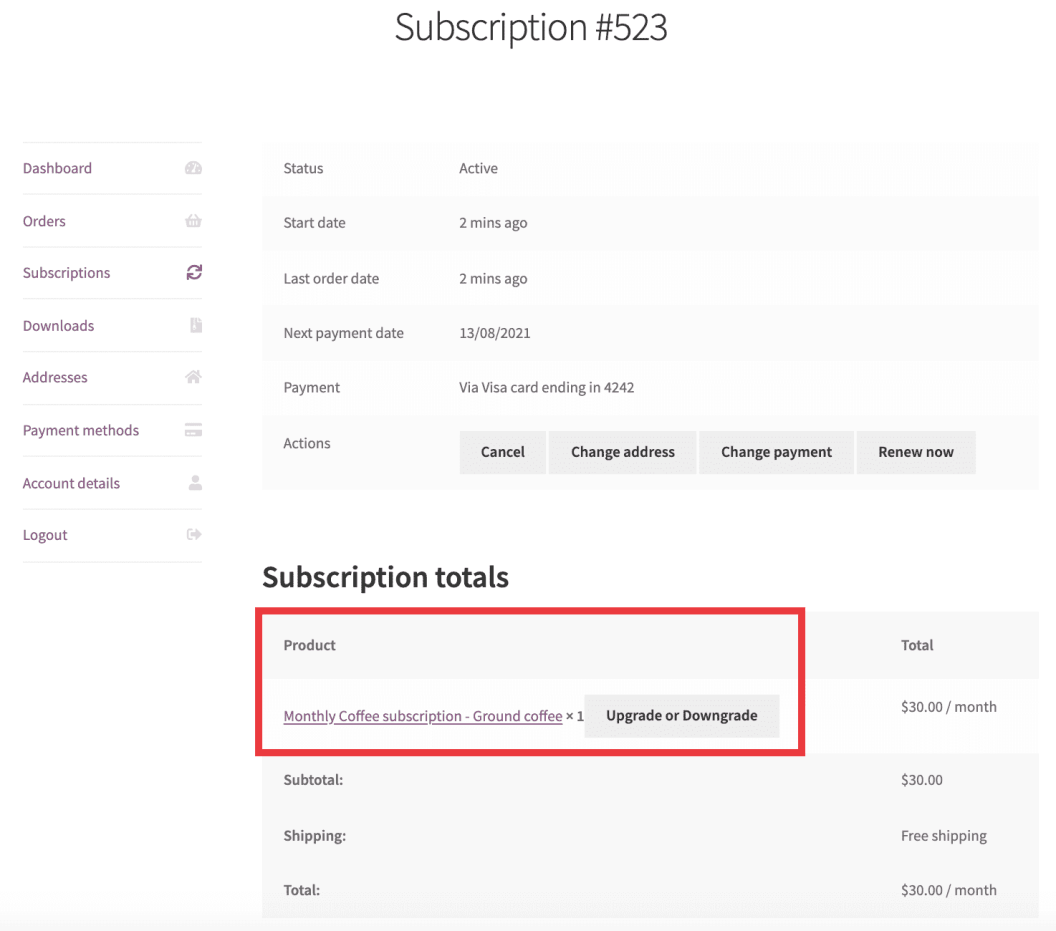
Once you have an active subscription, make sure it’s very clear to your customers what they can do on their own. This might include pausing subscriptions, canceling them, changing payment methods, and updating shipping addresses from My Account → Subscriptions. They should also be able to upgrade or downgrade between tiers if you’ve enabled subscription switching on variable products.
However, Advanced Product Fields customization preferences are typically captured at purchase only – customers can’t modify selections between renewals without custom development work. Communicate these limitations upfront to avoid support requests and frustration.
Other than that, here are some more useful tips to help with your subscription box business:
- Start focused, then expand. Launch with 1-2 subscription products maximum. Validate the complete customer experience and fulfillment workflow before adding complexity.
- Monitor your subscription analytics. Track active subscribers, monthly churn rates, and cancellation patterns at WooCommerce → Reports → Subscriptions. This data reveals which products retain customers and which lose them.
- Plan inventory strategically. Enable renewal synchronization to batch all subscriptions on specific dates (like the 1st of each month or every Monday). This creates predictable fulfillment windows instead of processing individual orders constantly.
- Leverage subscription coupons. Create recurring discounts (percentage or fixed amount per payment) or one-time sign-up fee discounts. Set duration parameters: First payment only, first 3 payments, or every payment indefinitely.
Launch your subscription box with ease
WooCommerce Subscriptions handles recurring billing with guaranteed compatibility. Advanced Product Fields adds customization that persists across renewals.
Your build sequence: Purchase and install WooCommerce Subscriptions, create subscription products, configure billing and fees, add Advanced Product Fields for personalization, set up payment gateways, then test the full renewal cycle.
For subscription boxes where personalization drives retention, Advanced Product Fields provides 18 field types, conditional logic, and formula pricing that integrate reliably with WooCommerce Subscriptions.
Start setting up your subscription boxes today and offer unique customization options with Advanced Product Fields.
