
How to add a table anywhere on your site
Once you’ve created a product table, you can display it on any page, post or widget area of your site. The easiest way is the Product Table block. If you don’t use the block editor, you can use the table’s shortcode instead.
Add a table with the block
Open the page or post where you want the table. Click the + button, search for Product Table and add the block. Then choose your table from the dropdown and save.
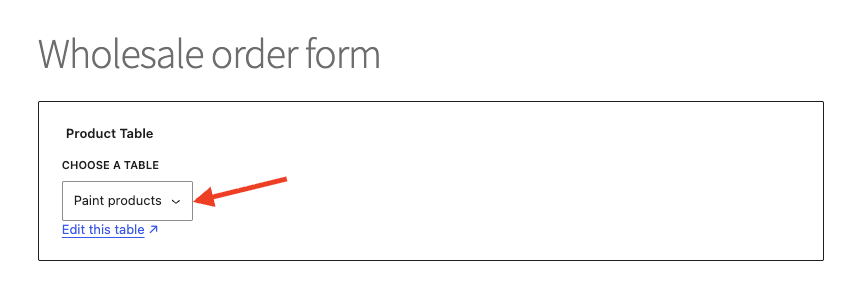
The block shows the table you chose rather than a live preview, so view the page to see the actual table. To change the table’s settings, click Edit this table below the dropdown.
Add a table with the shortcode
In your WordPress admin dashboard, go to Products → Product Tables. Each table has a shortcode in the Shortcode column that looks like this: [product_table id="123"]. Click the field to select it, then copy it.
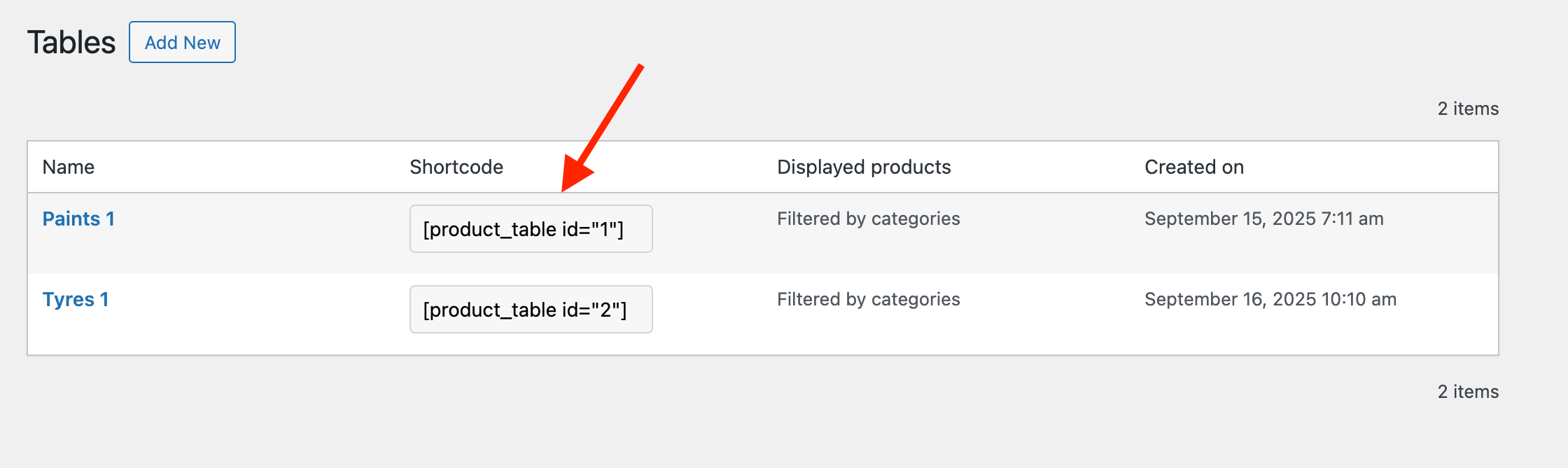
Where you paste it depends on how you build your site:
Classic editor
Paste the shortcode into the content where you want the table to appear, then save.
Page builders
Most page builders have a shortcode element, such as the Shortcode widget in Elementor. Add that element where you want the table and paste your shortcode into it.
Widget areas
Go to Appearance → Widgets, add a Shortcode block to the widget area of your choice and paste your shortcode. This option is only available if your theme supports widgets.
Theme templates
If you’re comfortable editing theme files, you can output a table with PHP. Replace 123 with your own table ID:
<?php echo do_shortcode( '[product_table id="123"]' ); ?>Code language: HTML, XML (xml)Table not showing?
If nothing appears, check that the table still exists under Products → Product Tables. A block or shortcode pointing to a table that was deleted shows nothing, and neither does a shortcode with the wrong ID. Tables also aren’t shown in the content of your site’s search results.