Looking to add a WooCommerce search bar to your store? This guide is for you.
In this guide, we’ll show you how to add a search bar to your WooCommerce store the default way. Then, we’ll walk through how to upgrade the default WooCommerce search experience with a better search bar using a WooCommerce plugin.
Here’s what we’ll cover:
- How the default search bar works and how to add it.
- How to add a better WooCommerce search bar to your store using the Product Search for WooCommerce plugin.
- The benefits of improving your WooCommerce product search.
Let’s start by understanding how to add a search bar to your WooCommerce store the default way.
Does WooCommerce allow you to add a search bar to your shop page?
Yes, you can add a search bar to your online store using WordPress and WooCommerce’s default features. But how you do it largely depends on the WordPress theme you’re using.
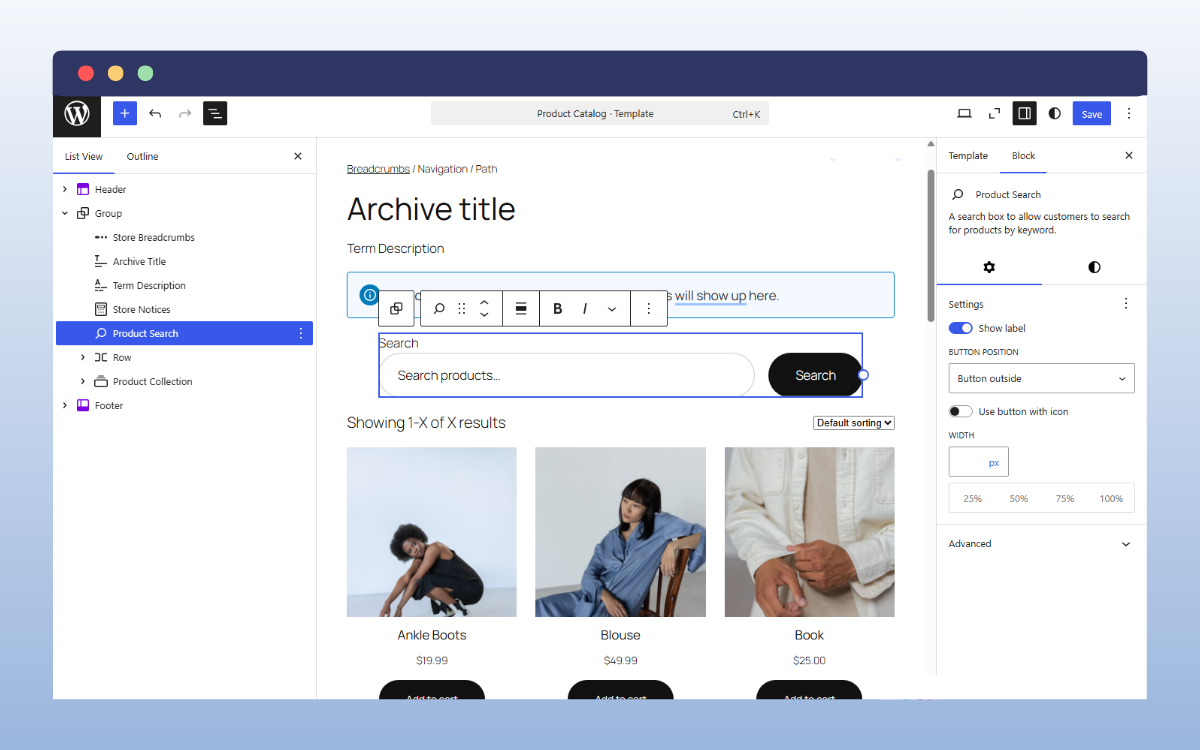
- If you’re using a block theme, you can add WooCommerce’s Product Search block to your shop page or templates using the blocks inserter. After that, you’ll be able to customize it using the Block Editor, like you would for any other block.
- On the other hand, if you’re using a classic theme, you can add a search bar through the Widgets area on your WordPress dashboard. Go to Appearance → Widgets, and look for the Product Search widget. From here, you can choose where you want to place it. For example, the header, footer, or sidebar, and then edit it using the theme’s customization options.
Regardless of how you add the default search bar to your store, here’s how it works.
How the default WooCommerce search bar works
After adding a search bar to your store, customers can use it to look for products by entering a search term. Usually, product names such as “wireless keyboard” or “hair spray”, depending on what you sell.
WooCommerce checks to see if the specific search term appears anywhere in your product’s:
- Title.
- Short description (excerpt).
- Long description (content).
Then returns the products whose information contains the search query on the search results page. So if a customer searches for “hair spray”, all products that have this term somewhere in their product information will appear on the search results page. Simple as that.

The default WooCommerce search functionality has limitations
The default WooCommerce search is useful for finding products in your store, but it has its limitations. The matching is pretty basic. It does a simple ‘does your product information contain the exact search term?’ check. This means that if, for any reason, the search term doesn’t match any text in the product title or description, the product doesn’t appear in the search results.
It doesn’t account for:
- Typing errors. It doesn’t catch typos; for instance, if the customer types “wirless” instead of “wireless”.
- Stemming. It doesn’t know that “Run shoes” and “running shoes” are related.
- Synonyms. For example, when the customer searches for “couch”, it won’t show products that just have “sofa”.
This is one of the key ways WooCommerce’s default search doesn’t understand customers’ search intent. If they use alternative words to describe what they’re looking for, it likely won’t match.
It has basic relevance sorting
By default, WooCommerce does sort search results by relevance, but this relevance is a rough order borrowed from WordPress. It orders by product title, then by whether the term is in the description, and uses the product’s add date to break ties.
There’s no real scoring behind it, so it doesn’t weigh how many times the term appears, or how closely it matches. So a product that mentions the search term once, but it’s buried in a long description, can appear higher than a much better match.

Limited searchable fields
By default, WooCommerce doesn’t look for the search term in your product attributes, custom taxonomies (like the brand), custom fields added by other plugins, and product variations directly.
It handles multi-word searches loosely
For multi-word searches, each word just needs to appear somewhere in the searchable fields. The words don’t necessarily need to be in order or even together. This means irrelevant products are highly likely to appear in the results.
Despite these limitations, the default WooCommerce search is okay for smaller stores with simple catalogs. For these stores, basic search might be enough because customers will likely search for the exact terms in the product information.
But if you have a larger, growing catalog, customers may struggle to find what they need using the default search bar. They won’t always search using the exact words in your product titles and descriptions.
To help customers find products more easily, you’ll need to add a better search bar to your store. You can do this with the help of a WooCommerce product search plugin.
Add a better WooCommerce search bar to your store
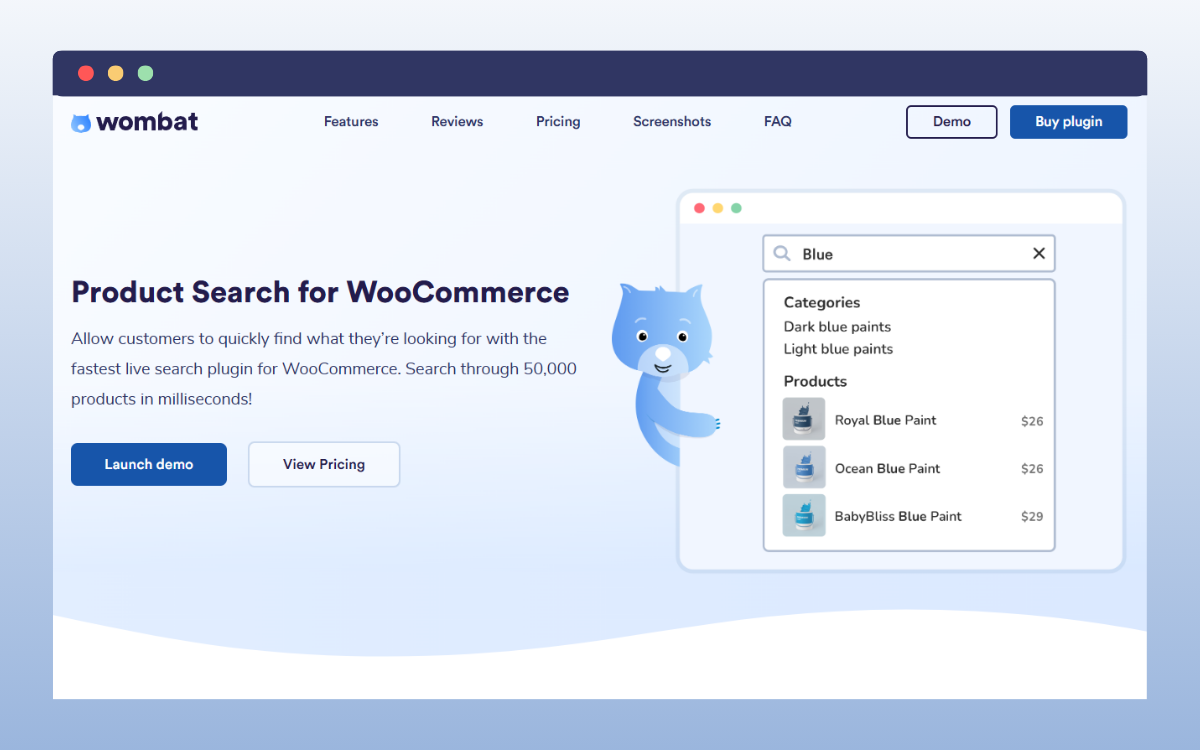
With the plugin Product Search for WooCommerce, you can add a powerful search bar that helps customers find relevant products easily in your online store.
This search bar supports live search where results appear as customers type in the search field. The live search system is well-optimized for speed. It can handle complex searches quickly, even across tens of thousands of products, thanks to its dedicated search index.
It can deliver search results to customers in a fraction of a second. This in itself improves your customers’ experience as they look for products. But that’s not the only way it does this.
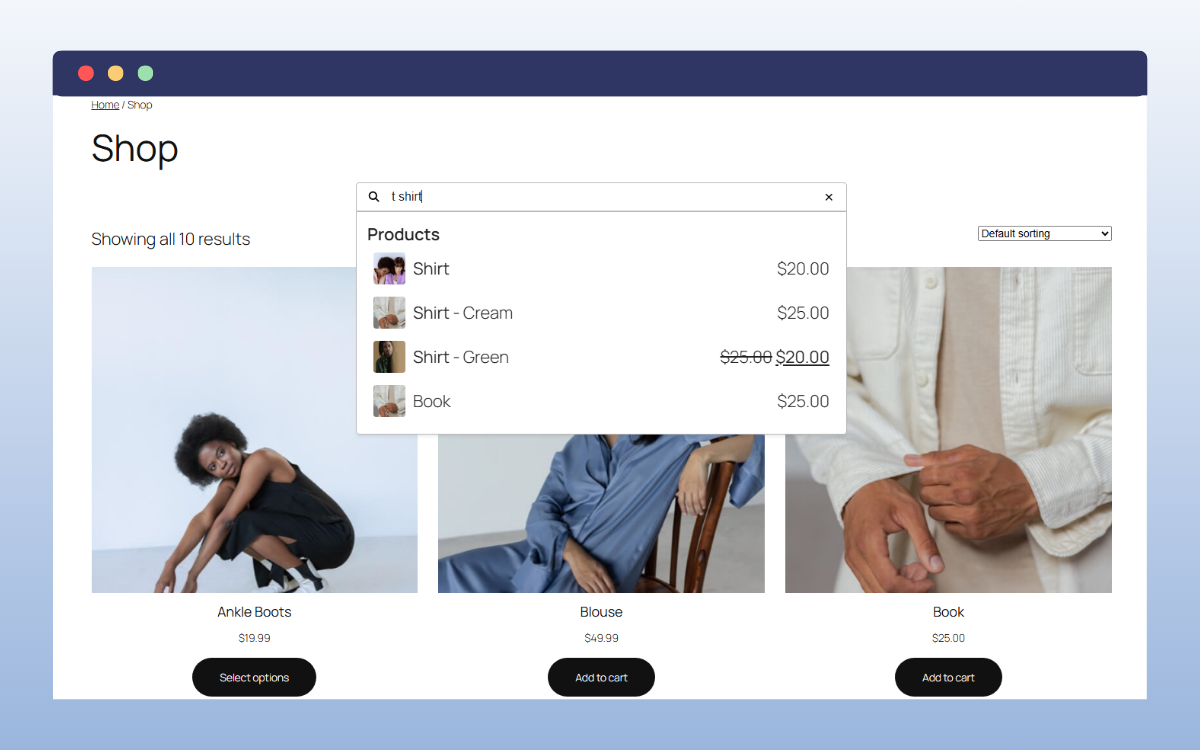
An intelligent search engine powers your search bar
We know that customers don’t always search for the exact terms in your product titles or descriptions. They commonly use alternative words to describe what they’re looking for. And sometimes they might make typos without realizing.
Product Search for WooCommerce’s intelligent search engine accounts for this through:
- Fuzzy search support. If they type “wirless” instead of “wireless”, they can still find that wireless keyboard or mouse that they’re looking for.
- Support for synonyms. You can define synonyms for products to allow customers to find them using alternative words. For example, defining “couch” as a synonym for “sofa”.
- Language awareness. The search engine understands plurals, tenses, and word endings. When customers use them, they’ll still find what they want.
The search engine also uses a scoring system to rank results by relevance. The best matches appear at the top, where customers can see them first.
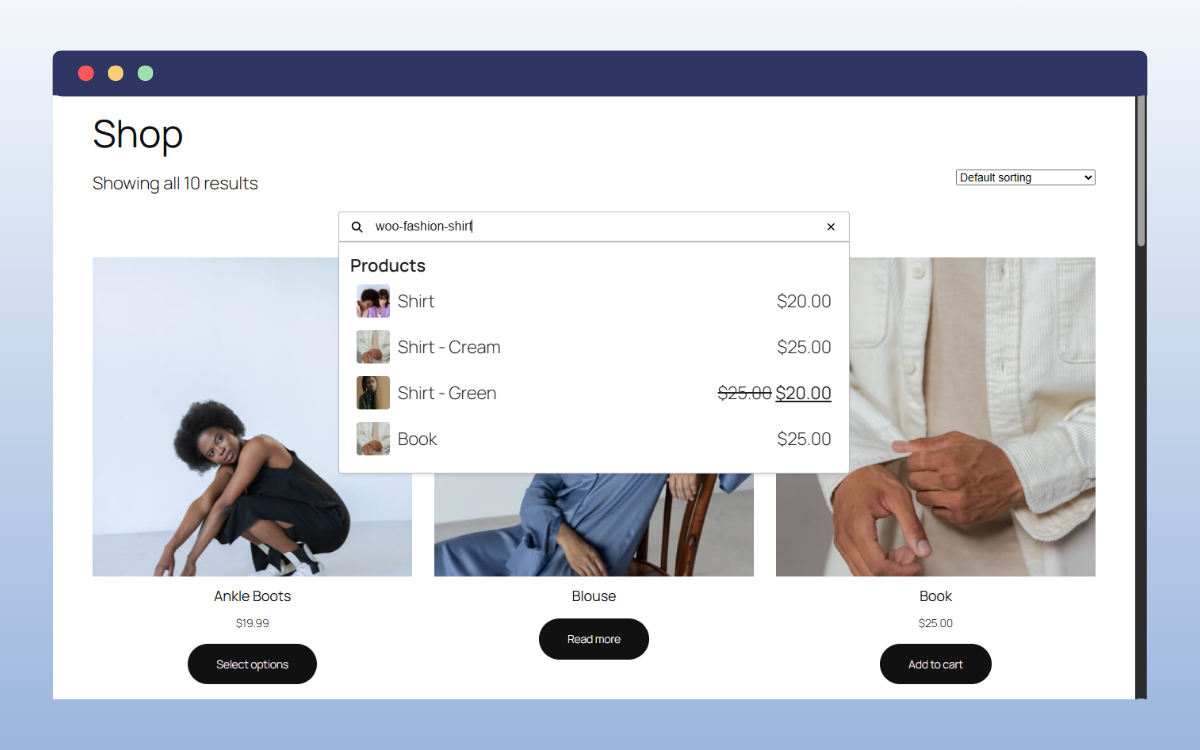
It lets you include more searchable product data
With this plugin, you can add relevant product data to the searchable fields.
This includes:
- Variable product options (product variations). Product Search supports variations, and you can choose to show parent products only or include individual variations.
- SKUs (including SKUs for product variations and not just the parent product).
- Unique identifiers such as GTIN and ISBN.
- Custom meta fields created with plugins like ACF.
You can also allow customers to find products by searching related data, including product categories and brands. You can also exclude out-of-stock products. In short, you choose how customers find products.
The search bar is fully customizable
You can customize the search form’s appearance to match your store by editing the search box’s:
- Border size and radius.
- Background and text colors.
On top of that, you can choose which product details appear in the results. For example, the name, image, price, and SKU.
So that’s how Product Search for WooCommerce lets you upgrade your WooCommerce search bar. Let’s see how to set it up.
How to add WooCommerce product search with a plugin
To upgrade your WooCommerce search bar using the Product Search for WooCommerce plugin, follow these steps:
Step 1: Customize your product search settings
First, you’ll need to purchase the Product Search plugin from Wombat Plugins: studiowombat.com/plugin/product-search-for-woocommerce. Then install it on your WordPress site.
After that, you can now customize search settings. These settings determine what customers can search for and the results the search bar shows.
To customize product search settings:
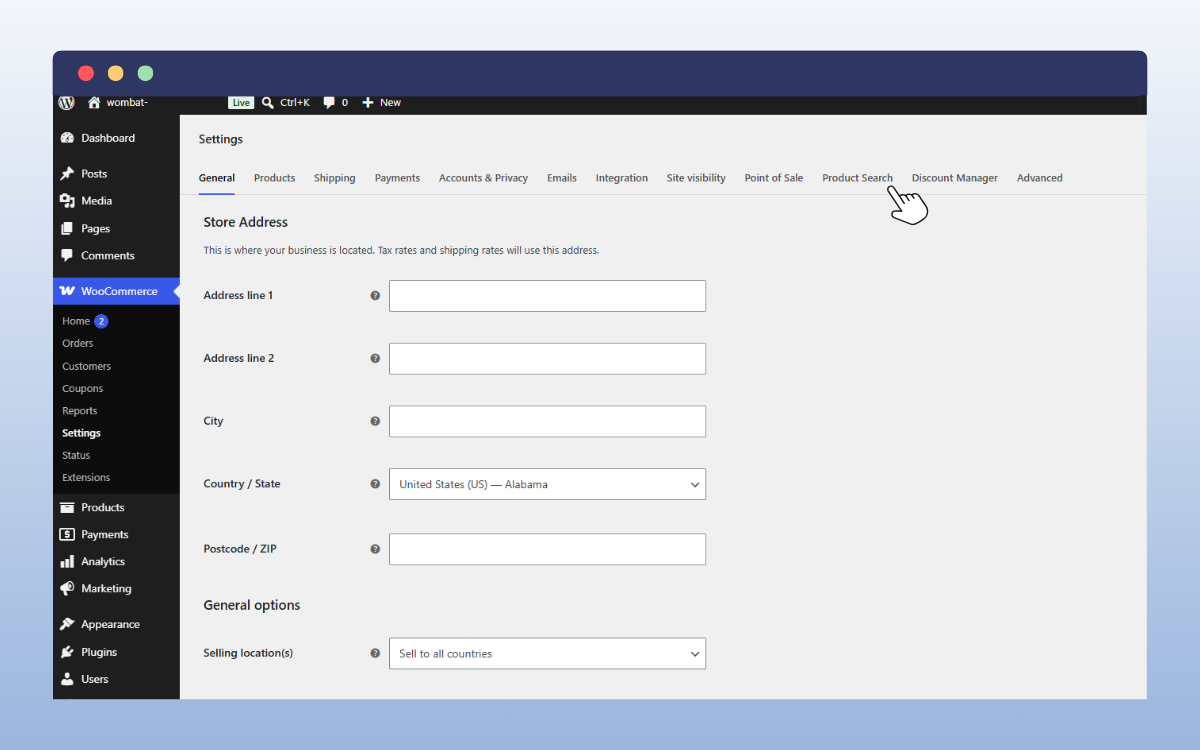
- Go to WooCommerce → Settings. You should see a Product Search tab at the top of the page; click on it.
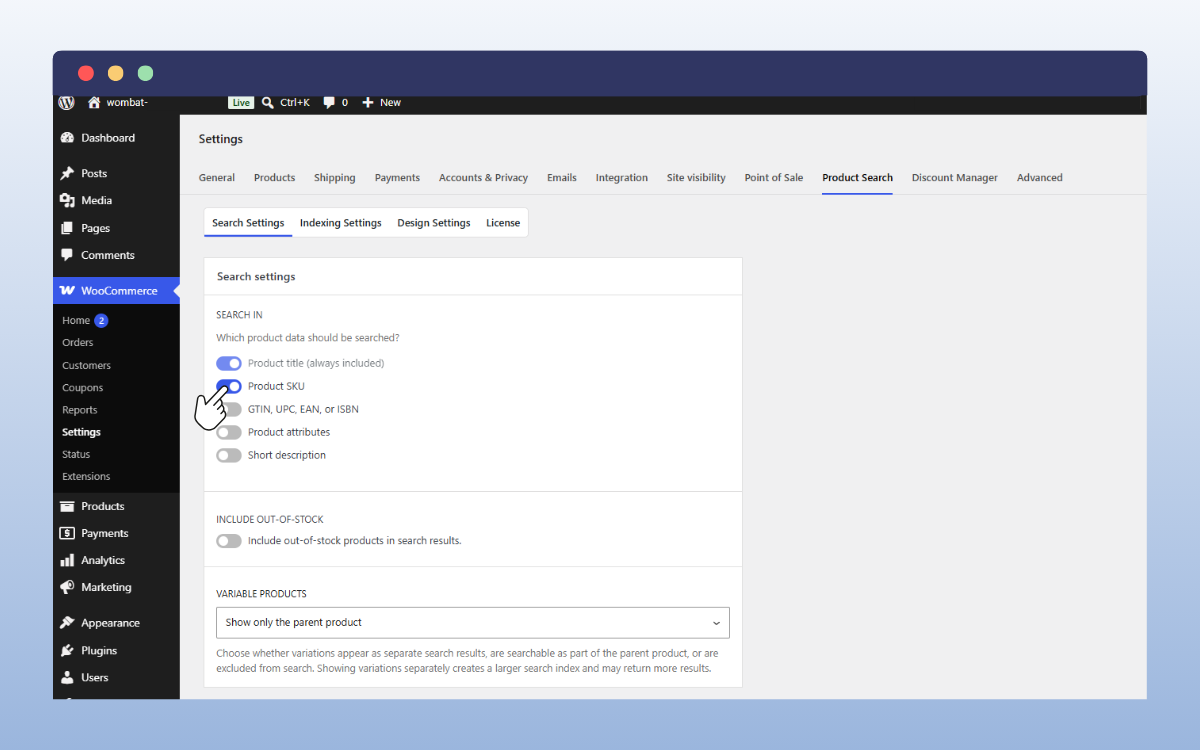
- Look for Search Settings, and here you’ll see the product data options customers can use to search. For example, Product SKU, GTIN/ISBN, etc. Select the options you want to include.
- Then, customize the other settings on this page, including:
- Whether to include out-of-stock items or not.
- Fuzzy search for typo support.
- Variable product support.
- Synonyms, and so on.
- After you’re done with all the settings, click the Save changes button at the bottom of the page.
Step 2: Customize your search bar’s design
Next, you can work on the search bar’s design after the underlying search functionality is all set up.
Here are the steps you’ll take to edit the search bar’s design:
- Click on the Design Settings tab at the top of the page to open your search bar’s design settings.
- Here you can customize:
- The search field’s background and text colors.
- The search box’s border radius.
- Spacing.
- Button styling.
- The search dropdown’s style.
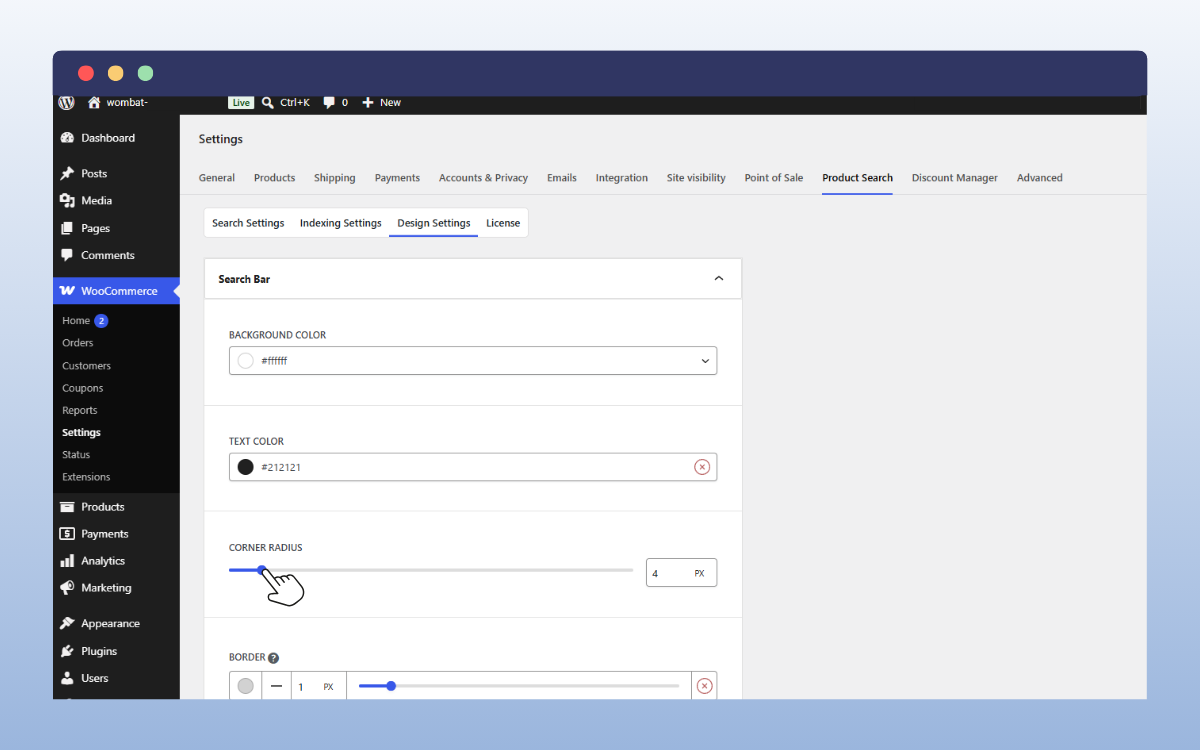
- Once you’re done here, click the Save changes button at the bottom of the page.
After configuring the search bar settings and designing it how you like, you can now add it to your store.
Step 3: Add the search bar to your store
How you add the search bar depends on the theme you’re using. For this guide, we’ll show you how to do it with a block theme.
To add the search bar to your store:
- From your WordPress dashboard, find your templates by going to Appearance → Editor → Templates.
- Click WooCommerce to filter out other templates and keep only WooCommerce ones.
- Find the Product Catalog template in the list and click it to open it.
- After opening this template, you can add your search bar as a block. First, decide where you want to add it. You could add it to the sidebar, at the top of the page, or anywhere else.
- Once you decide where to add it, click the blocks inserter (black plus (+) button). Type ‘product search’ in the search bar and click on Product Search in the results. This adds your search bar to the page.
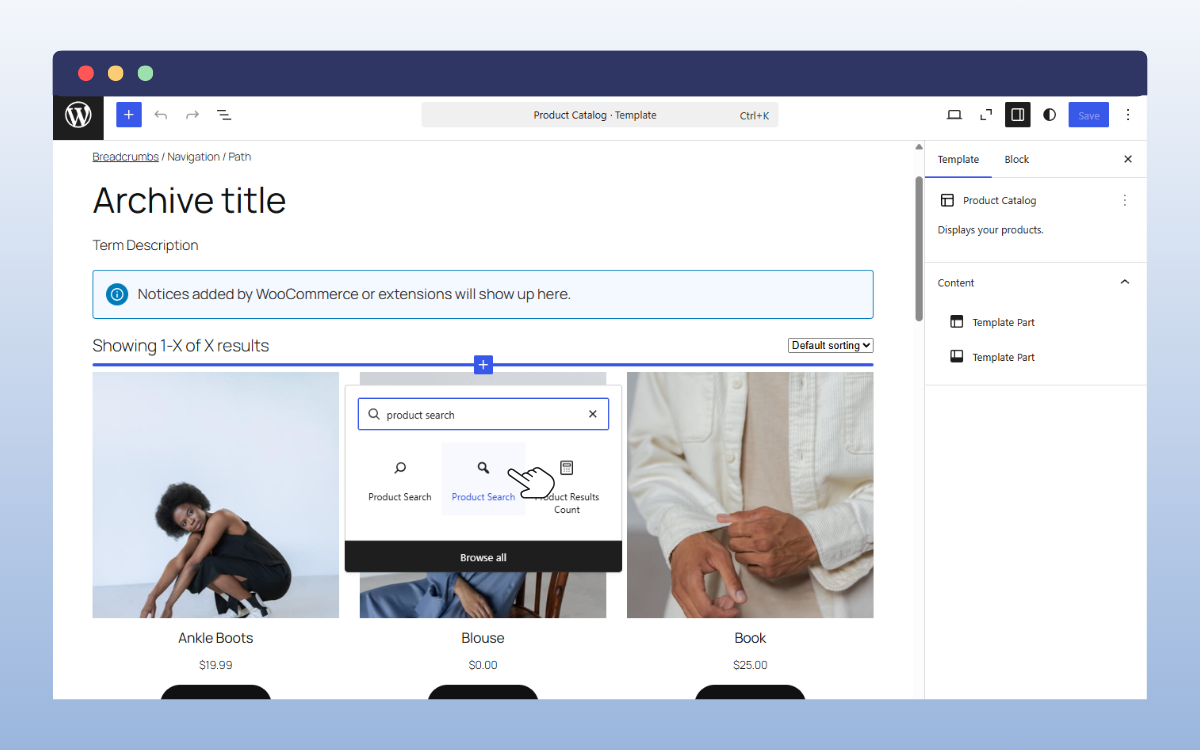
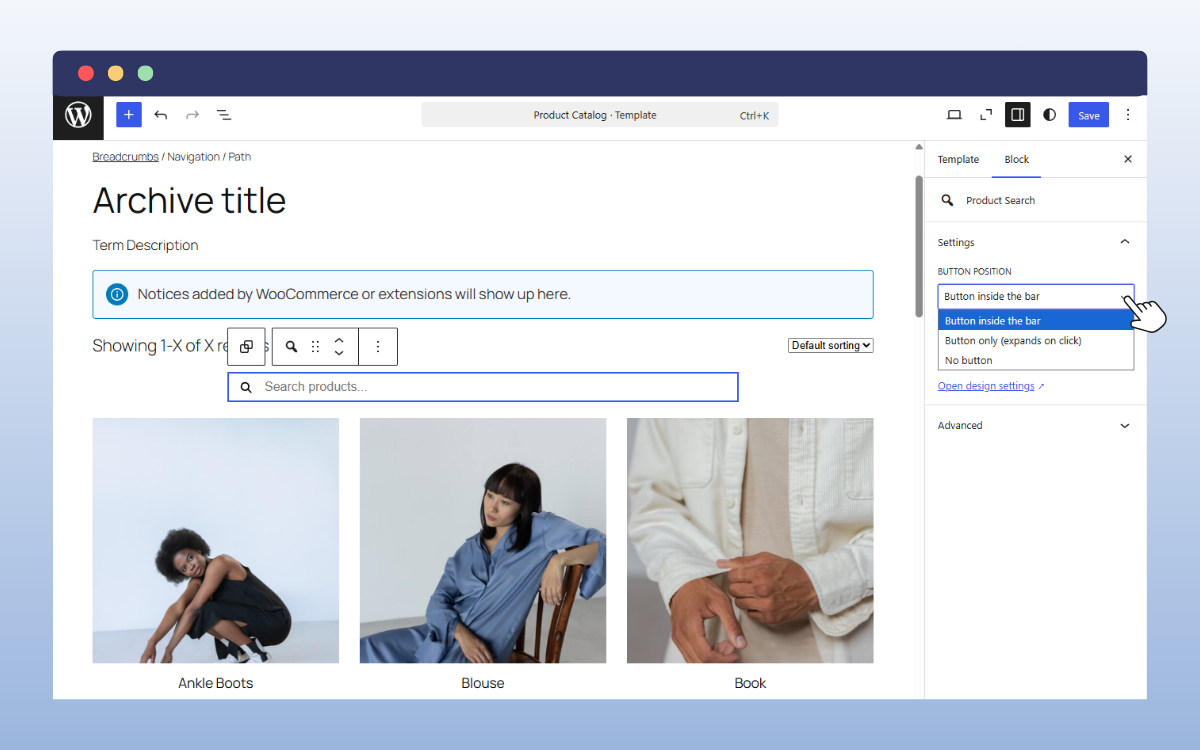
- You can customize the button position on this page. For more customization options, click the Open design settings link.
- Once you’re satisfied with the search bar’s design, click Save on your template, then visit your frontend to see how it looks for customers. You can also try searching for a few products to see how it works.
Check out this demo to see how your search bar could work when searching for different types of products in different ways.
There we have it! Now you have a search bar that helps customers find products faster and more easily. But why should you have a better search bar for your online store in the first place?
The benefits of improving your WooCommerce product search
It makes your product catalog easier to navigate
Browsing is less practical with a large catalog. Even with filters, customers can still feel overwhelmed by the volume of products they have to sift through.
A customer may have a rough idea of the product they’re looking for without knowing the exact search terms to enter or the category in which you’ve placed it. Improved search functionality gives customers a direct route to that product, even if they can’t describe it accurately.
Fewer “no results” searches
Searching for a product they believe your store sells and then getting a ‘no products found’ result can be pretty frustrating for customers. With the default WooCommerce search, it’s possible for them to get this result even when you sell the product they’re searching for.
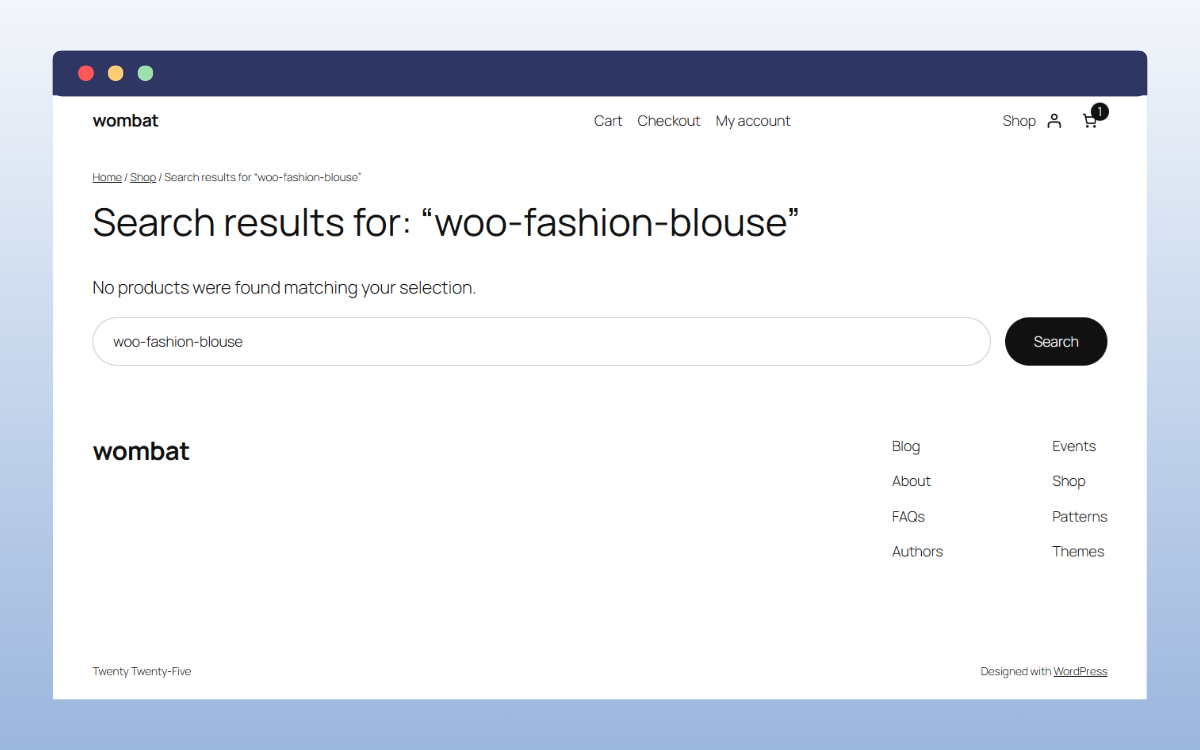
Especially when they use a synonym, misspell it, or use a different form of a word. The search experience powered by Product Search for WooCommerce accounts for all this. As a result, customers are less likely to get a ‘no products found’ result when you have the product they’re looking for.
A better product search can give you a competitive advantage
Baymard’s latest e-commerce UX search benchmark reveals that 56% of sites fail to support users’ search needs adequately. Poor-performing WooCommerce search leads to frustrating experiences and may cause customers to abandon their purchases if they can’t find the products they’re looking for.
By improving your search experience, you can have an advantage over your competitors. A poor search experience on a competitor’s site can become an opportunity for your site if your product search is well optimized.
It allows you to capitalize on customers’ search intent
Customers who search for products usually express a strong buying intent. They know what they want to buy and want to find out whether your store sells it as quickly as possible. With a good product search system, you can capitalize on that intent by quickly presenting relevant products.
It lets you control how customers discover products
A better WooCommerce search bar gives you more control over how customers discover products. For example, you can show product variations or the parent product alone in the search results.
You can also choose what product information appears in the search results and include/exclude out-of-stock products. How customers discover products is all up to you.
Add a WooCommerce search bar to your online store today
A search bar is a crucial feature in your store because many customers prefer to use it to find products. WooCommerce allows you to add a search bar to your online store by default.
But because the default search bar isn’t specifically built for WooCommerce, the search engine behind it has several limitations. It doesn’t necessarily understand your customer’s search intent. As a result, the best matches aren’t always at the top of search results, and in other cases, it fails to surface relevant products even when you have them in stock.
The Product Search for WooCommerce plugin upgrades this. It lets you add a fast, intelligent, and customizable search bar to your WooCommerce store. With this plugin, you can capitalize on your customers’ buying intent by showing them relevant products quickly, so they can purchase without friction.
Get Product Search for WooCommerce and make powerful product search a native part of your shopping experience.
