
When you have an online shop, it makes sense to show different types of pricing, especially if you’re working with customizable products or selling to wholesale customers. In that case, it can be difficult to decide whether to show your options as a price matrix or dropdown menus.
Here’s the core difference: A price matrix is a visual table that displays all variations and their prices simultaneously. Customers can compare options and quantities at a glance, selecting exactly what they need without clicking through multiple menus. Dropdowns, meanwhile, are WooCommerce’s default approach – customers choose one option at a time from sequential lists, watching prices update after each selection.
Neither method is universally better. The right choice depends on your products, your customers, and how you manage inventory. Understanding when each approach excels will help you create a faster, clearer shopping experience that actually converts.
What are the main benefits of using a price matrix for my online store?
Price matrices transform how customers interact with your product options by displaying everything simultaneously.
Here’s what makes them powerful:
- Instant price comparison: Customers see all combinations and costs at a glance, eliminating the frustration of clicking through multiple menus to discover pricing.
- Faster decisions: The visual format lets shoppers scan complete pricing tables and make confident choices quickly.
- B2B-friendly: Wholesale buyers can compare bulk pricing tiers and evaluate multiple configurations before purchasing.
- Perfect for complexity: When products have numerous options, matrices organize information clearly instead of overwhelming customers.
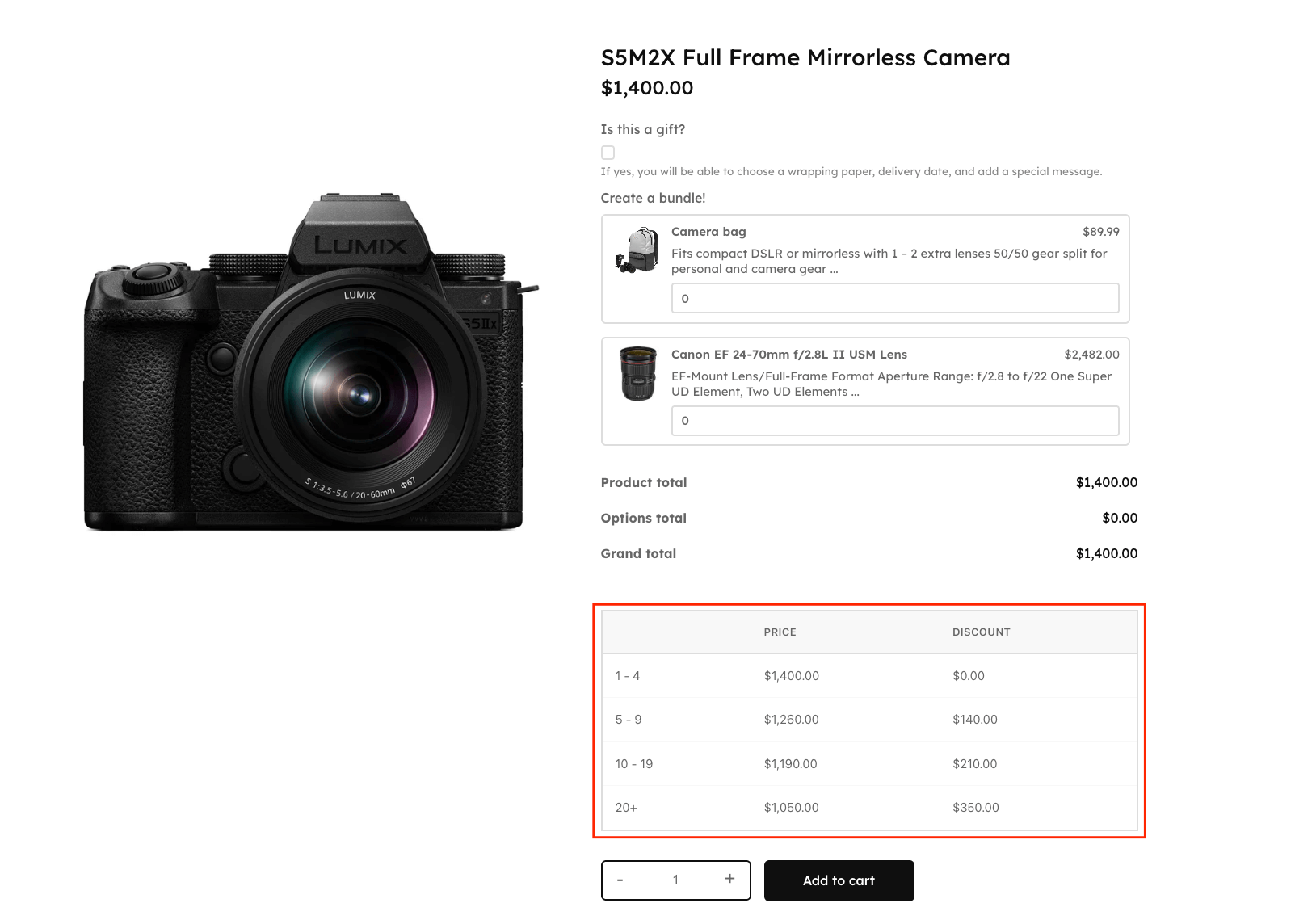
Price matrices can look different depending on their purpose. If we’re talking about tiered pricing, for example, with discounts for bulk purchases, they can look like simple tables.
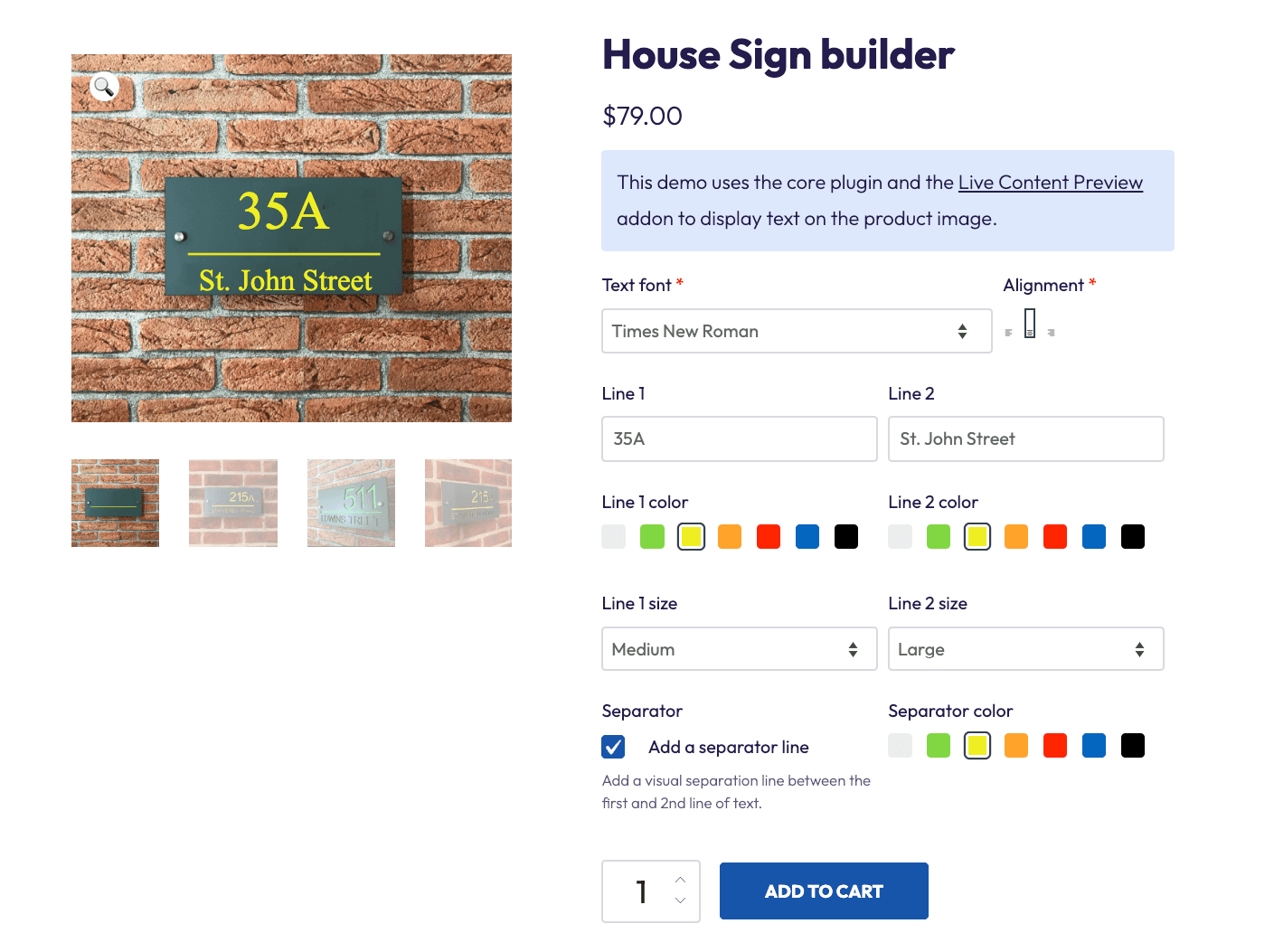
However, you can also use price matrices for product customization. In that case, they can appear as a variety of options on the product page, each with a different format.
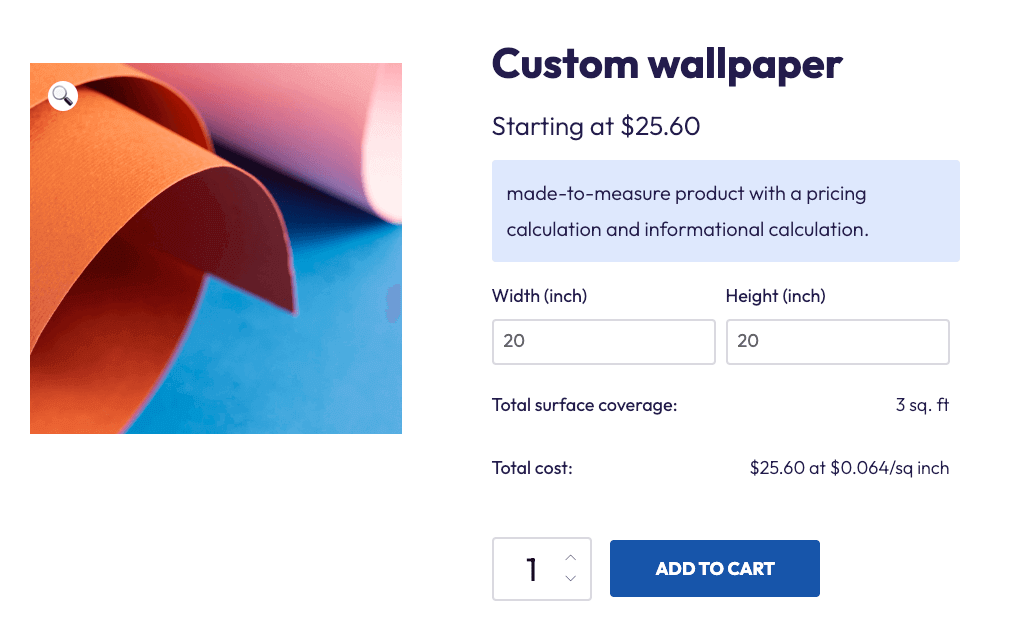
This approach is great for custom products and made-to-measure items where pricing varies across multiple dimensions. For them, the pricing changes depending on the customer’s custom input.
Learn more about setting up wholesale pricing structures with our wholesale guide.
What are the main benefits of using a dropdown for my online store?
Dropdowns remain the smart choice for straightforward products and mobile-heavy traffic.
- Cleaner mobile interface: Dropdowns consume minimal screen space, crucial when 69%+ of e-commerce traffic comes from smartphones.
- Zero setup required: WooCommerce natively includes dropdowns for variable products. No plugin purchases, no configuration headaches.
- Guided selection process: Options are revealed step-by-step, preventing choice overload for customers who prefer structured decisions.
- Lower maintenance: Perfect for simpler products with 2-3 variations, like size or color.
The standard dropdown experience:
Each attribute appears as a separate dropdown menu. Customers select their size, then their color, watching the price and product image update after each choice.
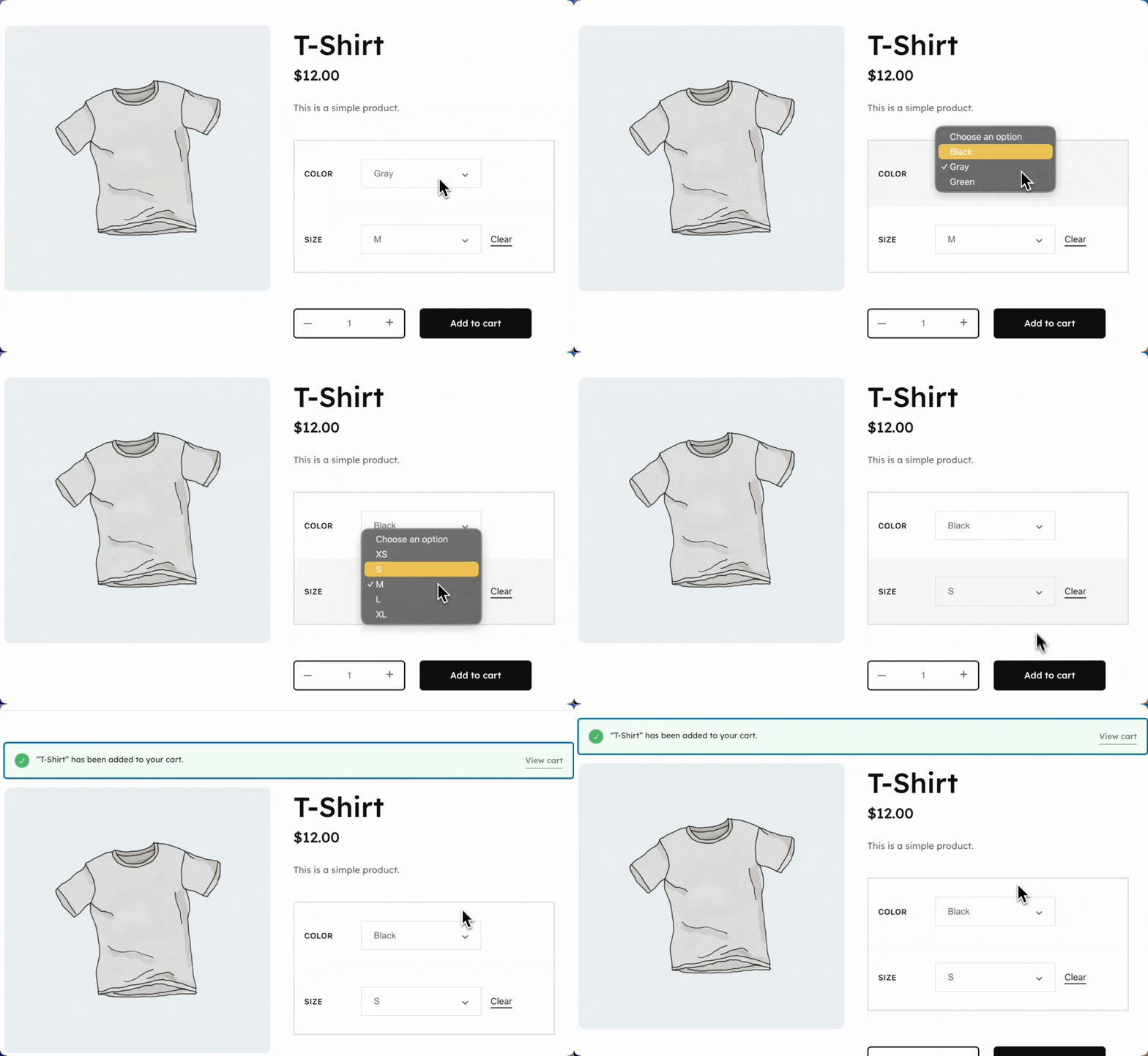
This familiar interface requires zero explanation. Customers recognize dropdown menus instantly from years of online shopping experience. The consistency works flawlessly across all devices and browsers without compatibility concerns.
For stores selling basic T-shirts in 3 sizes and 3 colors, dropdowns deliver exactly what customers expect – nothing more, nothing less.
Price matrix or dropdowns for wholesale or bulk ordering in WooCommerce?
Wholesale buyers operate differently from retail customers. They’re comparing dozens of options across multiple products, evaluating bulk discounts, and making purchase decisions worth thousands of dollars.
They can’t afford to wait for each dropdown to load to see the price difference.
Why wholesale demands matrices:
- Speed matters: B2B buyers need instant visibility across all pricing tiers and product combinations.
- Tiered pricing transparency: Matrices display volume discounts (10+ units, 50+ units, 100+ units) alongside each variation, enabling quick ROI calculations.
- True bulk pricing tables: Wholesale customers require quantity breaks with corresponding discounts for each variation, not just basic price displays.
- Single-selection vs. bulk ordering: Basic matrices work fine for showing prices. Wholesale operations need tiered quantity-based tables that reveal how unit costs decrease as order volume increases.
If you’re offering your goods to a mixed customer base, you can show pricing tables for wholesale accounts while retail customers see standard dropdowns. This dual approach serves both segments without cluttering the experience for casual shoppers.
When to choose each display type
- Choose dropdowns for: Simple B2B products with under 10 variations, mobile-heavy wholesale buyers, or straightforward single-unit purchases.
- Choose matrices for: Wholesale operations with quantity breaks, products with 20+ options, or when customers need to compare bulk pricing tiers instantly.
Studio Wombat’s plugin solutions for each option
The right plugin transforms your product pages from confusing to converting.
WooCommerce Quantity Discounts, Rules & Swatches for your true price matrix
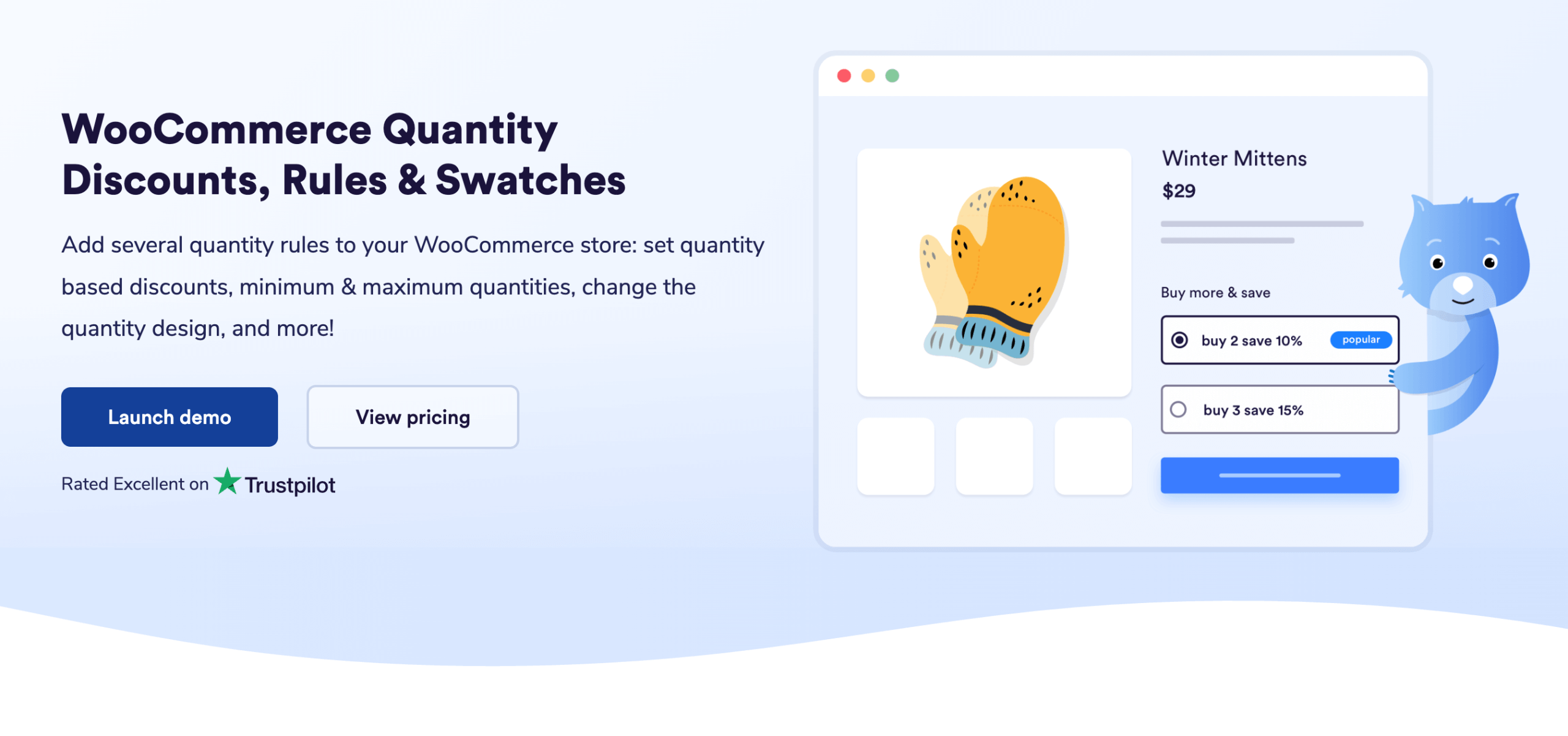
WooCommerce Quantity Discounts, Rules & Swatches creates professional tiered pricing tables that display quantity-based pricing and discounts directly on product pages.
The plugin displays customizable pricing tables that make bulk discount tiers instantly visible to B2B buyers. Beyond pricing matrices, it also includes quantity swatches to replace standard quantity boxes with attractive, clickable buttons.
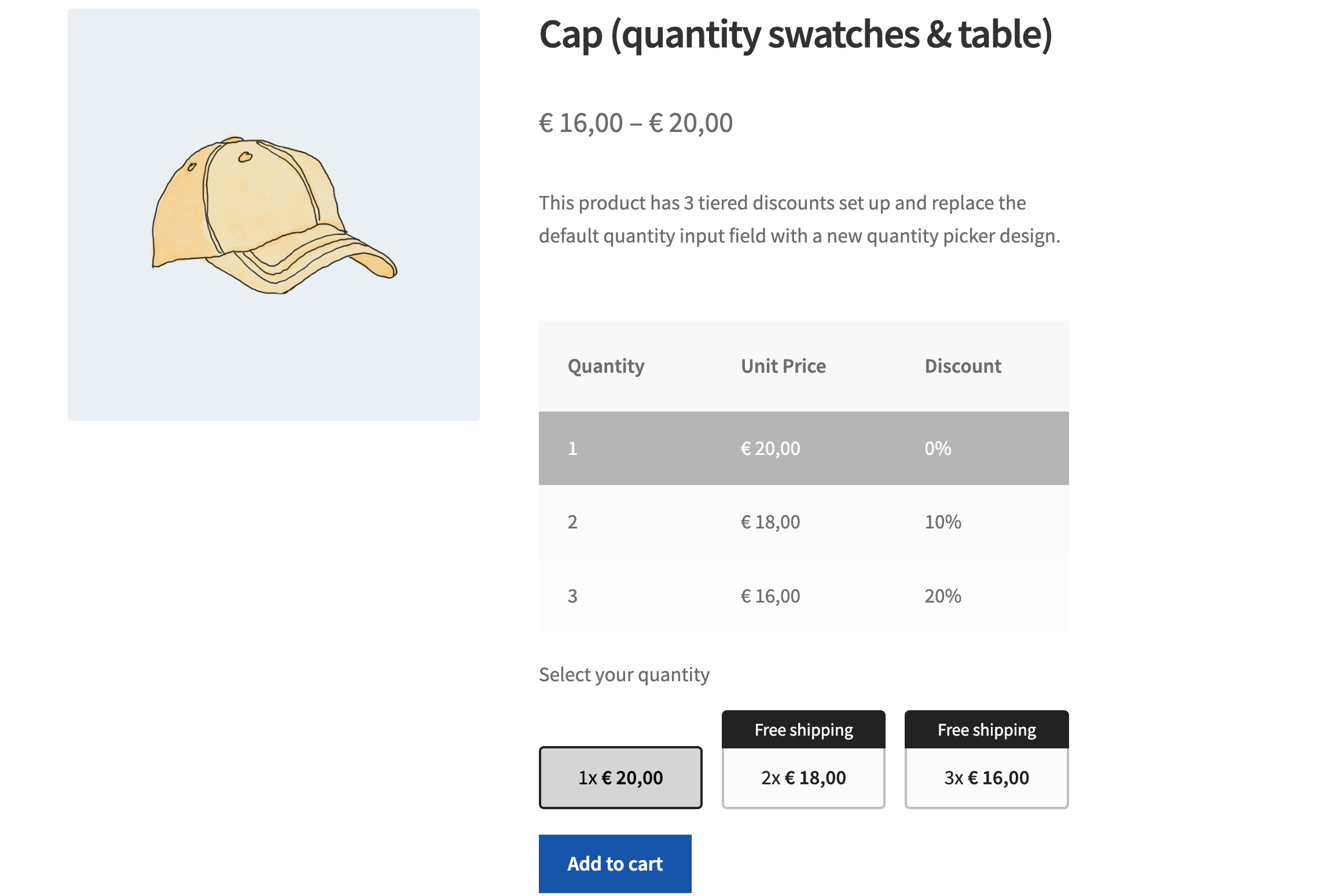
This is the true wholesale pricing matrix experience. Customers see exactly how prices decrease as they buy more units: no guesswork, no confusion, no emails asking “What’s my bulk rate?”.
Key benefits:
- Visual pricing tables: Professional matrices showing all quantity breaks and discount tiers at once.
- Tiered pricing display: Clear presentation of how unit prices decrease with volume.
- Fully customizable tables: Control colors, text, headers, and position to match your brand.
- Quantity swatches: Replace boring quantity inputs with engaging visual selectors.
- Performance optimized: Tables load instantly without creating hundreds of variations.
How to set up WooCommerce Quantity Discounts, Rules & Swatches
The process is very simple!
- Purchase the plugin and download the file from your Studio Wombat account.
- Upload the plugin to your WordPress site.
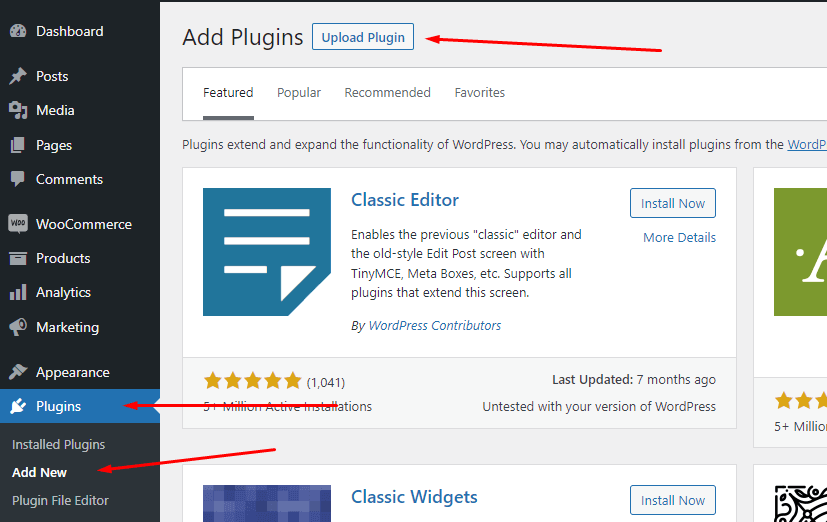
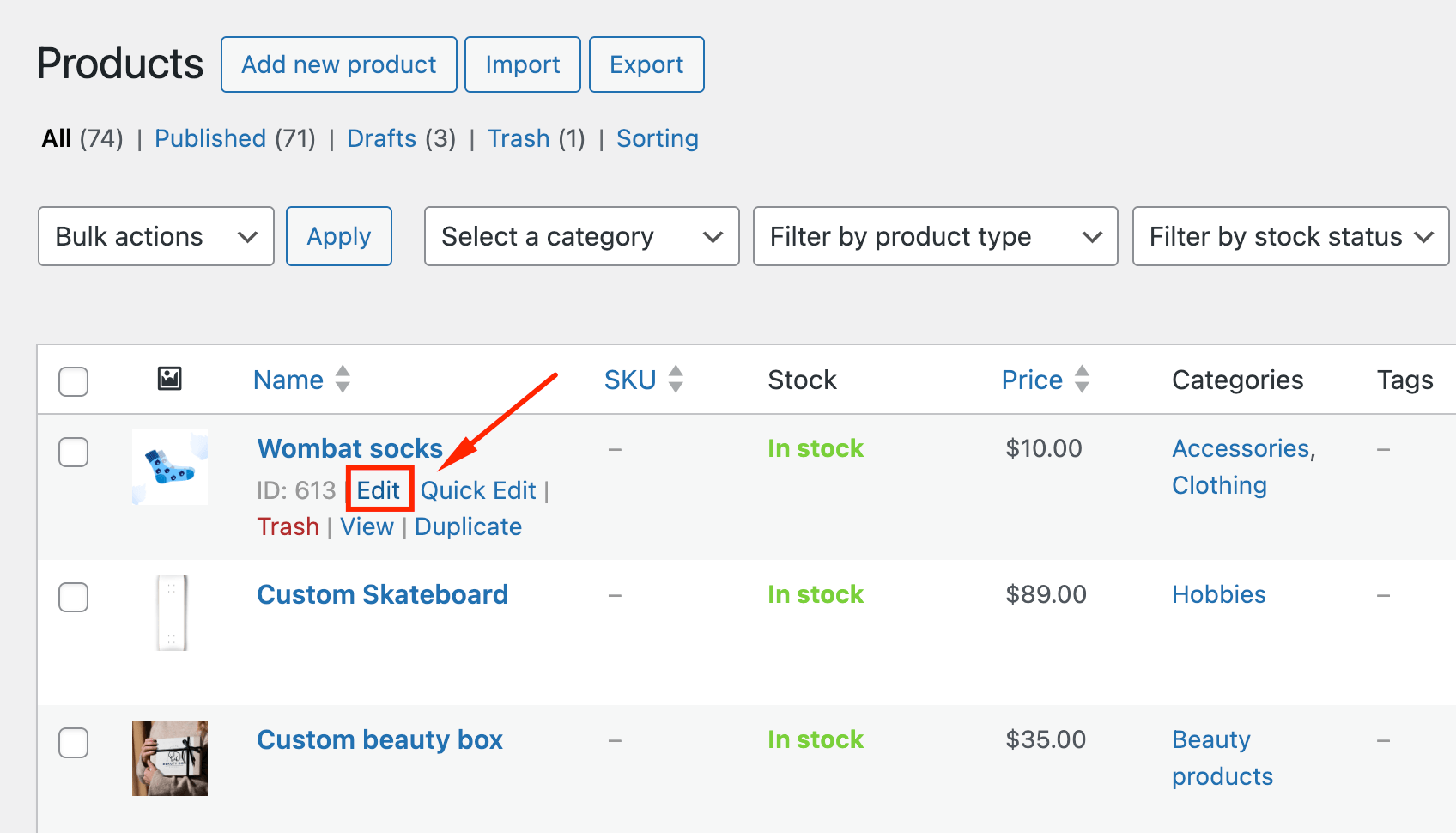
- Go to the product you want to add tiers to and click edit.
- In the Product data tab, you’ll find the options to add the tiered pricing. You can choose between fixed or percentage.
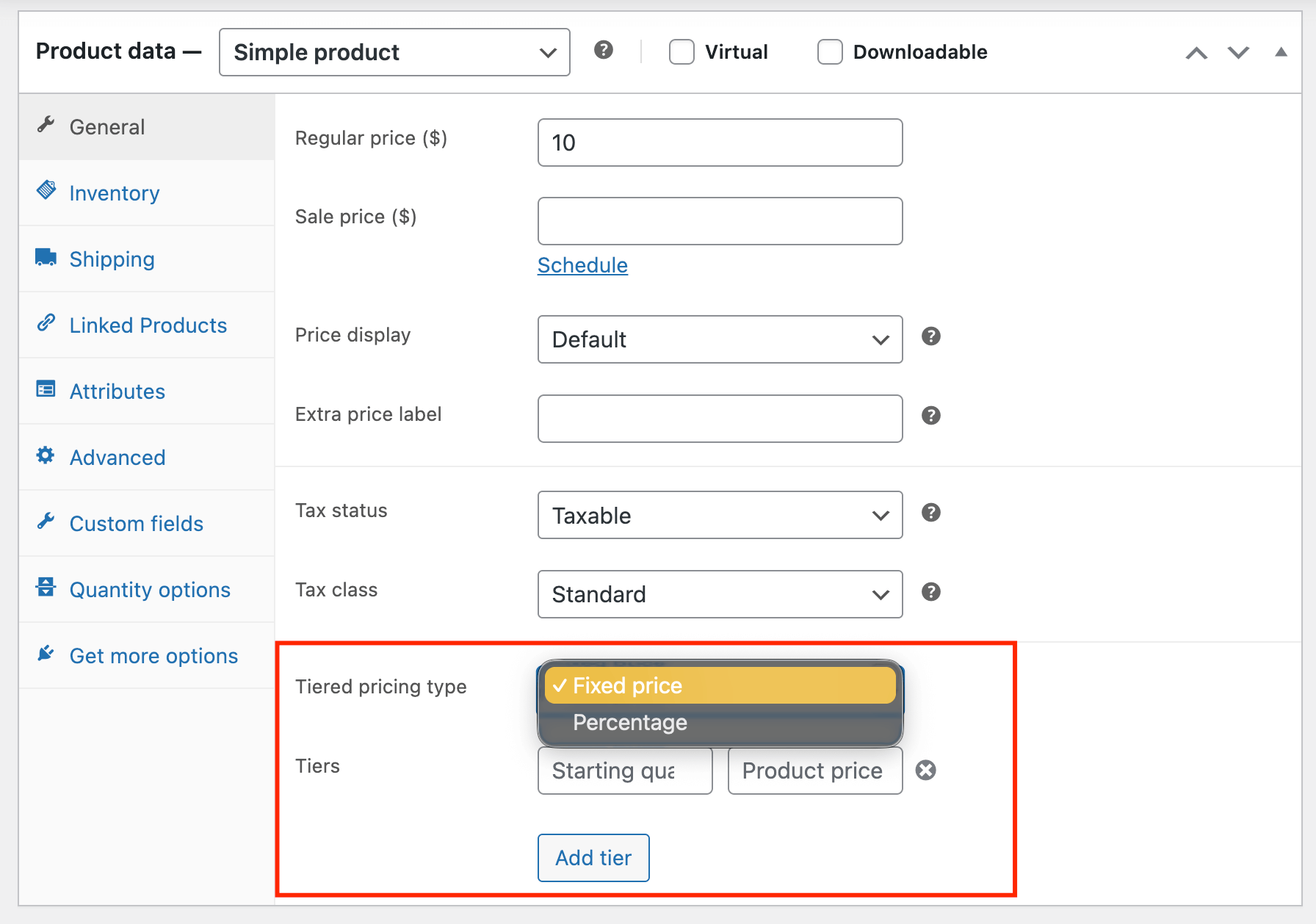
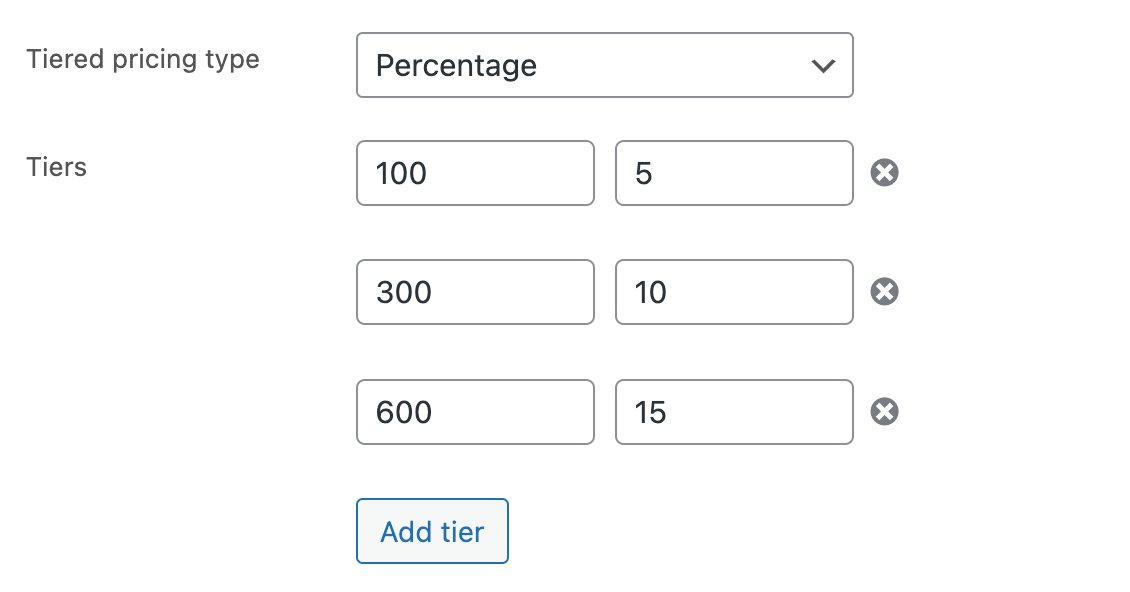
- Then, you just have to add your tiers – as simple as that! Select the starting quantity of the tier and the discount amount, then add as many tiers as you need.
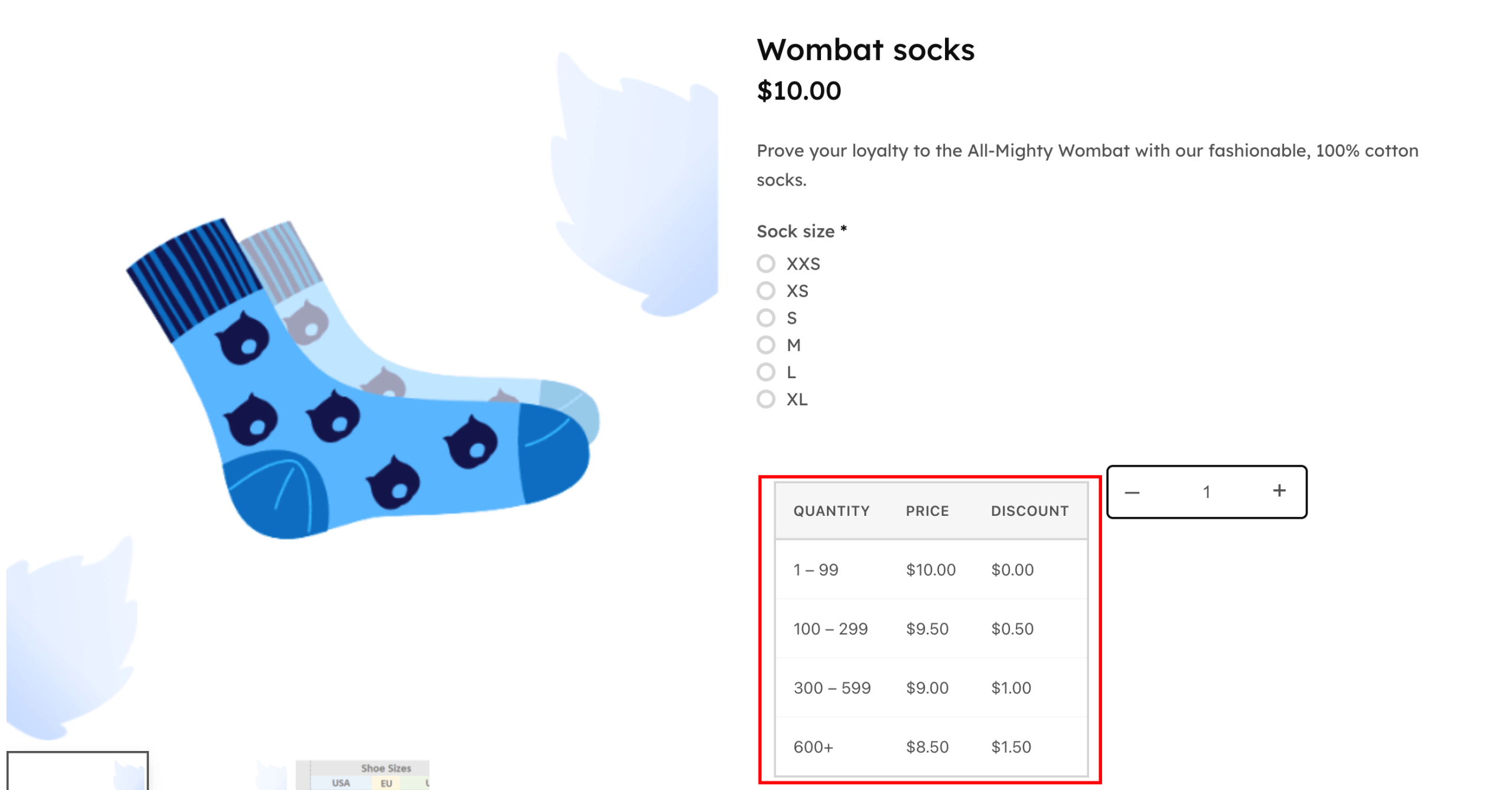
- Check your table on the front end to see if the table is showing.
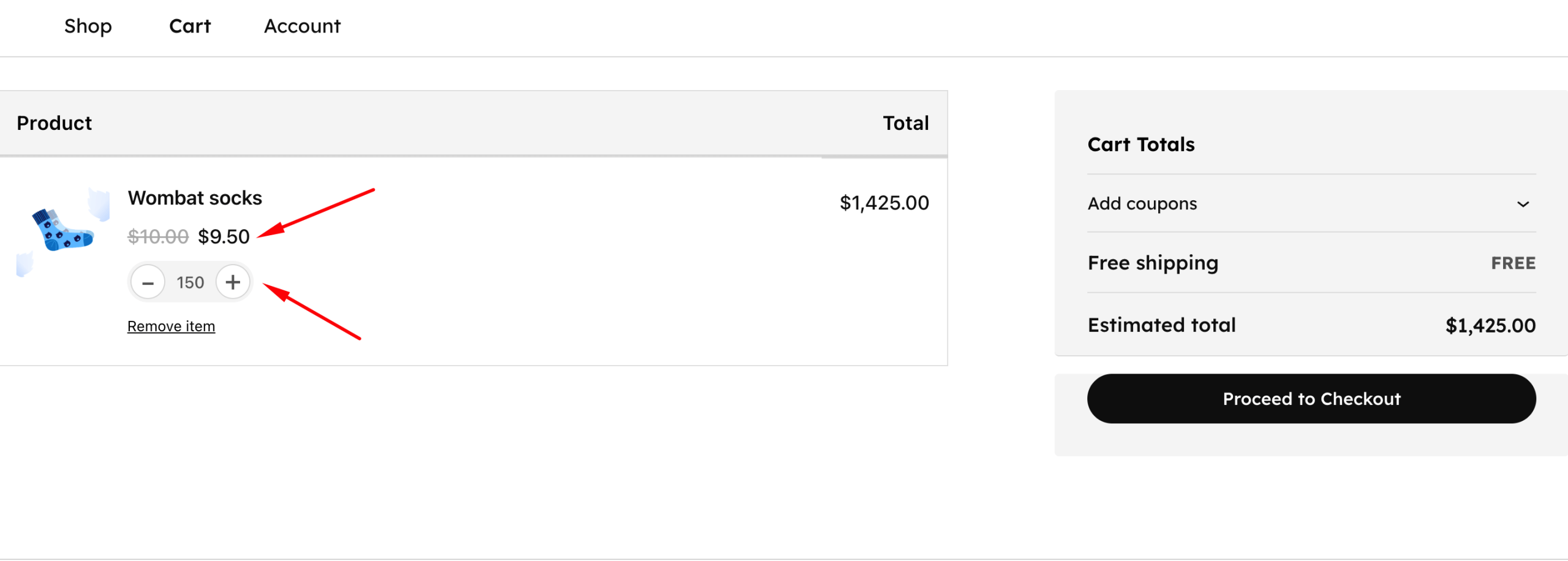
- Add products above the first tier to test whether the discount is activated.
Now, this is the most basic setup, but you can tinker with the settings to add many other functions, such as:
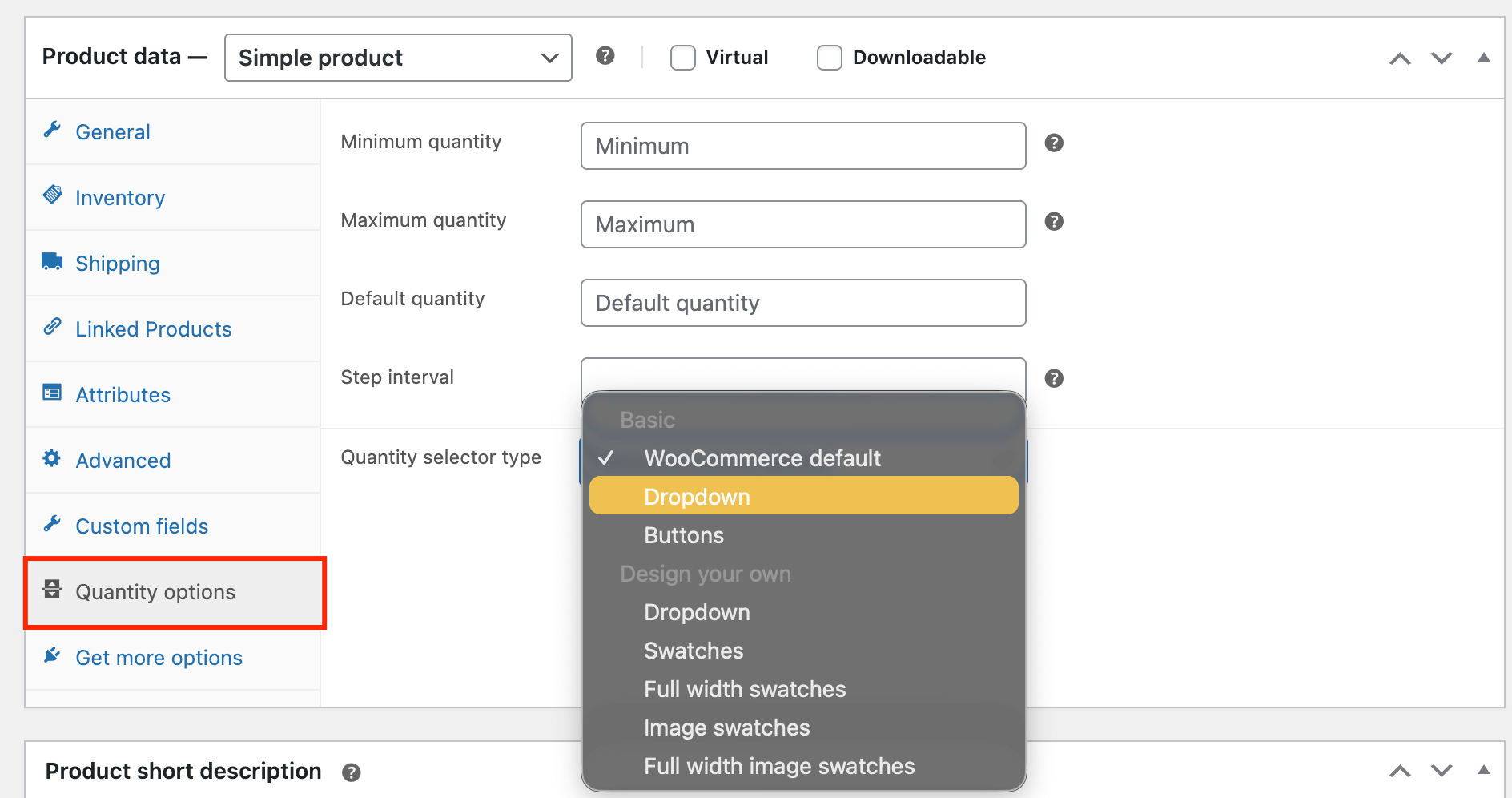
- Changing the quantity selector
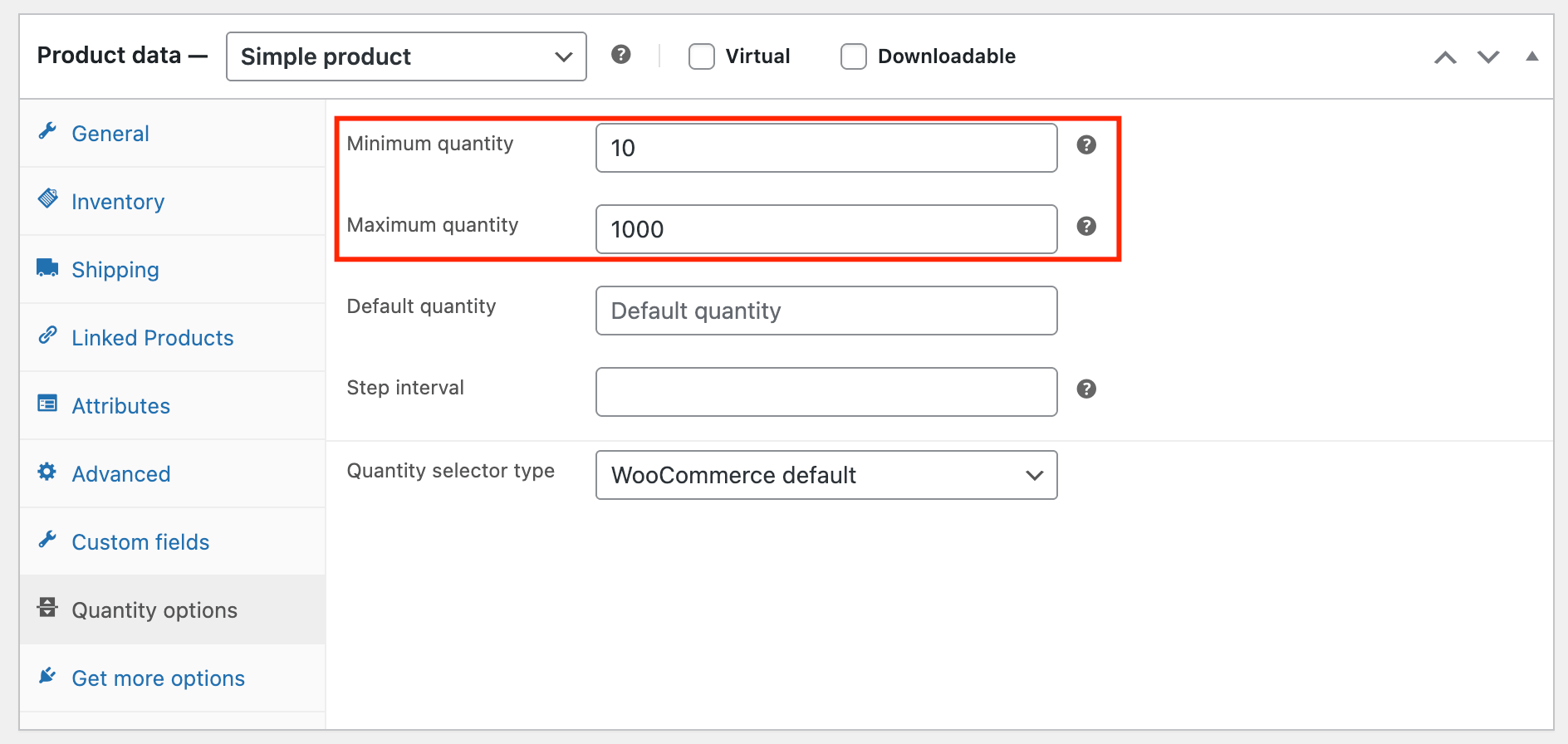
- Adding minimum and maximum quantities
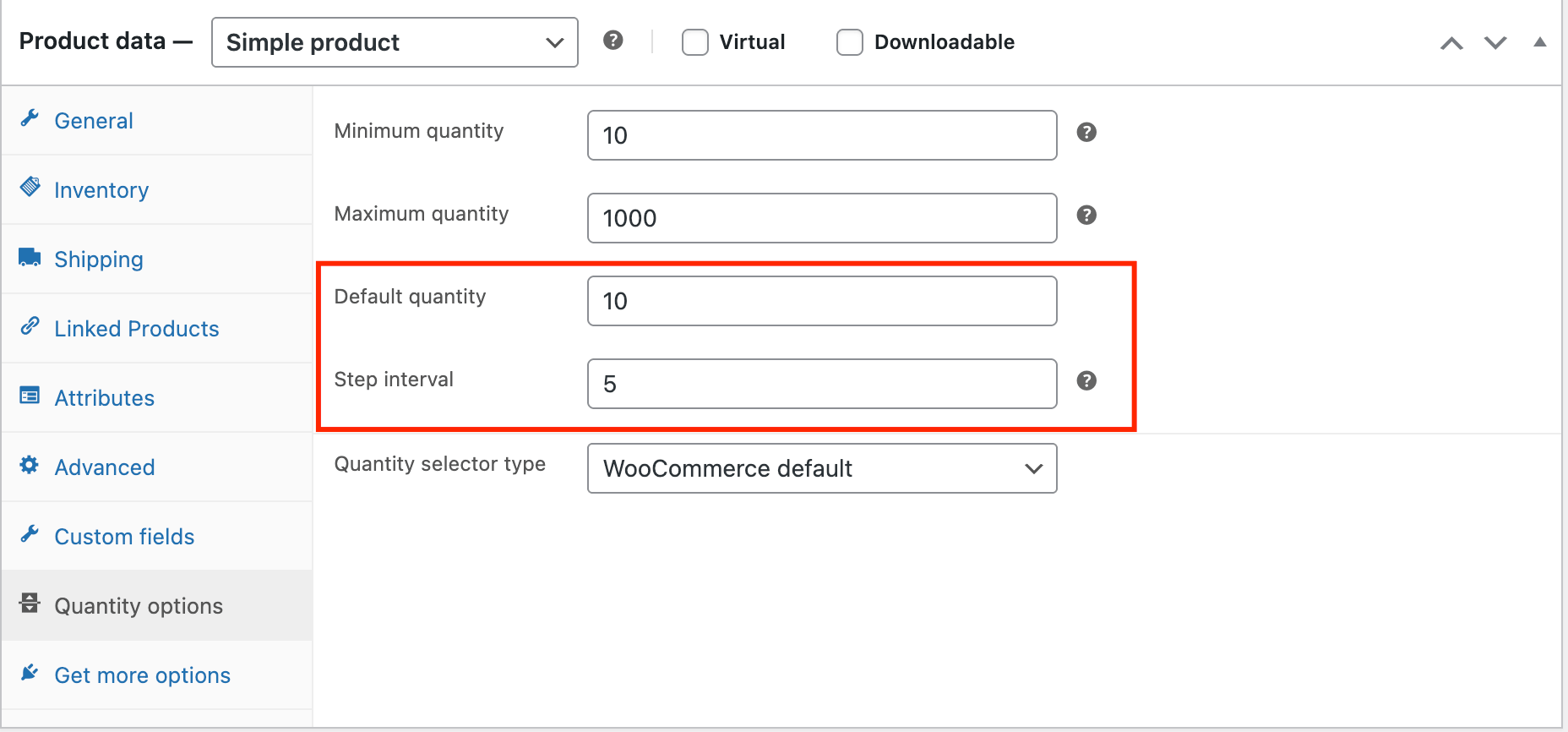
- Adding a step interval and default quantities
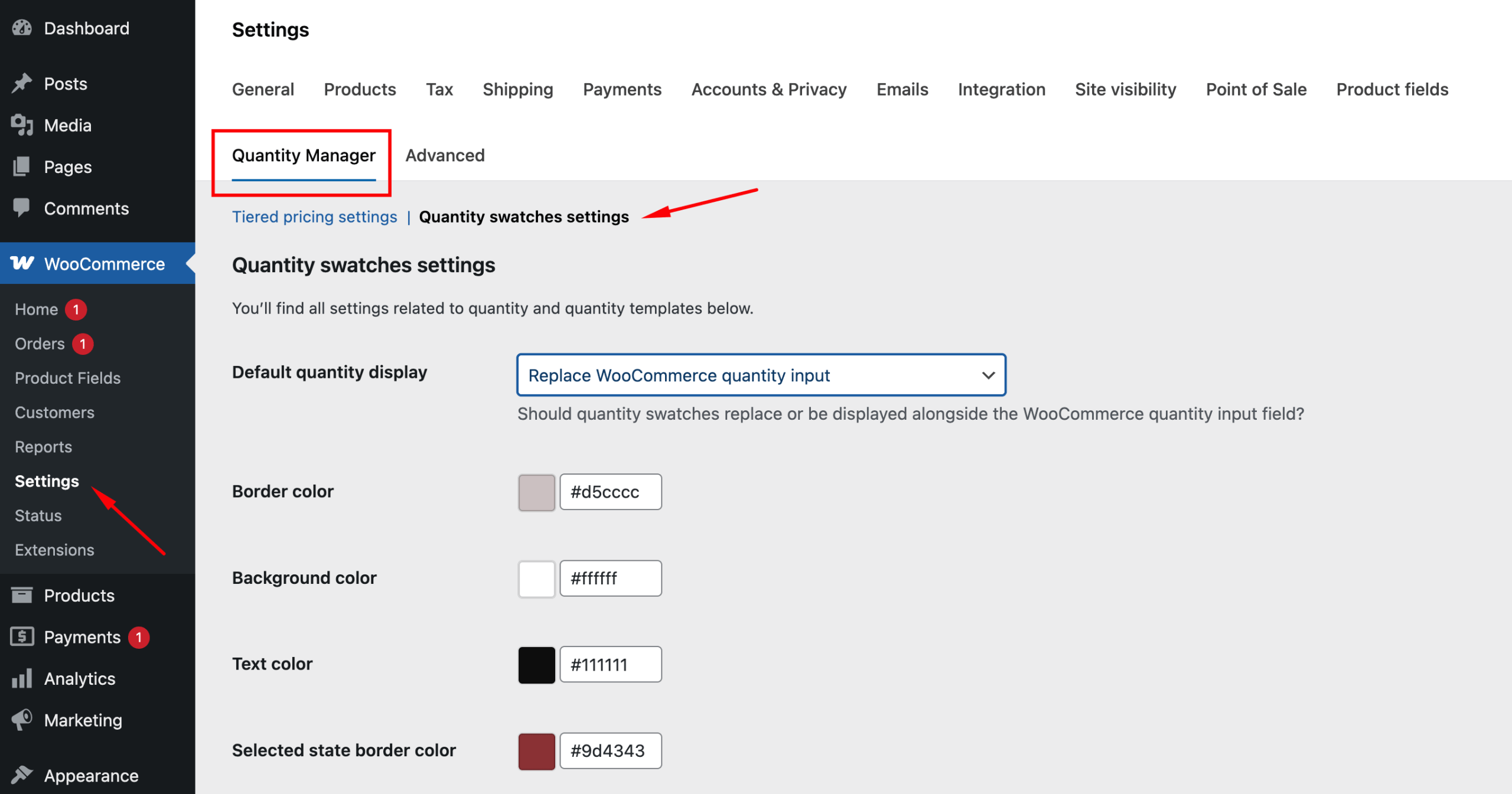
- Changing the design of the quantity selector and swatches
- Changing the location of the pricing table
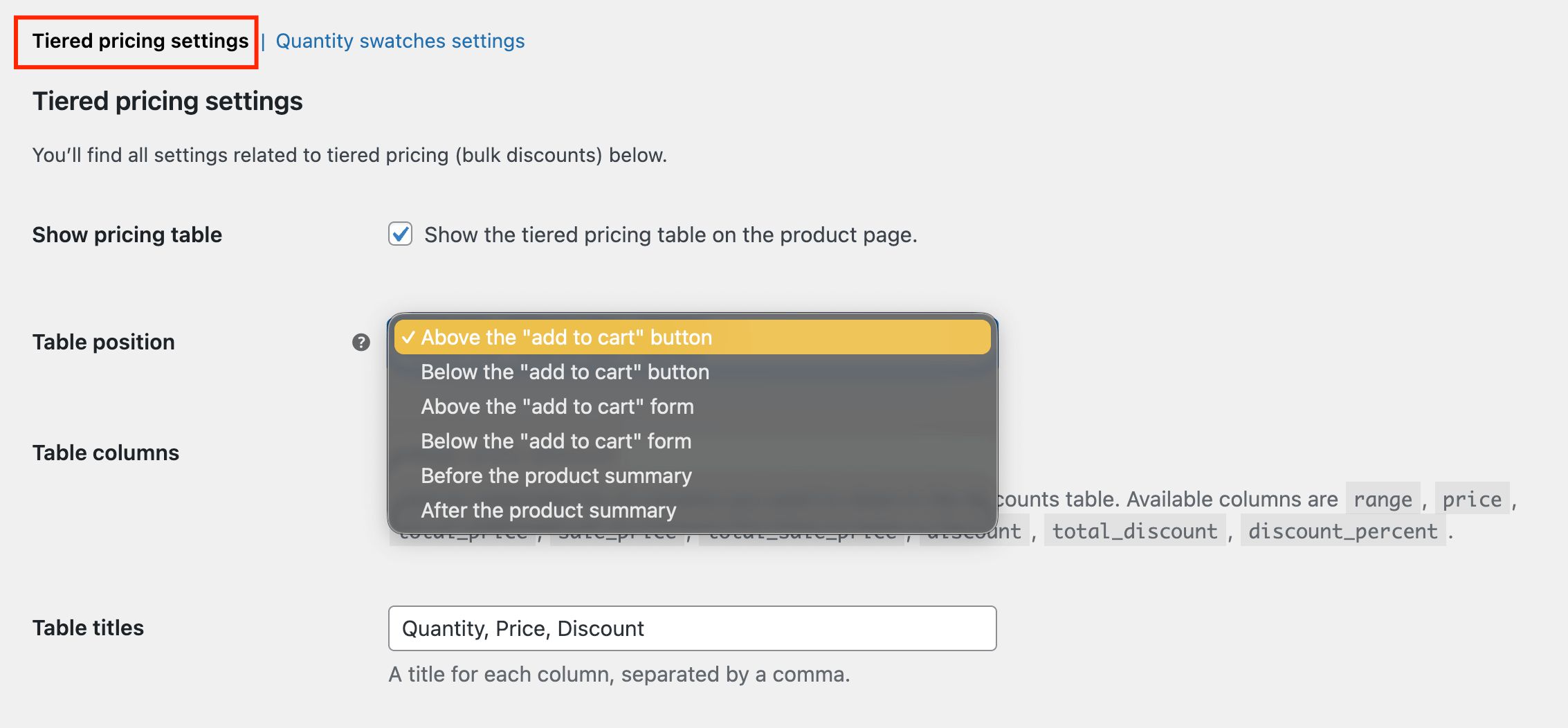
- Changing the table columns
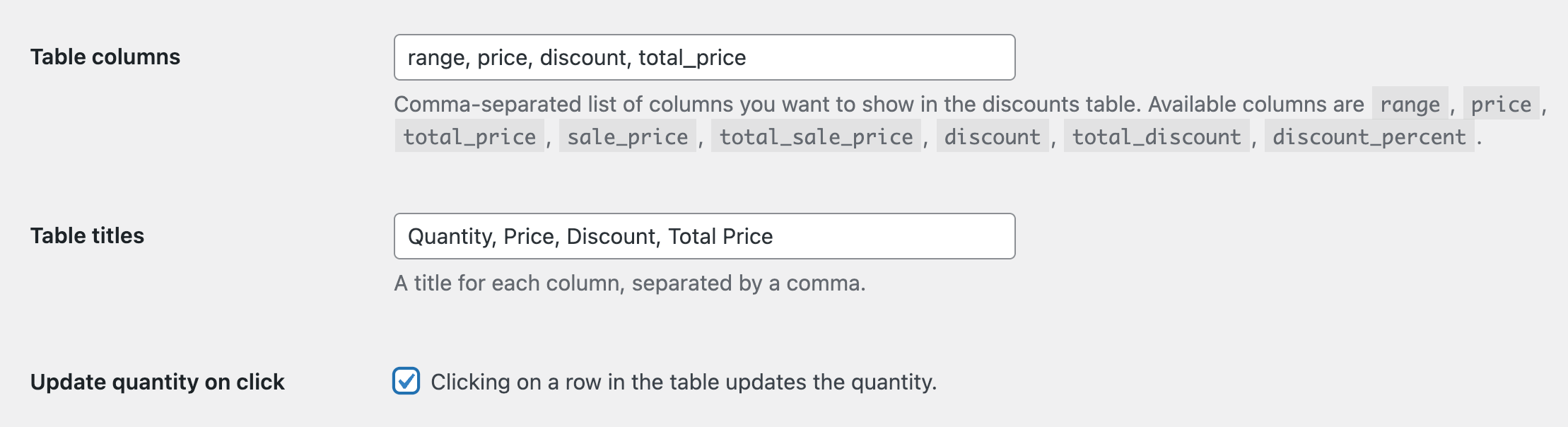
- And much more!
If you want to see all the different options that WooCommerce Quantity Discounts, Rules & Swatches gives you, check out our interactive product demo!
Advanced Product Fields for enhanced dropdowns and simple selections
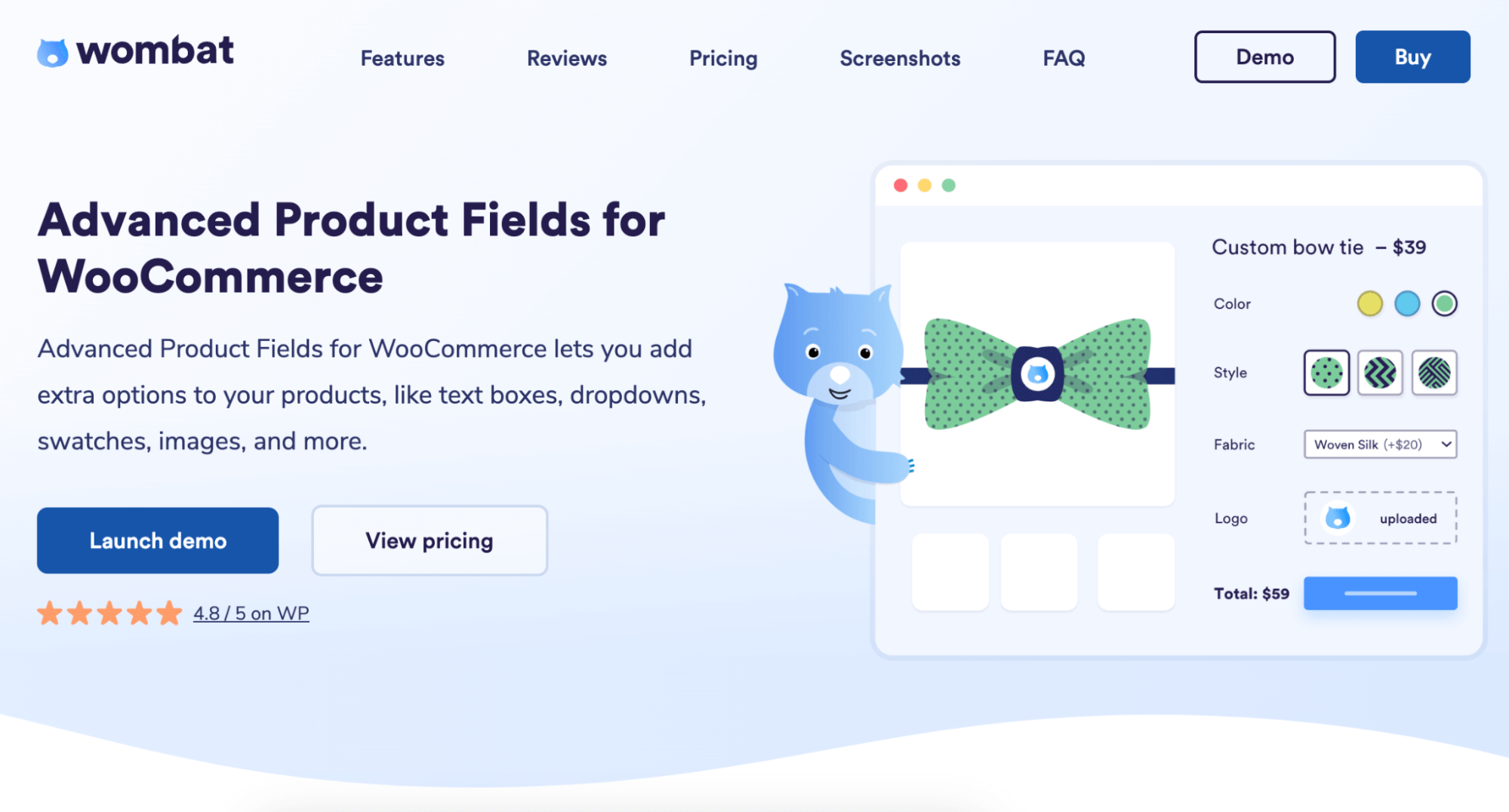
Advanced Product Fields transforms basic WooCommerce dropdowns into dynamic, intelligent selection tools.
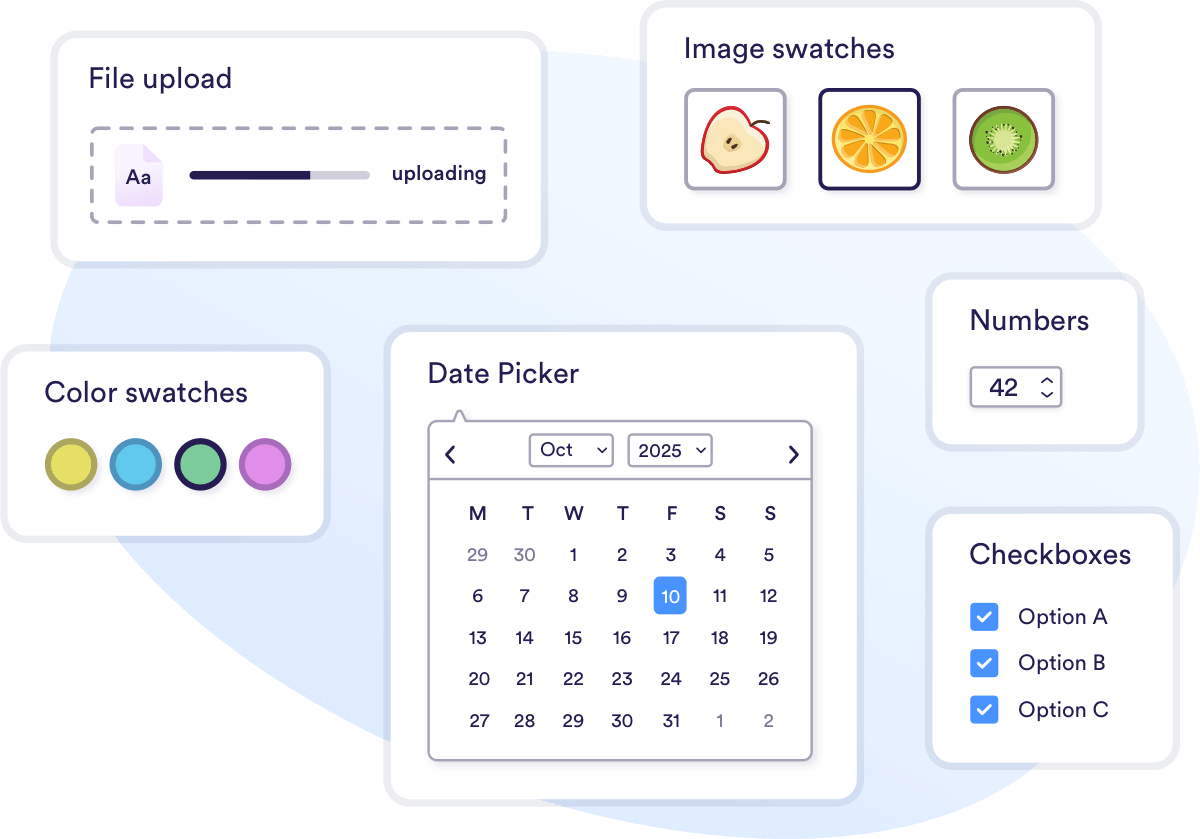
Instead of creating hundreds of slow-loading variations, APF adds a lightweight pricing layer over your existing products. It works with both simple and variable products without requiring you to rebuild your entire setup. The plugin includes 18+ field types managed directly from your WooCommerce product edit screen.
Key benefits:
- Enhanced dropdowns: Add image previews and instant price updates to standard selection menus.
- Conditional logic: Show or hide options based on previous selections, guiding customers through complex configurations.
- Formula-based pricing: Calculate costs for custom dimensions or personalization automatically.
- Real-time calculations: Prices update instantly without page reloads that slow down shopping.
- Simple option grids: Display basic matrix layouts when full pricing tables aren’t needed.
How to set up Advanced Product Fields
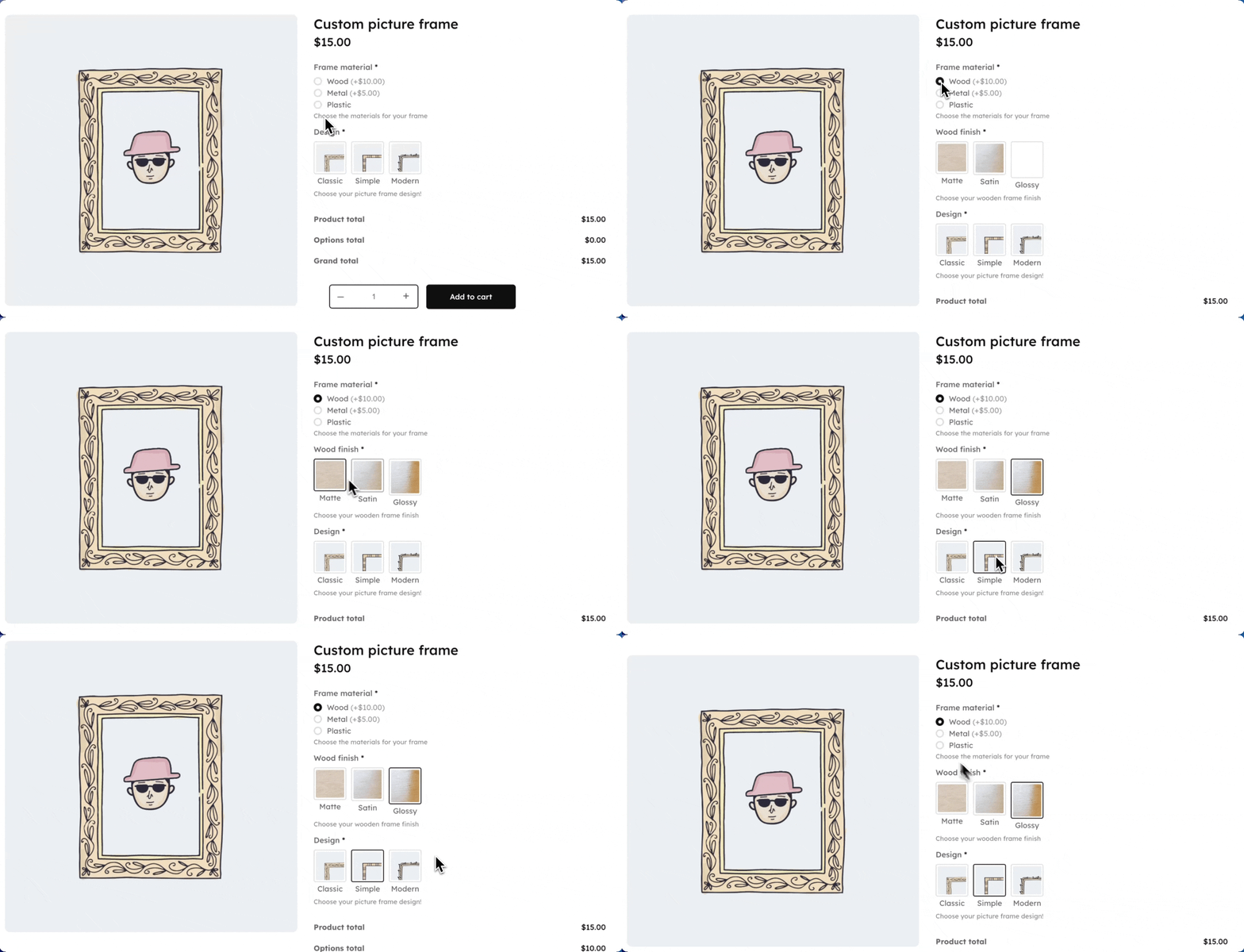
To show you the process, let’s build a picture frame configurator with 3 attributes: material, size, and finish.
Basic setup
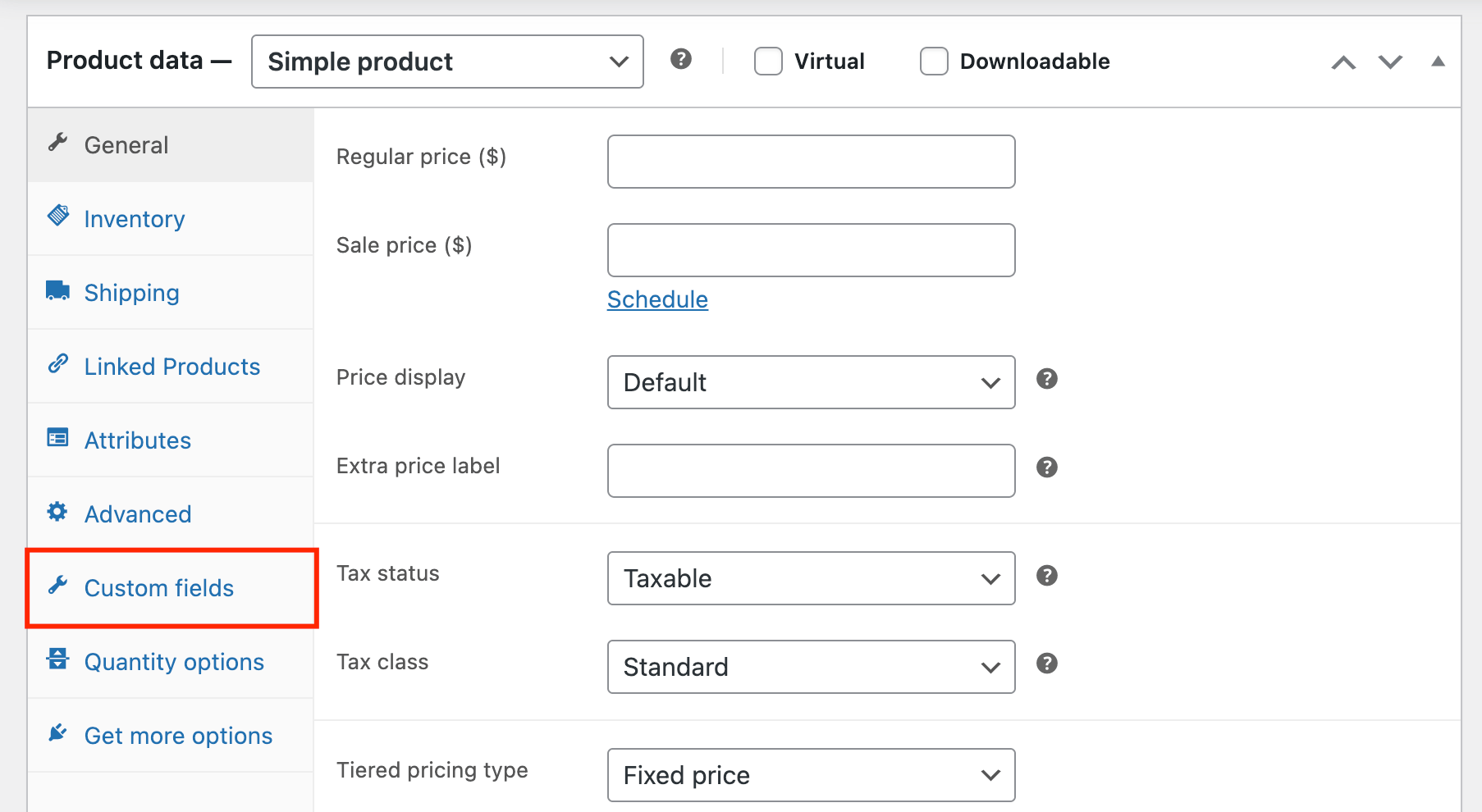
- Navigate to your product edit screen → Scroll to Product data → Click the Custom fields tab.
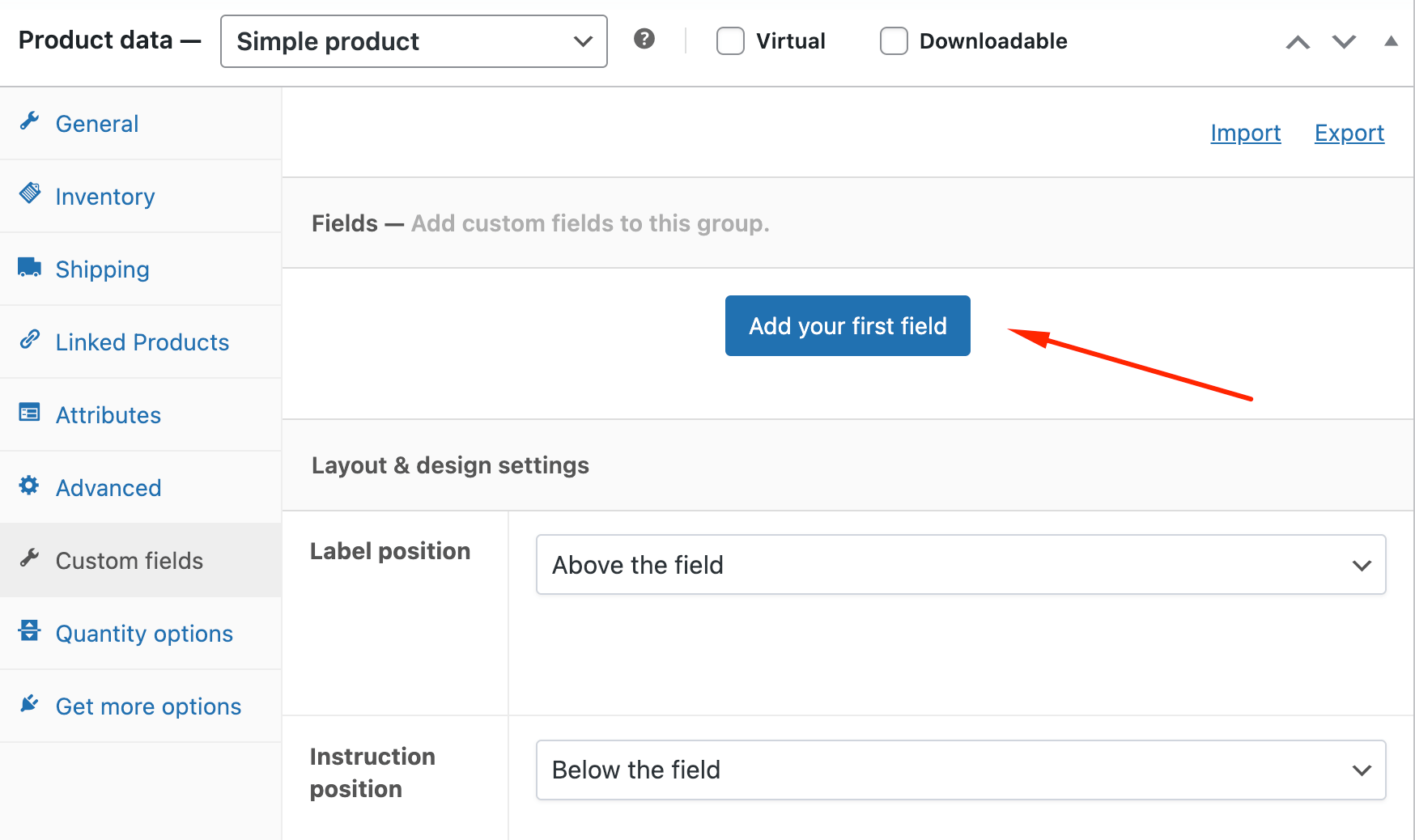
- Click Add your first field to create your material dropdown.
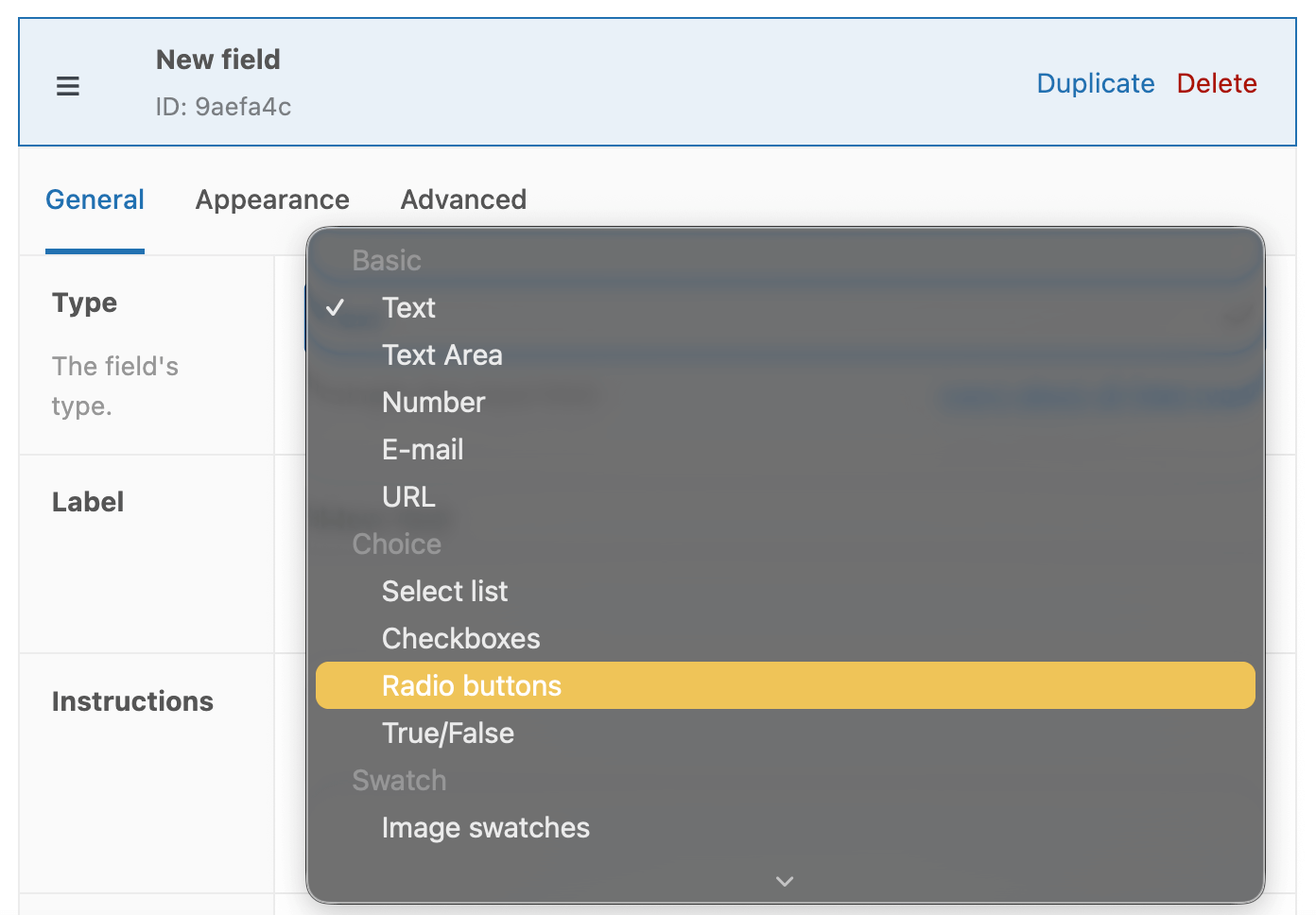
- Select Radio Buttons as the field type.
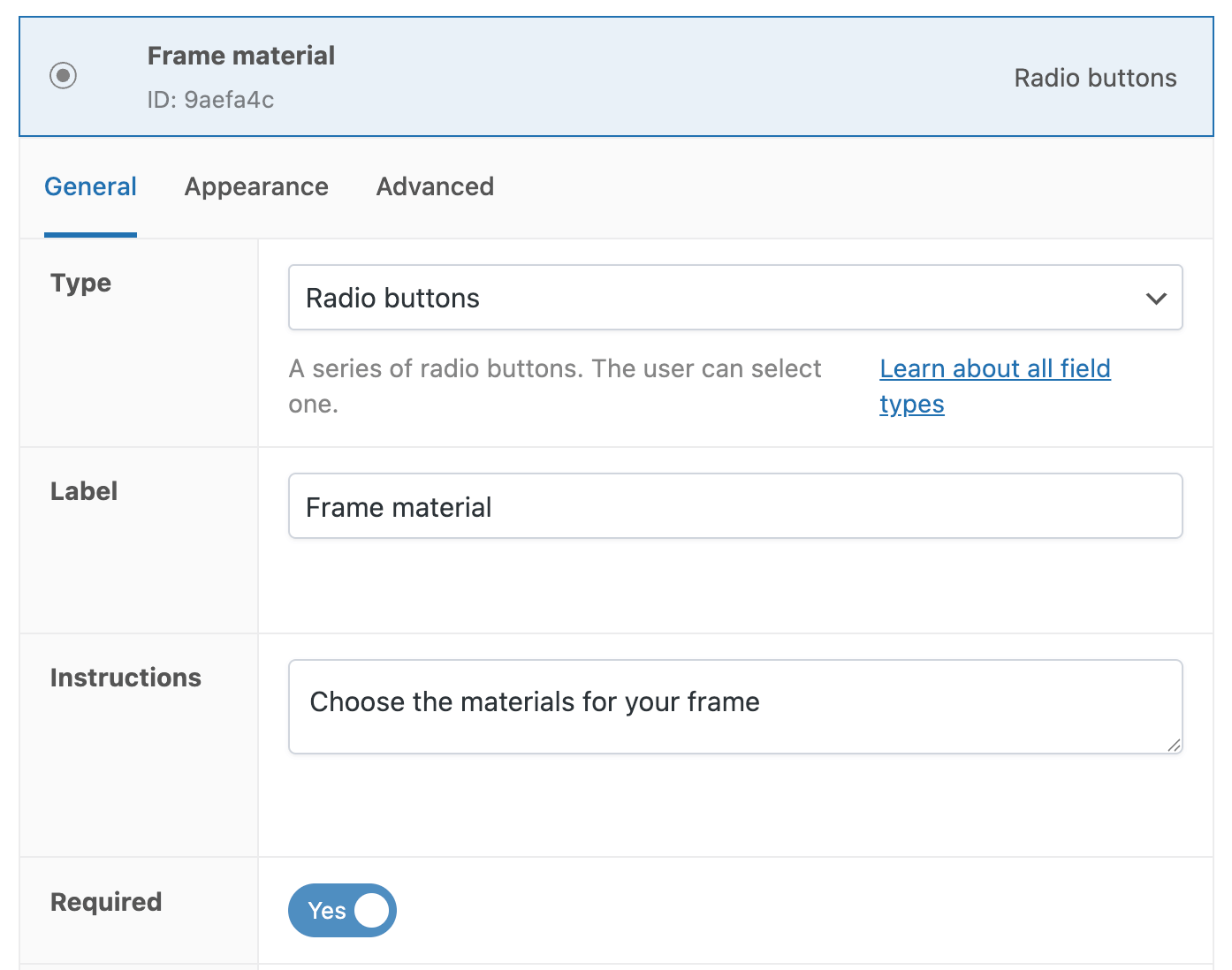
- Add your label: “Frame material” and instructions. Make the field required.
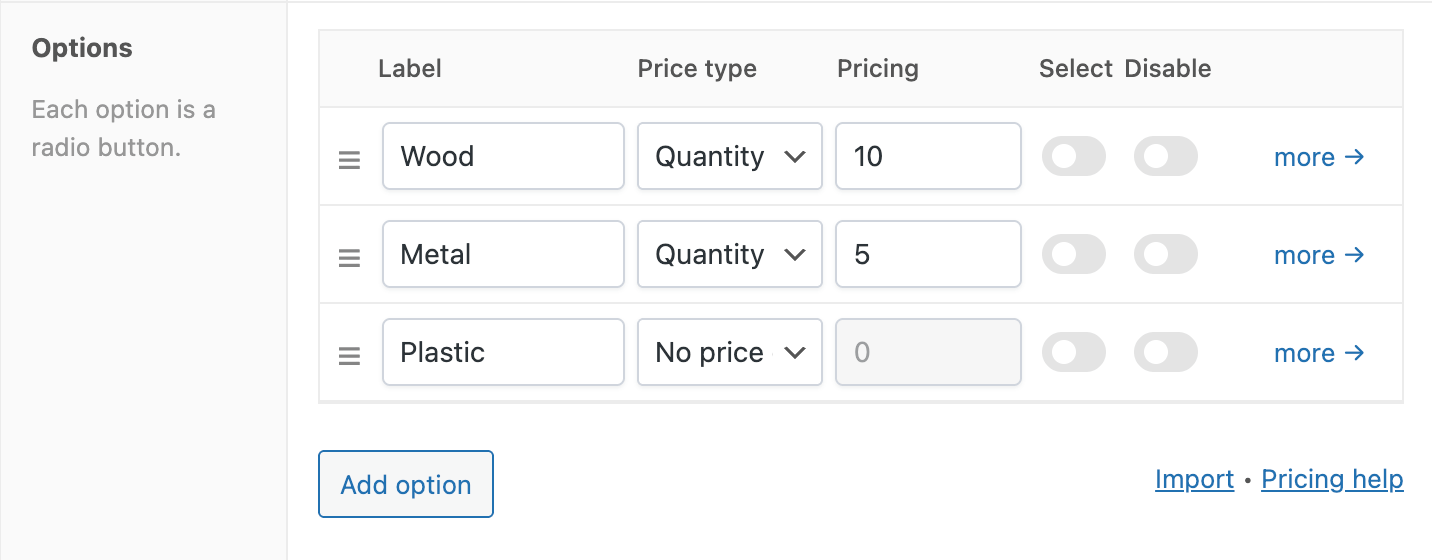
- In the Options section, add your materials (Wood, Metal, Plastic) with their respective price adjustments.
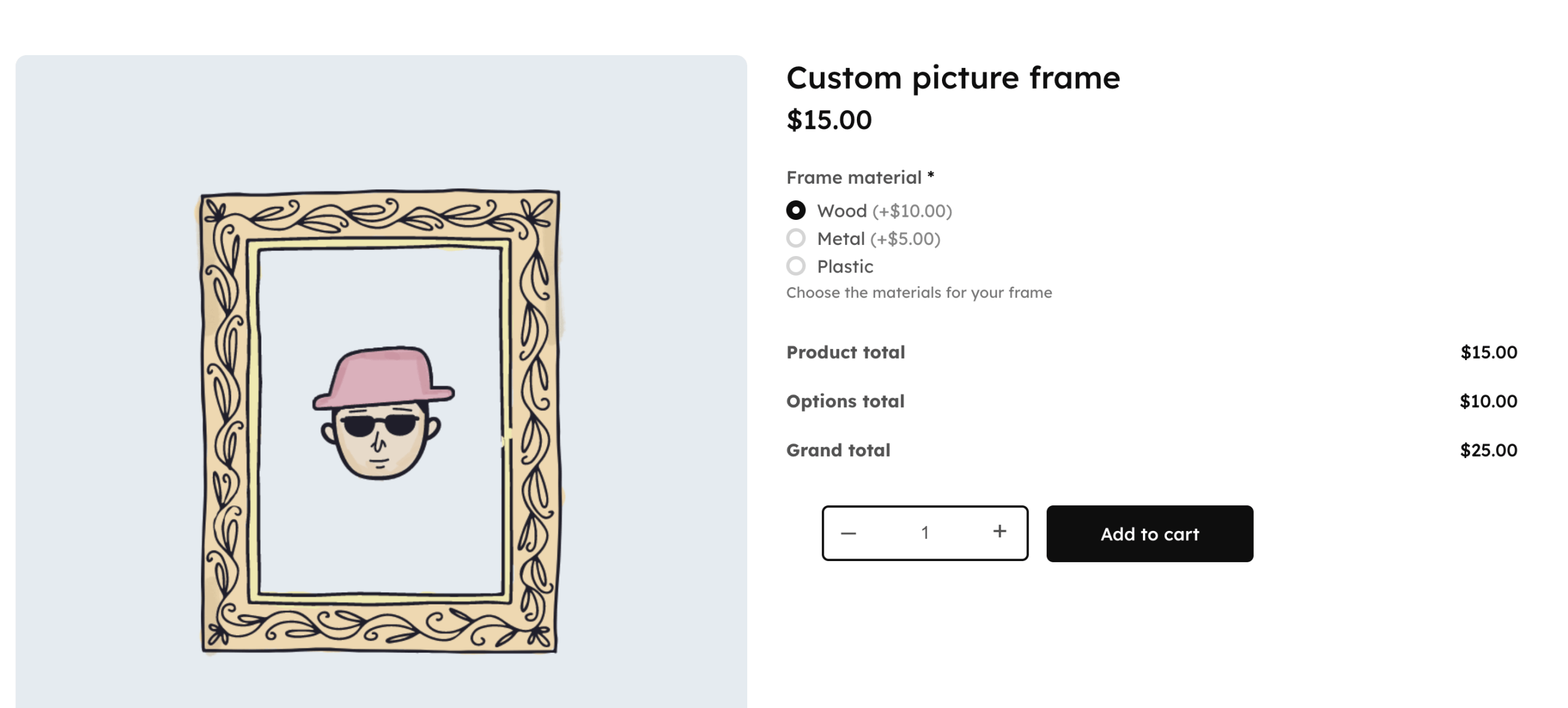
Customers can now easily select their desired material and see the price difference at a glance.
Adding image swatch options for frame designs
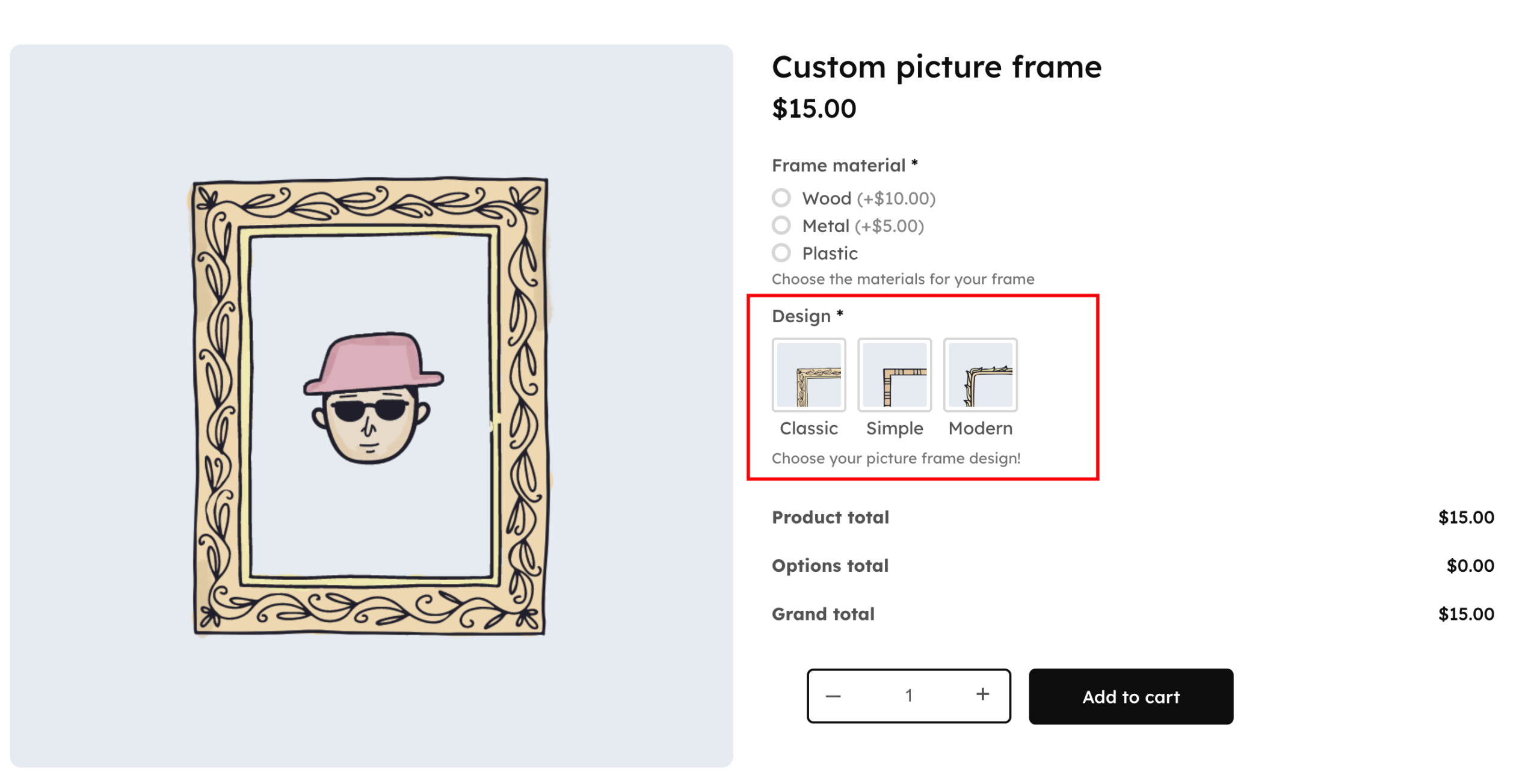
Make this even more customizable by adding different frame designs. Here’s how to do that:
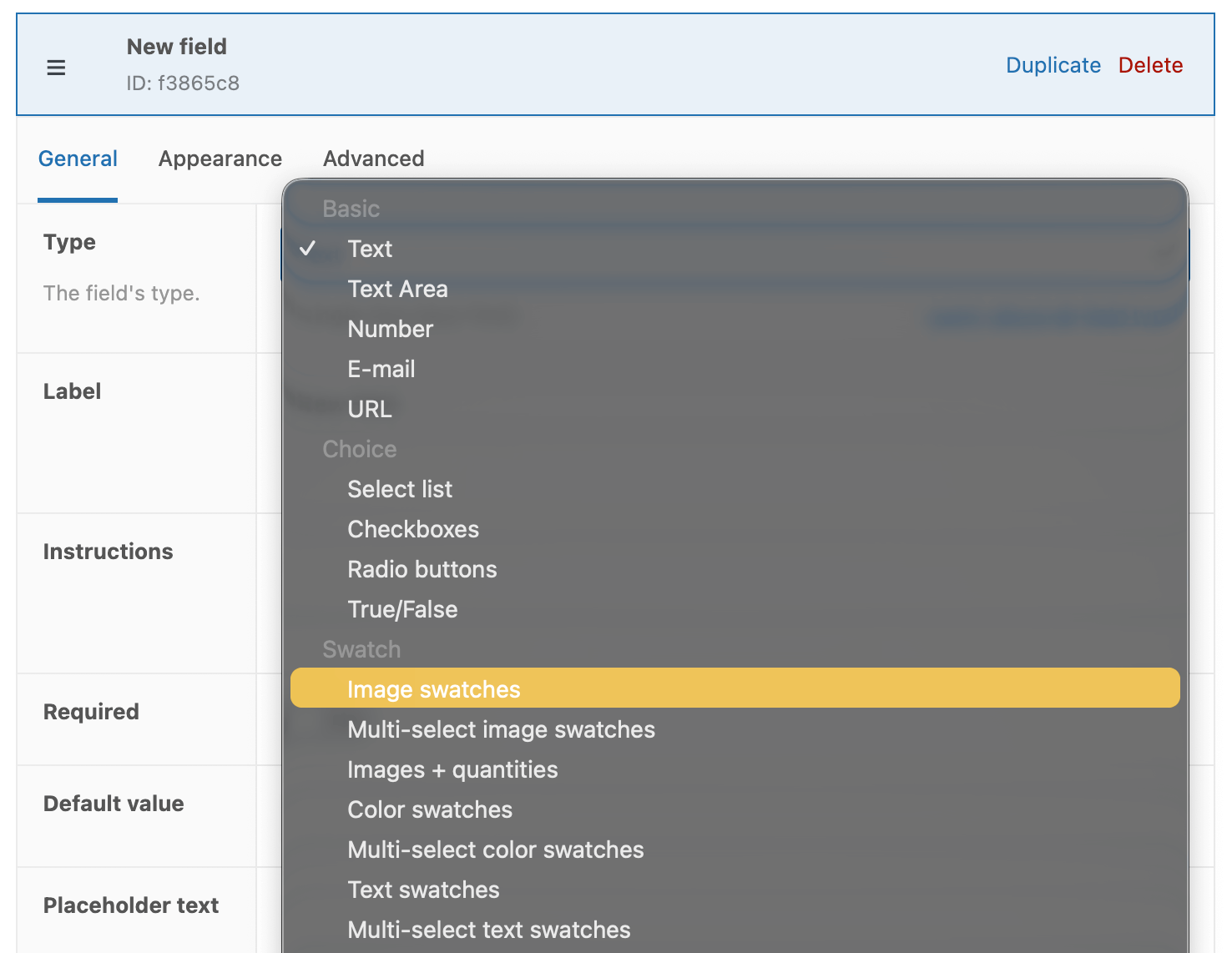
- Add a new product field and choose the Image Swatches type.
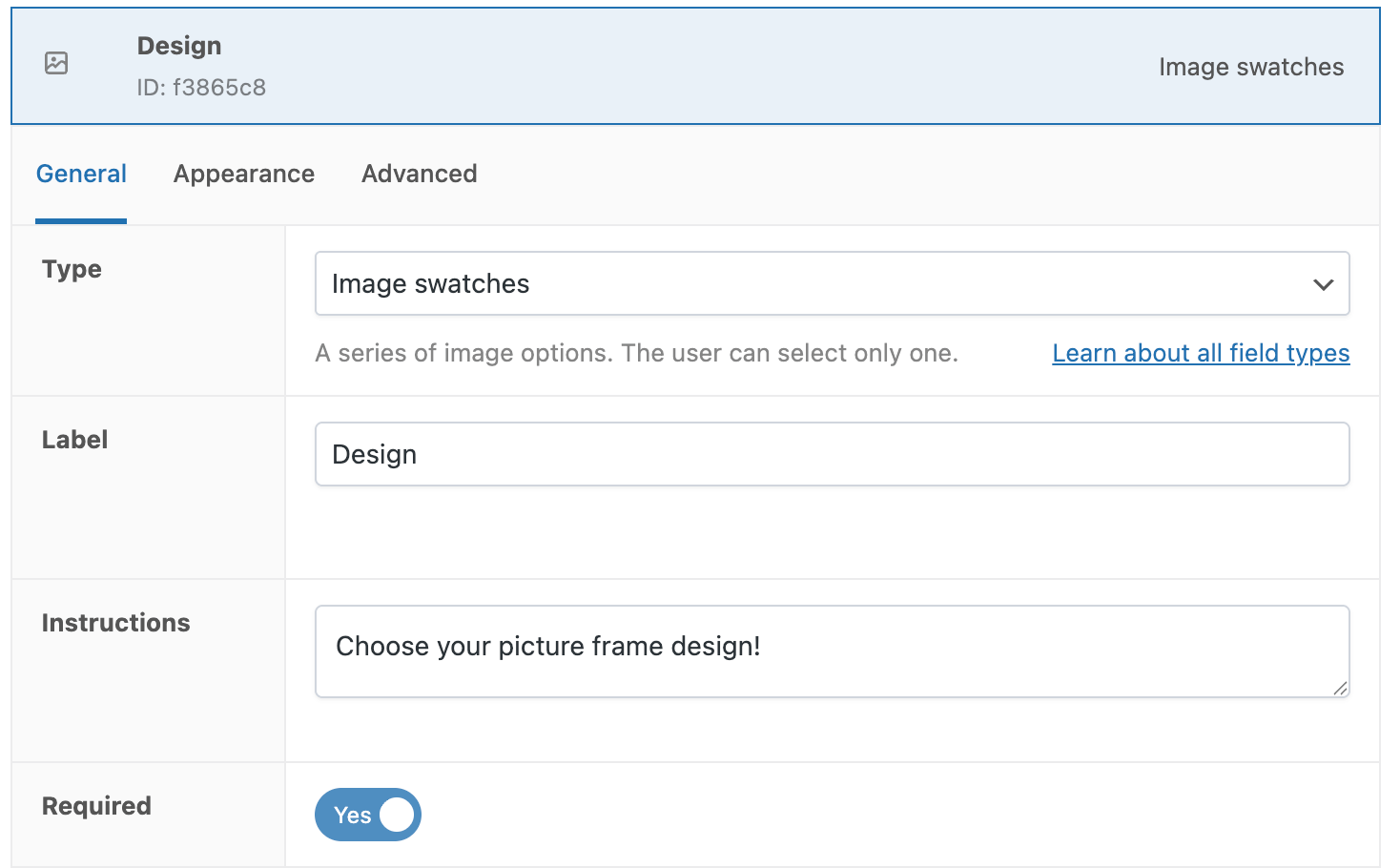
- Add your name and label, and toggle the Required setting.
- Then, add your options, and for each option row, click the image upload icon to upload the frame design.
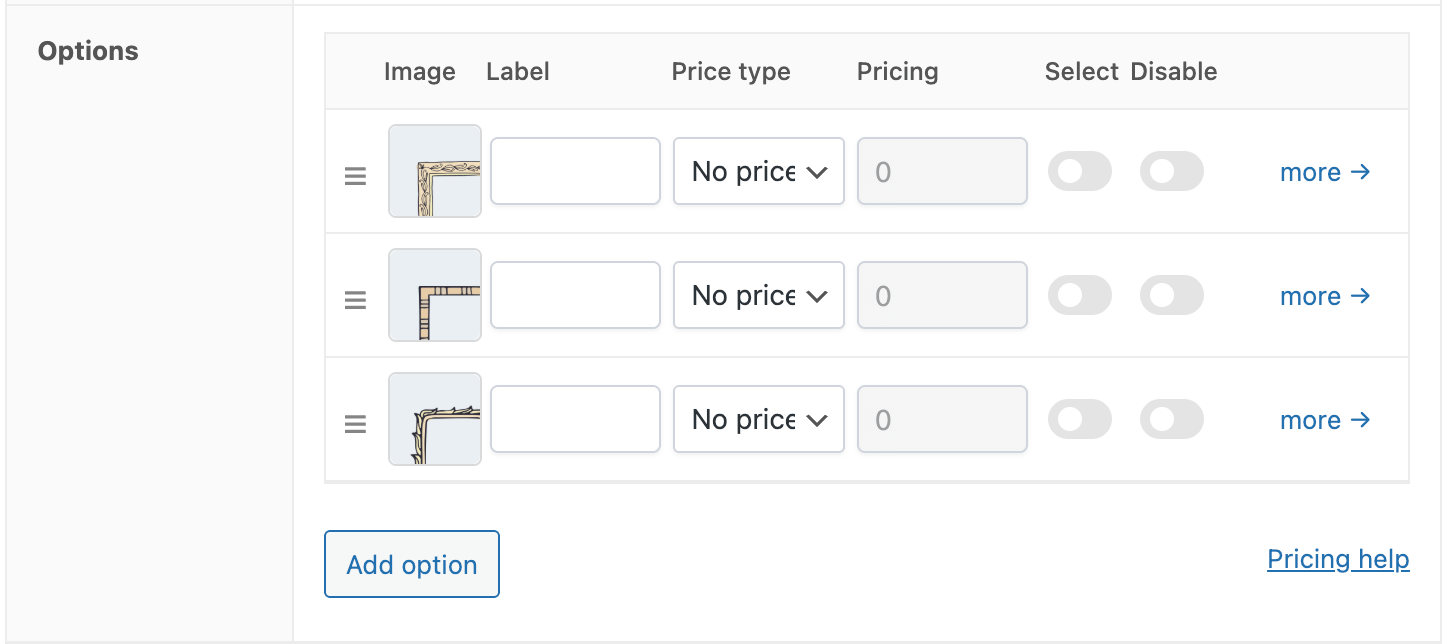
- Customers will now see visual previews of their frame options.
Add conditional logic
One important thing to remember about product pages is that they can’t be too cluttered. Yes, you want to give your customers as many options as they want, but you also don’t want to add a bunch of customizations that aren’t relevant to their choices. In this case, we recommend using conditional logic.
For example, let’s say that you offer different wood finishes for your frames. But if your client has chosen plastic or metal, those options aren’t needed. So, what we’ll do is add a conditional rule.
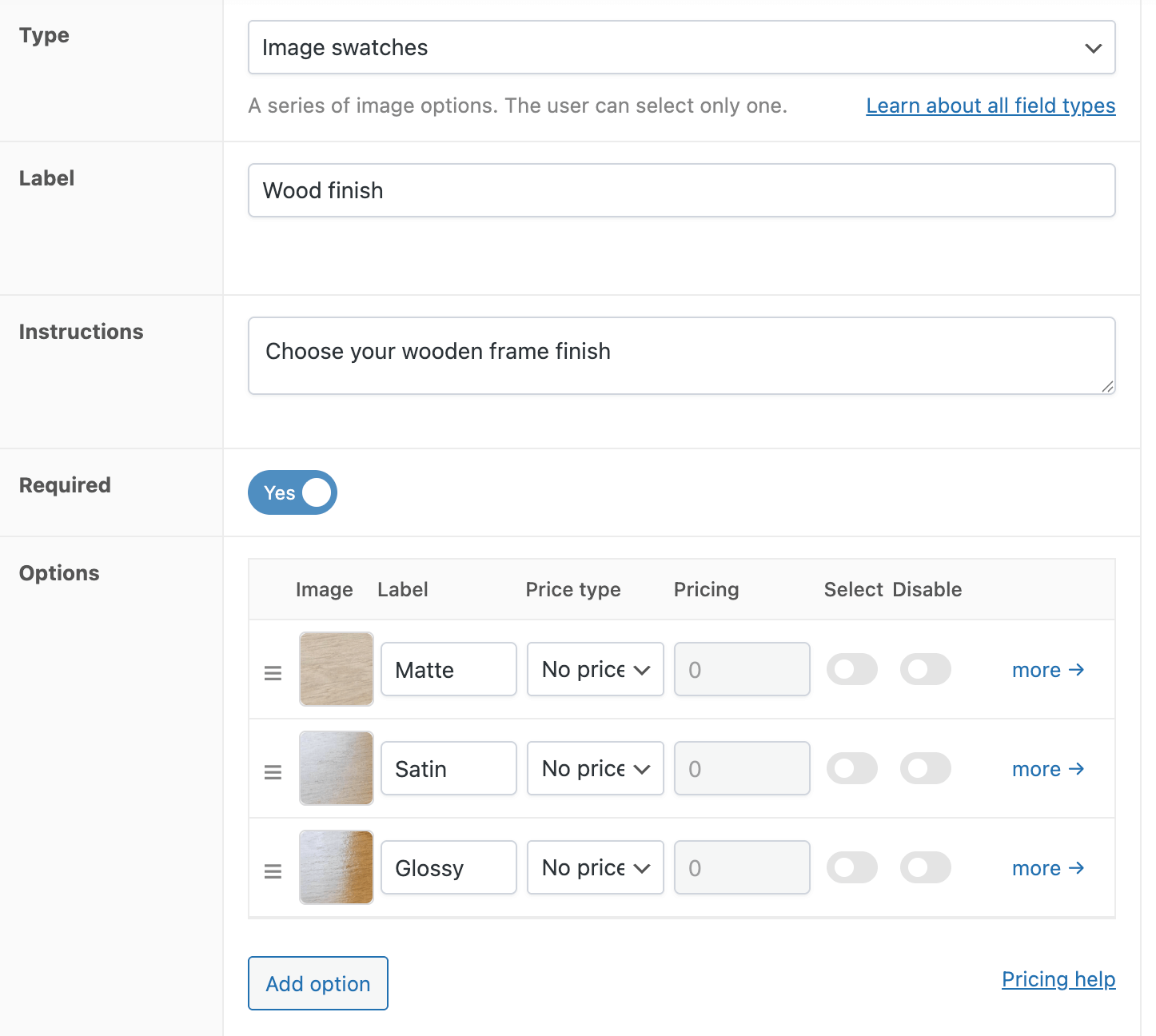
- Add your third field for “Finish Options” (Matte, Glossy, Textured), again, with radio buttons or image swatches if you want to add pictures of the finish.
- Add your options.
- Go to the Advanced tab, toggle the Conditional logic, and set the rule: Show this field if Frame material value equals to Wood.
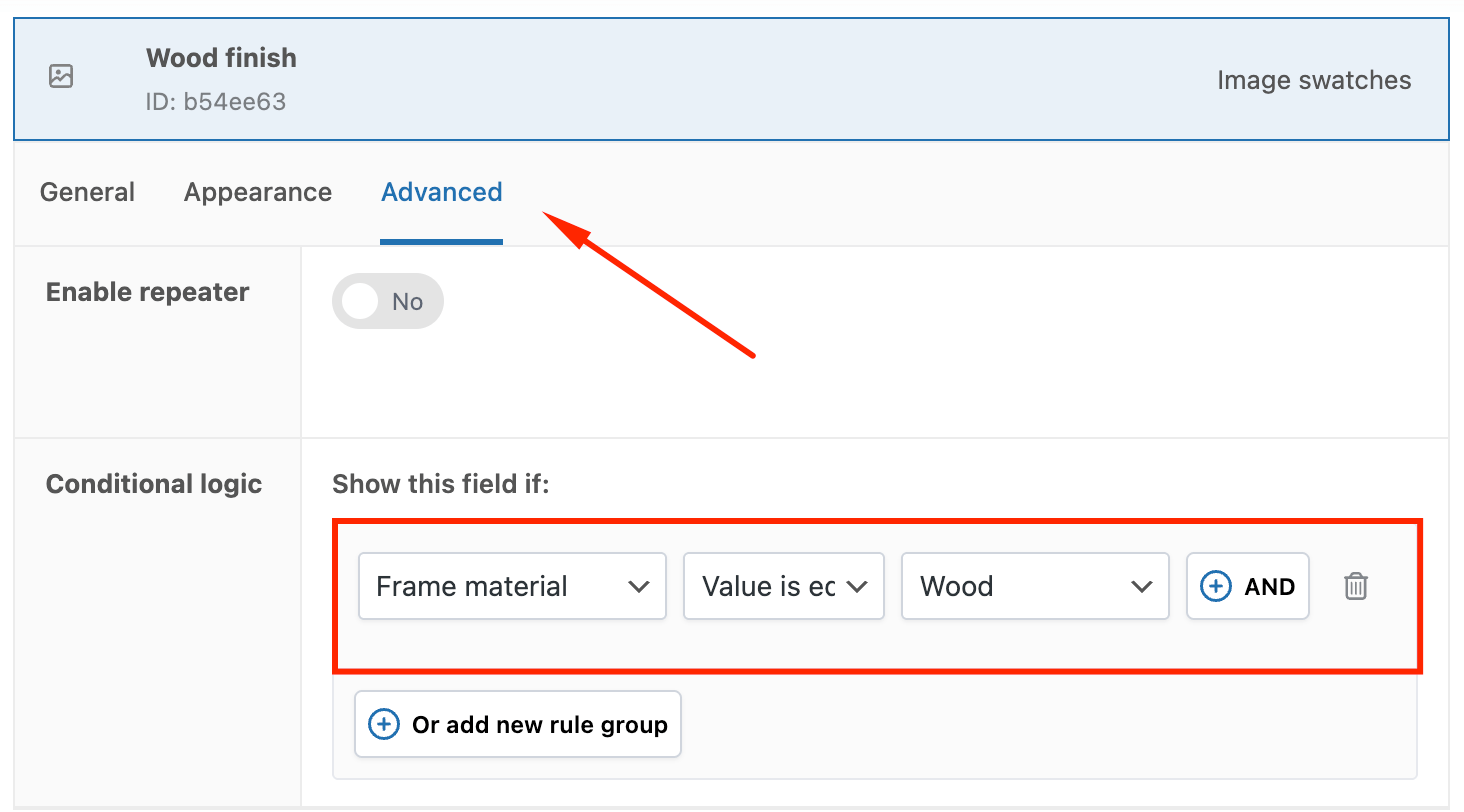
- Metal and plastic selections will skip this field entirely, streamlining the selection process.
Using the Lookup Table Add-On (optional)
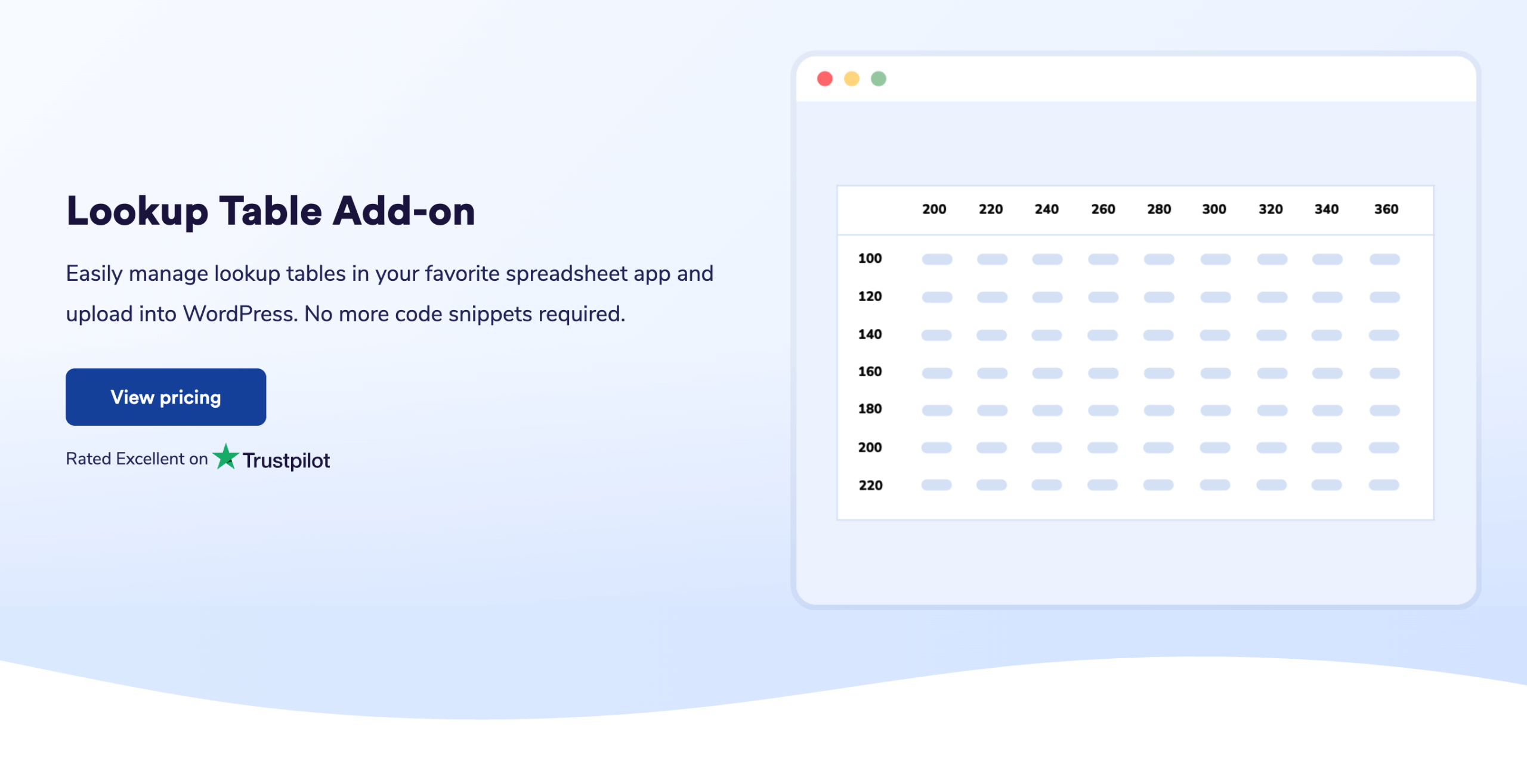
The Lookup Table Add-On extends APF’s pricing capabilities by handling two price-affecting factors simultaneously, for example, the length and width of a carpet. This is perfect for printed materials, blinds, wallpaper, or any cut-to-size items where pricing depends on two variables.
It works by uploading a simple CSV and then, instead of manually creating pricing rules for every possible dimension combination, you upload a spreadsheet and let the plugin calculate costs automatically.
For example, a custom poster shop can upload a CSV with 50 width options and 30 height options, creating 1,500 pricing combinations without creating 1,500 product variations.
Which plugin is best for you? Quick decision guide
| Choose WooCommerce Quantity Discounts, Rules & Swatches when: | Choose Advanced Product Fields when: | Use both together when: |
|---|---|---|
| – Running a wholesale or B2B operation. – You need visible tiered pricing tables on product pages. – You want customers to see quantity discounts at a glance. – You require professional pricing matrices for bulk orders. | – Wanting to enhance standard dropdowns with images and conditional logic. – You need conditional product options that adapt based on customer selections. – You sell customizable or made-to-order products. – You require formula-based pricing calculations for dimensions or personalization. | – Wholesale customers need pricing matrices AND retail needs enhanced options. – Different product types require different solutions across your catalog. – You want maximum flexibility to serve multiple customer segments effectively. |
These plugins complement each other. APF handles product customization while Quantity Discounts manages bulk pricing – no conflicts, just comprehensive control.
Match your display to your business model today
The choice between matrices and dropdowns isn’t about picking the “better” option. It’s about matching the interface to how your customers actually shop.
Dropdowns work beautifully for simple products with a few variations and mobile-first stores. Matrices become essential when wholesale buyers need to compare bulk pricing tiers or when products have 20+ configuration options.
WooCommerce Quantity Discounts, Rules & Swatches creates the professional tiered pricing tables that B2B operations demand – visible quantity breaks, clear volume discounts, customizable presentation.
Advanced Product Fields transforms basic dropdowns into intelligent selection tools with image previews, conditional logic, and real-time pricing calculations for customizable products.
The power move?
Use both plugins together. Show tiered pricing matrices to wholesale accounts while retail customers enjoy enhanced dropdowns with visual options. Different products, different customer segments, one seamless experience. Discover our plugins to find the perfect match for your business model today.
