
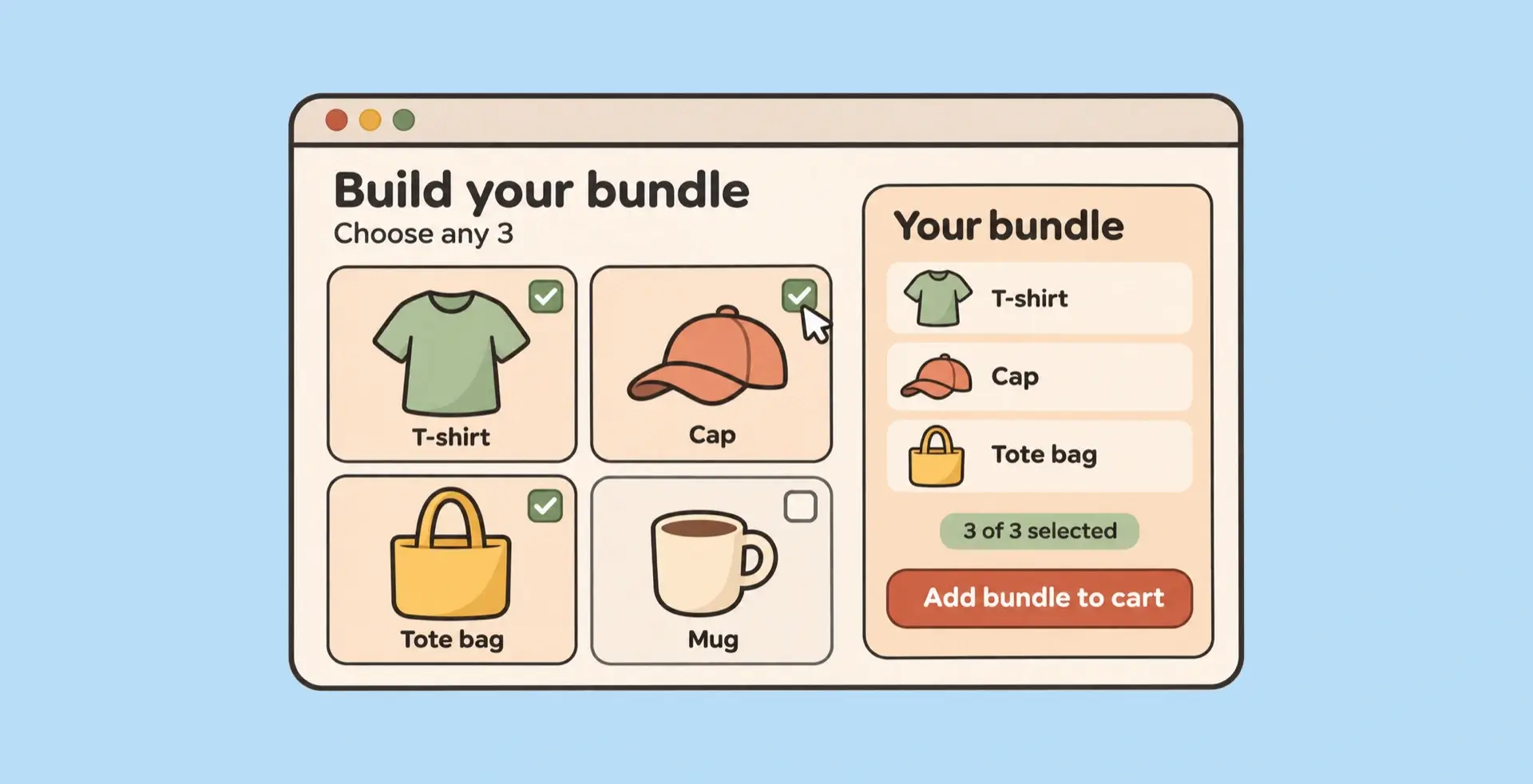
If you’re looking to create a product bundle in WooCommerce, this guide is here to help.
Product bundles are one of the most reliable ways to grow your average order value without acquiring more customers or selling/creating more products. The problem is that WooCommerce’s native options for bundling are limited.
So, in this guide, we’ll show you what your options are. We’ll cover:
- Whether you can create a WooCommerce product bundle without a plugin.
- How grouped products work.
- How to create a product bundle in WooCommerce.
Can you create product bundles in WooCommerce?
There are multiple different techniques to help you create product bundles in WooCommerce. The one you pick depends on how much control you want over the bundle, how customers interact with it, and if you want greater control over things like bundle pricing.
The two main bundle type options are:
- Create a grouped product. This is the default method you can use in WooCommerce without any plugin needed. It’s quick to set up but limited in what you can do.
- Use a plugin for more advanced bundles. This gives you more field types, conditional logic, selection limits, control over design and layout, pricing, and more.
We’ll go through each next.
Create a grouped product
Creating a grouped product is WooCommerce’s built-in way to display multiple related products on one product page in a fixed bundle. It allows customers to add several items to their cart at once, on one page, with one add to cart button.
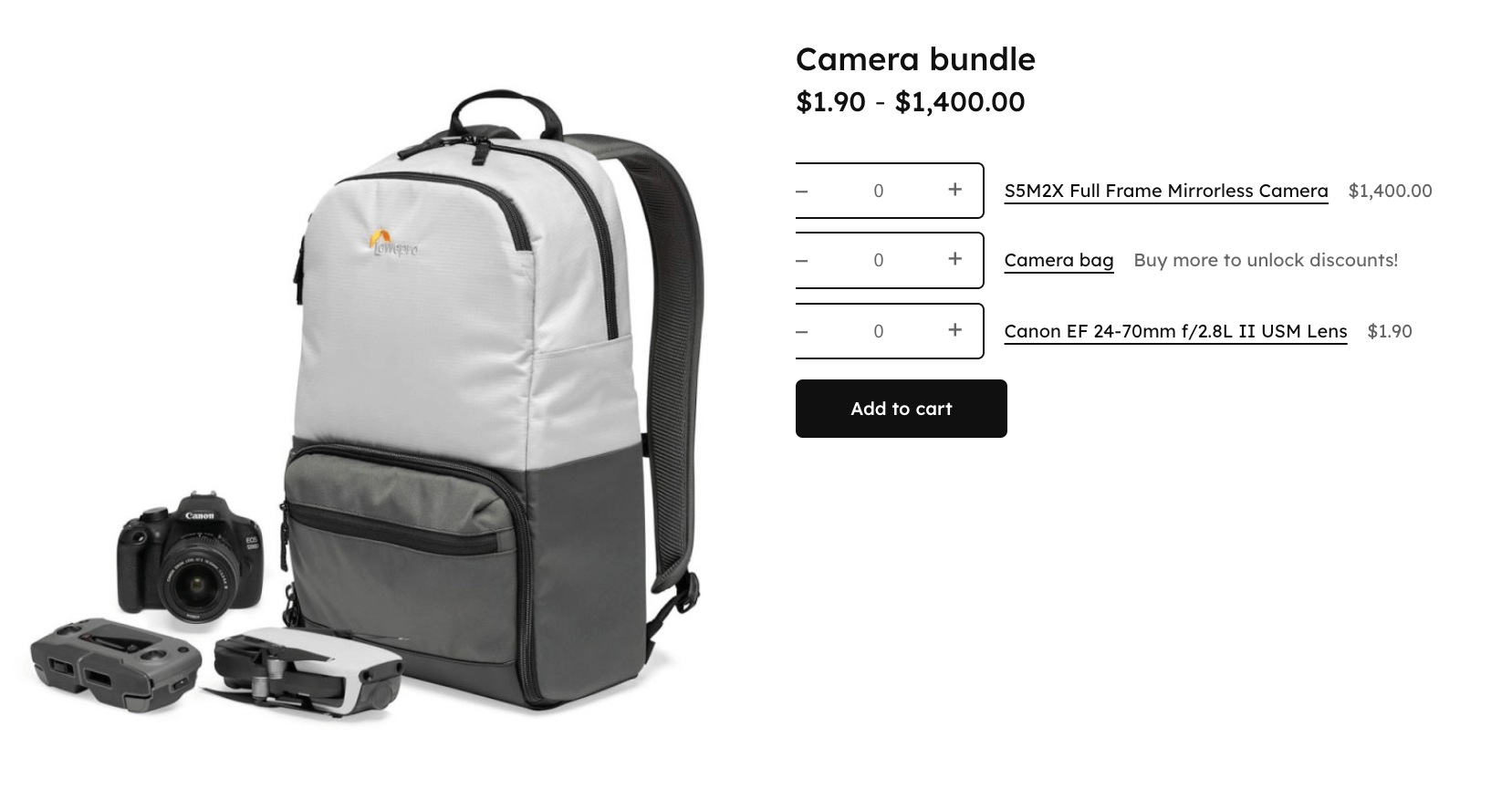
To set one of these up, you use the ‘Grouped product’ product type, then link existing WooCommerce products to it. On the product page, each linked product displays with its own price and ‘Add to cart’ button.
Here’s how you can set a grouped product up:
- From your WordPress dashboard, go to Products → Add New.
- Enter a product name and description; this will be whatever you want to call your grouped product.
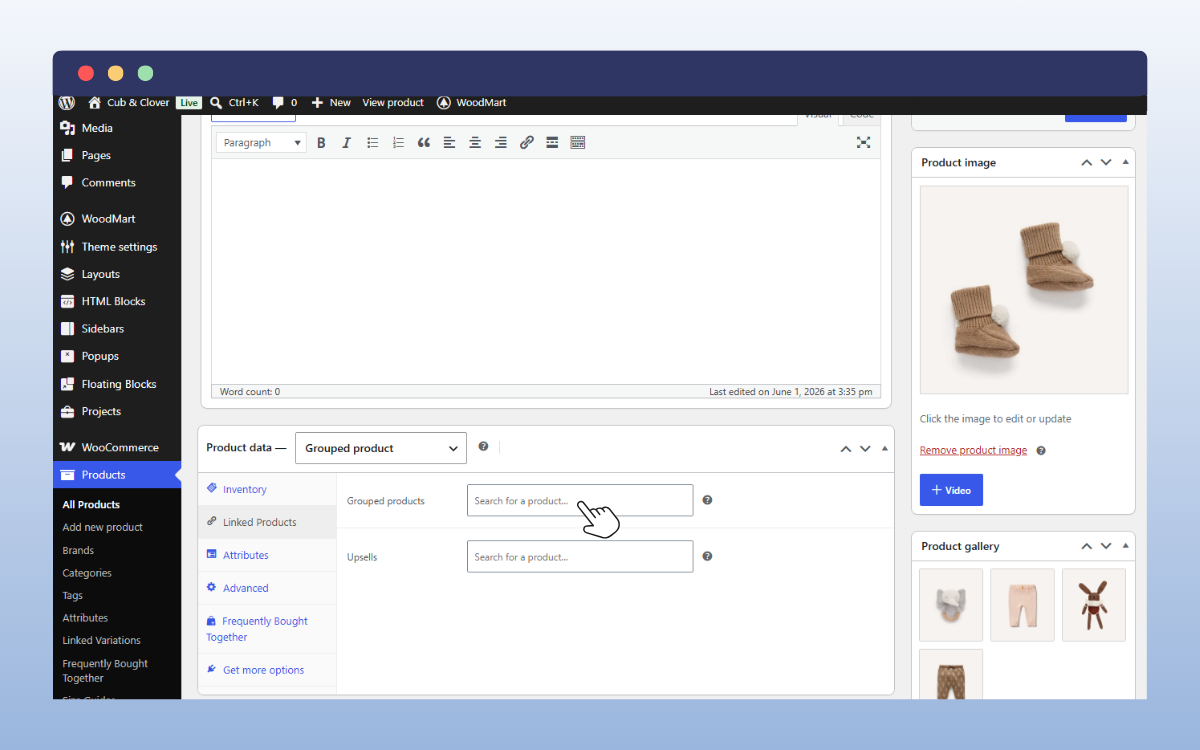
- In the Product data section of the page, click on the Linked Products tab, find Grouped products, and search for the WooCommerce products you want to include.
- Once you’re happy, publish the product, and you’ll see your new grouped product in action.
The positives of this method are that it’s free and easy to set up using native WooCommerce controls. The downside is that you can’t add bundle discounts, customers can’t mix and match items, and there are no variable product options or product options. Everything is just a little limited.
So if a grouped product doesn’t really work for you, learning how to create WooCommerce product bundles with a plugin will.
Use a plugin to give you more advanced bundle controls
The standard grouped product option works well for simple product catalog layouts, but if you want something more than this, you’ll need a tool to help you do it.
For example, if you want to let customers build their own bundle, enforce selection rules, use dynamic pricing, or add extra options for each product, a plugin is necessary.
The good news is, there are some good options. Advanced Product Fields for WooCommerce is one of those options. It’s a WooCommerce plugin that helps you create product bundles with everything from the simplest features to the most complex.
CCreate advanced product bundles for WooCommerce in minutes.
Find out moreHow to WooCommerce product bundles with Advanced Product Fields for WooCommerce
Rather than list out every feature Advanced Product Fields for WooCommerce has, we’ll walk you through how to set up a product bundle using it.
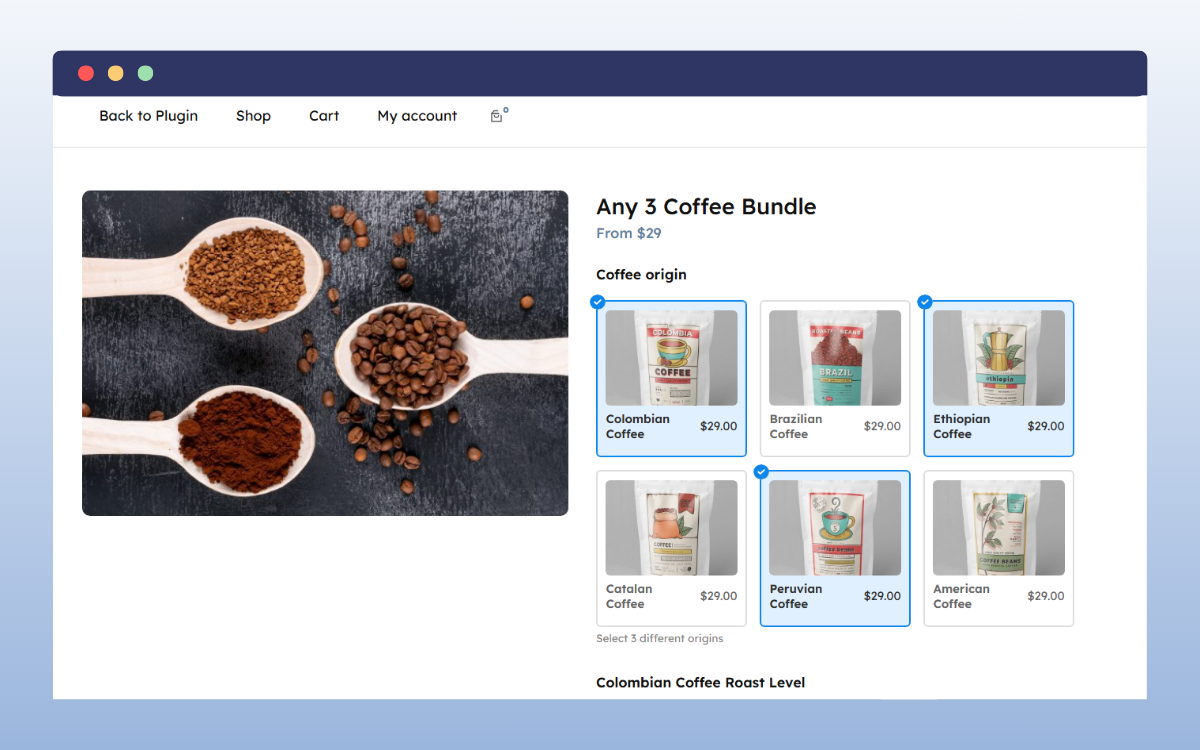
In this example, we’ll set up a ‘pick your own’ coffee bundle, where customers can select any 3 types of coffee beans, their roast type, and add them all to their cart.
Step 1: Create your bundle product
The first thing we need to do is create our bundle product. Much like a grouped product, this will act like a parent product that will house the individual bundle products inside of it. The difference is, by using Advanced Product Fields for WooCommerce, we’ll have much more control.
To create this bundled product, take the following steps:
- From your WordPress dashboard, go to Products → Add New.
- Give your bundle a name. In this case, we’ll call ours ‘Any 3 Coffee Bundle’.
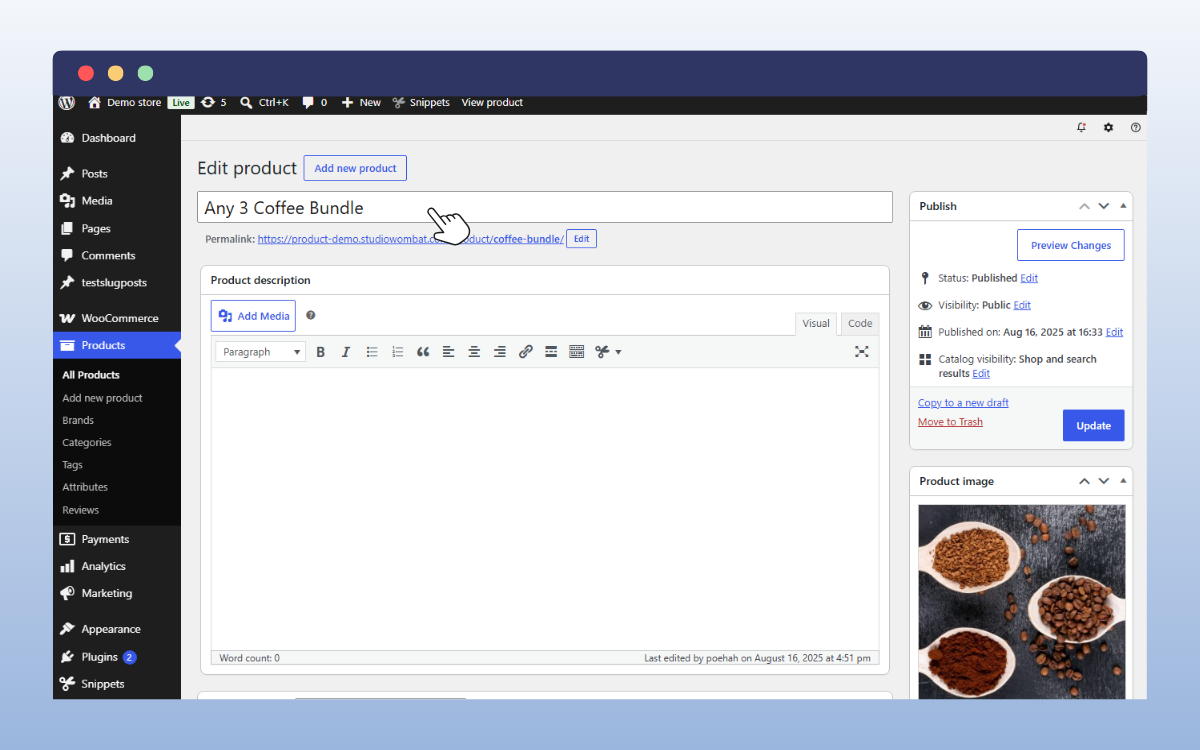
- Add all the other elements you’d typically add to a product, like the main product image, product description, category, etc.
- Then scroll down to the Product data section of the page.
Step 2: Add the products field
The next step is to add the field that lets customers pick which of your existing products they’d like to add to the bundle.
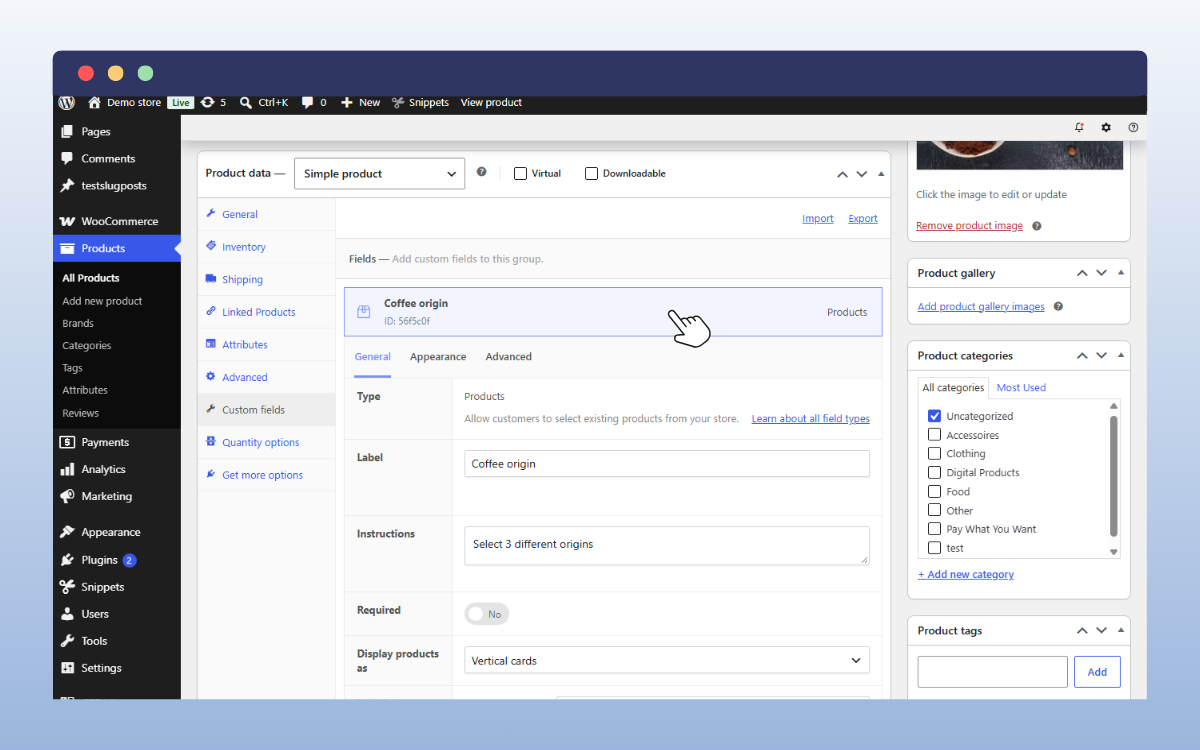
- In the Product data section, click the Custom fields tab. This has been added by the Advanced Product Fields for WooCommerce plugin.
- Click Add Your First Field and, from the options, select Products.
- Give the field a label, for this coffee bundle, we’ll use ‘Coffee origin’.
- Add some instructions underneath this if you think customers might need a little more information.
Step 3: Add your products
Next we’ll need to add the existing WooCommerce products we want customers to select from.
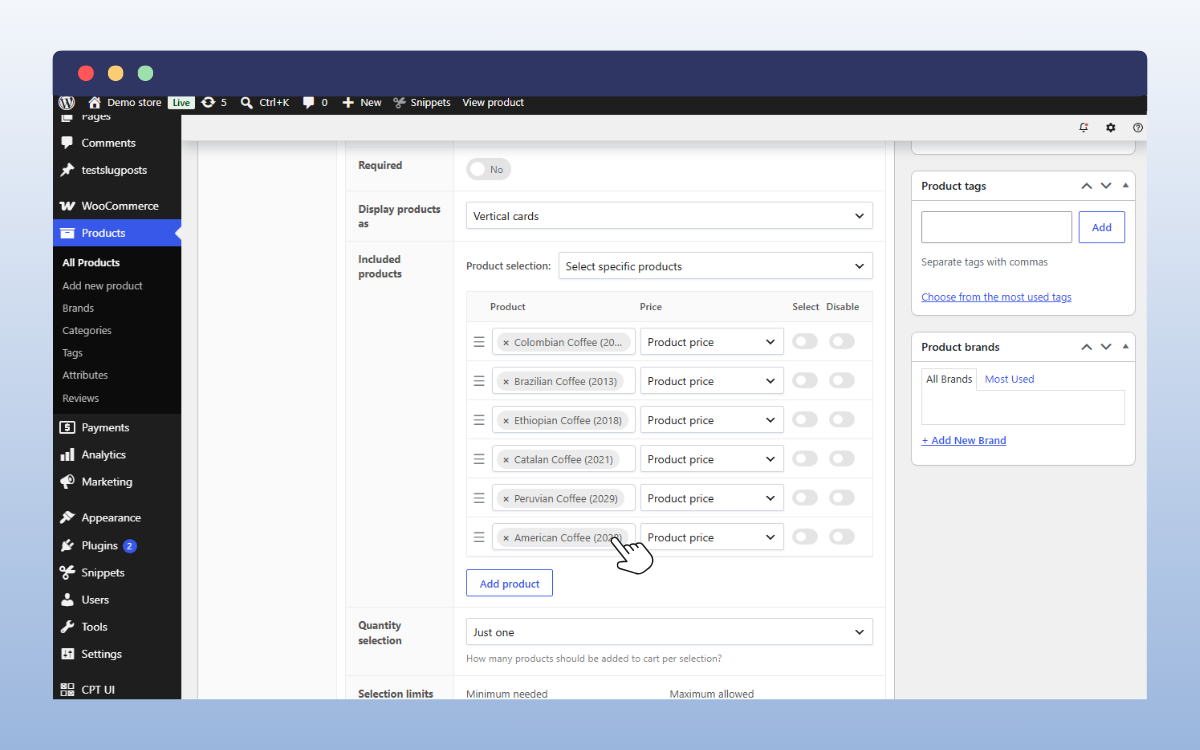
- Under Display products as, pick how you want the products to appear. We’ll use Vertical cards for this product page, but you can pick whichever you like and customize what each looks like in the plugin settings.
- Next, under Product selection, pick Select specific products and search for and add each product you want to include.
- For each one, pick Product price to use the price of the product from each product’s own WooCommerce product page. You can also make these free if you want to have one fixed price for the whole bundle, or a custom price.
Step 4: Set selection limits
We want to restrict how many items customers can add to this bundle, so we’ll do that next.
- Scroll down to Selection limits and set the minimum needed and maximum allowed numbers. For our bundle, we’re going to set both to 3, so customers have to pick 3 items to go in the bundle – no more and no less.
- You can leave both blank if you don’t want to set limits at all.
Step 5: Add conditional fields for per-item customization (optional)
Advanced Product Fields for WooCommerce gives you a huge number of customization options and conditional fields for your product bundles.
In our case, we want customers to be able to pick the roast and grind type for each of the beans they’ve selected in the bundle. However, we want them to be able to do it for each bean type, and some will have different roasting methods than others.
So, to make this work, we’ll need to set up conditional customization that only appears when specific beans have been selected.
To set this up, take the following steps:
- Below the Products field we just added, click Add a Field and choose Section. This acts as a container that groups related fields together.
- Next, click Add a Field again and pick Dropdown.
- Give it a label, for example, ‘Colombian Coffee Roast Level’.
- For the dropdown options, we’ll create one each for Light, Medium, and Dark.
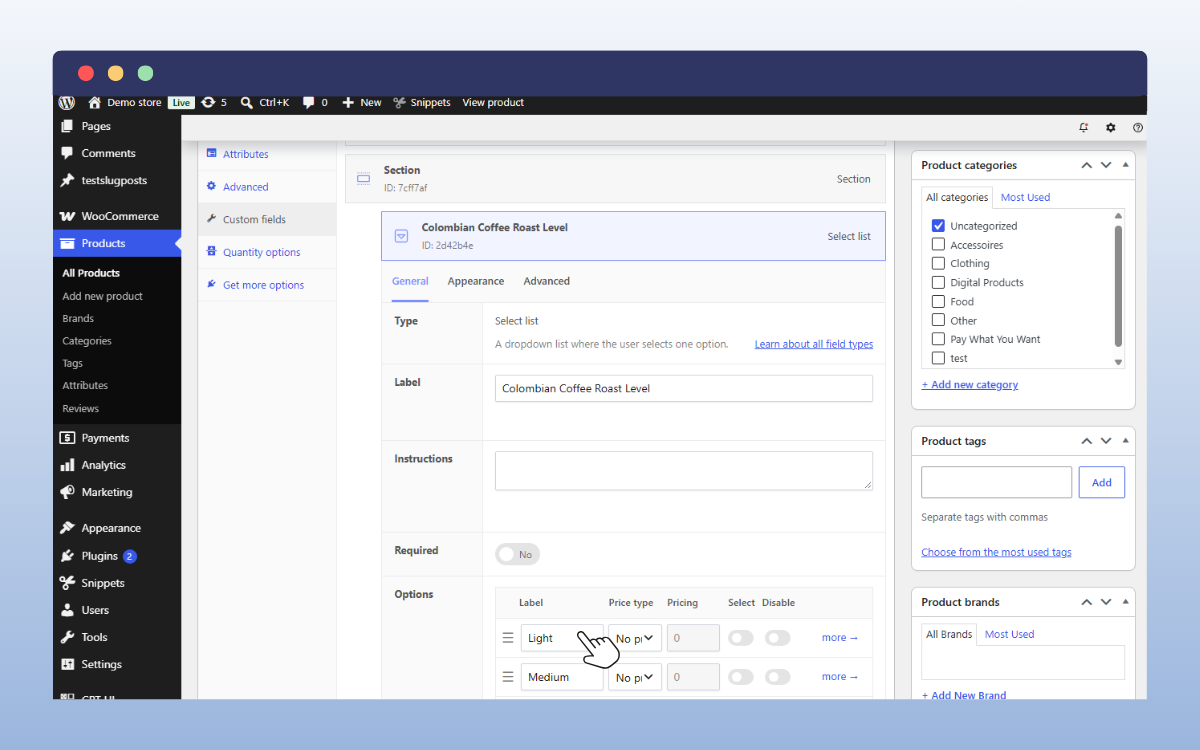
- We’ll then create another for grind type and have options for Whole bean, Fine ground, and Coarse ground.
- We’ll then create a Section end field to close the section.
- To make this conditional, click back on the Section we added at the start and then click on the Advanced tab.
- In this field’s Conditional logic settings, we’ll add a rule that says we’ll show this field only if the Coffee origin field equals ‘Colombian Coffee’.
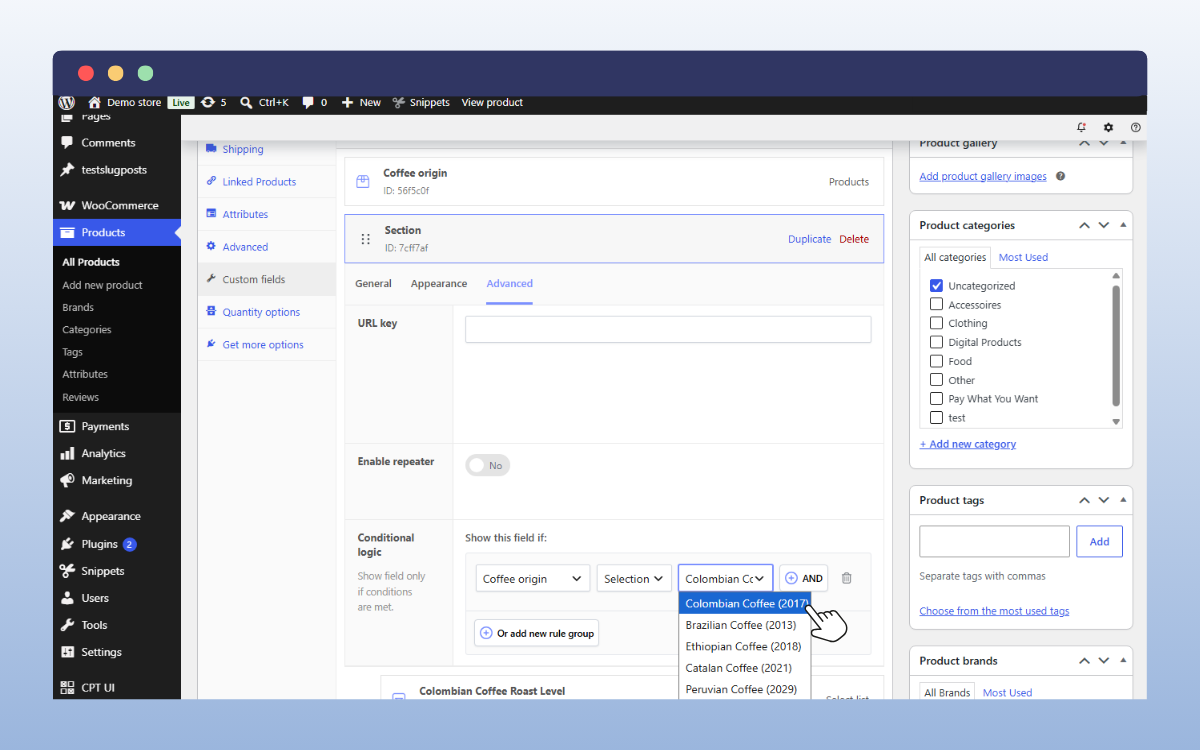
Once done, we’ll repeat this whole section for each product in the bundle. To make this easier, each field you’ve created can be duplicated, so in no time at all, you’ll have all the fields created and customized to suit your product bundle.
When you’re happy with your final product, save or publish it, and you’ll see your new bundle item live on your WooCommerce store.
Create your WooCommerce product bundle today
Product bundles in WooCommerce are one of the most straightforward ways to increase revenue on an existing product catalog. But to get this done, WooCommerce does limit you with the options it has by default.
Advanced Product Fields for WooCommerce, however, gives you all the tools you need to make customizable bundles with a huge array of options. The best part? This plugin doesn’t limit you to bundle creation. With it, you can create composite products, add file uploads, take bookings, create mix-and-match products, and so much more.
CCreate advanced product bundles for WooCommerce in minutes.
Find out more