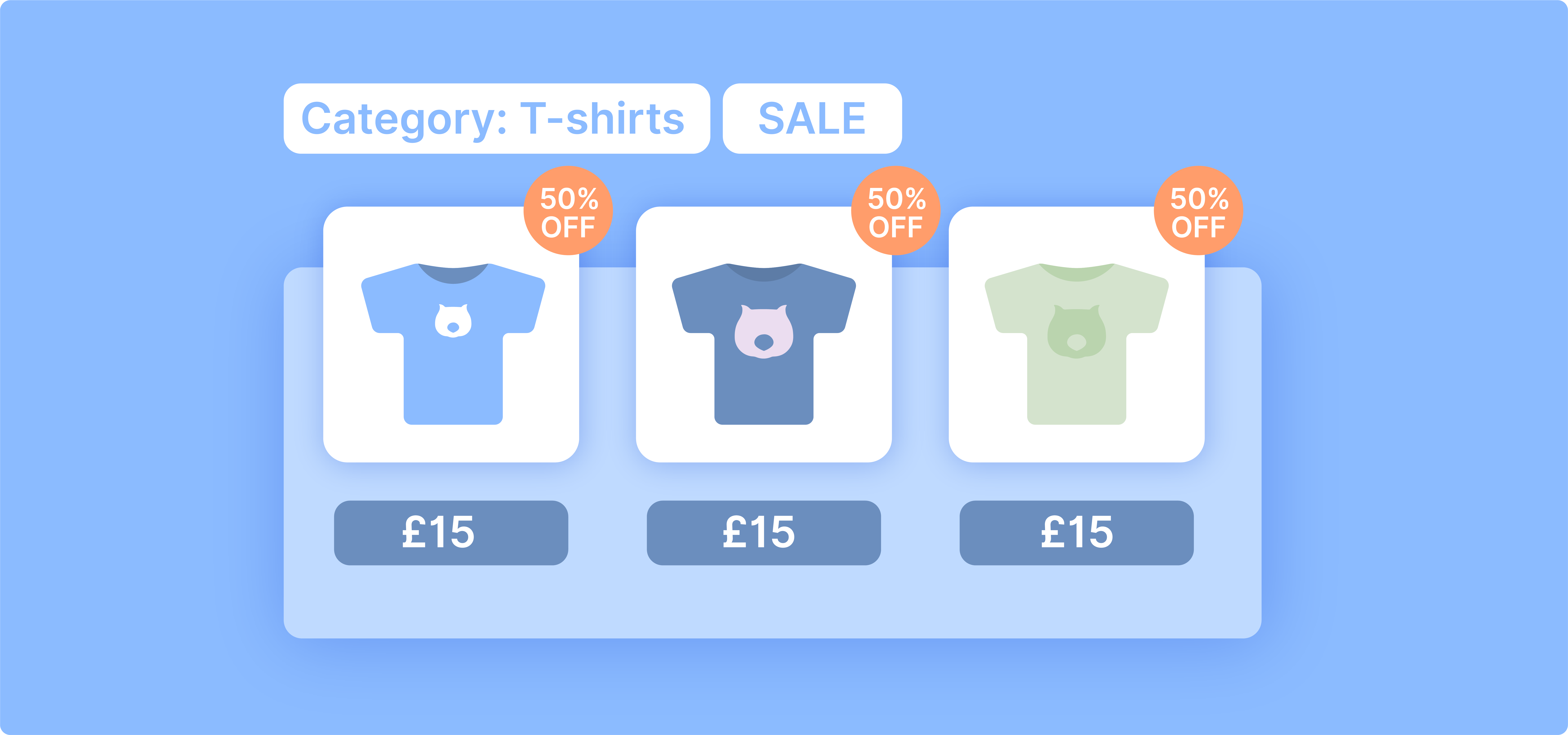
A category discount automatically reduces the price of every product within a chosen WooCommerce product category. They are probably one of the most powerful tools for increasing sales and attracting customers. Whether you’re looking to clear out seasonal inventory or increase sales in specific product groups, well-implemented category discounts can make a significant difference to your bottom line.
In this guide, we’ll show you how to set up effective category-wide discounts using the WooCommerce Discounts plugin. While WooCommerce has built-in coupon functionality, it lacks the flexibility for automatic category-wide discounts. That’s where this plugin comes in handy.
We’ll cover:
- Setting up category discounts
- Creating bulk discounts for categories
- Implementing BOGO deals on specific categories
- Best practices for maximizing discount impact
By the end of this article, you’ll have the knowledge to create targeted, flexible pricing strategies that can significantly impact your e-commerce success. Let’s dive in!
Understanding category discounts in WooCommerce
Category discounts in WooCommerce help increase average order value and move slow-moving stock by incentivizing purchases across entire product groups. Let’s explore the various types of category discounts you can implement:
- Percentage discounts: Apply a percentage reduction to all products in a specific category, such as15% off all T-shirts.
- Fixed amount discounts: Reduce the price of every item in a category by a set amount, such as $5 off all hats.
- Buy One, Get One (BOGO) deals: Give customers a free or discounted product when they purchase from a specific category, such as buy 1 hat and get another free.
- Bulk discounts and tiered pricing: Offer progressively larger discounts as customers buy more items from a category, such as 10% off 3–4 T-shirts and 20% off 5 or more.
- User role-based discounts: Provide special pricing for specific customer groups within a category, like offering wholesale customers 25% off all electronics.
- Cart subtotal discounts: Trigger a discount when the customer’s spending within a category exceeds a threshold, such as 10% off when spending $50 on accessories.
While WooCommerce’s built-in functionality allows for basic coupon creation, it lacks the ability to apply these more complex, category-wide discounts automatically. This is where plugins like WooCommerce Discounts offer more nuanced and effective discount implementations.
This approach can help reduce overstock issues while improving sales in underperforming areas, leading to more efficient inventory management and increased overall revenue.
Applying discounts with WooCommerce Discounts
Several plugins handle category discounts in WooCommerce, including Flycart’s Discount Rules, YITH Dynamic Pricing, and Smart Coupons. The WooCommerce Discounts plugin, however, offers the most advanced and flexible options for implementing category discounts, going beyond WooCommerce’s basic category-specific coupons.
Here’s what makes this plugin stand out:
- Automatic discounts: Discounts apply automatically at the product and cart level, displaying strikethrough prices on shop and product pages without requiring a coupon code.
- Combination rules: Mix category discounts with other conditions like user roles, cart totals, or specific products.
- Multi-category application: Easily apply discounts to multiple categories or exclude specific products within a category.
- Scheduling capabilities: Category discounts can be scheduled with specific start and end dates that automatically activate and deactivate the promotion.
These features enable sophisticated marketing strategies, such as cross-selling or upselling. For example, you could offer a discount on accessories when customers buy items from the electronics category, encouraging additional purchases.
Step-by-step guide to implementing category discounts
Let’s walk through the process of setting up a category discount using the WooCommerce Discounts plugin. We’ll create a 10% discount on all accessories as an example.
- Install and activate the WooCommerce Discounts plugin.
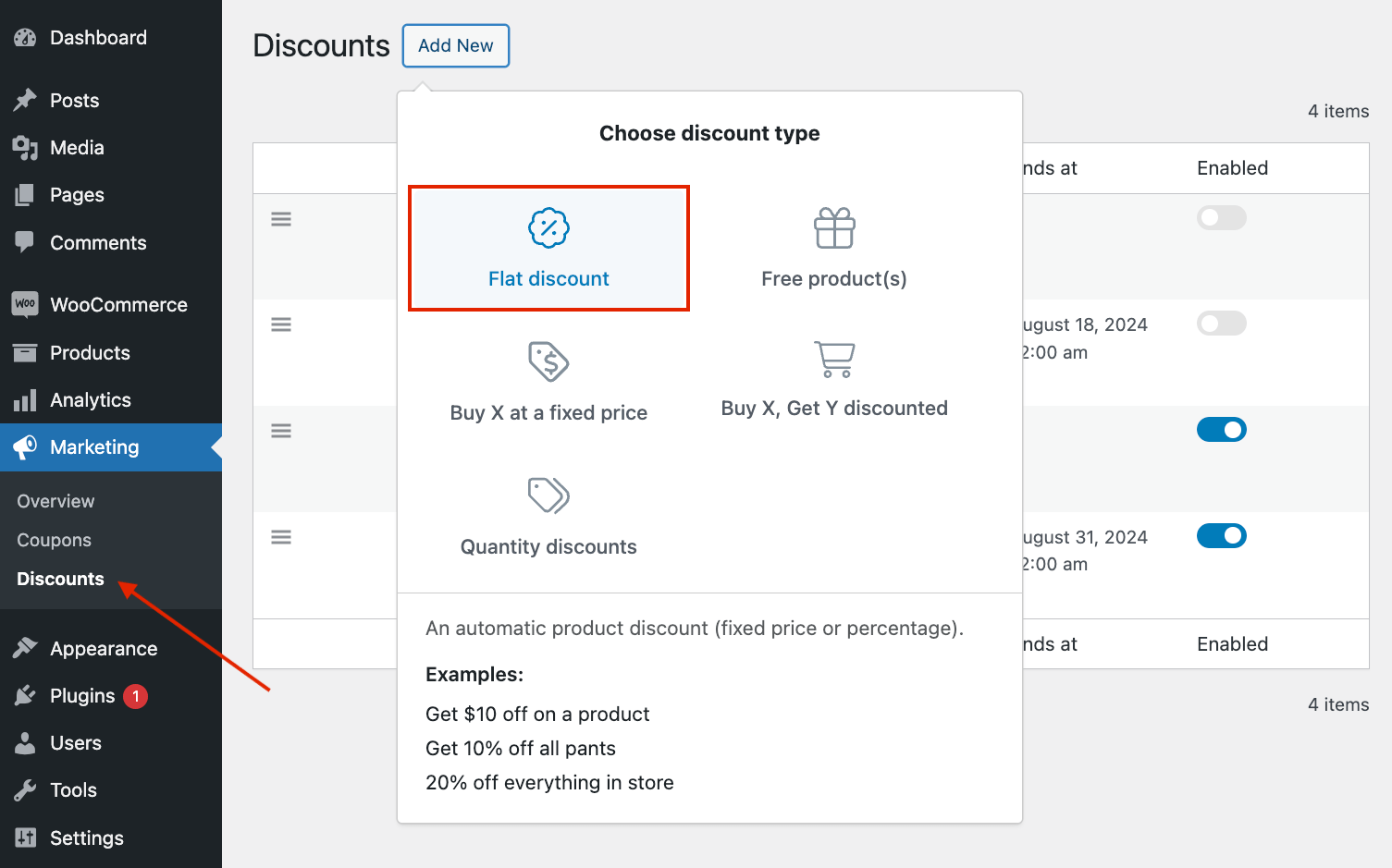
- Navigate to WooCommerce → Marketing → Discounts → Add New and choose “Flat discount” as the discount type.
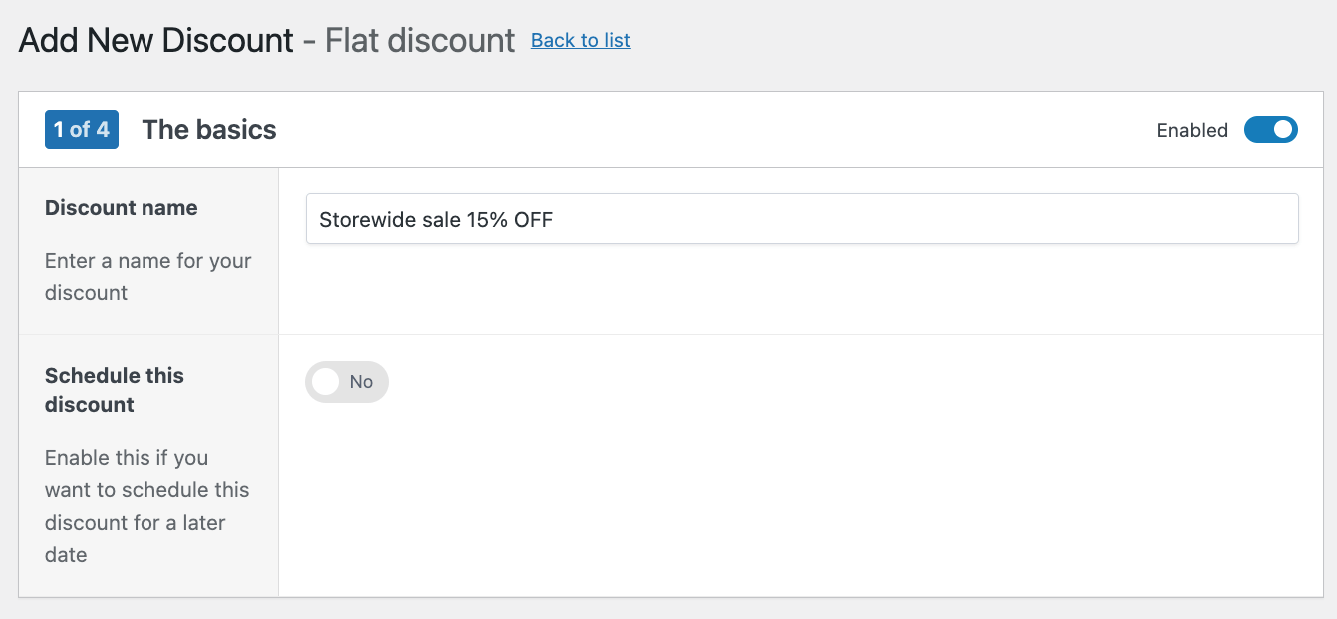
- Name your discount (e.g. “10% Off Accessories”) and set your desired start and end dates/times. Leave the section blank if you want the discount to start immediately and continue running until you manually disable it.
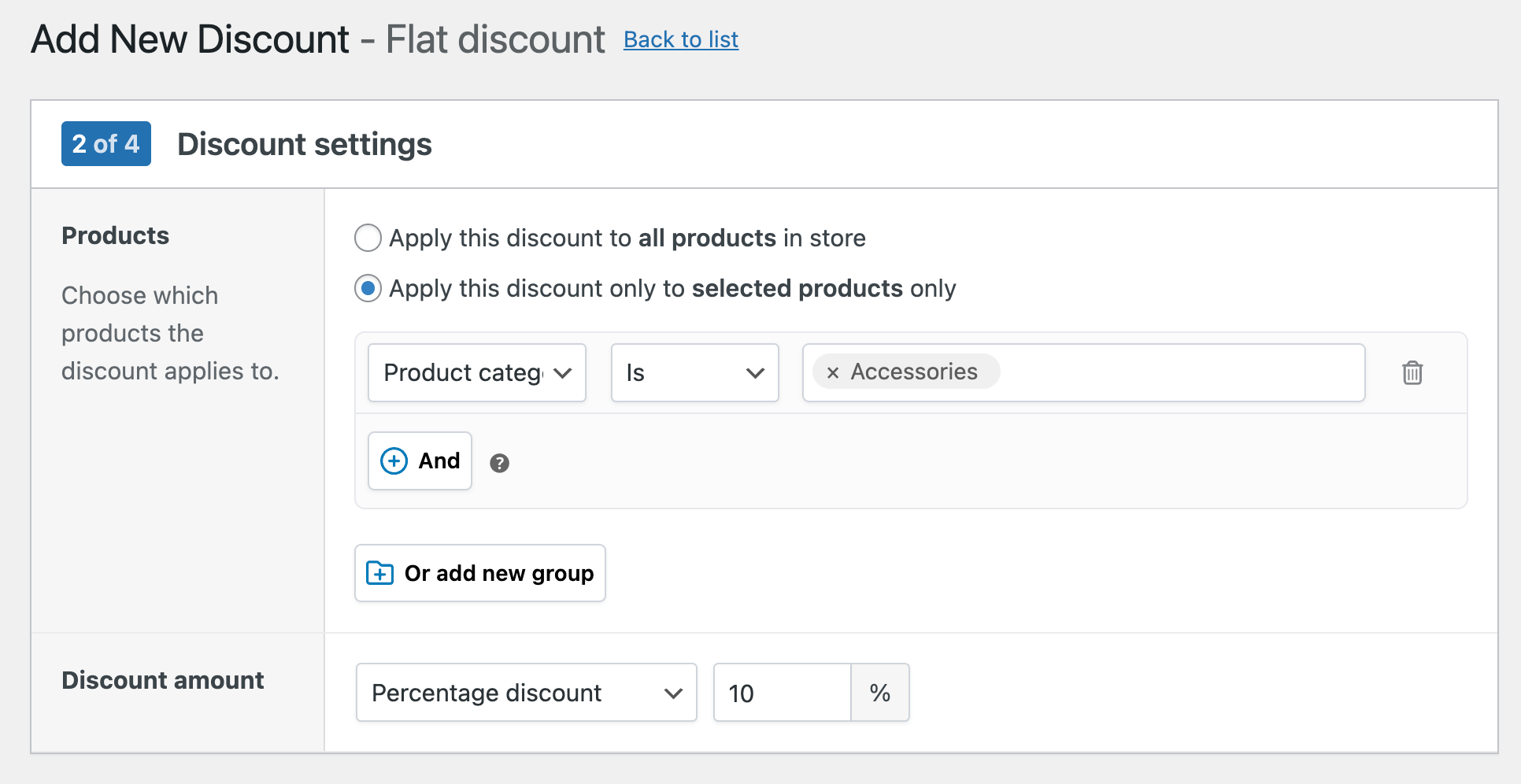
- In the next step, choose the option to apply the discount only to specific products and then choose “Accessories” as the product category. Then, set the discount type to “Percentage discount” and enter the desired amount. A discount applied to a parent category automatically extends to all sub-categories, and specific products or sub-categories can be excluded at this stage.
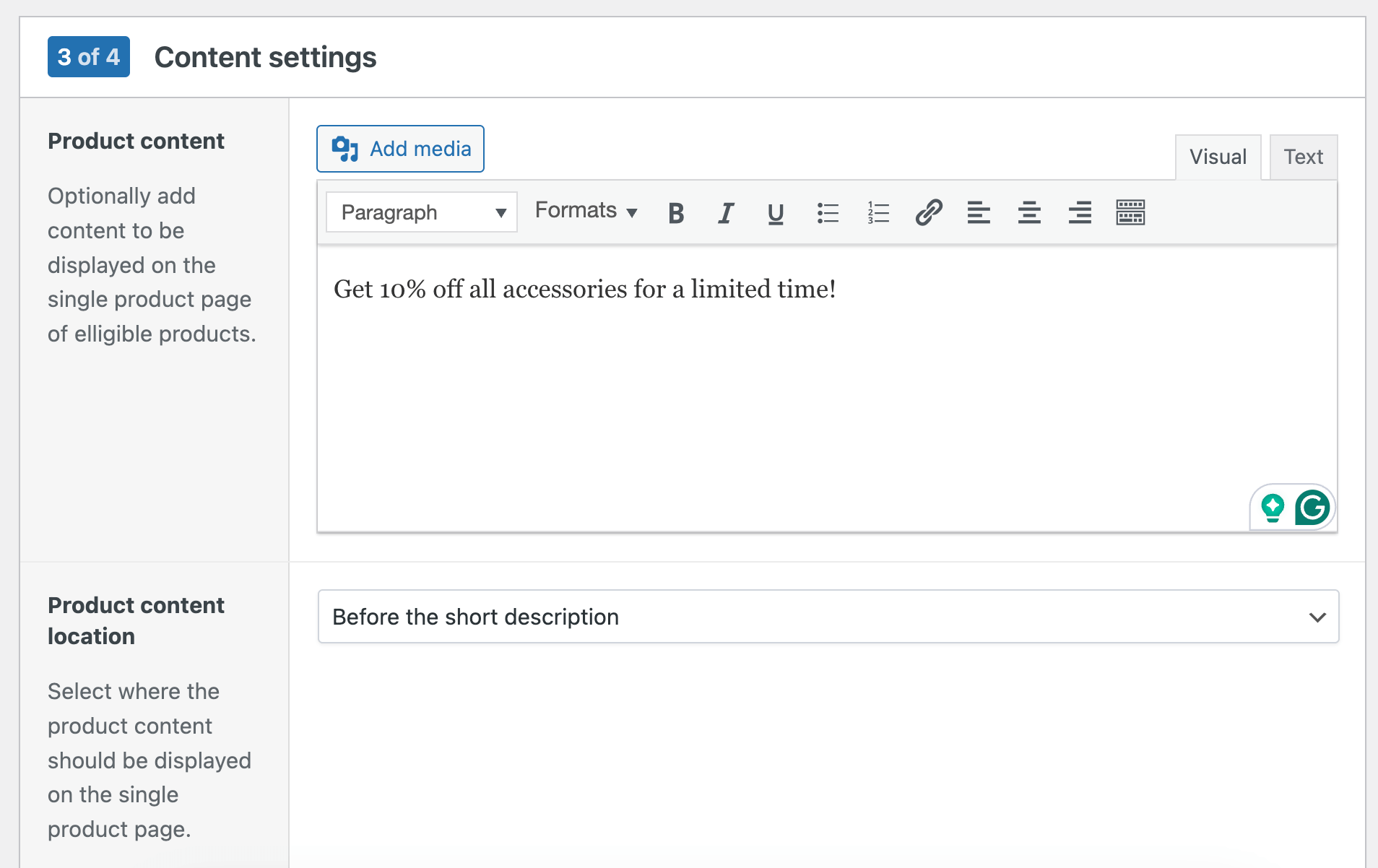
- If you want, you can add custom messages in the “Content Settings” section that will show up on the product page and cart. Example: “Get 10% off all accessories for a limited time!”
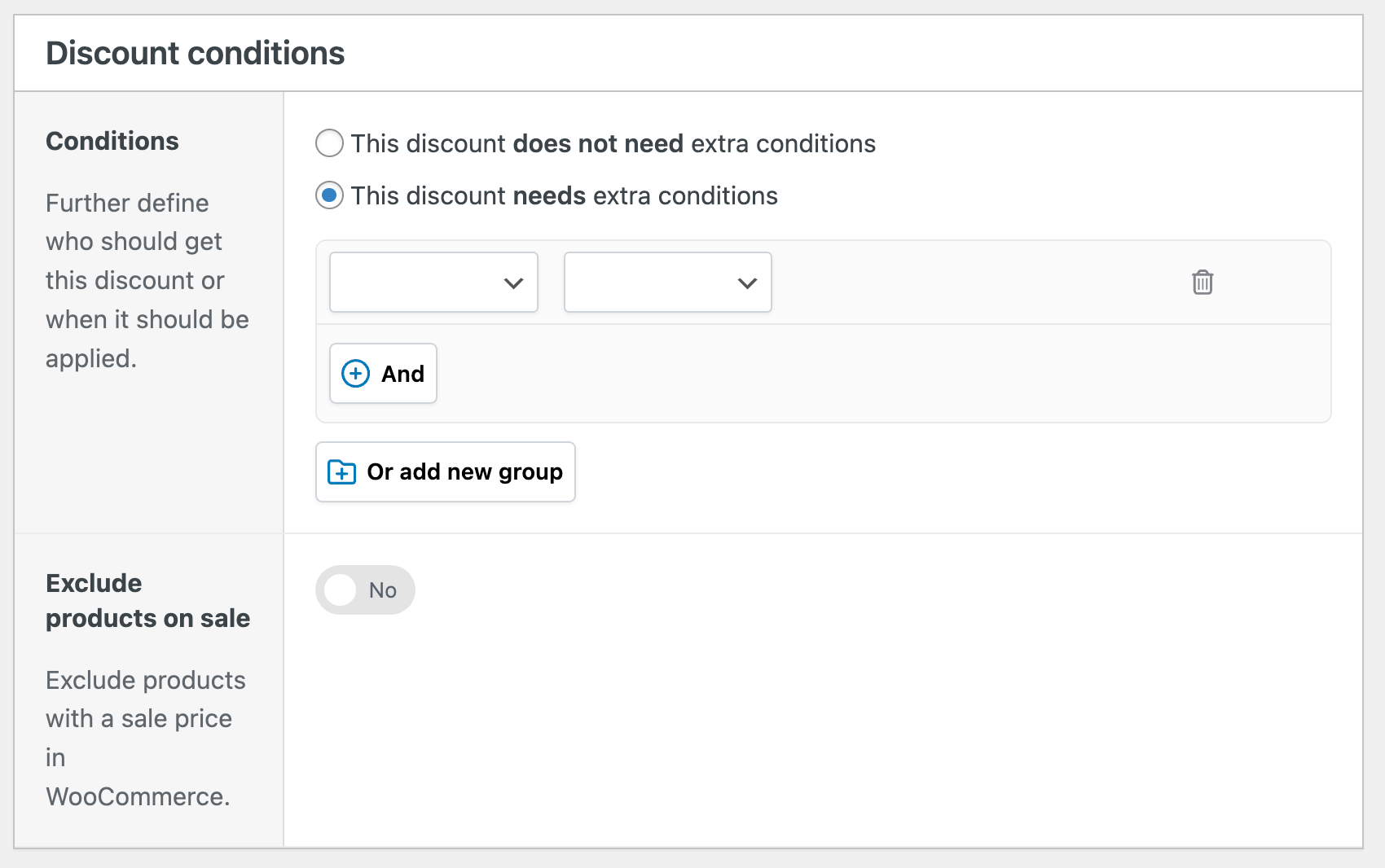
- If you want, you can add extra conditions, such as applying the discount only for specific user roles or adding a cart minimum.
- Review your settings and click “Save discount” to activate it.
With these steps, you’ve created a targeted category discount that automatically applies to all products in the Accessories category, with optional conditions like minimum purchase amounts and user roles. The WooCommerce Discounts plugin handles all the heavy lifting, allowing you to create sophisticated discount strategies with ease.
Advanced strategies: BOGO, Buy X Get Y, and bulk discounts
Let’s explore how to set up more complex discount strategies using the WooCommerce Discounts plugin.
Creating BOGO deals
A BOGO (Buy One, Get One) deal gives customers a free product when they purchase a qualifying item from a specific category. Here’s how to set one up:
- Go to WooCommerce → Marketing → Discounts → Add New and select “Free products” as the discount type.
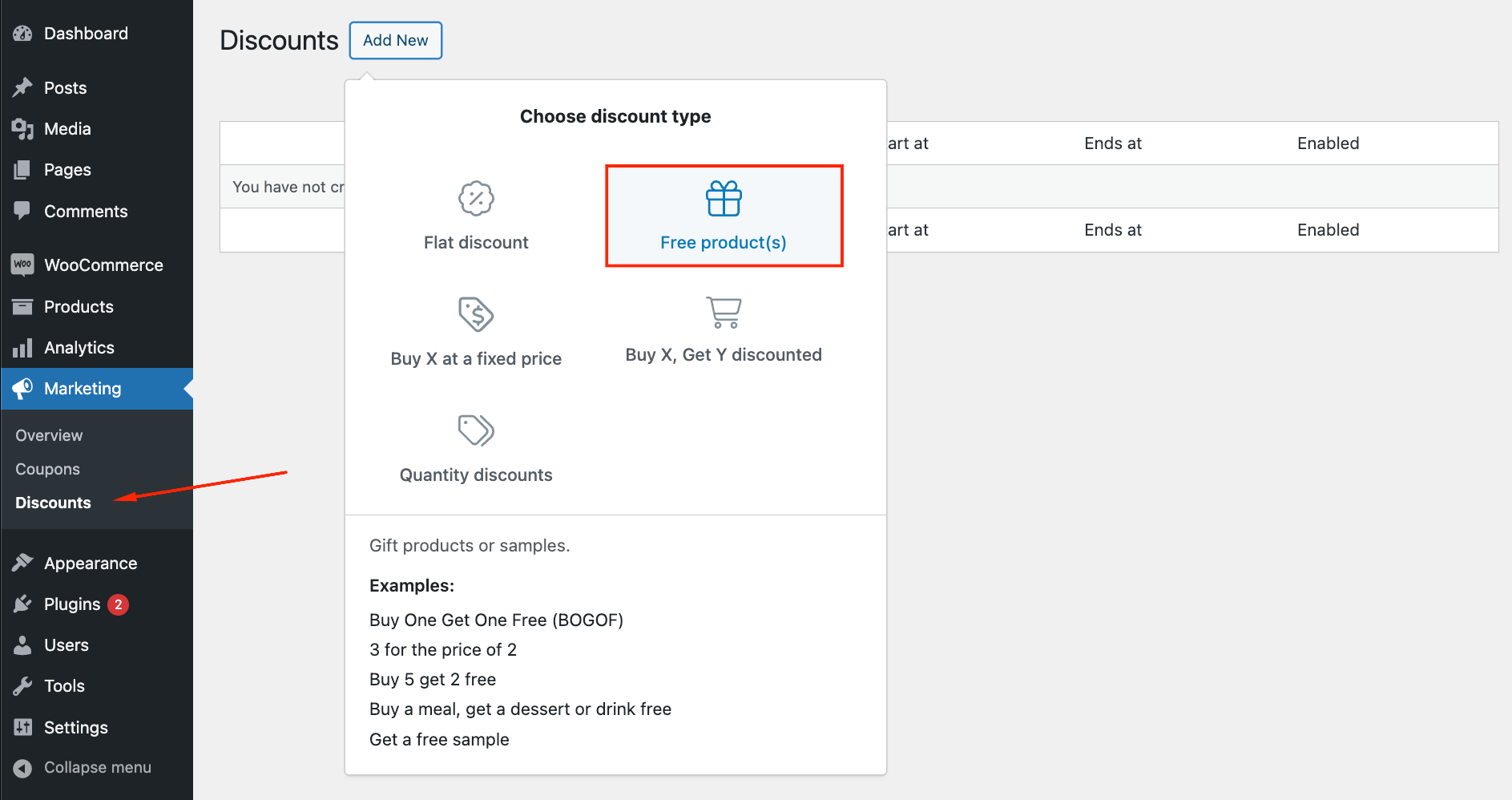
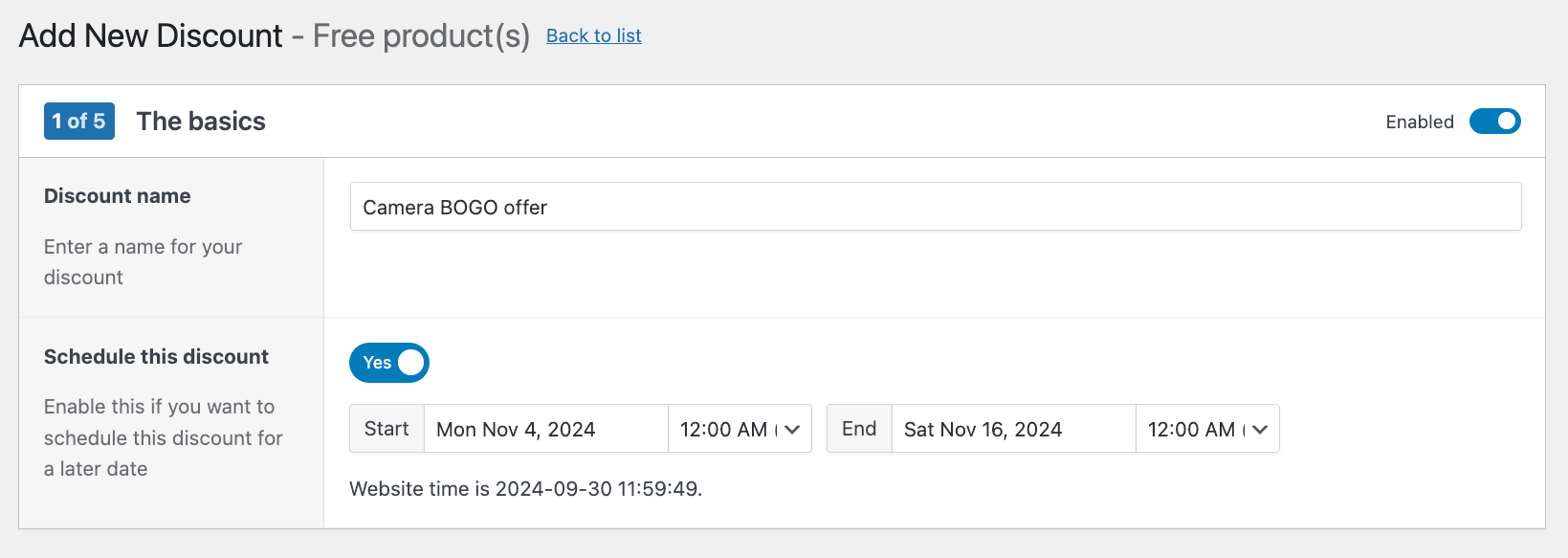
- Name your offer (e.g. “Camera BOGO Deal”) and set the schedule.
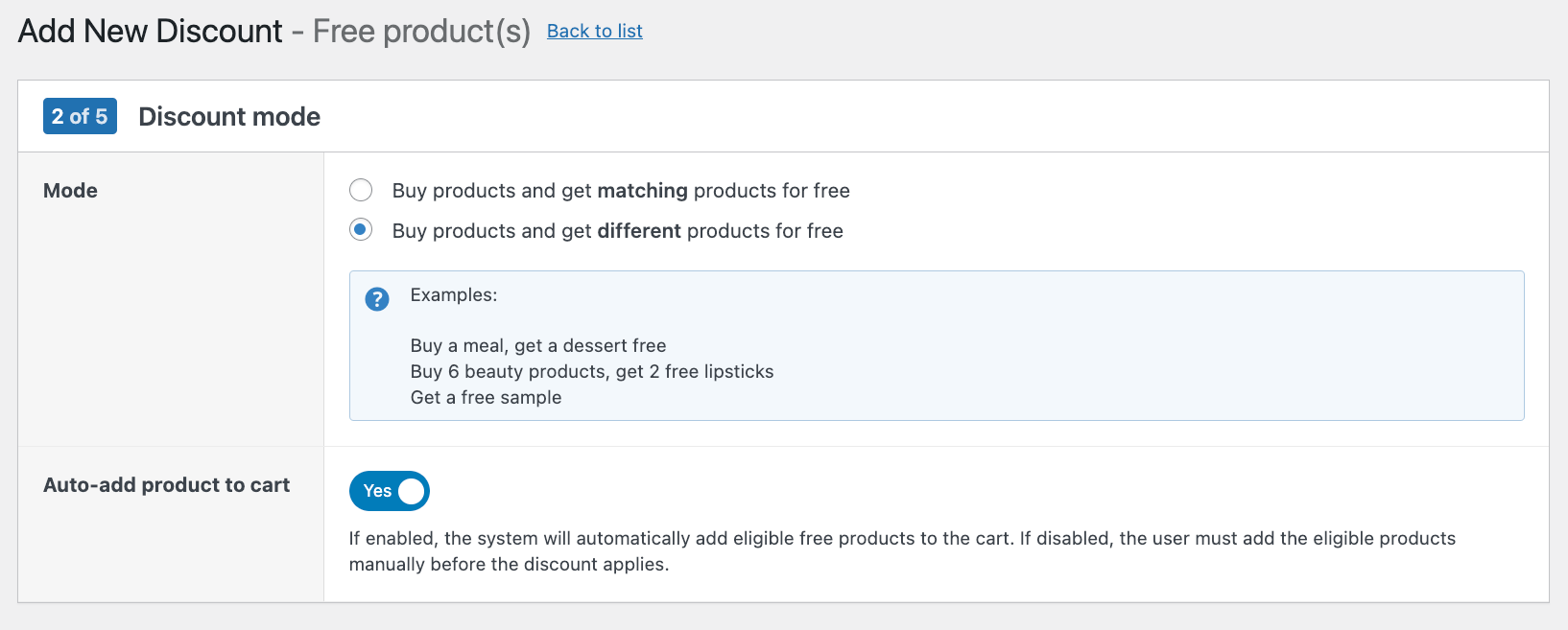
- Configure whether customers get the same product or a different one for free. For our BOGO deal, we choose to offer a different product for free. If the customer purchases a camera, they will get a free camera bag.
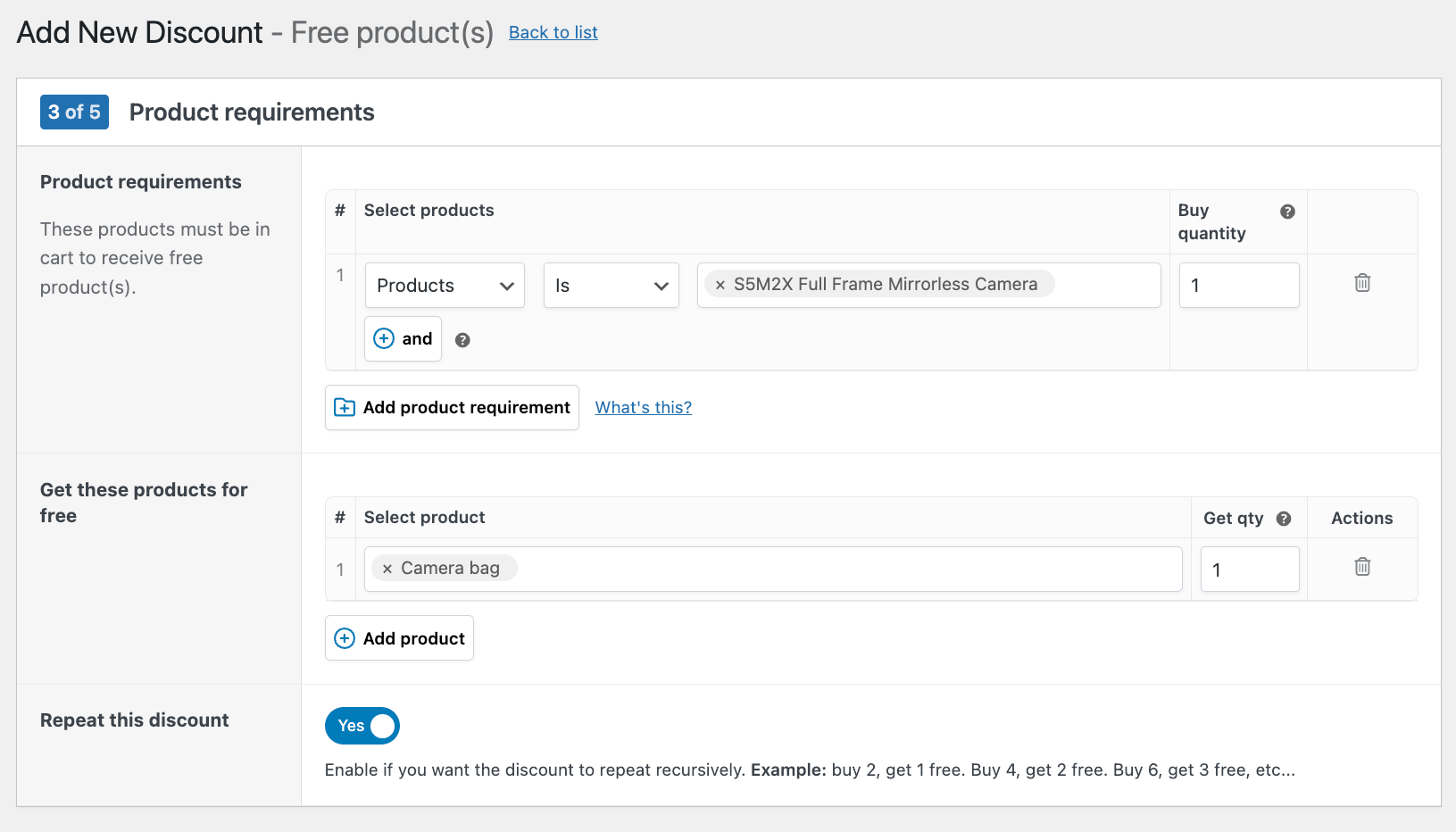
- Define which product(s) the customer should buy and which product(s) they will get for free. You can define whole ranges of product categories if you want.
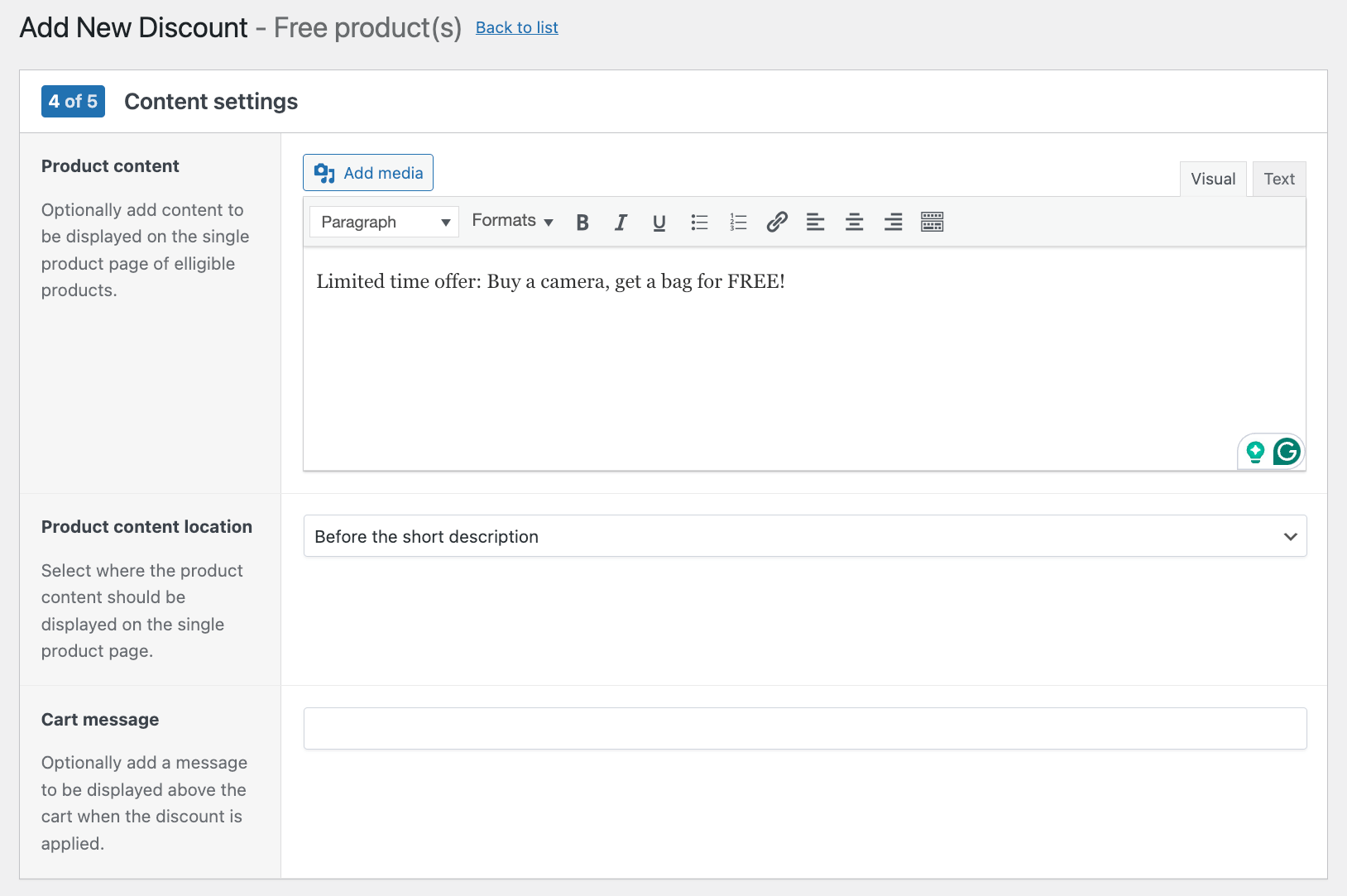
- Optionally, add a custom message in 2 locations: the product page itself to announce the discount and the cart page to inform users their discount is activated.
- Set additional conditions if needed (e.g. specific customer roles).
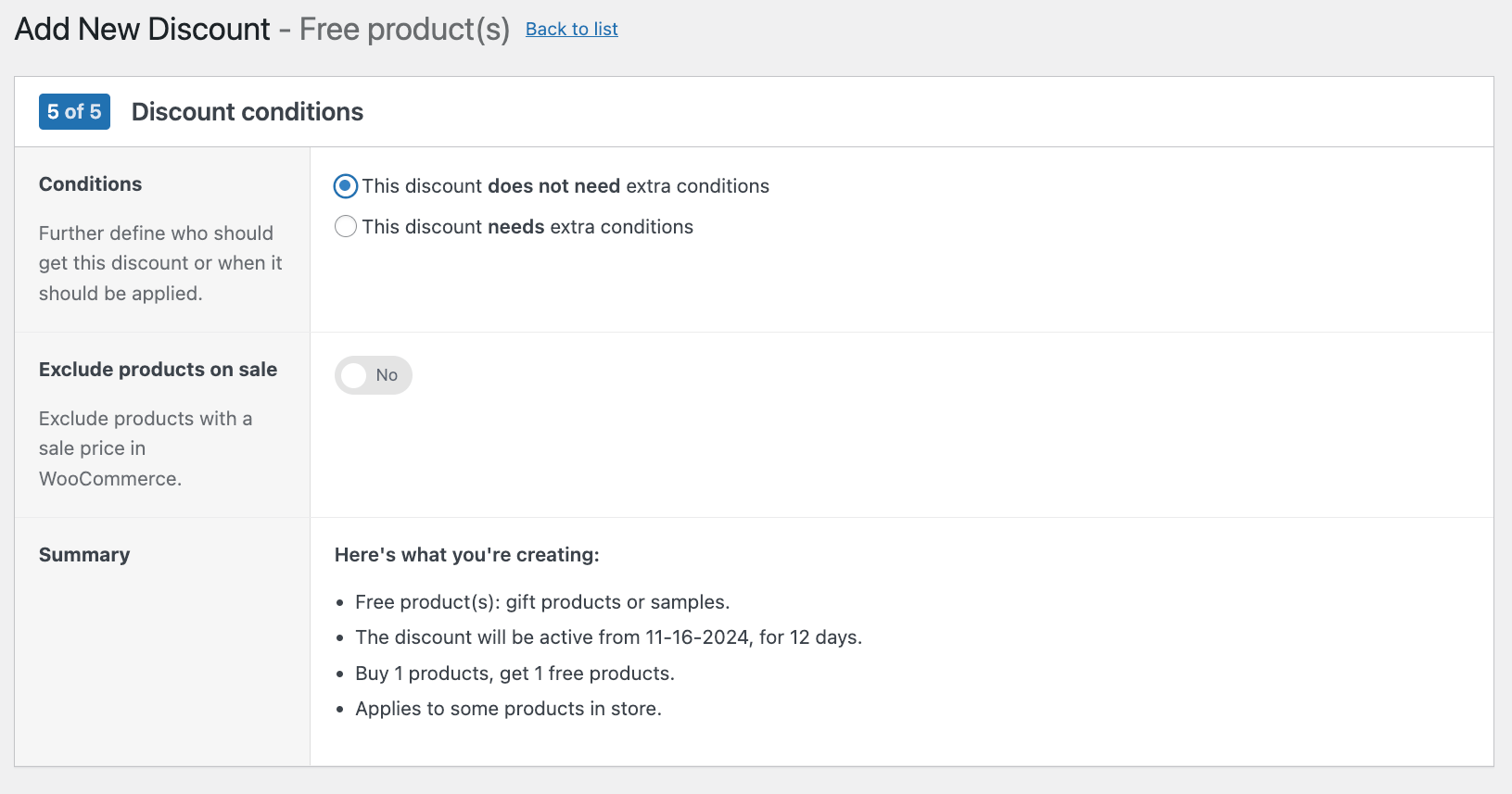
- Save and activate the offer.
💡 Pro tip: Using BOGO deals is a great way to introduce new products by pairing them with popular items!
Setting up Buy X, Get Y discounted
A Buy X, Get Y discounted deal gives customers a reduced price on additional items after they purchased certain other products. For example, if you have a tech store selling to offices or schools, for every laptop you sell, you might offer a discount mouse or laptop case.
Below is how you can set up such a discount. Our example will set up a “Buy 2 t-shirts, get a 3rd discounted” deal:
- Create a new discount and select “Buy X, Get Y discounted” as the type.
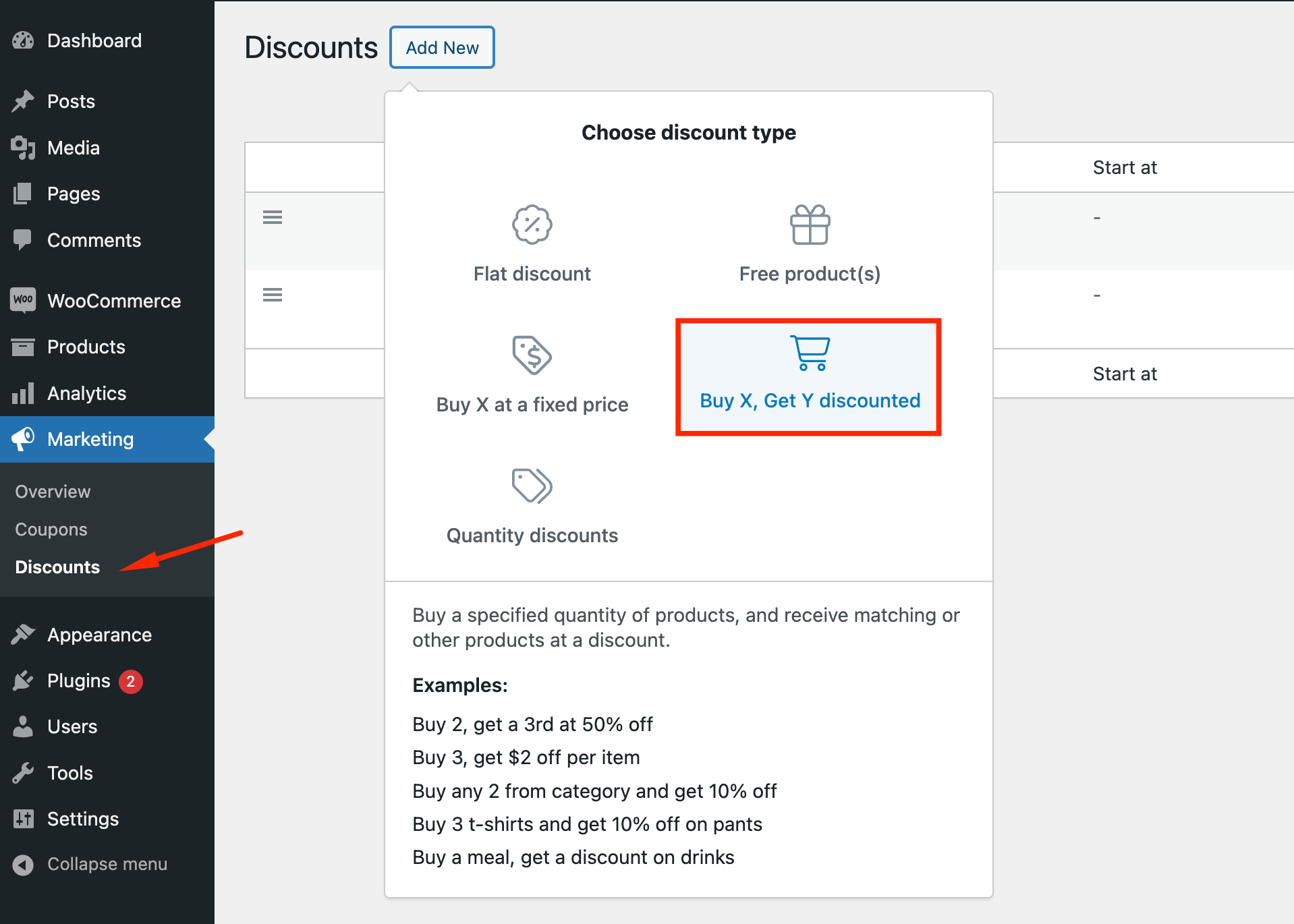
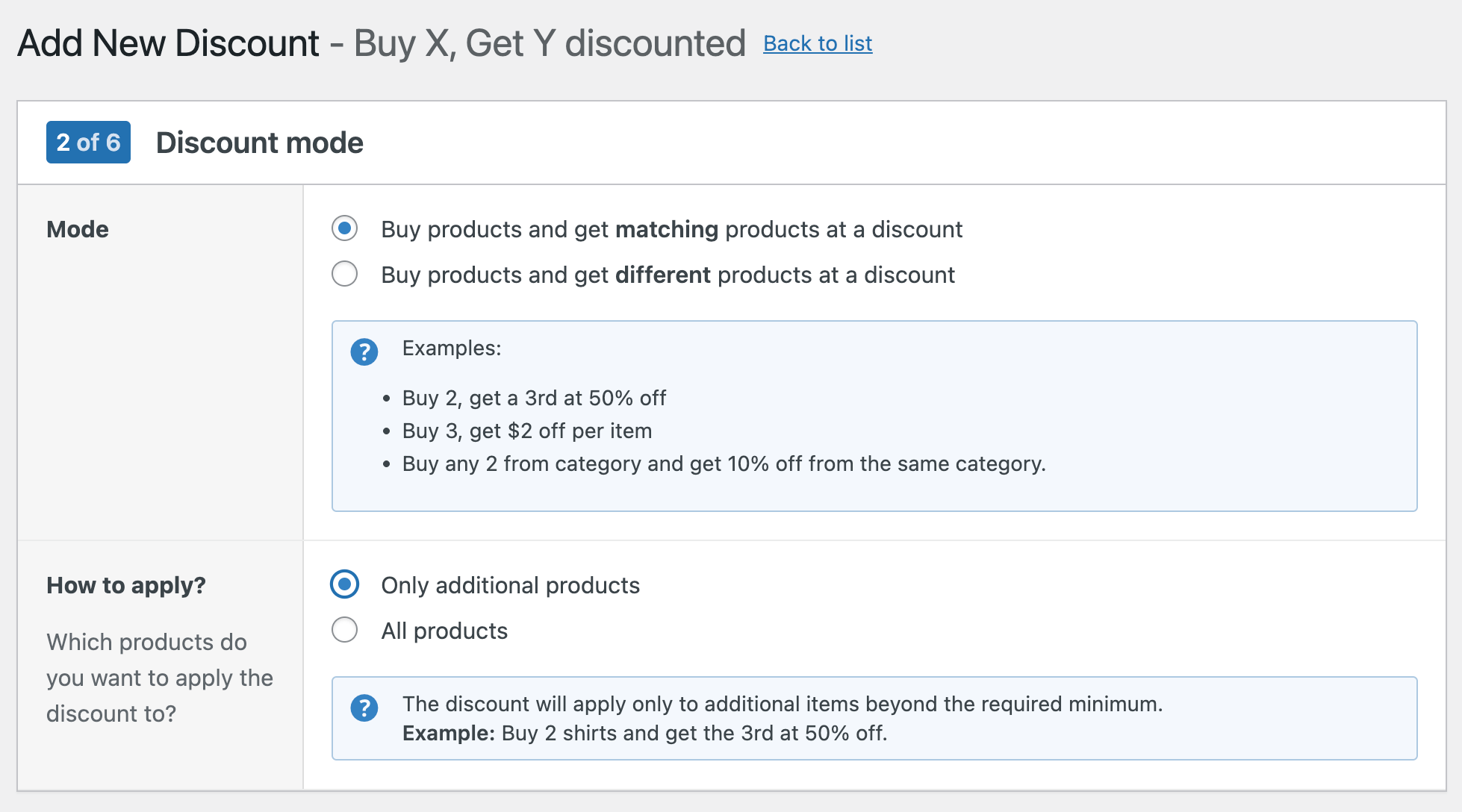
- Select the discount mode you like. There are 2 choices:
- Buy products and get matching products at a discount. For example, buy 2 and get a 3rd at a discount.
- Buy products and get different products at a discount. For example, buy 2 pairs of pants and get a belt at a discount. We’l use the “matching” discount mode for our example.
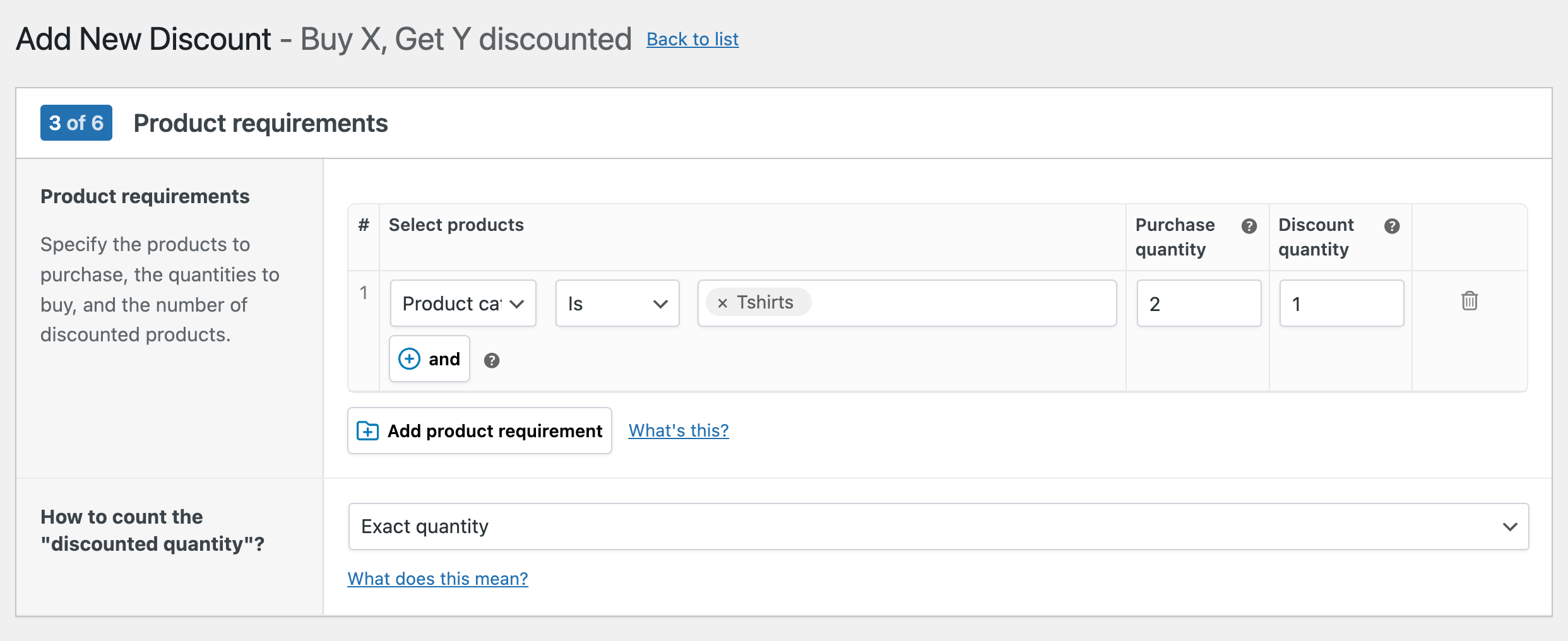
- Set the product requirements. In this example, we need to specify how many T-shirts customers need to purchase to activate the discount and how many products they will get discounted.
- Next, you need to add the discount amount and specify whether you want it to be repeated (e.g. people who buy 4 T-shirts will get 2 discounted ones, those who buy 8 will get 3 discounted, etc…).
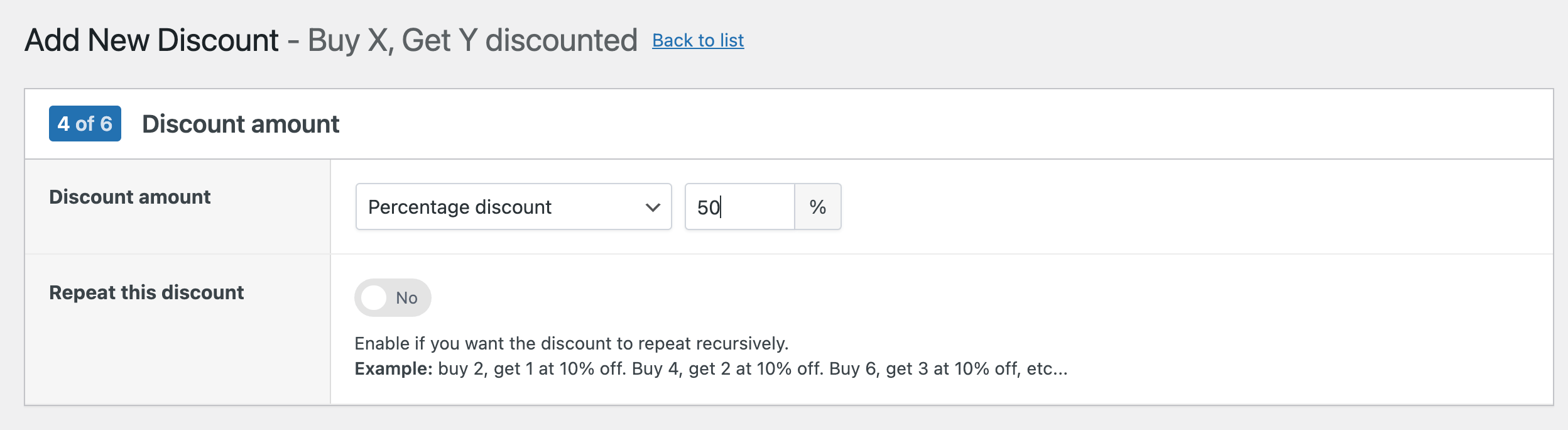
- Add any additional conditions if needed and save your discount.
Implementing bulk discounts
A bulk discount (also often referred to as tiered pricing or quantity discounts) offers progressively lower prices as customers increase the quantity of items they purchase. Here’s how to set them up:
- Choose the “Quantity discount” type when creating your sale.
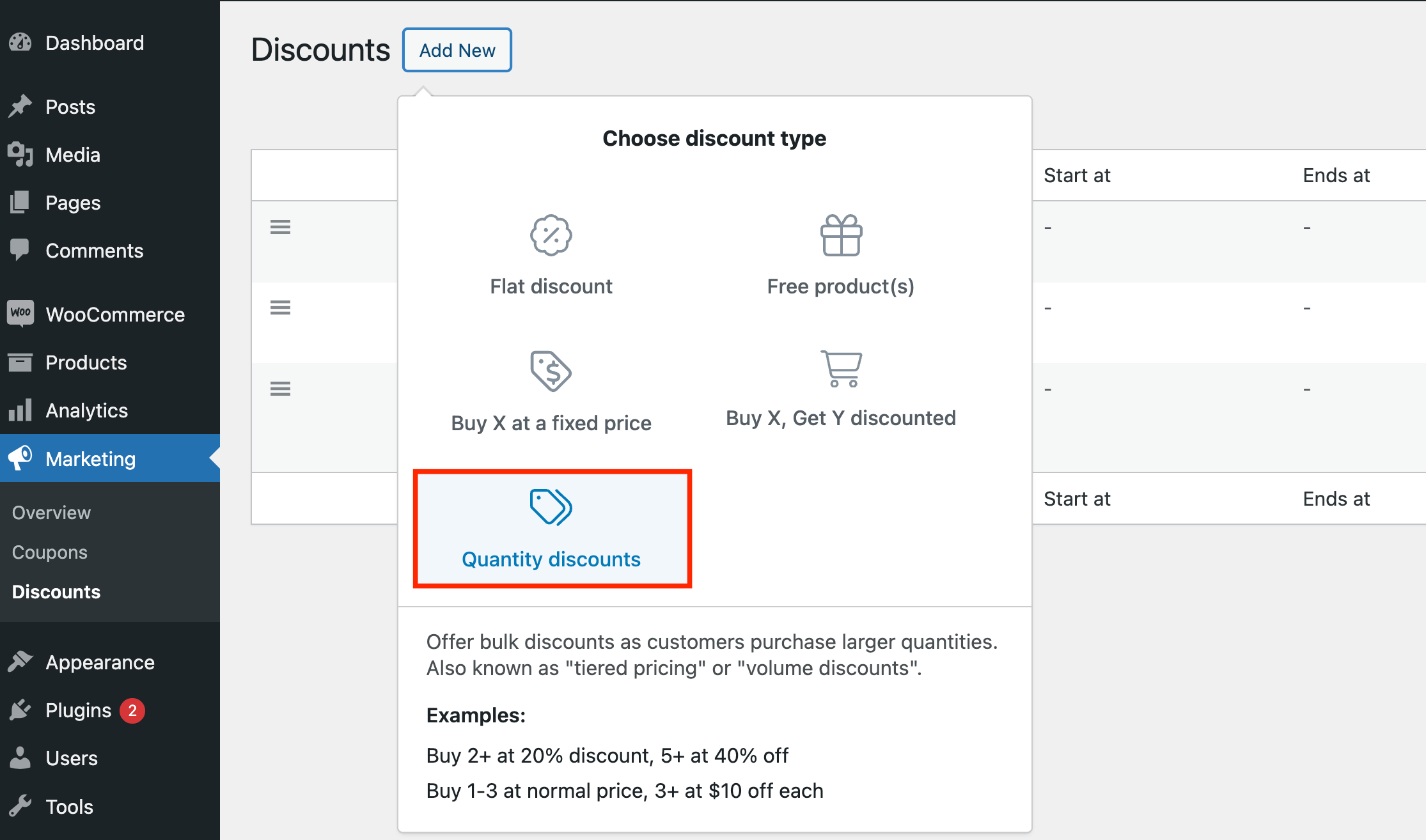
- Add your product categories. This makes sure the discount only applies to products from those categories.
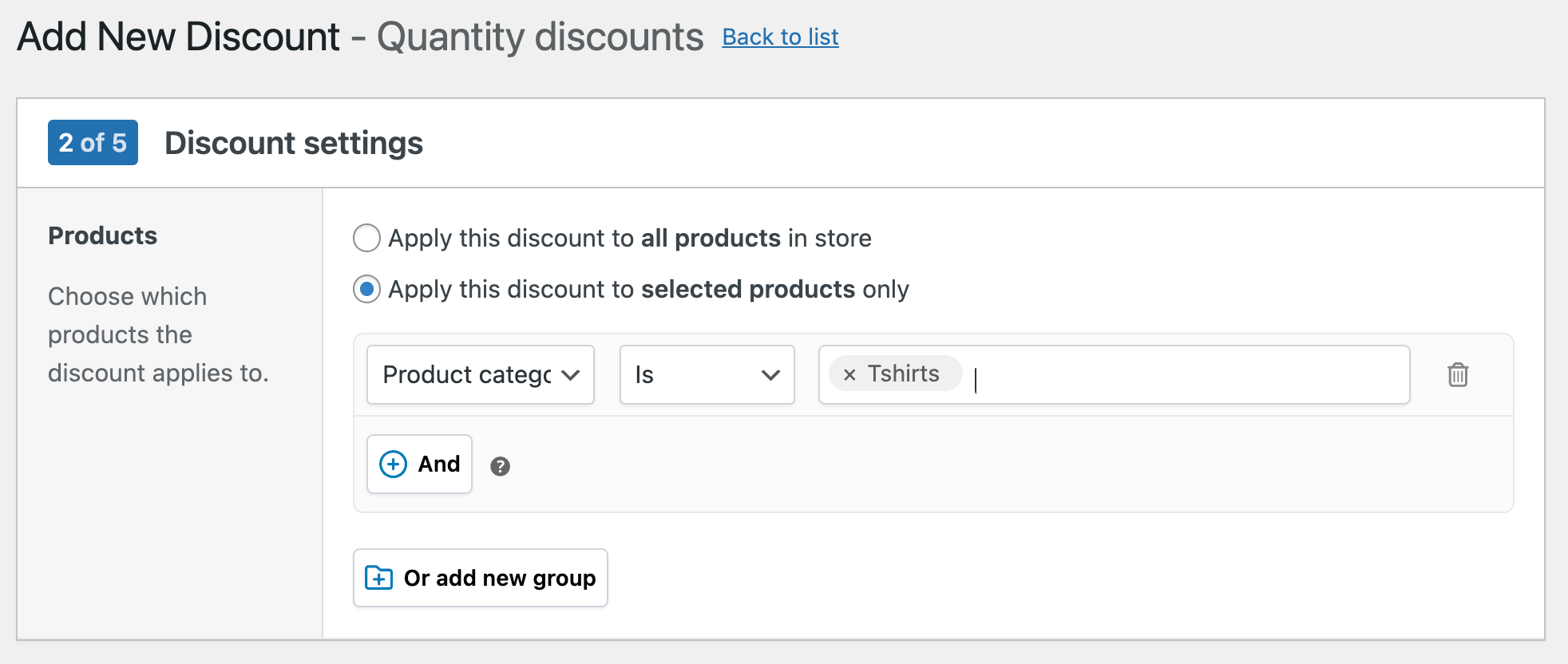
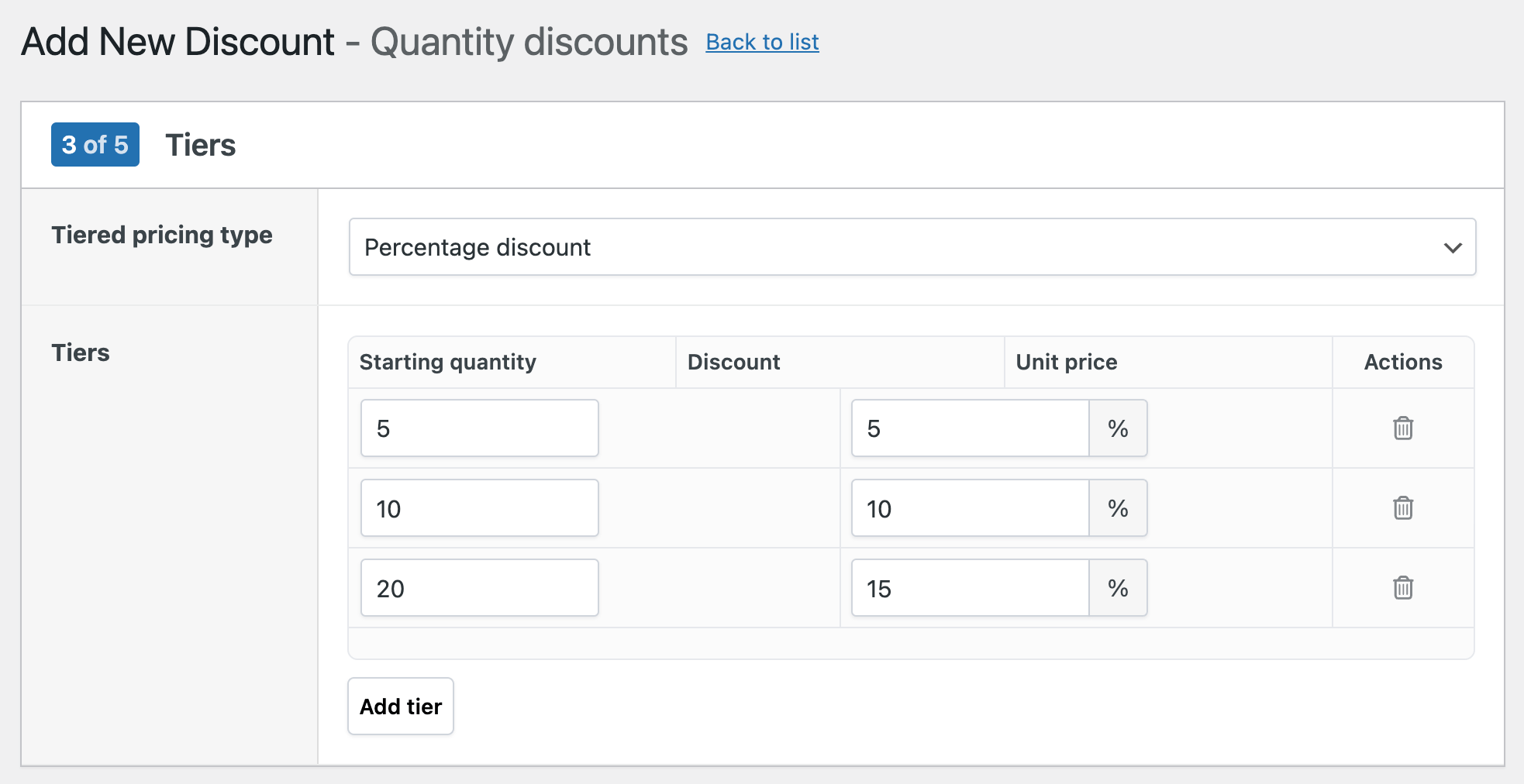
- Set up tiered discounts by choosing the type and the exact tiers. You can select between a fixed discount, percentage discount, or unit price. In our example, we’ve defined percentage discounts: buy 5 or more units and get 5% off. Buy 10+ units and get 10% off.
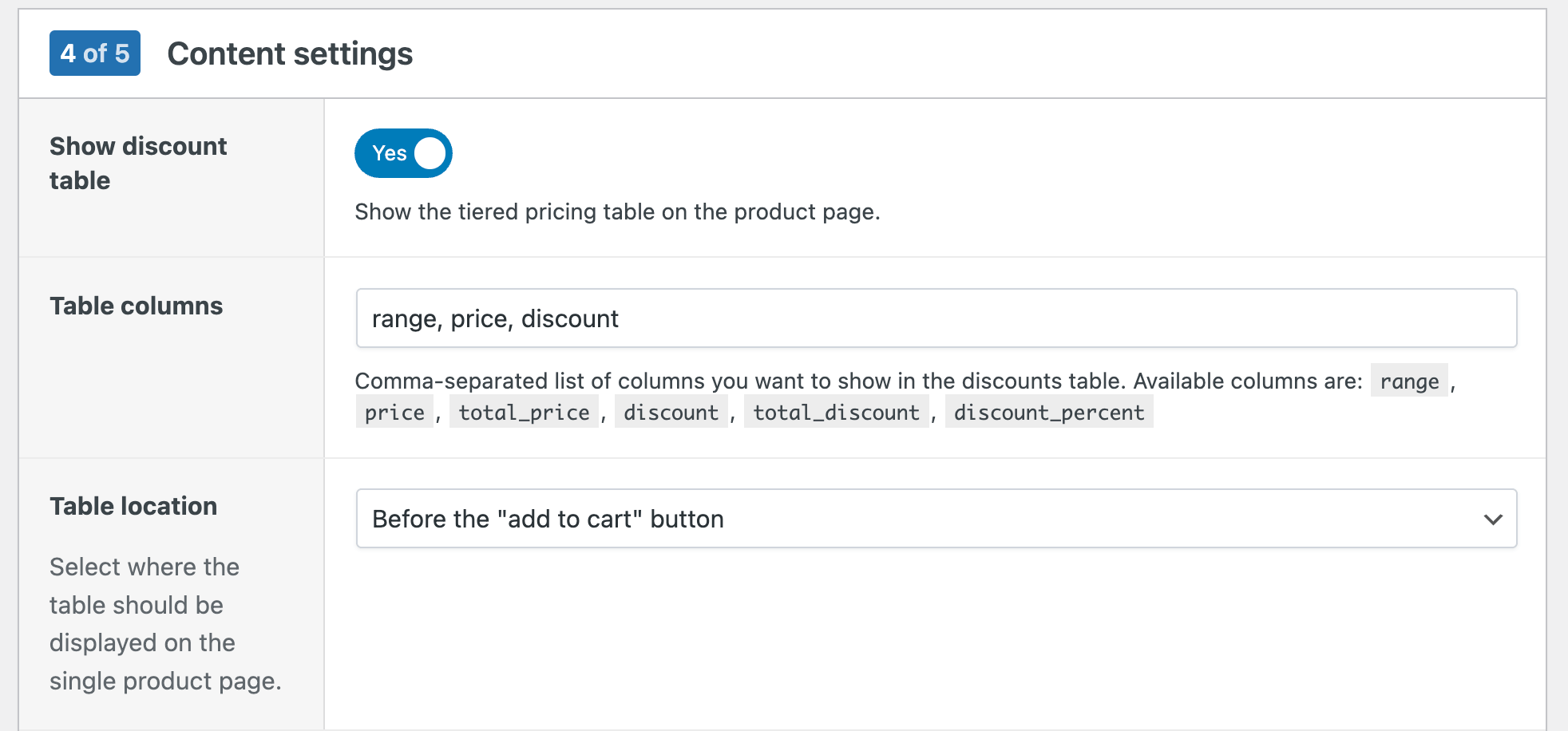
- In the content settings, you can add add promotional messages to announce your discount on the product or cart page. You can also add a pricing table to show up on the product page. You’re free to add any column you want to the table. You can show percentages, total prices, discount numbers, …
- In the last step, you can add more conditions if you need to, such as applying this discount only to a specific user role. Review the discount, and save it.
💡 Pro tip: Use bulk discounts to clear out seasonal inventory or boost sales of slow-moving items.
Optimizing your discount strategy for maximum impact
To get the most out of your WooCommerce category discounts, consider these best practices:
- Leverage scheduling: Use the WooCommerce Discounts plugin’s scheduling feature to create urgency. For example, run a 10% discount for a week, then increase it to 15% for the final day of the sale.
- Monitor and adjust: Regularly analyze the performance of your discounts. Look at metrics like sales volume, average order value, and profit margins. Adjust your strategies based on what works best for your store.
- Promote effectively: Don’t rely solely on the discount to attract customers. Use email marketing, social media, and on-site banners to spread the word about your offers.
- Strategic category selection: Choose categories strategically. Discount new products to encourage first-time purchases, or apply discounts to older inventory to clear stock.
- Personalize with user roles: Role-based category discounts allow store owners to apply different pricing to specific customer groups, such as wholesale buyers or loyalty members. For example, provide deeper discounts to wholesale customers or exclusive offers to loyalty program members.
- Implement tiered discounts: Encourage higher purchase volumes by offering tiered discounts. For instance, 10% off for spending $50, 15% off for $100, and 20% off for $150 within a category.
- Combine with other promotions: When multiple discount rules are active, the WooCommerce Discounts plugin applies them cumulatively by default, but store owners can control which rules combine and which take priority. Use the plugin’s advanced conditions to create sophisticated discount rules. For example, offer a category discount plus a free gift when the cart total exceeds a certain amount.
Remember, the goal is to find the sweet spot where discounts drive sales without eating into your profits. Test different approaches and continually refine your strategy for the best results.
Take your WooCommerce store to the next level with strategic discounts
Category discounts are an essential part of any WooCommerce store – it’s something people expect to see, and for a good reason. With strategic deals on specific product groups, you can increase sales, clear inventory, and attract new customers. Whether you’re running a seasonal promotion, rewarding loyal shoppers, or introducing new product lines, category discounts are a powerful tool in your e-commerce arsenal.
Remember, the key to successful discounting is to balance attracting customers with maintaining profitability. Use the WooCommerce Discounts plugin to experiment with different strategies, monitor your results, and refine your approach over time.
Ready to transform your WooCommerce store with strategic category discounts? Install WooCommerce Discounts today and start creating compelling offers that will drive your business growth.
Frequently Asked Questions
What is the difference between a WooCommerce category discount and a coupon?
A WooCommerce coupon requires the customer to manually enter a code at checkout to receive a discount. A category discount created through a plugin applies automatically to all products in the selected category without any code. Category discounts also display strikethrough prices on shop and product pages, which coupons do not.
Can category discounts be combined with other discount rules in WooCommerce?
Yes! When multiple discount rules are active, the WooCommerce Discounts plugin applies them cumulatively by default. You can adjust priority settings to control which discounts stack and which take precedence over others. You can also choose to apply only the 1st discount it finds.
Can I restrict a category discount to specific customer roles like wholesale buyers?
Yes! Role-based conditions can be added to any category discount rule in the WooCommerce Discounts plugin. Store owners can target wholesale customers, loyalty program members, or any custom user role defined in WordPress.
Can I set a discount that only applies when a customer buys from 2 different categories at once?
Yes. The WooCommerce Discounts plugin supports multi-category cart conditions, allowing store owners to require items from 2 or more categories before a discount activates.
Can I exclude specific products from a category-wide discount?
Yes! When setting up a category discount in WooCommerce Discounts, specific products or sub-categories can be excluded from the rule. This allows store owners to run broad category promotions while protecting margins on select items.
