
Customers need to upload files directly to your WooCommerce store. That’s true whether they’re making designs for custom T-shirts, photos for personalized mugs, or logos for engraved items. Without a reliable upload system, you’re stuck exchanging files through email, watching customers abandon their carts, and dealing with endless support tickets.
Thankfully, there are plugins that can help. But, search “WooCommerce file upload,” and you’ll find dozens of plugins. Which one actually works with your hosting limits? Which handles files without timing out? Which keeps customer uploads private instead of publicly accessible?
These are all important questions that we recommend thinking about when choosing your plugin.
To help you out, we’ll walk through 5 real-world scenarios that match your needs, then cover the technical details on hosting limits and security. By the end, you’ll know exactly which solution fits your store and how to implement it this week.
What WooCommerce file upload plugins do
WooCommerce file upload plugins add fields to product pages, cart, or checkout where customers attach files that become part of their order. These plugins handle everything from uploading to storage to displaying files in your admin dashboard, and they usually work reliably with files that are under 100 MB.
There are 3 main solutions:
- Advanced Product Fields handles file uploads for product customization with text fields, conditional logic, and dynamic pricing in one lightweight plugin.
- Upload extensions like Customer Upload Files collect files across product, cart, and checkout pages with approval workflows.
- Specialized plugins like Drag and Drop Multiple File Upload for WooCommerce with chunked uploads handle files over 100 MB on shared hosting.
Awesome, but how can you tell if you’ve got the right plugin? Well, this depends on your needs, but there are some universal requirements every tool should fulfil: Files should upload without timeouts or error messages, attach to the correct order automatically, and be viewable from your admin dashboard. Finally, and very importantly, customer files remain private and inaccessible via public URLs.
Scenario 1: File uploads on product pages for customizable products
This is for those of you who sell customizable products likepersonalized T-shirts, mugs, phone
cases, jewelry, engraved items, or custom printed products. Customers upload logos, photos,
design files, or reference images – typically under 25 MB.
You want a professional appearance with reliable uploads and room to grow your customization
options. You might need text fields for names or messages, dropdowns for sizes or colors, and
conditional logic alongside file uploads.
This is the most common scenario for WooCommerce stores offering personalized products.
The solution: Advanced Product Fields for WooCommerce (“APF”)
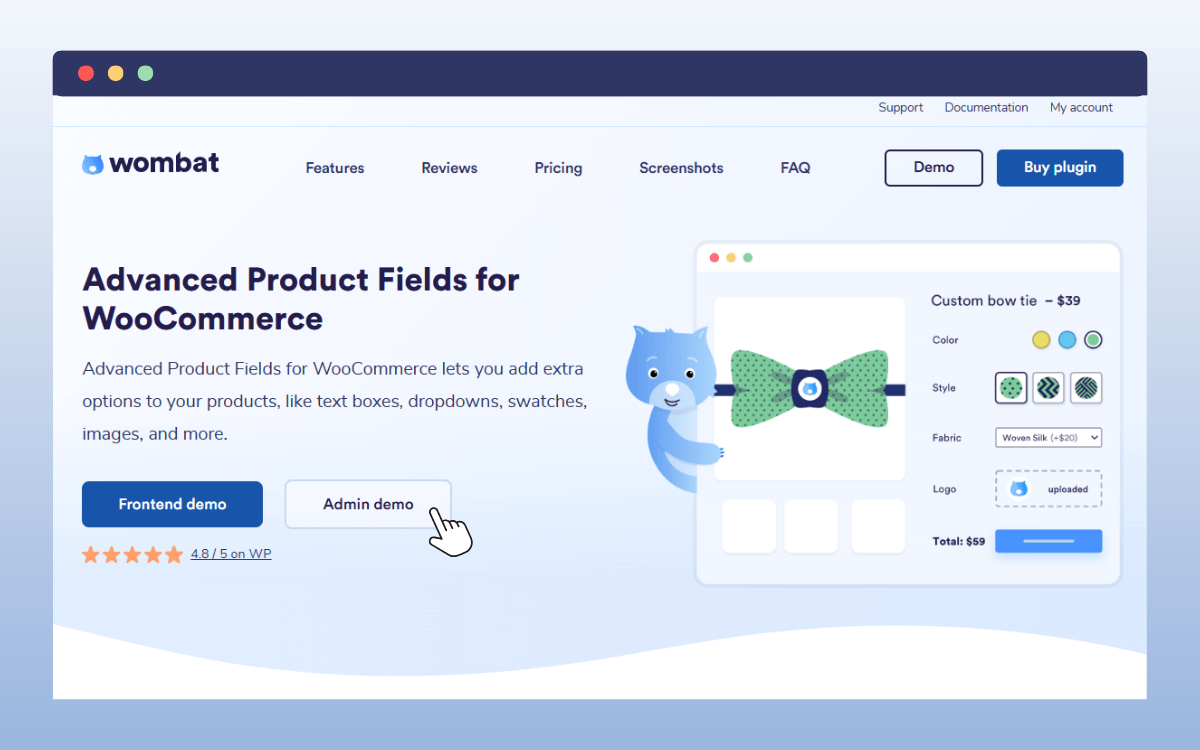
Advanced Product Fields differs from dedicated upload plugins by combining product page file uploads with 17 other field types in one lightweight plugin. For example, the popular Product Add-Ons provides basic file fields, but Advanced Product Fields adds conditional logic to show fields based on customer choices and integrates uploads with complete product configuration workflows.
What makes Advanced Product Fields different:
- Reliable file handling: Uploads work smoothly, even on cheaper shared hosting.
- Modern interface: Drag-and-drop zones, image previews, and upload progress indicators.
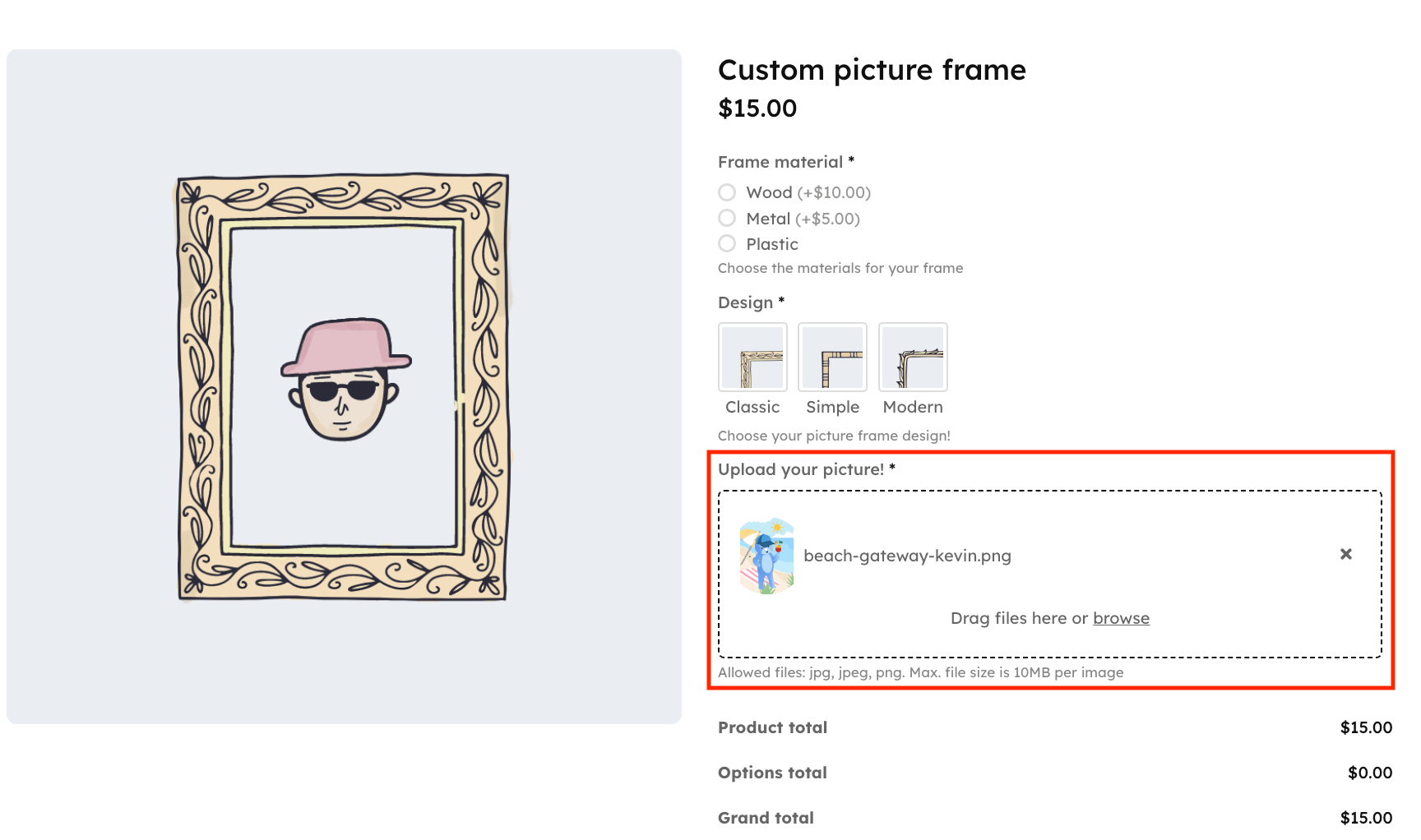
- Security: File uploads can introduce security risks if handled incorrectly. APF builds on WordPress’s proven, secure upload system and adds additional safeguards to further harden file handling. To date, no security vulnerabilities have been reported in the plugin!
- Conditional logic: Show upload fields only when customers select specific options (like
“Custom Design” from a dropdown.)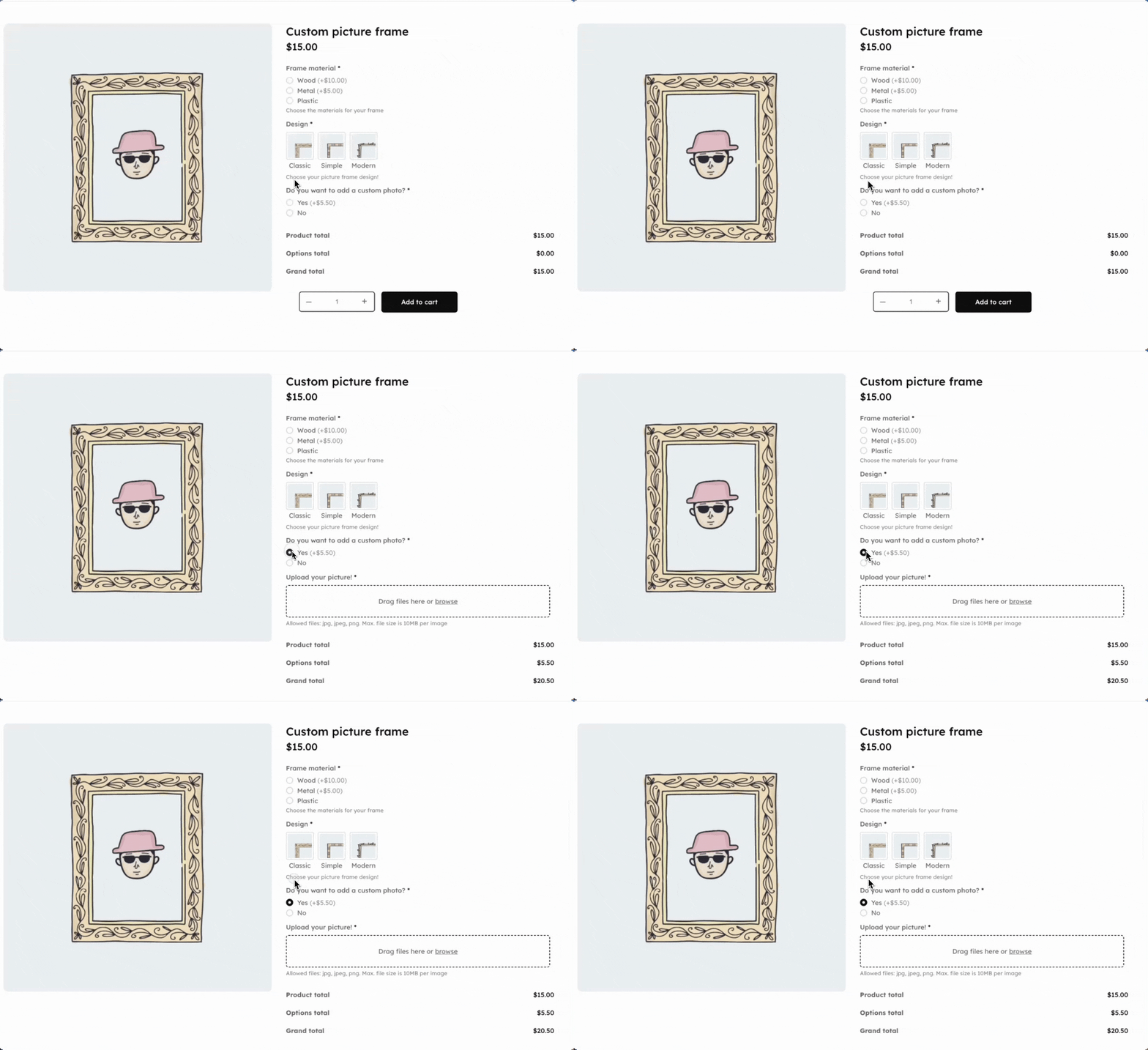
- Dynamic pricing: Charge for upload customization or adjust prices based on selections. You can even charge extra per file upload or charge by page count (when uploading PDFs).
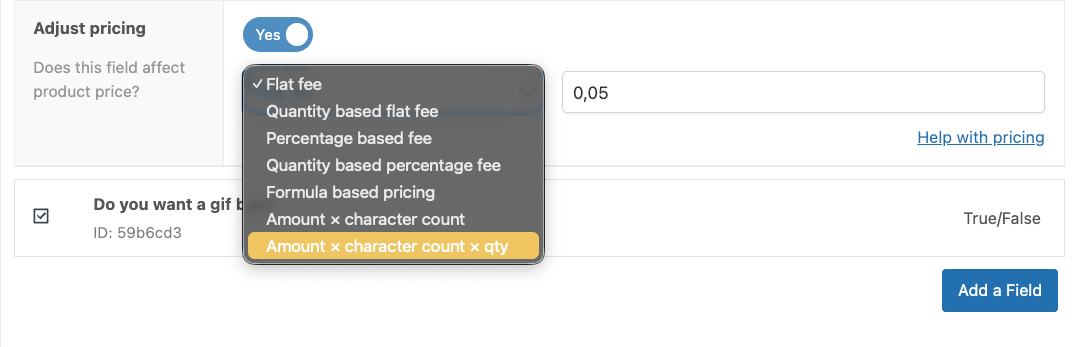
- Multiple file support: Customers can upload multiple files in a single upload, and you control the minimum and maximum they’re able to upload. You can ask them exactly 3 files if you want!
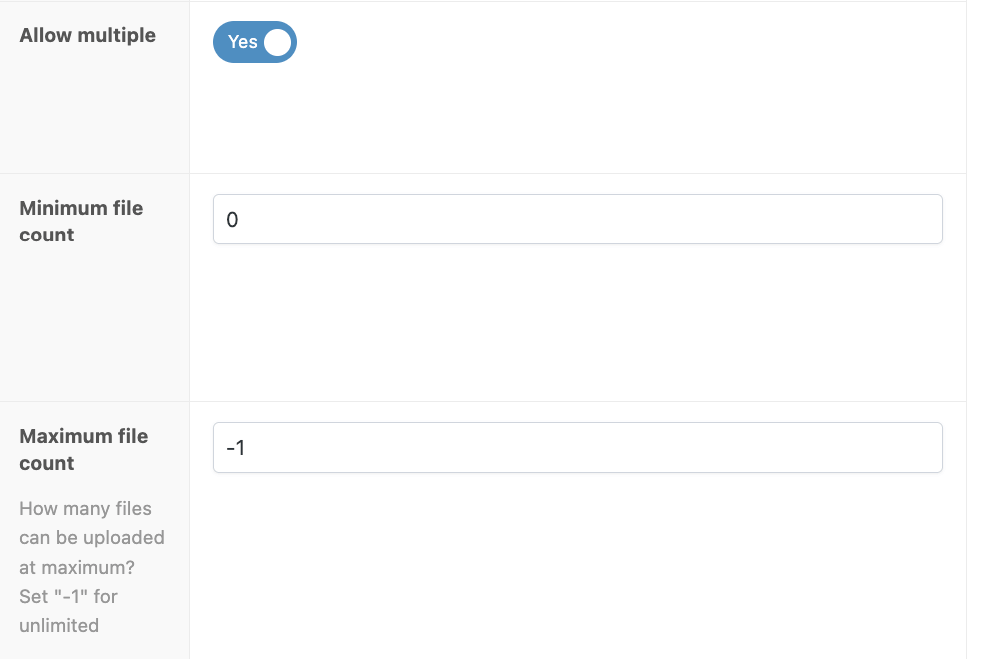
- Lightweight performance: the plugin has plenty of file upload related features but adds only a small footprint on your website. Less than 20kb in script size! There’s also no need for multiple plugins slowing down your website.
- Different file types supported: Adjust the allowed file types according to the product – png and jpeg for prints, docx and pdf for documents.
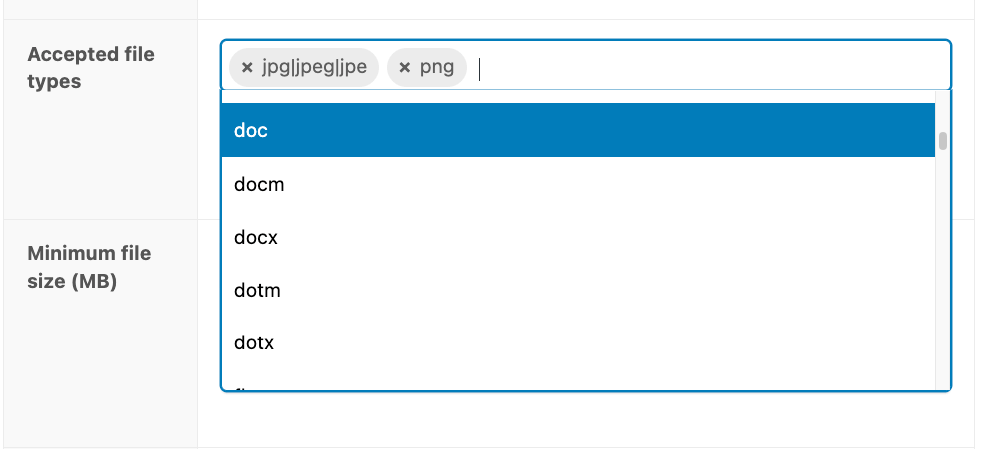
- 17 additional field types: Text fields, dropdowns, color swatches, checkboxes, radio buttons, all in one plugin.
Advanced Product Fields is highly rated on WordPress.org with responsive support and clear documentation. One print shop owner wrote on Trustpilot:
“I love Advanced Product Fields so much, I bought 6 lifetime licenses. As a print shop, we have to have these options. These plugins solve many problems where WordPress and WooCommerce fall short… I truly could not run my business without these plugins.”
When Advanced Product Fields is the best choice:
- Files need to be attached to specific products (different designs for different T-shirts in one order).
- You want conditional logic showing upload fields based on product options.
- You need to combine uploads with other customization fields.
- You want a lighter, faster-loading solution focused on the product-page experience.
Scenario 2: File uploads that apply to the whole order
This scenario covers 2 related situations where files aren’t tied to individual products.
- First, you’re collecting files that apply to the entire order rather than specific items. A customer orders multiple products but needs a single set of files for everything: shipping labels for a corporate gift order, prescriptions for pharmacy purchases, certificates for restricted items, or ID verification for age-restricted products. Asking for uploads on every product page creates unnecessary friction when you really just need one document at the end.
- Second, customers need to upload files after placing the order. Someone realizes they forgot to attach their logo right after checkout. A print shop customer sends a revised design after seeing the first proof. A photography client uploads additional reference images once they’ve had time to review their order.
B2B workflows typically work this way: A purchasing manager locks in pricing with an order, and the engineering team sends technical specifications or CAD files a few days later, once they finalize the details.
These situations require plugins that handle checkout-stage uploads and post-purchase file management.
Customer Upload Files (by FmeAddons)
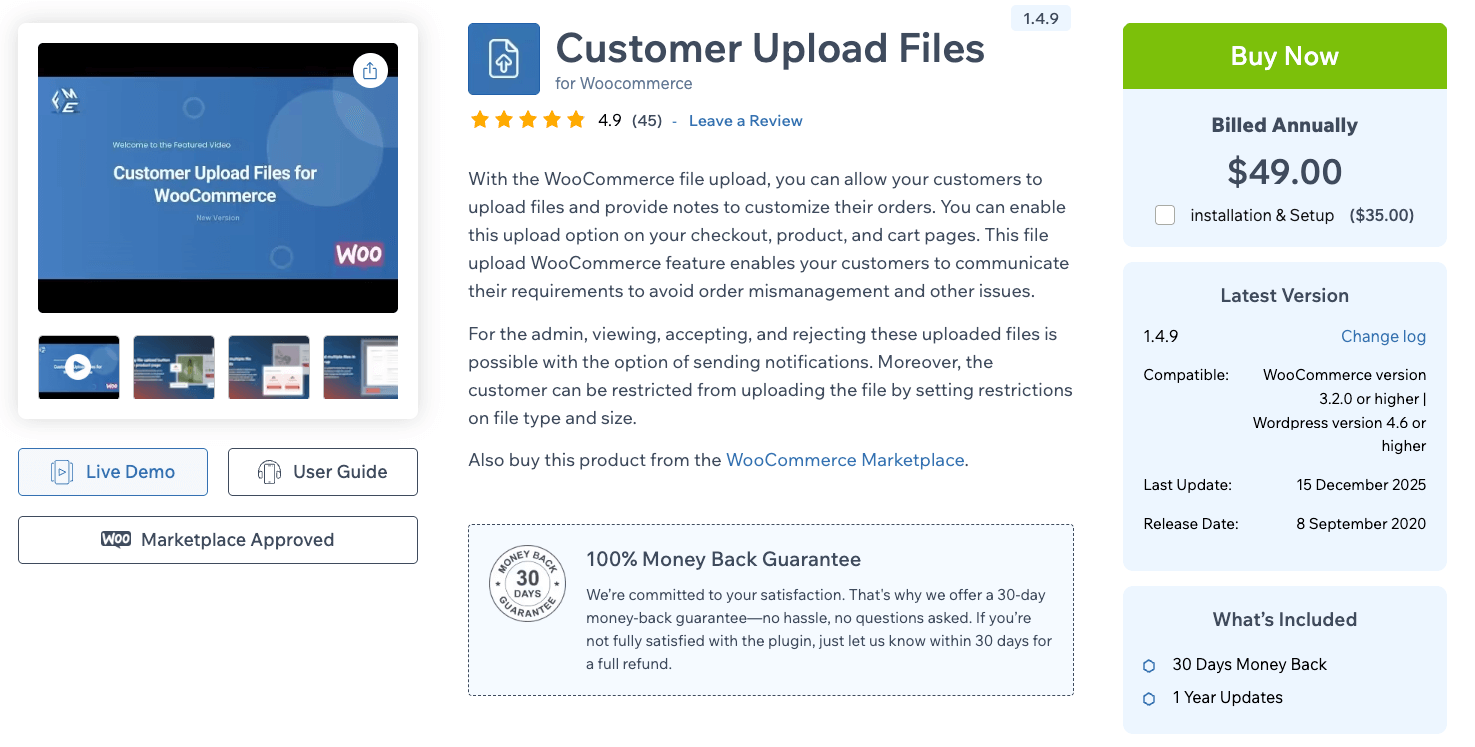
Customer Upload Files (by FmeAddons) is a plugin that lets customers upload files at all 3 stages of purchase: Product, cart, and checkout pages. It’s fully compatible with HPOS (High-Performance Order Storage) and Multisite, and works great if your business requires file upload in different stages.
Main features:
- Upload files from files or drag and drop freely
- Approve or disapprove documents when needed
- Set various file types and size restrictions
- Customize upload buttons to fit the site design
- Let the customer change or update uploaded files after purchase
Pricing: There’s no free version of this plugin, and annual licenses cost $49/year with an extra $35 for installation and setup.
YITH WooCommerce Uploads
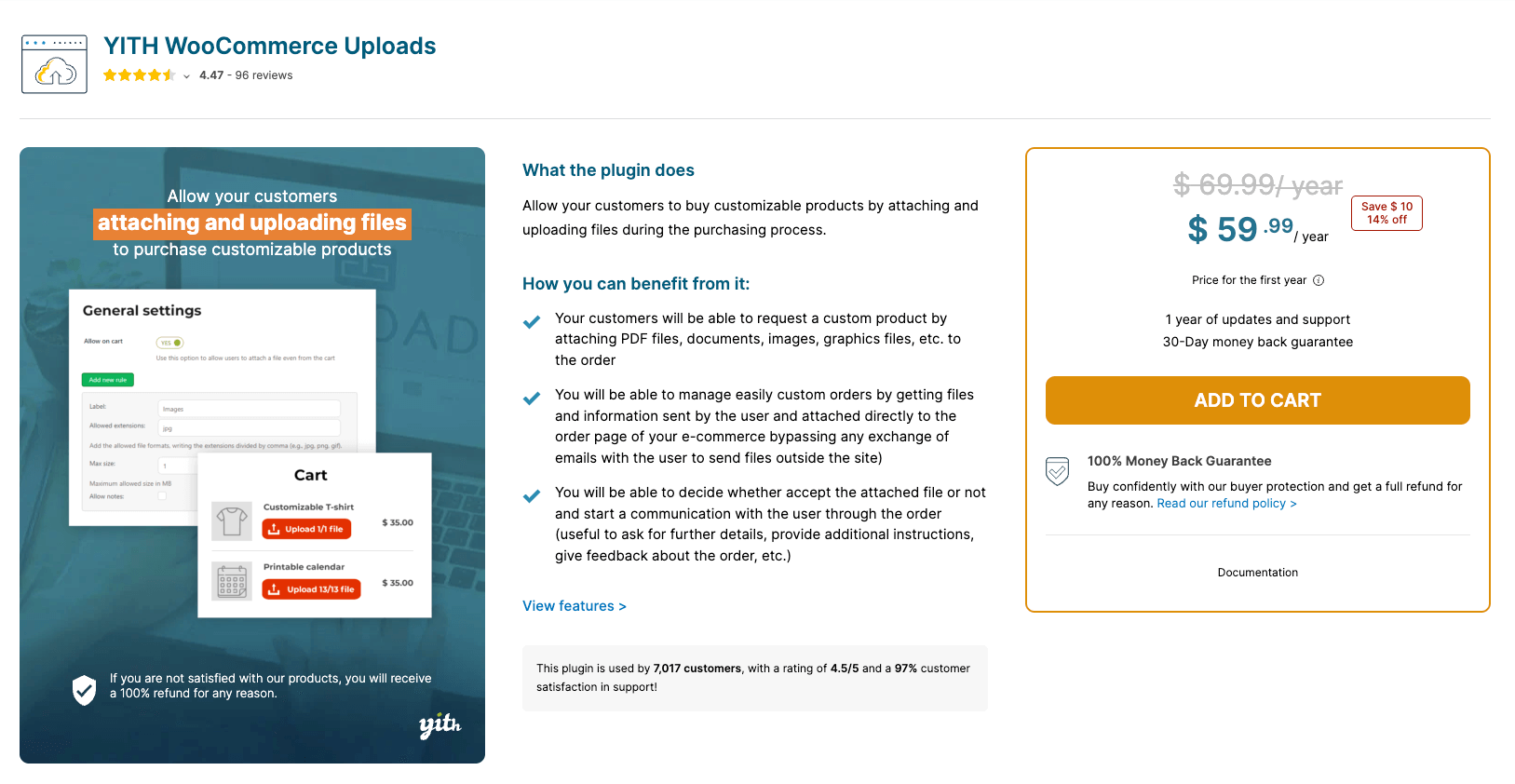
YITH WooCommerce Uploads lets customers attach files to their orders from the cart page, checkout, or Thank You page. The plugin works well when you need flexibility in where customers upload files and want admin approval before processing orders.
Main features:
- Upload files from cart, checkout, or Thank You page
- Admin can accept or reject uploaded files
- Email notifications when files are approved or declined
- Users and admins can add notes to attached files
- Customers can remove or replace files based on order status
Pricing: $59.99/year (regularly $69.99) with 1 year of updates and support, 30-day money-back guarantee.
Free plugin alternatives for WooCommerce file uploads
Free plugins are useful when you’re testing whether file uploads will benefit your store before investing. They handle the basics – a simple upload button on your product page that customers can use to attach files.
File Uploads Addon for WooCommerce and Drag and Drop Multiple File Upload for WooCommerce both offer basic upload functionality. You get a drag-and-drop interface, file type restrictions, and the uploads attach to orders automatically.

⚠️Important: These plugins come with a lot of restrictions. For example, files larger than 10 MB often fail with timeouts. Or customers might upload the wrong image because there’s no preview to check their work, and you can’t combine uploads with other product options like text fields for personalization or dropdowns for size selection.
So, in that case, you might save up on the plugin costs but lose more money in the long run due to cart abandonment. When a customer spends 10 minutes customizing their perfect design and then encounters “upload failed” at checkout, they’re not coming back.
How to choose the file upload right plugin
Here’s a quick comparison to help you decide which plugin fits your store:
| Plugin | Best for | Example use case | Pricing |
|---|---|---|---|
| Advanced Product Fields | Product-page customization with multiple field types | Custom T-shirt shop where customers upload designs, choose sizes from dropdowns, and add personalized text | $69/year or $189 lifetime (Pro version) |
| Customer Upload Files | Flexible upload timing across product, cart, and checkout pages with approval workflows | Print shop needing file uploads at checkout plus ability for customers to submit revisions after ordering | $49/year + $35 setup fee |
| YITH WooCommerce Uploads | Order-wide file collection from cart/checkout with admin approval | Pharmacy collecting prescriptions at checkout that apply to entire order, not individual products | $59.99/year (regularly $69.99) |
| Drag and Drop Multiple File Upload | Large files over 100 MB requiring chunked upload technology | Professional printing service accepting high-resolution PDFs and design files over 100 MB | Free (basic) / Premium pricing varies |
In the end, it comes down to your workflow.
If you’re selling customizable products where files attach to specific items and you need additional fields like text input or conditional logic, Advanced Product Fields handles everything in one plugin. If you need order-wide collection with approval processes or post-purchase uploads, Customer Upload Files or YITH make more sense. For regularly handling massive files, you need the specialized chunked upload capability.
Can hosting limits affect file uploads?
Absolutely! Your hosting provider sets a PHP upload limit called upload_max_filesize that determines the largest file customers can upload. This isn’t a plugin limitation – it’s a server configuration that affects every file upload on your site.
Most shared hosting plans set this limit between 10 MB and 32 MB. Some budget hosts go as low as 2 MB.
The good news is that you can often ask your host to increase this limit. Some hosts even let you do it yourself. It’s just something to be mindful of.
Finding your current limit
You can go to Media → Add Media File in your WordPress admin dashboard to find out what the maximum file size is you can upload:
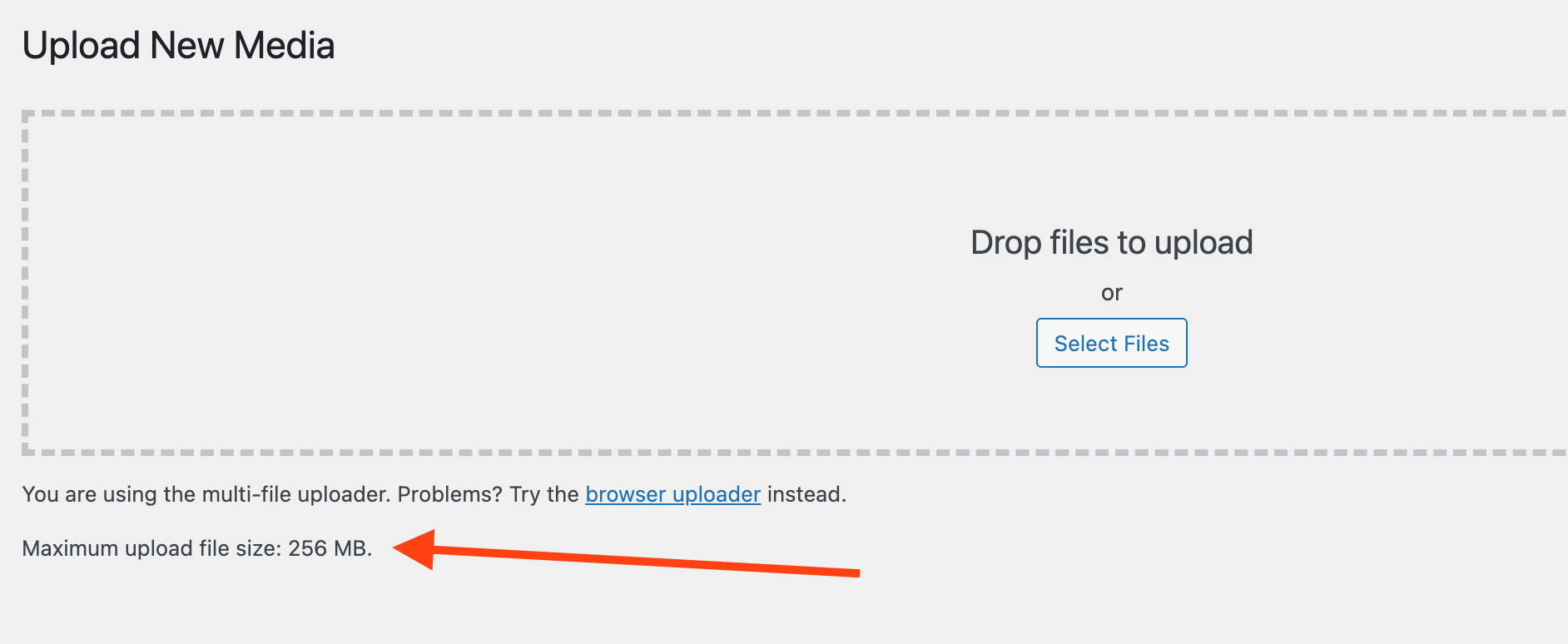
This limit exists whether you’re using Advanced Product Fields, a dedicated upload plugin, or WooCommerce’s built-in features. No plugin can bypass it without server changes or specialized technology.
The good news? Most customizable product files stay well under these limits. A T-shirt design saved as a JPEG runs 2-5 MB. A logo for engraving typically hits 1-3 MB. Phone case photos optimized for web use come in around 3-8 MB.
Handling files over 100 MB
Professional printing services, photography studios, and architecture firms need to accept high-resolution files, large CAD drawings, or RAW images. These files regularly exceed 100 MB.
Drag and Drop Multiple File Upload for WooCommerce (premium version) offers chunked uploads that break large files into smaller pieces. Each piece uploads separately, then reassembles on your server – bypassing the timeout limits completely.
You’ll need this if your business relies on regularly accepting these large files, not just occasionally. Think professional print shops handling print-ready PDFs, video editing services accepting raw footage, or an engineering firm collecting detailed CAD files.
For everyone else? Standard hosting limits work fine. If most uploads stay under 100 MB, plugins like Advanced Product Fields handle them reliably without specialized technology.
Keeping uploaded files secure and private
By default, WordPress stores uploaded files in /wp-content/uploads/ on your server, which is publicly accessible. Anyone with the direct URL can view or download customer files without placing an order.
That means a customer’s logo design, personal photo, or confidential document is stored on your server and accessible to anyone.
| Security risk | What happens |
|---|---|
| Privacy violations | Customer files are publicly accessible through direct URLs – no authentication required |
| Malicious uploads | Hackers upload viruses, malware, or executable files disguised as images or PDFs |
How Advanced Product Fields (APF) handles security
There are quite a few ways the plugin handles security:
- The plugin uses file-type restrictions to block potentially dangerous uploads. You tell it exactly which formats to accept – JPG, PNG, PDF, DOCX – and it automatically rejects everything else. This complements WordPress’s built-in security, which blocks suspicious file types by default.
- Upload size limits add another layer of protection, preventing attackers from crashing your server with large files designed to exhaust resources.
- It also stores its files in folders that are not publicly accessible and have random folder names that can not easily be guessed.
- The plugin uses WordPress’ built-in upload functionality under the hood, which is already secure!
What you should do:
- Set specific file-type restrictions and stick to them. Only allow formats your business actually needs – if you’re printing T-shirts, you only need JPG and PNG files.
- Delete old customer files after orders are fulfilled, rather than letting them pile up indefinitely.
- If you’re handling sensitive compliance data, such as medical records (HIPAA) or personal information (GDPR), you’ll need specialized solutions with Amazon S3 integration that store files outside your web directory.
Pick the right plugin for your clients to upload files with ease today
Most WooCommerce stores selling customizable products need one thing: Reliable file uploads that don’t create support headaches.
Advanced Product Fields handles this perfectly. You get file uploads plus conditional logic, dynamic pricing, and 17 other field types in one lightweight plugin. It easily supports files up to 100 MB on standard hosting, covering T-shirts, mugs, phone cases, jewelry, and most personalized products.
Need order-wide collection with approval workflows? Customer Upload Files or YITH WooCommerce Uploads work better for those specific scenarios. And if you have to accept files over 100 MB regularly, then look at specialized solutions with chunked upload technology.
Remember that while free plugins work for testing, they fail quickly when customers need previews, multiple files, or uploads over 10 MB. Start with one product to test your workflow, then expand once everything runs smoothly. Get started with Advanced Product Fields and eliminate upload stress for good.

