How to replace your theme’s search bar
Product Search doesn’t replace the search bar in your theme automatically, so you decide where the new one goes. Most stores want it in the header, in place of the theme’s own search bar.
Good to know: your store’s search results page already uses the new search, even from your theme’s old search bar. Only the new search bar shows live suggestions while customers type.
Block themes
If you use a block theme, like Twenty Twenty-Five, go to Appearance → Editor and open your site’s header template part. If it has a Search block, remove it. Then click the + button, search for PSW: Product Search, add the block where you want the search bar, and save.

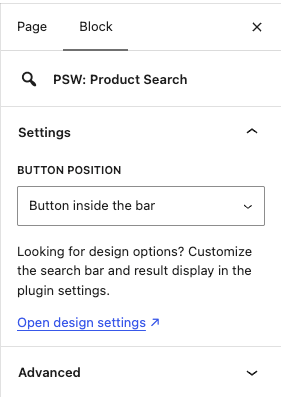
Headers are often short on space. With the block selected, set Button position to Button only (expands on click) to show just a button that opens the search bar.
Classic themes
Classic themes all build their headers differently, so how you do this depends on your theme. First, turn off the theme’s own search bar if it has an option for that, usually under Appearance → Customize. Then add the new one in one of these ways:
If your header has a widget area, go to Appearance → Widgets and add a Shortcode block with this shortcode:
[psw_search_form]Code language: CSS (css)If it doesn’t, you can add the search bar to your theme’s header.php file with PHP:
<?php echo do_shortcode( '[psw_search_form]' ); ?>Code language: HTML, XML (xml)Make this change in a child theme, otherwise it will be lost the next time your theme updates.
Want the search bar somewhere else too? See How to add a search bar anywhere on your site.