How to add a search bar anywhere on your site
Once you’ve configured your search, you can add the search bar to any page, post, template or widget area of your site. The easiest way is the block. If you don’t use the block editor, you can use the shortcode instead.
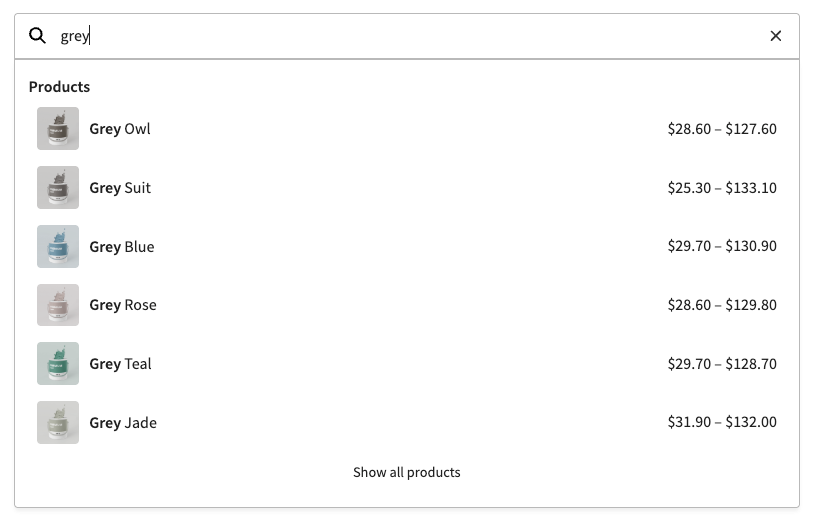
Add a search bar with the block
In any page, post, pattern or template, click the + button, search for PSW: Product Search and add the block. It works anywhere the block editor does, including headers and footers in block themes.

With the block selected, you can choose a Button position in the settings on the right:
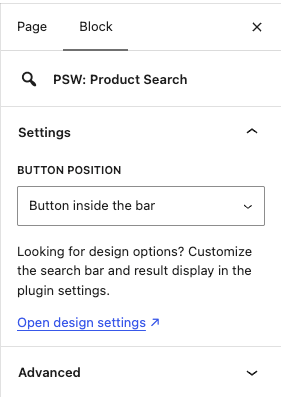
- Button inside the bar: the search button sits inside the search bar. This is the default.
- Button only (expands on click): only a button is shown, and the bar expands when it’s clicked. This is handy for tight spaces like headers.
- No button: just the search bar.
Add a search bar with the shortcode
Use the shortcode in classic themes, widgets, page builders or anywhere else you can enter a shortcode:
[psw_search_form]Code language: CSS (css)Classic editor
Paste the shortcode into the content where you want the search bar to appear, then save.
Page builders
Most page builders have a shortcode element, such as the Shortcode widget in Elementor. Add that element where you want the search bar and paste the shortcode into it.
Widget areas
Go to Appearance → Widgets and add the block or a Shortcode block to the widget area of your choice. This option is only available if your theme supports widgets.
Theme templates
If you’re comfortable editing theme files, you can output the search bar with PHP:
<?php echo do_shortcode( '[psw_search_form]' ); ?>Code language: HTML, XML (xml)Shortcode options
You can change how a single search bar works by adding options to the shortcode.
button_position sets the search button. Use inside (the default), only or none:
[psw_search_form button_position="only"]Code language: CSS (css)display sets what each product result shows for this search bar, overriding your Product result display setting. Use a comma-separated list of image, price and sku. The product name is always shown:
[psw_search_form display="image,price"]Code language: CSS (css)Search bar not finding anything?
Go to WooCommerce → Settings → Product Search → Indexing Settings and check how many items are in the index. If the number looks wrong, click Rebuild index.