Configuring your product search
Once you’ve installed the Product Search for WooCommerce plugin and activated your license key, you can set up your search. This article goes through every setting.
In your WordPress admin dashboard, go to WooCommerce → Settings → Product Search. The settings are split into sections: Search Settings, Indexing Settings, Design Settings, Help and License.
Good to know: changing a setting that affects what can be searched automatically rebuilds the search index when you save. On large stores, that can take a little while.
Search Settings
Search settings
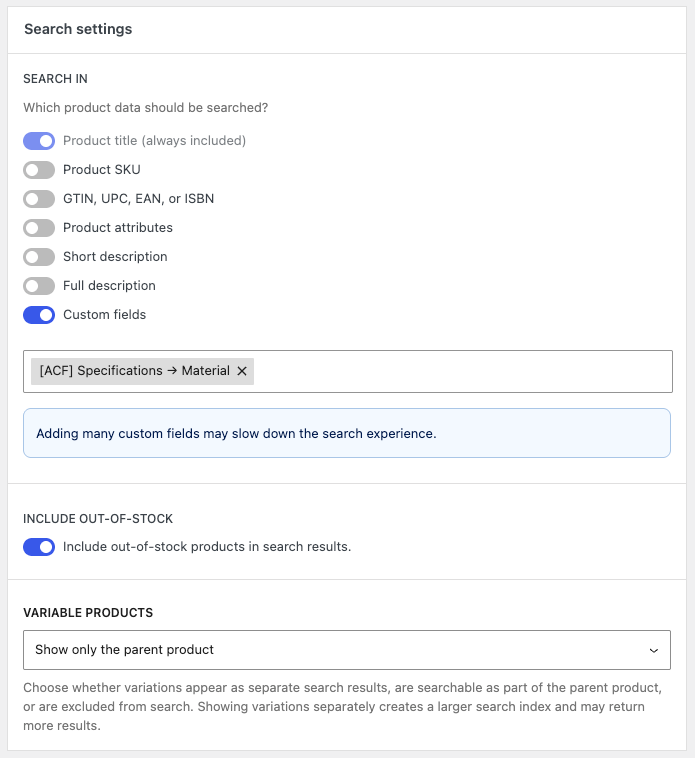
Search in decides which product data customers can search through. The product title is always included. You can also add:
- Product SKU
- GTIN, UPC, EAN, or ISBN
- Product attributes
- Short description
- Full description
- Custom fields: start typing to find a field. Fields from Advanced Custom Fields are listed with their group and field name.
Every extra field makes the search index larger and searching slower, especially descriptions, as they contain far more text than titles. Only include fields your customers actually search by.
Include out-of-stock also shows out-of-stock products in the search results. It’s off by default.
Variable products controls how variations are handled:
- Show only the parent product: only the main product appears in the results.
- Show only the parent product but some variation data is still searchable: customers can find a product through its variation data, but only the main product appears.
- Show each variation: every variation is its own result. This creates a larger search index and may return more results.
Advanced search settings
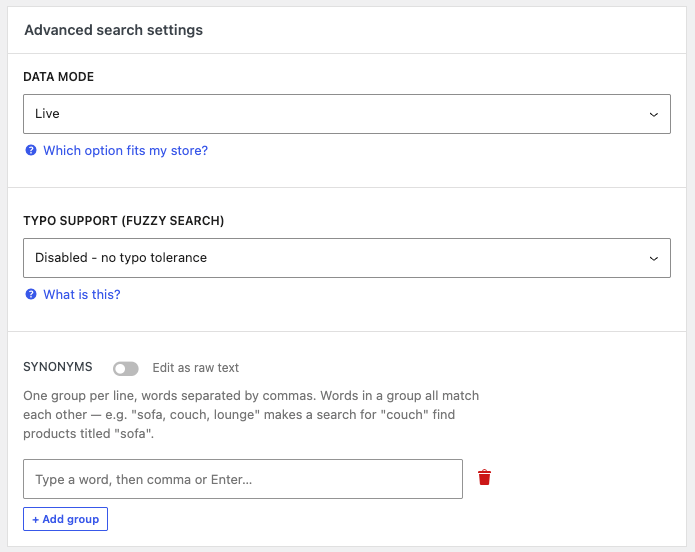
Data mode controls how product data such as prices and stock is loaded in the results:
- Cached is the fastest, because WooCommerce doesn’t need to load for every search. All visitors see the same data, so only choose it if prices are the same for everyone, you sell in a single currency, taxes are excluded or the same for everyone, and you don’t use role-based, B2B or dynamic pricing.
- Live loads the data from WooCommerce for each visitor, so prices, taxes, currencies, stock and visibility are always correct for that visitor. Searches may be slightly slower. Choose this if prices vary per visitor, you sell in multiple currencies, or you use a discount, wholesale or membership plugin.
Typo support (fuzzy search) lets the search handle spelling mistakes. Higher settings catch more typos, but can return less relevant matches:
- Disabled: no typo correction.
- Strict: corrects small typos of 1 letter, so “shoos” finds “shoes”. This is the most common choice.
- Balanced: corrects typos of up to 2 letters, so “shosee” finds “shoes”.
- Flexible: catches many typos, up to 3 edits from the correct word. This is quite permissive and only useful for longer search terms.
Synonyms teaches the search which words mean the same thing. Add one group per line, with the words separated by commas. For example, the group “sofa, couch, lounge” makes a search for “couch” find products titled “sofa”.
Search bar
Minimum characters is how many characters a customer must type before the search starts. The default is 2.
Search suggestions
These settings control the dropdown that appears while customers type.
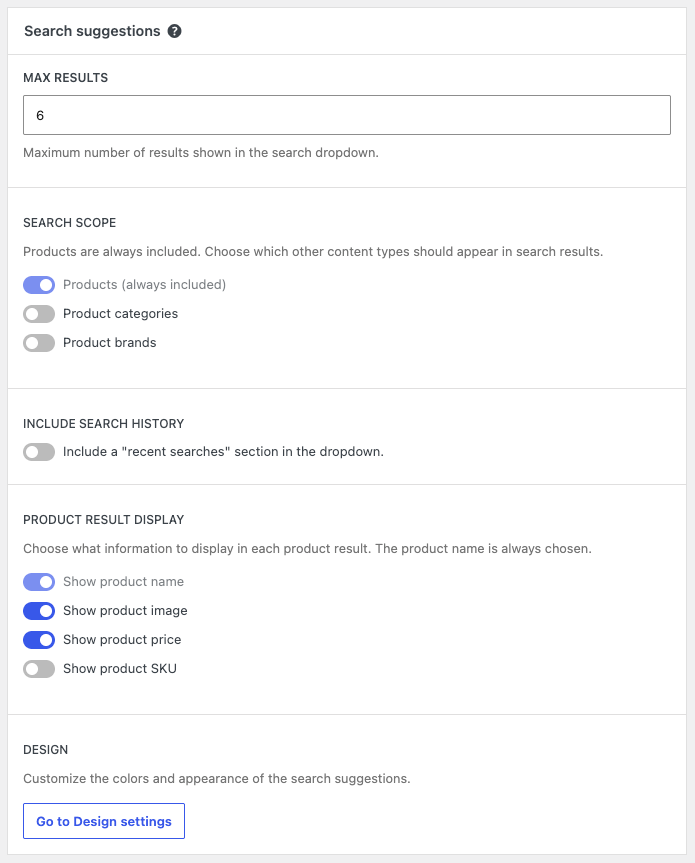
- Max results: the maximum number of results in the dropdown. The default is 6.
- Search scope: products are always included. You can also show product categories and product brands.
- Include search history: adds a “recent searches” section to the dropdown.
- Product result display: choose whether each result shows the product image, price and SKU. The product name is always shown.
Indexing Settings
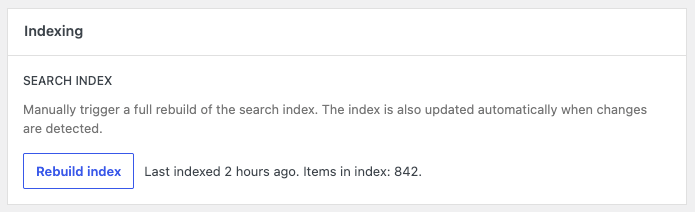
The plugin searches a dedicated index of your products, which is updated automatically when products change. You normally don’t need to touch this, but you can click Rebuild index to run a full rebuild at any time. Next to the button, you can see when the index was last built and how many items it contains.
Design Settings
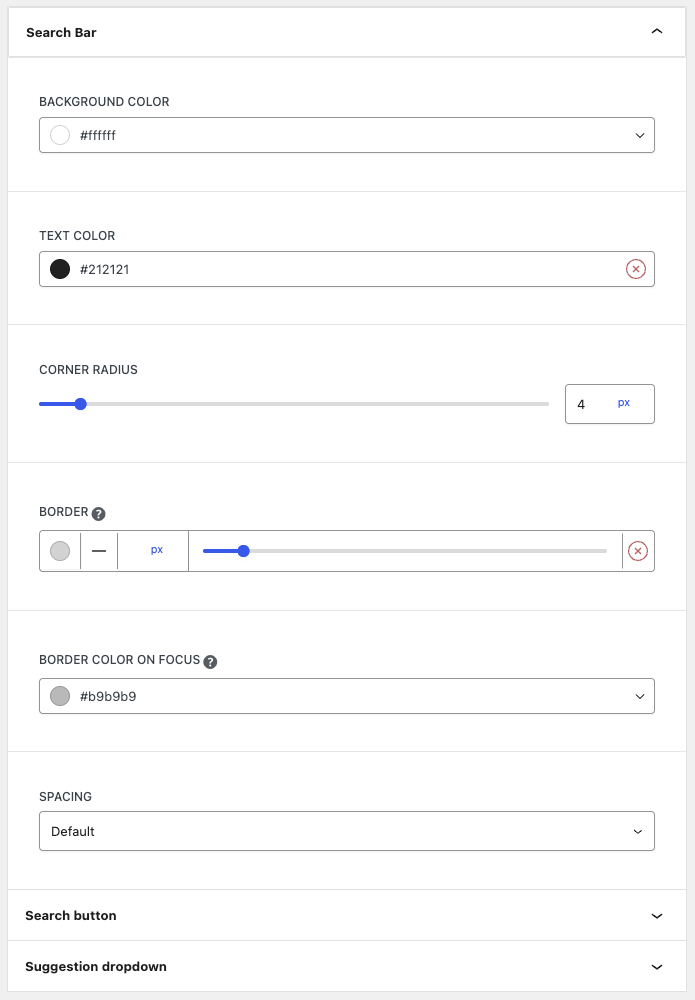
Here you can match the search to your brand. The settings are grouped in three panels:
- Search Bar: background color, text color, corner radius, border, border color on focus and spacing.
- Search button: button location, background color and icon color.
- Suggestion dropdown: background color, highlight background color, text color, border and corner radius.
Don’t forget to click Save changes when you’re done.
Next step
Your search is configured. Now you can add the search bar anywhere on your site.