Installing Product Search for WooCommerce
This document describes how to install and activate the Product Search for WooCommerce plugin in 4 quick steps. The plugin requires WordPress 6.5+, WooCommerce 9.0+ and PHP 8.1+.
Step 1: log in to your account
After purchasing the plugin, you will receive an email with your Wombat Plugins account login credentials. Use those to log in.
Note: after receiving the credentials via email, be sure to change the password into something only you know for security purposes!
Step 2: download the plugin
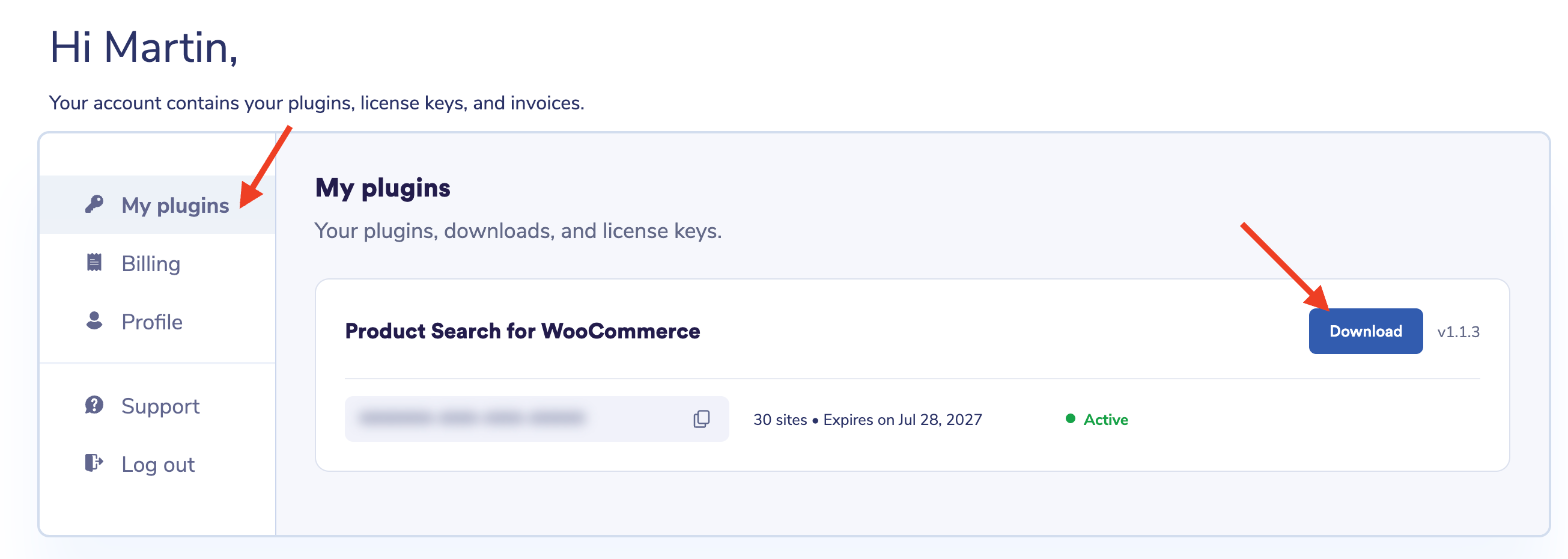
Once you’re logged in, go to My plugins, find Product Search for WooCommerce and click the Download button. This downloads the latest version your license has access to.
Step 3: install the plugin
Go to your WordPress admin dashboard → Plugins → Add new → Upload Plugin.
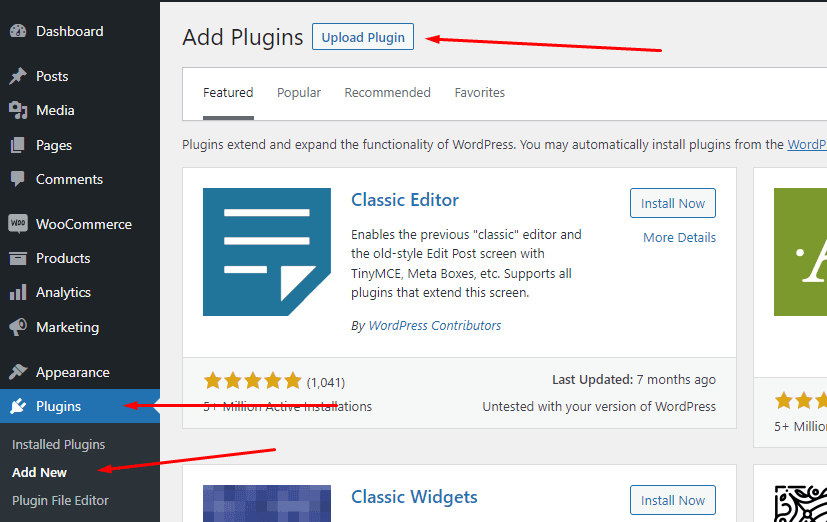
Choose the zip file you downloaded in step 2 and click Install Now. When the upload finishes, click Activate Plugin.
Step 4: activate the license key
All that’s left is to activate your license key. This makes sure you receive automatic updates and bugfixes.
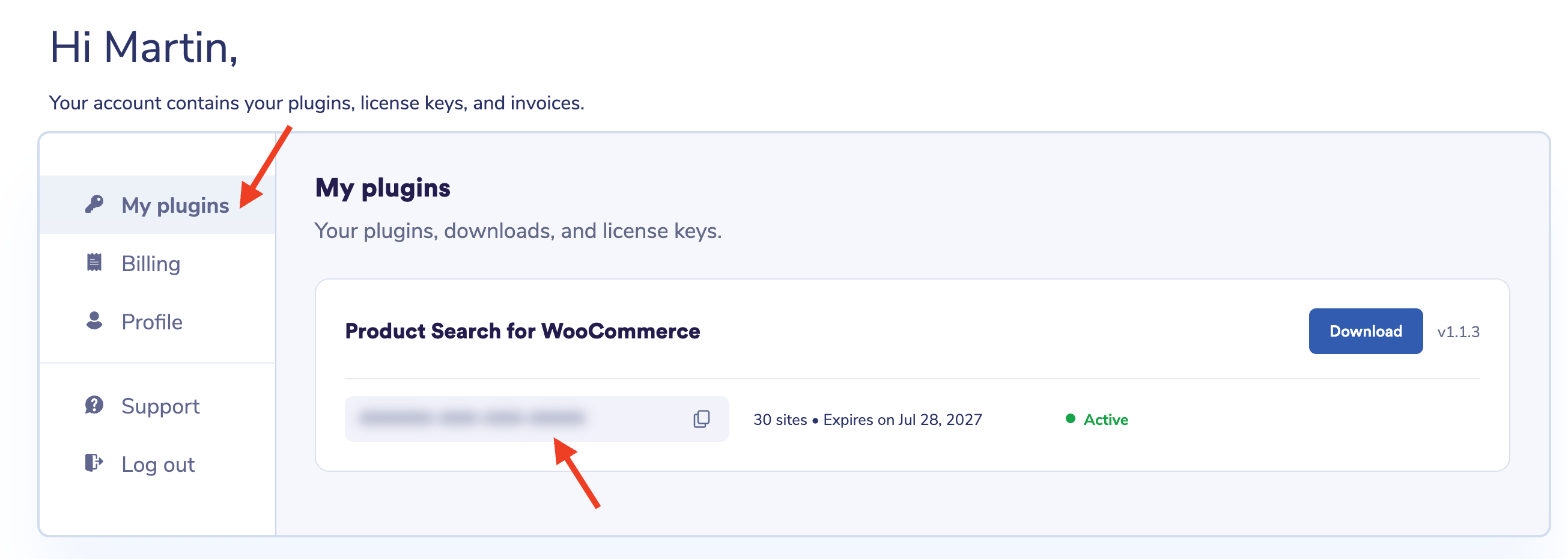
You can find your license key under My plugins in your Wombat Plugins account. Click the copy icon next to it.
Go back to your WordPress admin dashboard and open WooCommerce → Settings → Product Search → License. Paste your key into the License key field and click Activate license.
You’re now ready to use the plugin!