Why can’t customers find a product?
If a customer searches for a product you know you sell and sees “No results found”, it’s almost always one of the causes below. All the settings are under WooCommerce → Settings → Product Search.

Is that product data being searched?
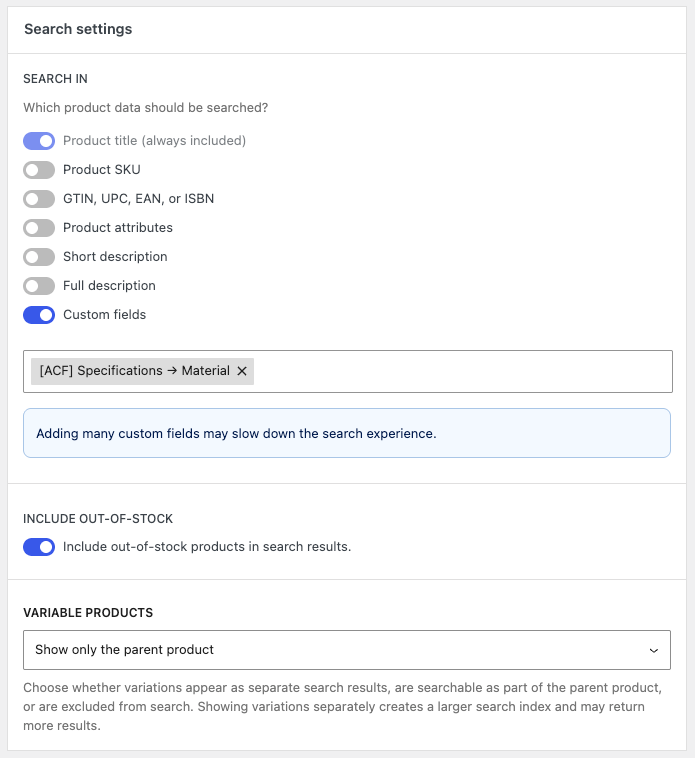
The search only looks at the product data you’ve enabled. The product title is always included, but SKUs, GTINs, attributes, descriptions and custom fields are not until you turn them on. If customers search by SKU and that’s off, they won’t find anything.
Go to Search Settings and check Search in.
Is the product out of stock?
Out-of-stock products are hidden from search by default. If you want them to appear, enable Include out-of-stock in the same section.
Is the search term only on a variation?
By default, only the parent product is shown. If customers search for something that only exists on a variation, change the Variable products setting so variation data can be found.
Is the search index up to date?
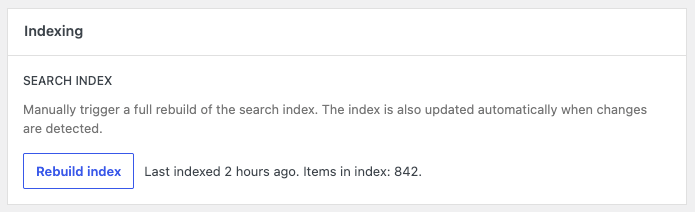
The search uses a dedicated index of your products, which updates automatically when products change. If products were imported in bulk or the results look out of date, go to Indexing Settings. Check when the index was last built and how many items it contains, then click Rebuild index if something looks wrong.
Did the customer type enough characters?
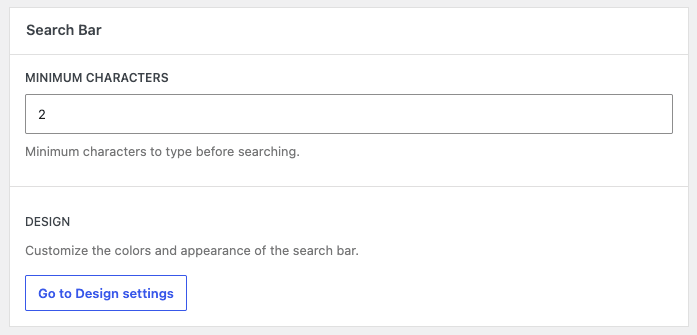
The search only starts after a minimum number of characters, which is 2 by default. If you’ve raised this number, short searches won’t show anything. You can change it under Search Bar in Search Settings.
Is it a spelling mistake or a different word?
Typo support is disabled by default, so a misspelled search can come back empty. Customers may also use different words than you do, like “couch” instead of “sofa”. To handle both, set up Typo support (fuzzy search) and Synonyms under Advanced search settings. Read more in Configuring your product search.
Still stuck?
If none of this helps, contact us with the product and the search term you’re using, and we’ll take a look.