
Do you run a WooCommerce store and want to offer a discount percentage? Both your sales figures and your customer loyalty can rise using the time-honored technique of discounts. And that’s not all: Discounts can also help you clear out old stock, promote new products, and increase the Average Order Value (AOV).
While there are many ways to offer discounts, a percentage discount is one of the most popular ones. A WooCommerce discount as a percentage is simple to implement, too.
In this tutorial, we will explore how you can create a WooCommerce discount as a percentage using both WooCommerce’s native coupons and the WooCommerce Discounts plugin for advanced scenarios.
First, let’s discuss WooCommerce discounts in general.
Introduction to creating WooCommerce percentage discounts
Offering discounts is an effective way to attract new customers, boost sales, and encourage repeat purchases. Studies show that over 80 percent of shoppers look to use a coupon at checkout. This means the majority of your customers will look for a sale price and want a discount.
There are 3 main benefits when implementing discounts:
- Increase sales and revenue: A discount will encourage customers to make purchases they may have been hesitant to make otherwise. This is particularly effective for high-ticket items or for customers on the fence about making a purchase.
- Clear out inventory: Discounts can be a great way to clear out excess inventory or promote new products. This leads to a more efficient and profitable store.
- Create customer loyalty: Customers who receive discounts are more likely to return for future purchases. The positive impact this has on customer loyalty is a recurring benefit for your store.
WooCommerce comes with built-in options that let you offer discounts based on a number of criteria. Creating custom discounts provides additional benefits for store owners. You can tailor promotions to specific products, customers, or order quantities. This helps differentiate your store from the competition and provides a more personalized shopping experience.
On the whole, providing a discount is a powerful tool for any e-commerce site, and WooCommerce offers a variety of discount options. Let’s look at this next.
Types of WooCommerce discounts
WooCommerce offers a range of discount options that can help you attract new customers, boost sales, and encourage repeat purchases. There are 3 main types, and each can be effective depending on your store’s goals and target audience:
- Percentage discount. This discount type applies a percentage discount to the total cart value. It can help incentivize larger purchases and encourage customers to add more items to their cart in order to reach the discount threshold.
- Fixed discount. Here, you give a set amount off of the total cart value. You can use this type to promote specific products or clear out inventory.
- Free shipping. This popular discount option encourages customers to make purchases they may have been hesitant to make otherwise. Offering free shipping can also help you stand out from the crowd and provide a better shopping experience for your customers.
Percentage discounts in WooCommerce
A percentage discount, in particular, is popular as it offers a simple way to incentivize customers to buy more items or purchase larger quantities. You can apply this to the entire cart, specific WooCommerce products, or even product categories.
For instance, you could offer a ten-percent discount on the product price for every item in a specific category. As an alternative, that ten percent might only apply to orders over a certain amount. This gives you a flexible and tailored approach to promoting your store’s product lines.
Setting up a basic percentage coupon
Creating a percentage discount coupon in WooCommerce is straightforward.
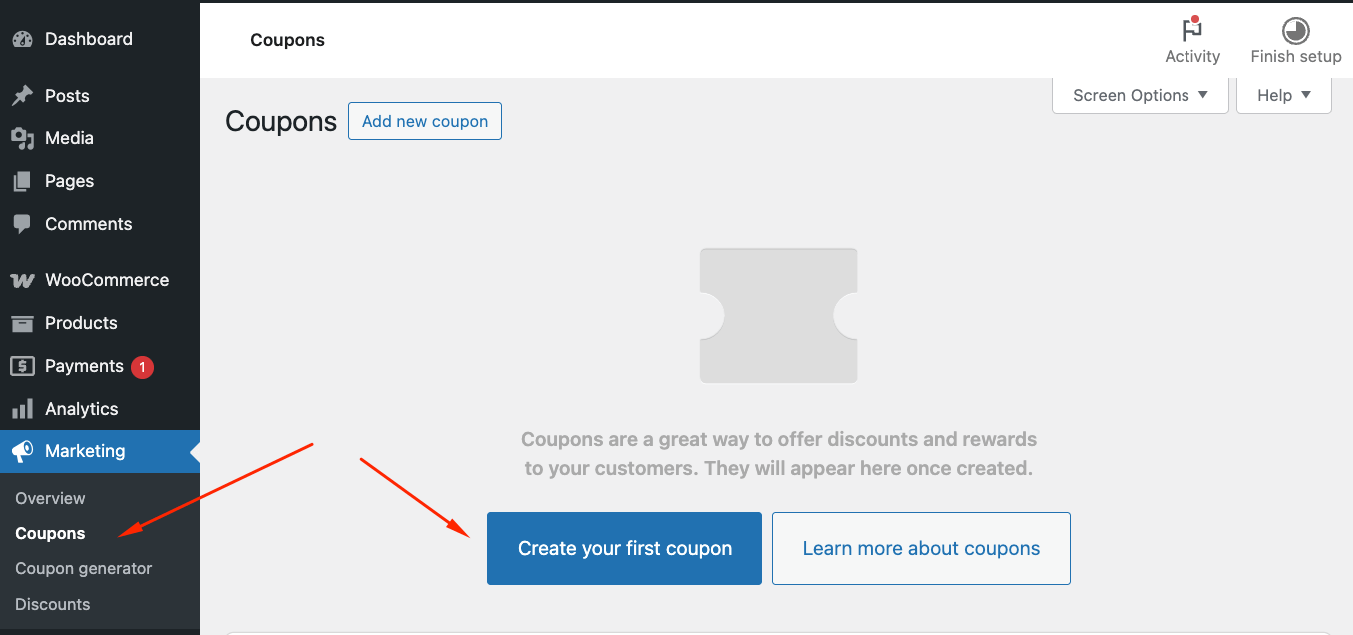
- Head to the Marketing → Coupons screen on your WooCommerce dashboard, then click Add coupon or Create your first coupon if you don’t have any:
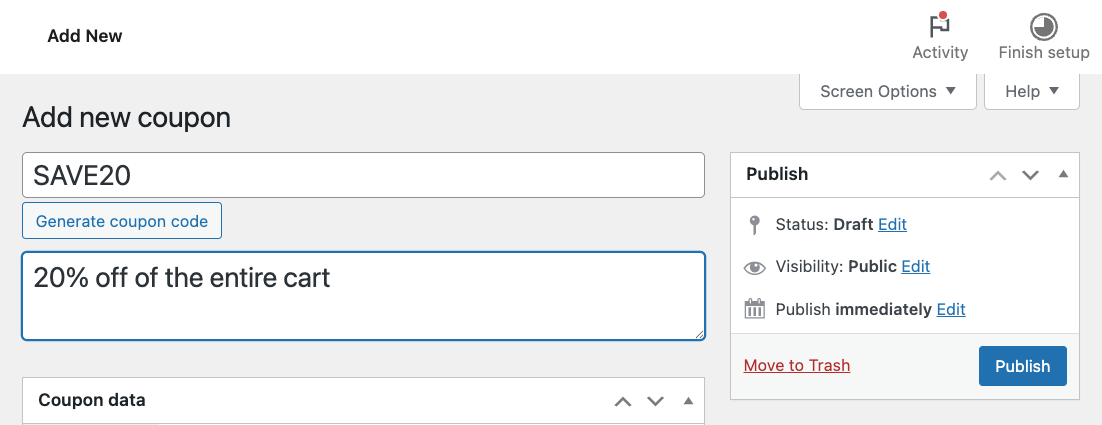
- Here, you’ll see a few fields to fill in. The most important is the Coupon code field. This will contain whatever the user-facing coupon code will be – SAVE20, for example:
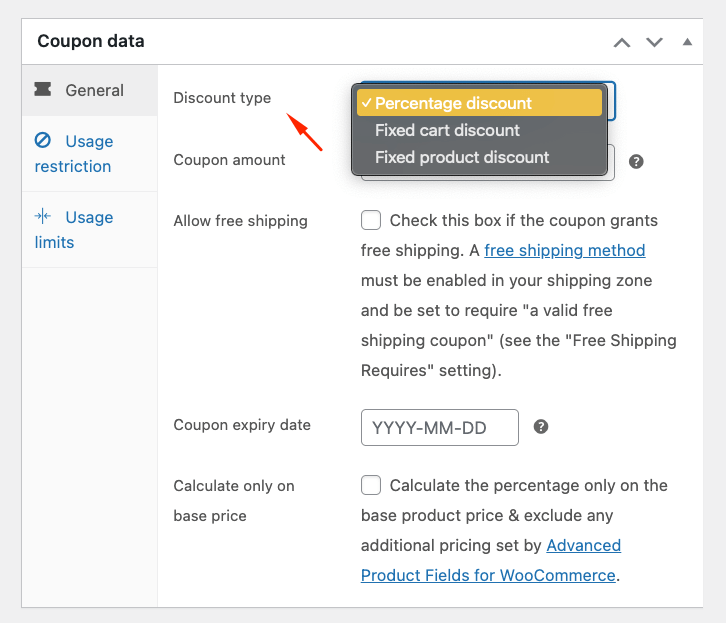
- In the General tab, select Percentage discount as your discount type.
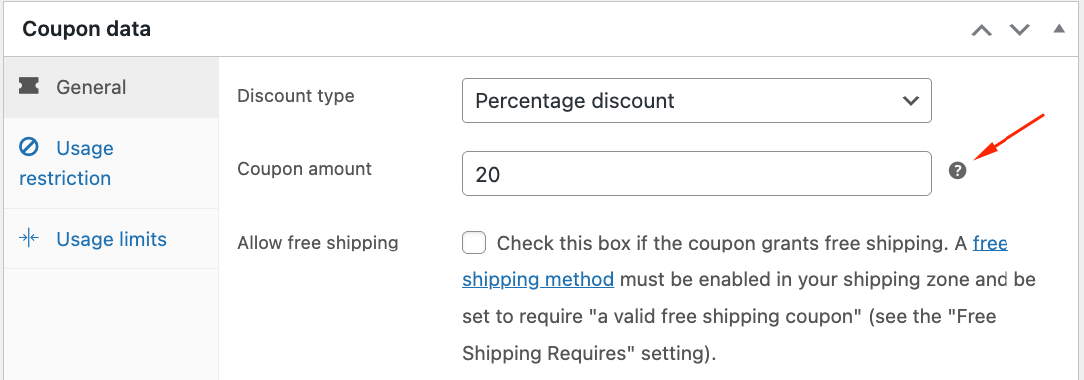
- Enter the discount amount (just the number – WooCommerce adds the symbol automatically). You can also include free shipping if needed.
- Set an expiry date if needed, then click Publish to activate your coupon.
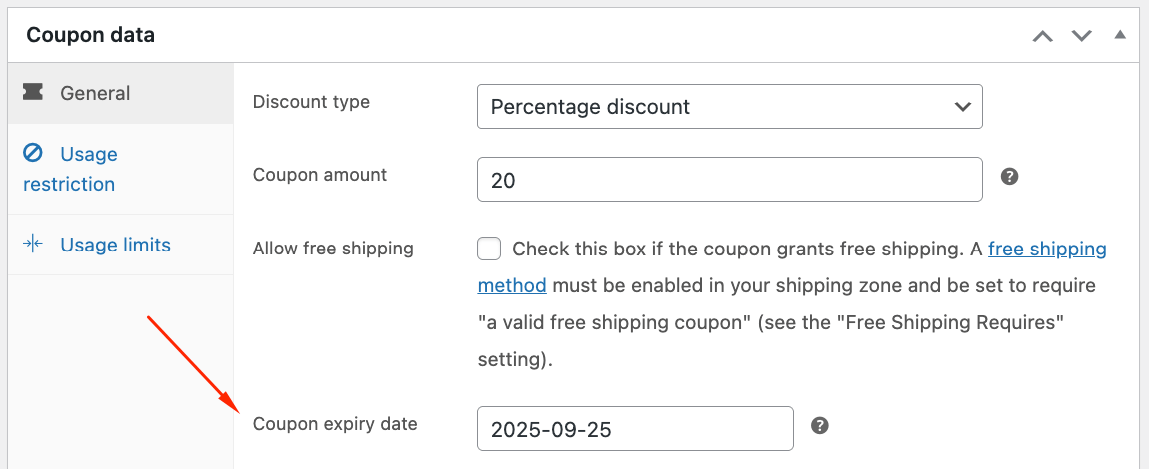
WooCommerce calculates percentage discounts before applying taxes. The discount is distributed proportionally across all eligible items in the cart. This means a 20% coupon on a $100 order reduces the subtotal to $80, then calculates tax on that reduced amount.
The default WooCommerce setup for percentage discounts has several strengths:
- It’s simple to manage and track discounts, which makes it easy to monitor how effective a promotion is.
- WooCommerce also offers flexibility if you want to create custom discounts for specific products or categories. This can differentiate your store from others and provide a better shopping experience for customers.
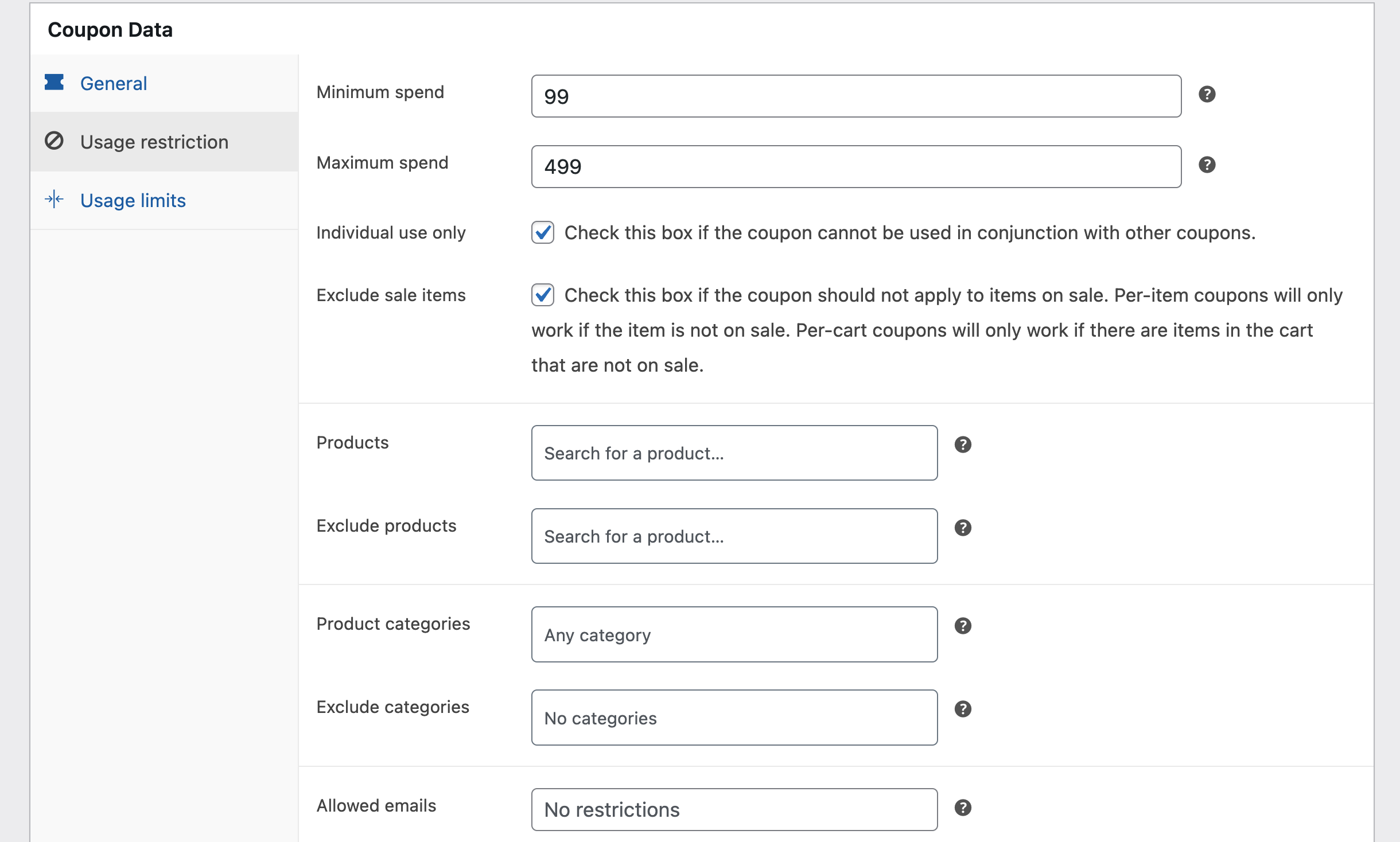
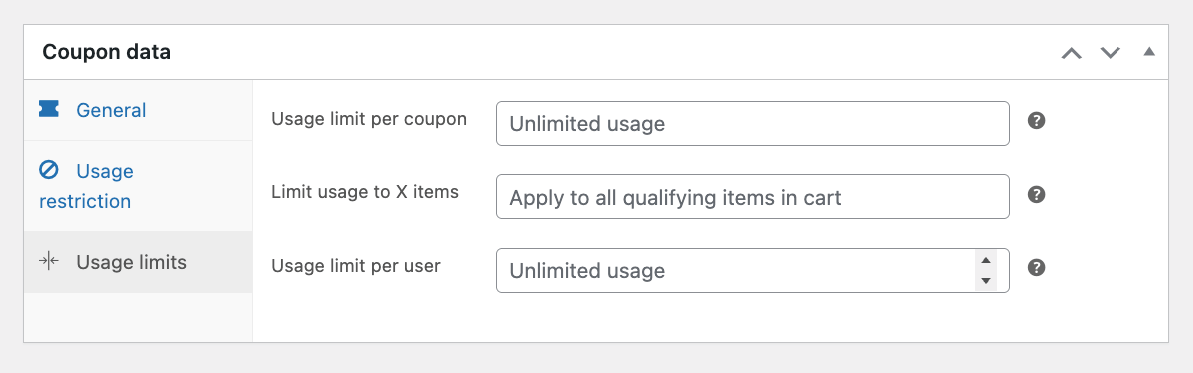
Beyond the basic setup, WooCommerce offers usage restrictions and usage limits to control how coupons apply.
- Usage restrictions let you set minimum and maximum spend thresholds, limit discounts to specific products or categories, restrict coupons by email address (including wildcards like *@company.com for corporate discounts), prevent stacking with the Individual use only option, and exclude sale items to protect your margins.
- Usage limits help prevent abuse by capping total redemptions across all customers, setting per-user limits to restrict individual usage, and controlling per-item quantities for discounted products in a single order.
However, while WooCommerce is a user-friendly platform, you may need some technical expertise to set up complex discounts and provide a better experience for your customers. It’s no secret that coupons can be very tedious to use: Buyers never know whether they have the right code until they put it in, and they’re never sure that they’re getting the best possible deal, leading to them leaving your site in search of better offers.
On the admin site, chances are you might not be able to set up the discount you want without the need for third-party plugins. This means it’s important to find the right one to help you. We’ll look at this next.
Introducing the WooCommerce Discounts plugin
WooCommerce Discounts handles complex discount scenarios based on products, quantities, user roles, cart totals, and conditions that native WooCommerce coupons can’t manage.
The plugin offers several features designed specifically for percentage discount strategies:
- Automatic application without coupon codes: Discounts apply instantly when customers meet your conditions, displaying accurate pricing on product pages, cart, and checkout.
- Tiered quantity-based percentage pricing: Create “Buy 2 get 10% off, Buy 5 get 20% off” deals that automatically calculate based on cart quantities.
- Role-based percentage discounts: Set different percentage rates for wholesale customers, VIP members, or B2B buyers without manual price adjustments.
- Cart subtotal percentage thresholds: Trigger percentage discounts when customers reach minimum purchase amounts, encouraging larger orders.
- BOGO percentage deals: Configure “Buy One Get One 50% Off” promotions that calculate automatically.
- Category-wide percentage discounts: Apply percentage reductions across entire product categories with a single rule.
- Time-limited percentage promotions: Schedule percentage sales to activate and deactivate automatically for flash sales and seasonal campaigns.
- Maximum discount amount caps: Prevent excessive discounts on high-value items by setting dollar limits on percentage reductions.
- Stacking prevention with sale prices: Configure rules to exclude products already on sale, protecting your margins.
Unlike native WooCommerce coupons that require database lookups for every code validation, WooCommerce Discounts calculates prices dynamically in memory. This approach maintains consistent performance whether you’re running 5 promotions or 50, making it particularly valuable for stores on shared hosting or during high-traffic periods like Black Friday.
Setting up percentage discounts with the plugin (3 steps)
There are just a few steps to set up percentage discounts using WooCommerce Discounts. However, before you create your first discount rule, you’ll need to install the plugin itself. Let’s tackle this first.
Step 1: Installation
If you have experience with WordPress plugin installs, you’ll feel comfortable here. Regardless, we have a full guide on how to install WooCommerce Discounts.
- Log in to your Studio Wombat account.
- Downloadthe WooCommerce Discounts ZIP file from the Studio Wombat account.
- Navigate to the Plugins → Add new screen within WordPress, then click the Upload plugin button.

- Use the file browser to find the plugin ZIP file, upload it, and run through the installation and activation instructions.
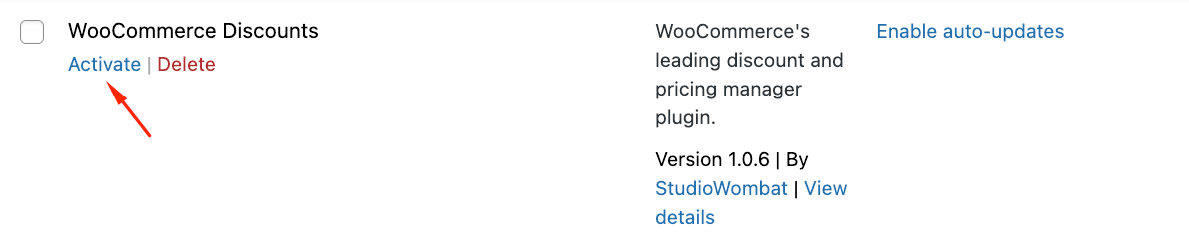
- Head back into your Studio Wombat account to locate your license key, and add it in WooCommerce → Settings → Discounts section within WordPress.
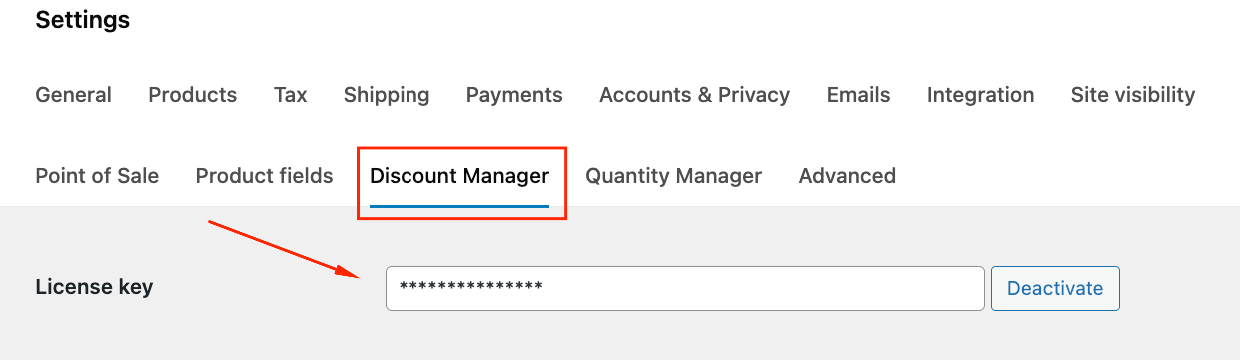
At this point, the plugin is ready, and you will be too. Next, we’ll look at how to create percentage discounts.
Step 2: Create percentage discounts with WooCommerce Discounts
WooCommerce Discounts lets you create percentage discounts that apply automatically based on your chosen conditions. Let’s walk through two common scenarios.
Scenario 1: Storewide automatic discount
Setting up a storewide 15% discount takes just 4 steps:
- Go to Marketing → Discounts → Add New, and select Flat discount as your discount type.
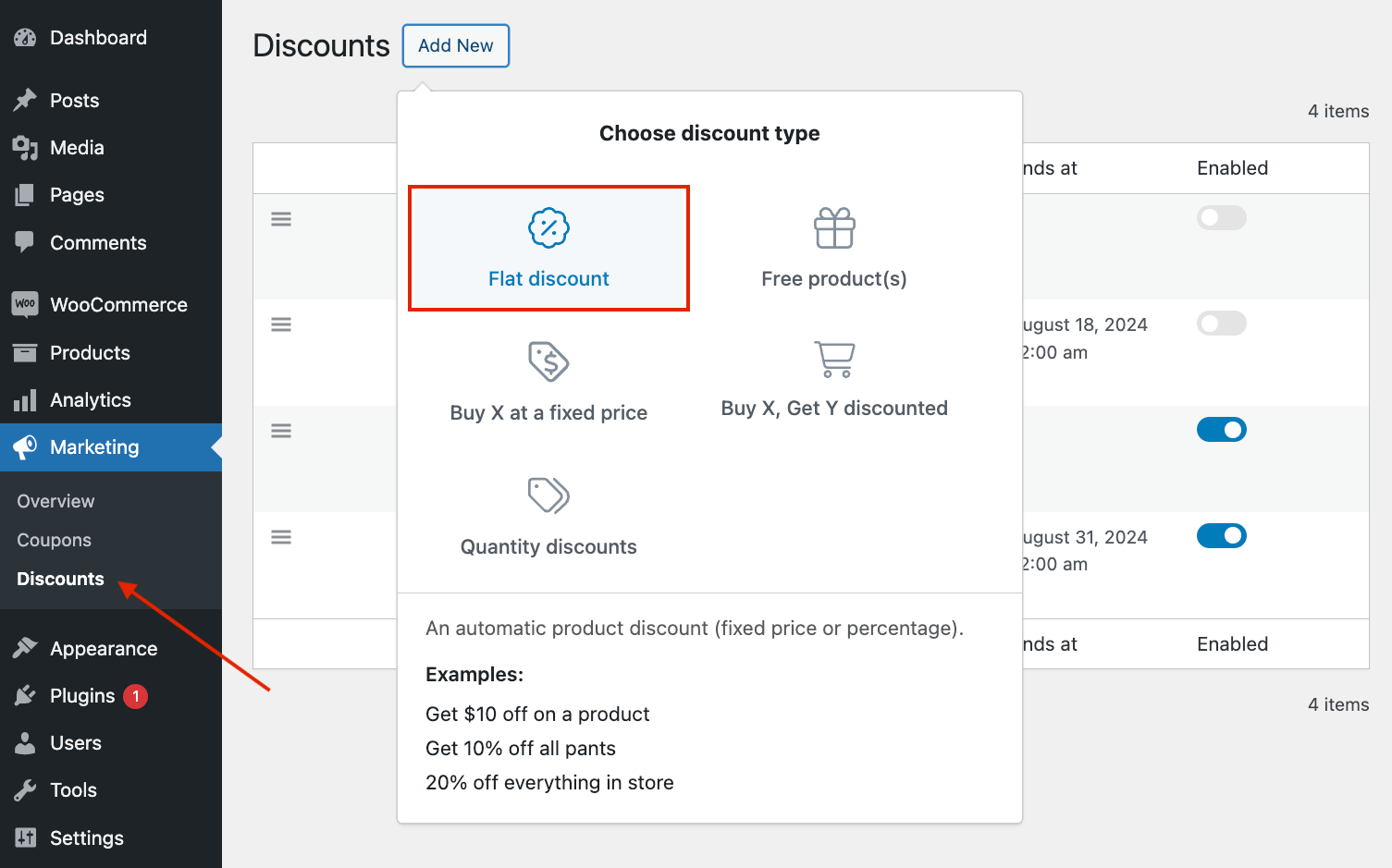
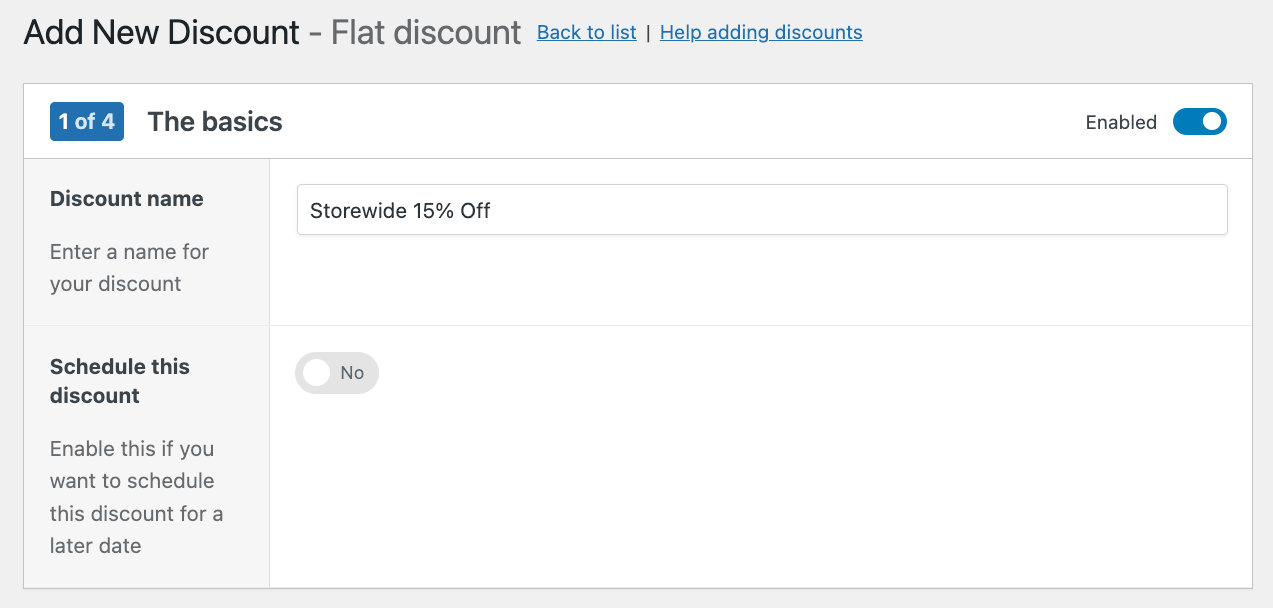
- Give it a descriptive name, something like “Storewide 15% Off.” If you want, you can schedule this sale for a future date.
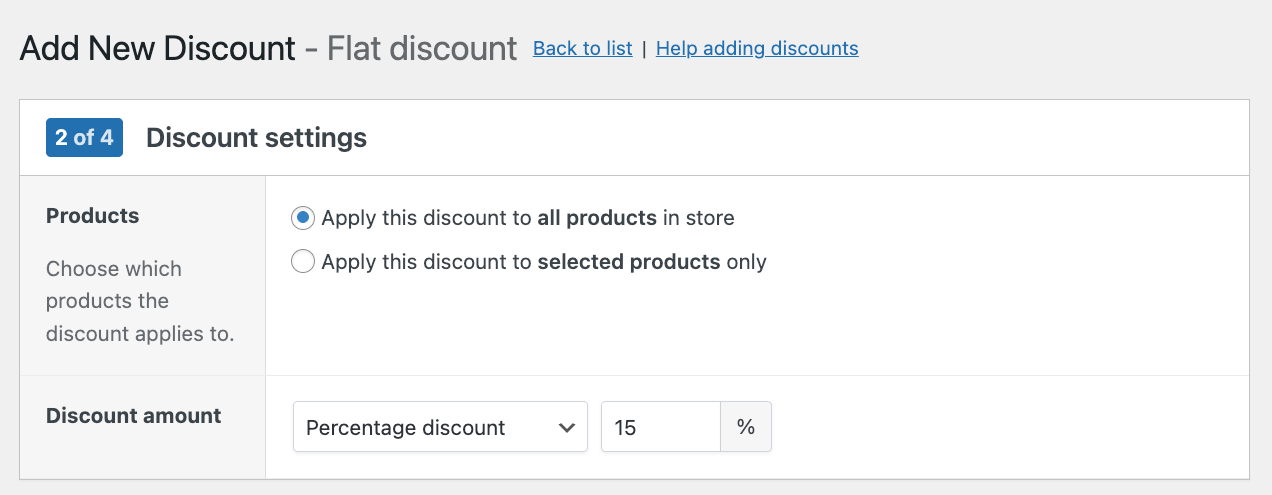
- In the Products section, keep “Apply the discount to all products in store.” Choose Percentage discount and enter 15 as the value.
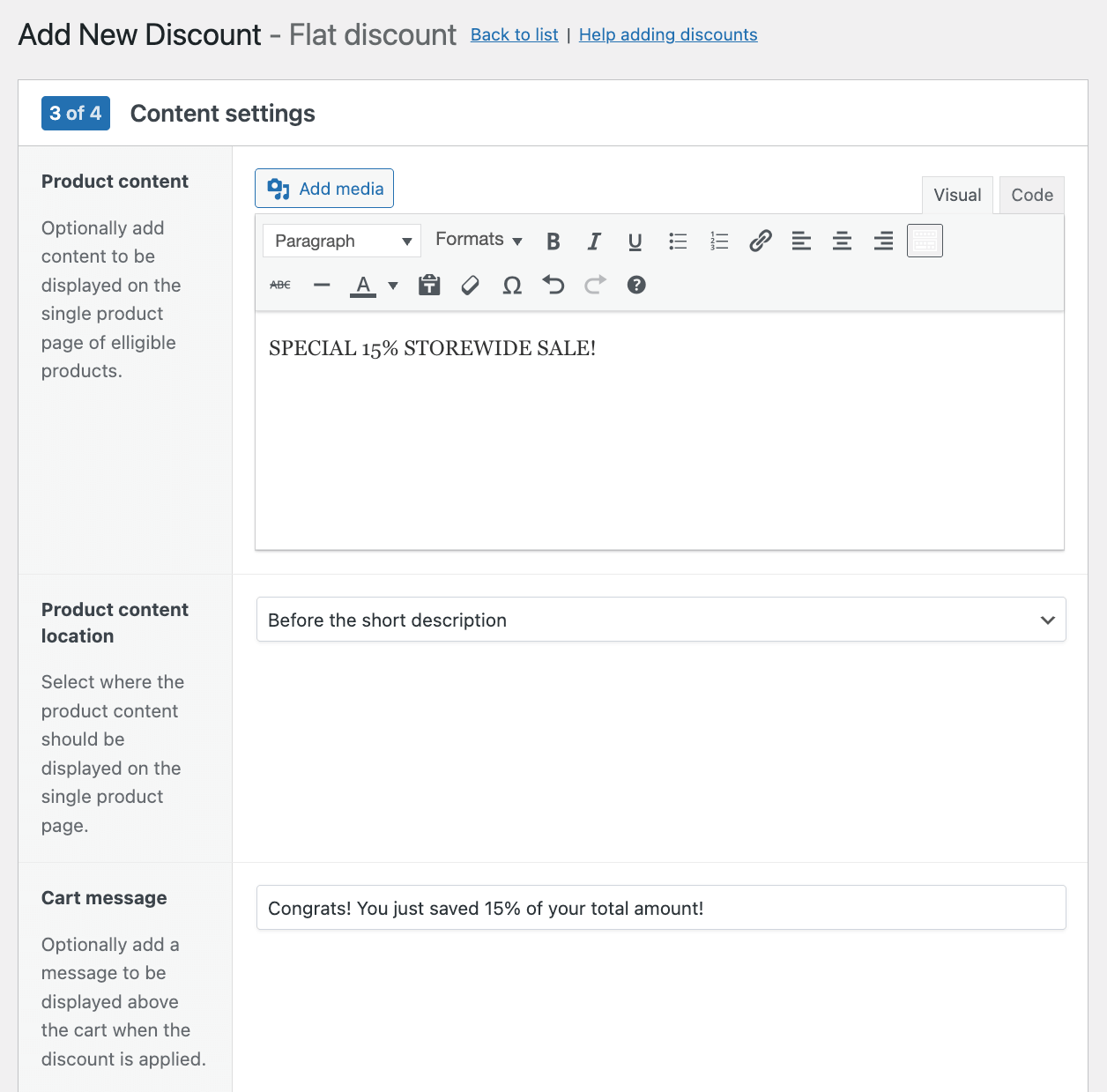
- Next, you can add special content on the product page of all eligible products or the cart after the discount has been applied.
- Check out the summary to make sure everything is correct and slick “Save discount” to activate it.
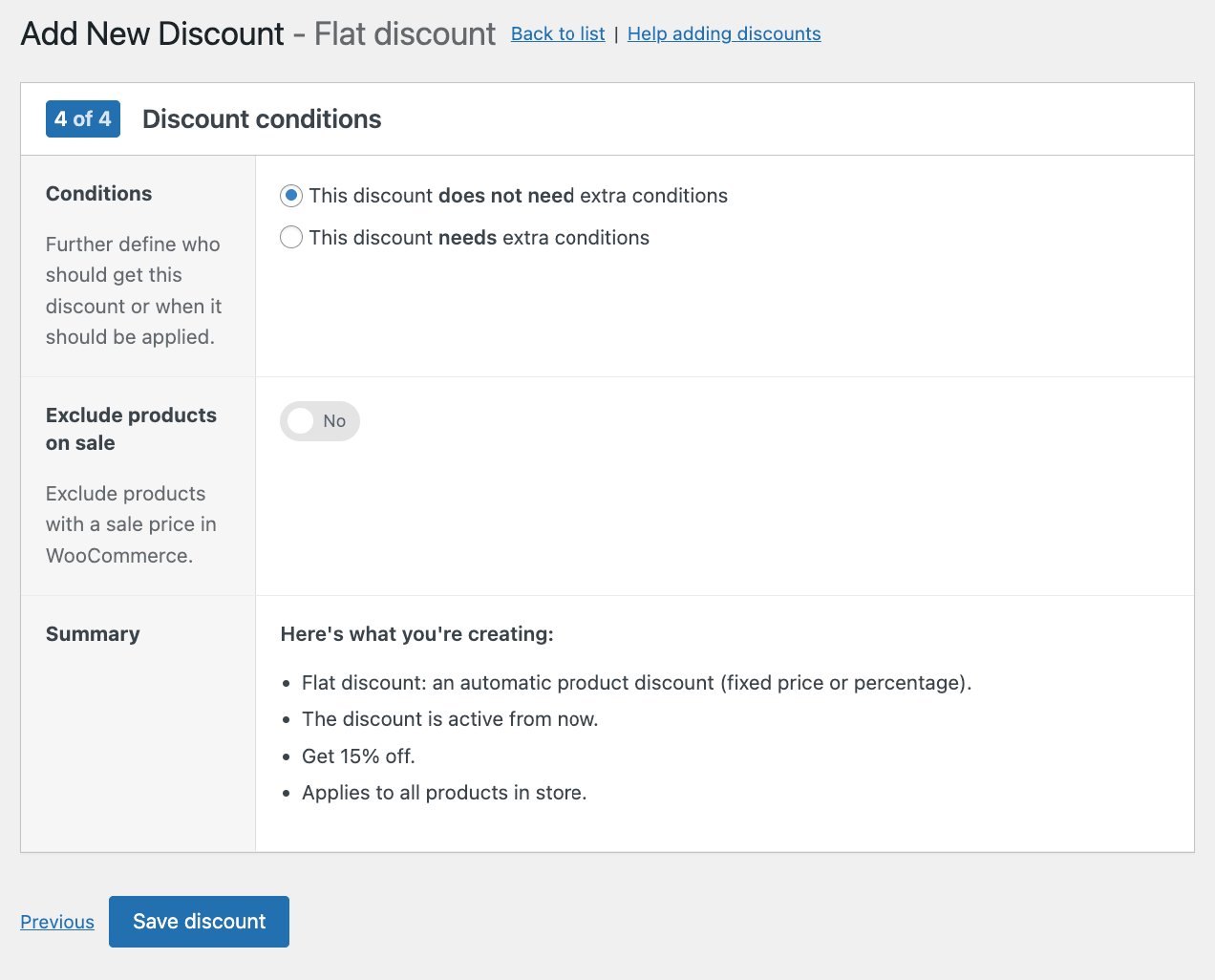
The discount applies automatically to all products without requiring coupon codes. Customers see the reduced prices immediately on product pages and throughout checkout.
Scenario 2: Cart subtotal threshold discount
To offer 15% off orders over $100:
- Add a new flat discount the same way you just did for the ordinary one, just change the name so it’s clear.
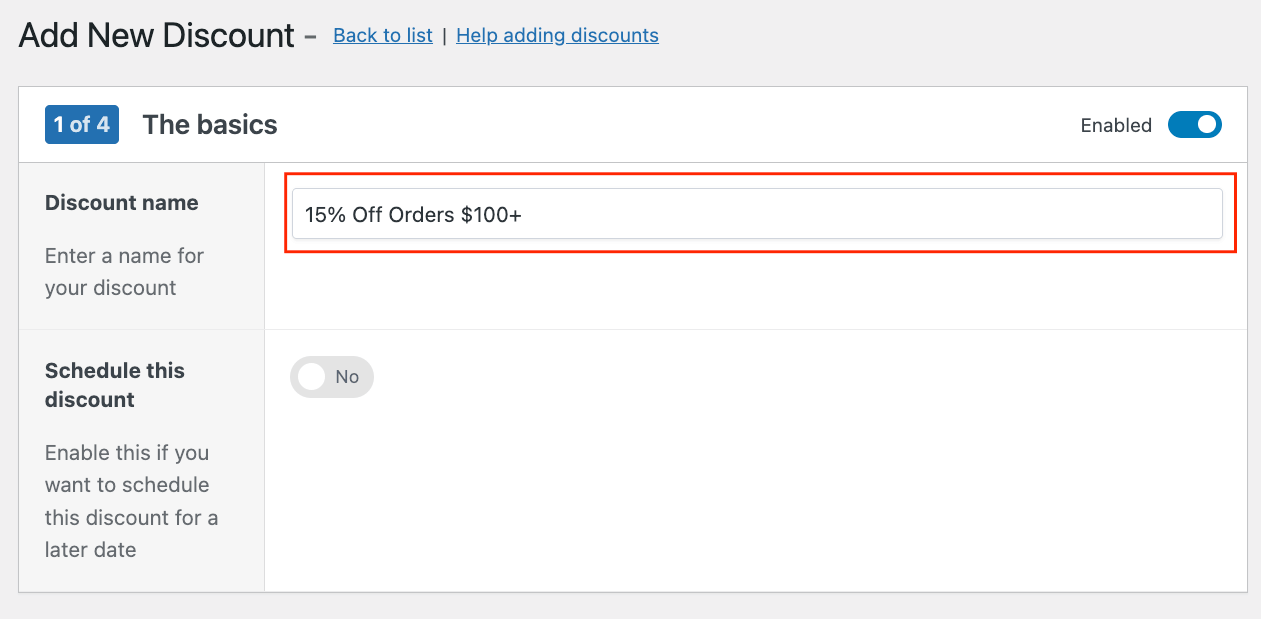
- In the Products section, enter 15 as the value again.
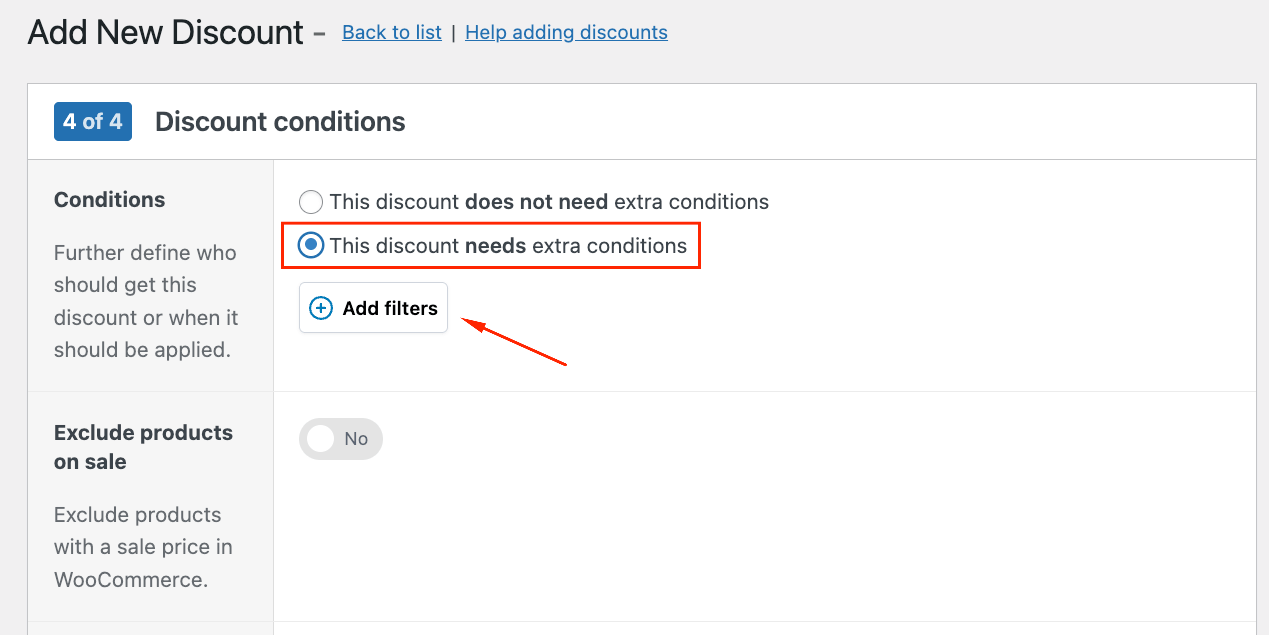
- In the last step, select “This discount needs extra conditions” and click “Add filters”.
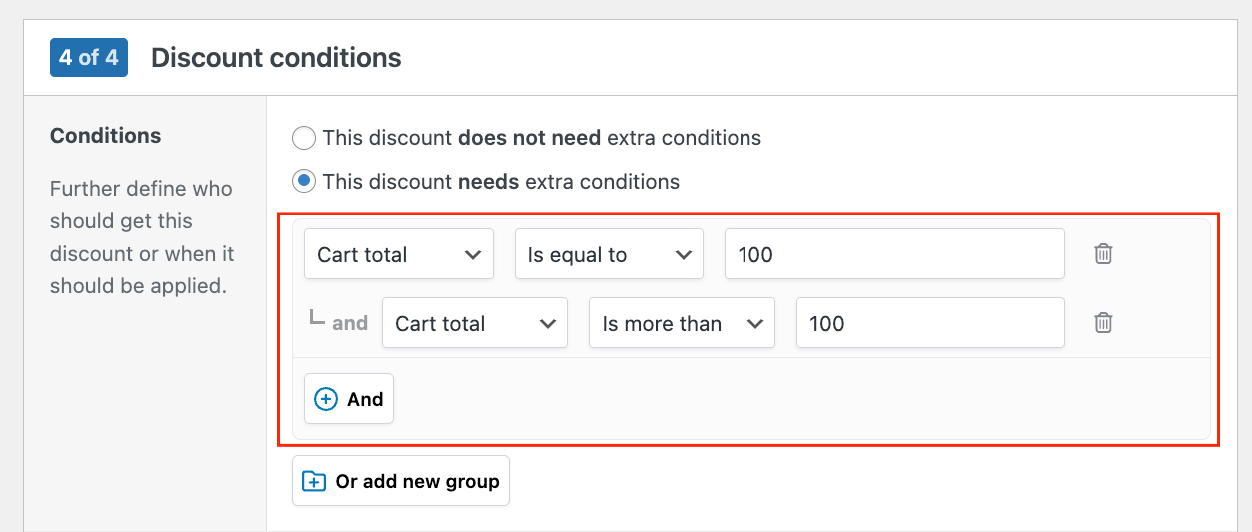
- Select Cart total from the dropdown, choose “Is equal to” 100, and then another one with “Is more than” 100.
- Click Save discount to activate your discount.
The discount triggers automatically once the cart reaches $100, encouraging customers to add more items to qualify.
Step 3: Customizing the display of percentage discounts
WooCommerce Discounts offers several ways to display percentage discounts throughout your store. These visual elements help customers recognize savings and encourage purchases.
Display strategies:
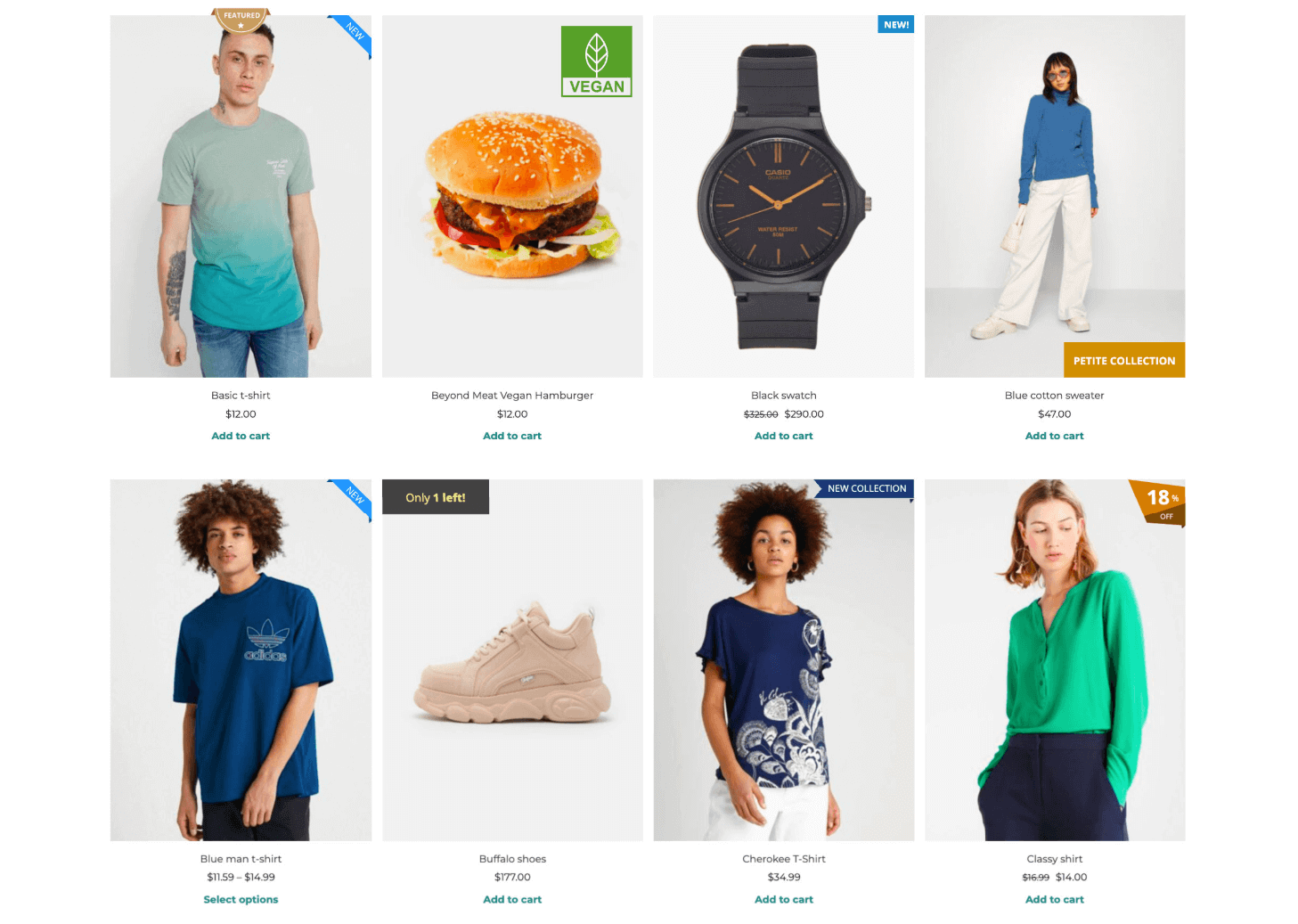
- Sale badges: Use a plugin like Product Badges for WooCommerce or YITH WooCommerce Badge Management to show percentage-off badges on product images.
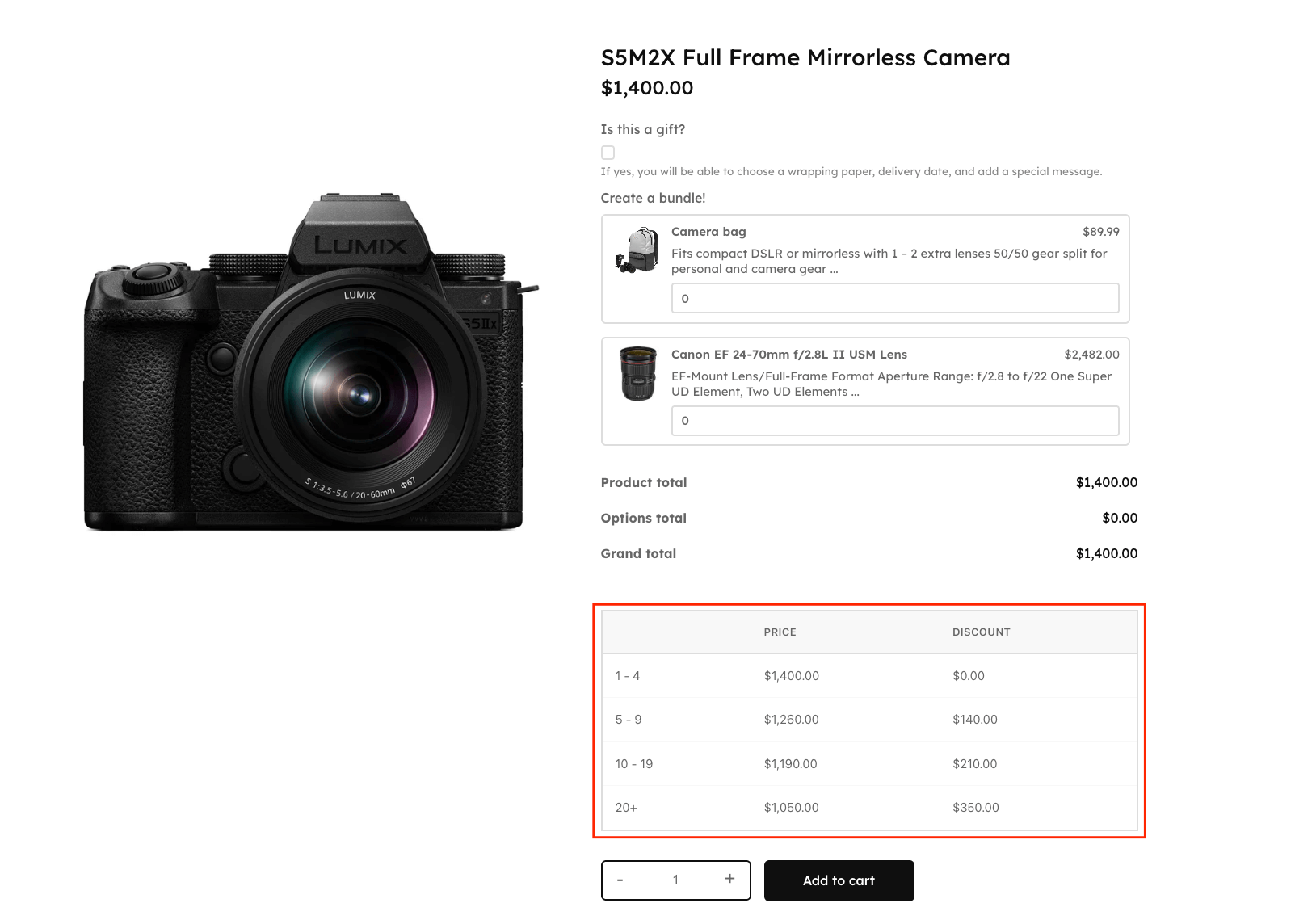
- Tiered pricing tables: For quantity-based discounts, enable pricing tables in rule settings. Tables display automatically on product pages showing discount tiers.
- Discount messages: Display promotional messages on product or cart pages. Configure this in the individual discount content settings.
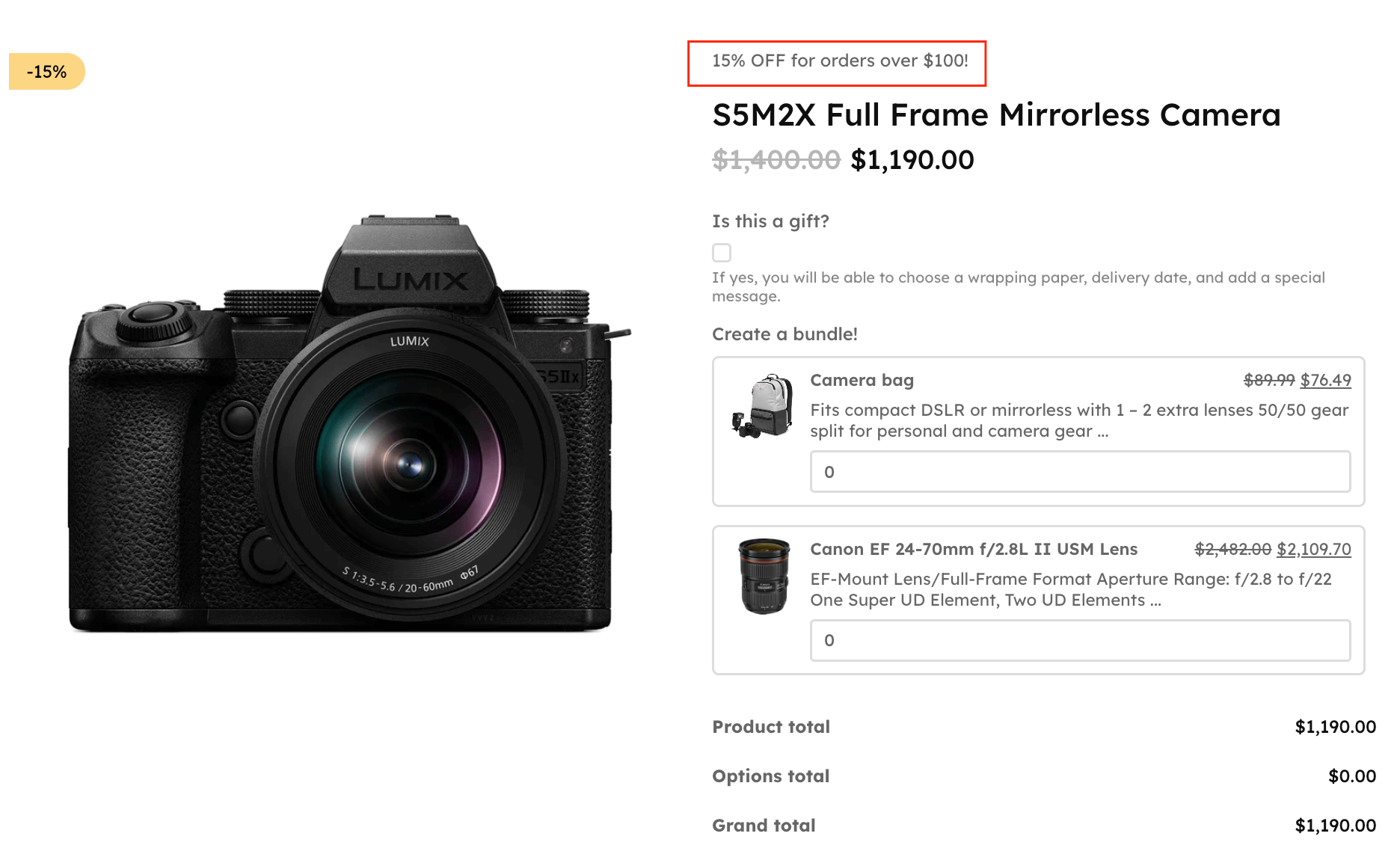
These display options work together to show customers exactly how much they’re saving before they add items to their cart. Visible pricing eliminates the guesswork that comes with traditional coupon codes.
Percentage discount strategies
Effective percentage discounts balance customer appeal with profit margins. The right strategy depends on your goals, whether you’re driving urgency, increasing order values, or building long-term customer relationships.
- Time-limited offers: Create urgency by restricting discounts to specific timeframes like 24-hour flash sales or weekend promotions. Limited availability encourages immediate purchases rather than indefinite browsing.
- Minimum purchase discounts: Set cart thresholds like “15% off orders over $100” to increase average order values. Customers often add extra items to qualify, boosting revenue while maintaining healthy margins.
- First-order discounts: Welcome new customers with percentage discounts on their initial purchase, typically 10-15%. This reduces the barrier to trying your products and helps convert browsers into buyers.
- Loyalty discounts: Reward repeat customers with exclusive percentage discounts based on user roles or purchase history. Recognizing loyal shoppers strengthens relationships and encourages continued patronage.
- Clearance discounts: Apply aggressive percentage reductions to slow-moving or seasonal inventory to free up warehouse space. Any revenue from aging stock beats storage costs and write-offs.
Troubleshooting percentage discounts
Even well-configured percentage discounts can encounter issues. Here are the most common problems and their solutions.
| Issue | Solution |
| Discount not applying | Check that coupon codes are entered correctly (case-sensitive), that usage restrictions are met (minimum spend, allowed products), that usage limits aren’t exceeded, and that the coupon hasn’t expired. |
| Wrong discount amount | Verify that the percentage is entered correctly (20, not 0.20), that the discount type is set to percentage, not fixed, and that multiple rules aren’t conflicting. |
| Discount not visible | Ensure sale badges are enabled in settings, your theme is WooCommerce-compatible, cache is cleared, and the rule status is active. |
| Discounts stacking incorrectly | Enable “individual use only” for coupons that shouldn’t stack, rearrange your active discounts in the order you want them to apply, or exclude sale items from additional discounts. |
The bottom line
Percentage discounts increase sales and build customer loyalty. WooCommerce provides native coupons for basic percentage discounts, but more complex scenarios require WooCommerce Discounts.
If you’re not sure how to start, we recommend using native coupons when customers enter codes at checkout and then upgrading to a plugin like WooCommerce Discounts for automatic application, tiered pricing, role-based discounts, or cart thresholds.
A single-site license for WooCommerce Discounts starts at $49 per year, including support and updates. Start today!
Next Steps (for upload)
- Copy and paste changes appearing in the implementation doc [[Studio Wombat] Jan ’26 SH: /woocommerce-percentage-discount/ IMPLEMENTATION DOC] using the appropriate format to this URL [https://www.studiowombat.com/blog/woocommerce-percentage-discount/].
- Insert images you can find in this Drive [SEOM Implementation: woocommerce-percentage-discount] and their respective ALT texts as described in the implementation doc
- Change the meta description to: “Learn to set up WooCommerce percentage discounts using native coupons or plugins. Step-by-step setup for tiered pricing, BOGO deals, and automatic rules.”
- Change the publication date to the day changes are made.
